 AI Mac Cleaner
How to Clear Slack Cache on Mac Without Uninstalling
You don't need to remove Slack to fix a sluggish workspace or a loading glitch. Here's how to clear Slack cache on Mac without uninstalling, using Slack's own built-in option first.

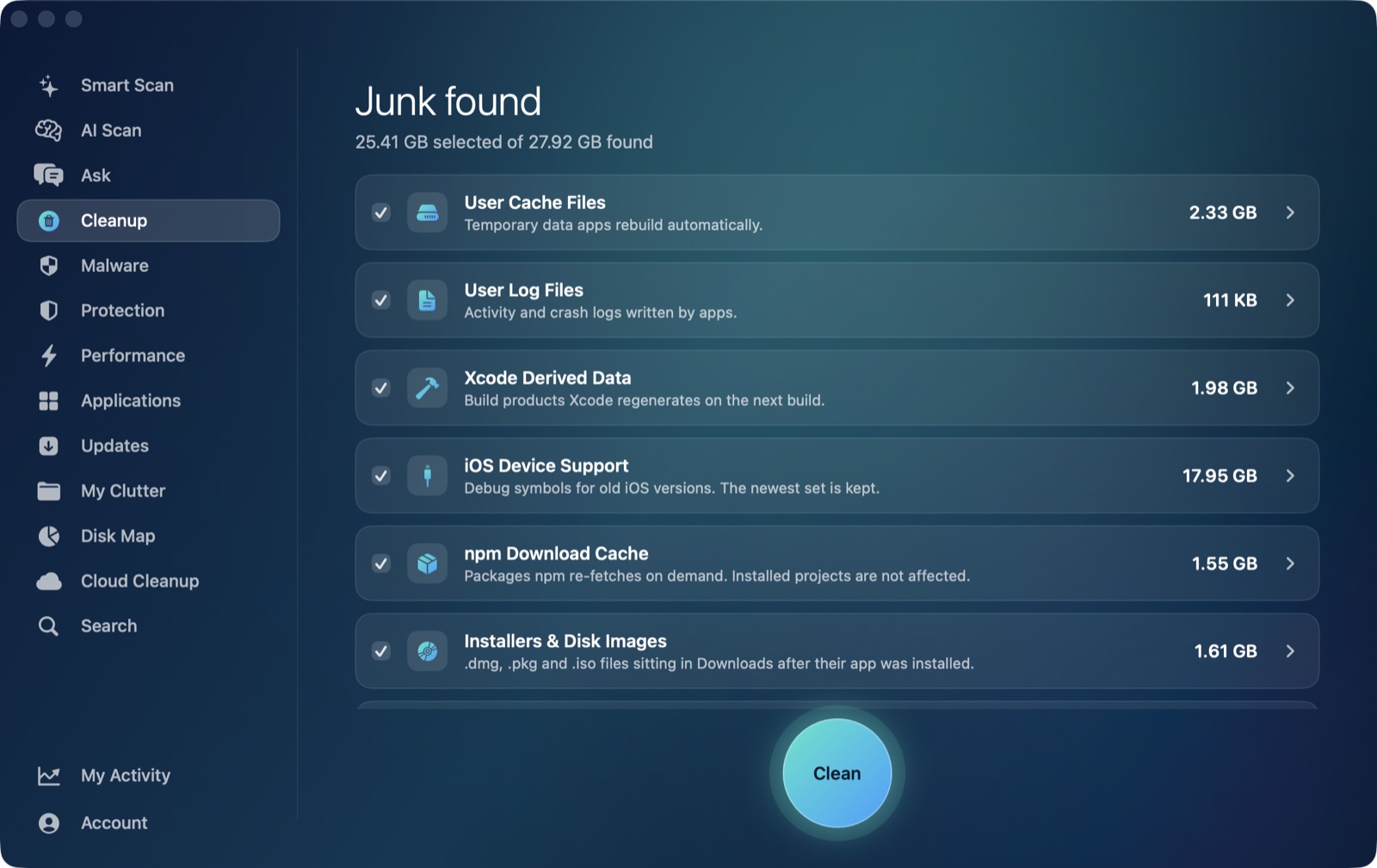
If a workspace is loading slowly, messages aren't rendering right, or Slack just feels heavier than it should, you don't need to remove the app to fix it. You can clear Slack cache on Mac without uninstalling anything, keep every workspace sign-in intact, and get most of the benefit of a full reinstall. Slack has a built-in option for exactly this, and it's the right place to start before touching any folder by hand.
The built-in way: Slack's own Troubleshooting menu
- With Slack open, click the Help menu in the menu bar.
- Choose Troubleshooting.
- Click Clear Cache and Restart.
This is Slack's own supported route — in most cases it keeps you signed in to your workspaces while forcing a full refresh of cached data, no Terminal and no navigating ~/Library by hand.
The manual route, if you want to see what's actually there
Quit Slack completely first (⌘Q, not just closing the window), then open Finder, press Shift-Command-G, and go to:
~/Library/Application Support/Slack
Inside, the Cache, GPUCache and Code Cache subfolders are the disposable parts — move their contents to the Trash. Leave the rest of the Slack folder alone: it also holds workspace data and local search indexes, which aren't disposable cache the way those three subfolders are. Deleting the entire Slack folder rather than just those subfolders risks losing local workspace state you'd rather keep — stick to the three cache subfolders unless you're prepared to sign back in to everything.
Checking the size first
du -sh ~/Library/Application\ Support/Slack/Cache ~/Library/Application\ Support/Slack/"Code Cache" ~/Library/Application\ Support/Slack/GPUCache
Worth running before deciding anything needs clearing — a workspace with a lot of image and file sharing accumulates cache noticeably faster than a text-only one.
Where Slack's cache lives — and why a general cleaner doesn't reach it
This is a useful contrast with Zoom, whose cache sits directly inside the standard ~/Library/Caches folder. Slack's cache folders live instead under:
~/Library/Application Support/Slack
That's outside ~/Library/Caches entirely — the same pattern as Microsoft Teams' and Discord's own cache folders, and a different gap from Safari's, whose cache sits inside ~/Library/Caches but is skipped there on purpose because of its com.apple. prefix. AI Mac Cleaner's Cleanup module's User Cache Files category sweeps direct children of ~/Library/Caches as a routine pass, but Slack keeps its cache a level deeper, inside its own Application Support folder, so that general sweep doesn't reach it — the same honest gap as Teams and Discord, and the reason Slack's own in-app "Clear Cache and Restart" or the manual subfolder route above are the actual fix.
When you want the full uninstall instead
Clearing the cache is the right move for sluggishness or a loading glitch while you're still using Slack day to day. If you're leaving a workspace or Slack itself behind entirely, that's a different job with its own leftover folders: see how to uninstall Slack completely on a Mac, which covers the full removal including preferences and logs, not just the cache.
Either way, nothing in AI Mac Cleaner deletes outright. Every removal goes through its Trash-only remover, which also refuses a fixed list of protected system paths, so clearing cache through the app — or anything else — stays recoverable from the Trash until you empty it yourself, on purpose. To clear every other app's cache that AI Mac Cleaner can reach automatically, alongside Slack's own in-app clear, AI Mac Cleaner has a 7-day free trial with every feature unlocked, no card required, and plans from $6.99/mo after that.
Frequently asked questions
Will clearing Slack's cache sign me out of my workspaces?
Usually not. Slack's own "Clear Cache and Restart" in most cases keeps you signed in while forcing a refresh. The manual route — clearing just the Cache, GPUCache and Code Cache subfolders — is similarly safe; it's deleting the entire Slack folder, not just those three, that risks losing local workspace state.
Where is Slack's cache folder on a Mac?
~/Library/Application Support/Slack, specifically the Cache, GPUCache and Code Cache subfolders. Unlike Zoom's cache, it isn't under the standard ~/Library/Caches location.
Does AI Mac Cleaner clear Slack's cache automatically?
No — Slack keeps its cache outside ~/Library/Caches, in its own Application Support folder, so the general User Cache Files sweep doesn't reach it. Use Slack's own Help → Troubleshooting → Clear Cache and Restart, or the manual subfolder route, instead.
What's the difference between clearing Slack's cache and uninstalling it?
Clearing the cache removes rebuildable cached data and keeps the app, your workspaces and your sign-in intact. Uninstalling removes the app entirely and, done properly, its leftover preferences, support data and logs too — a much bigger change for a different goal, covered in our full Slack uninstall guide.