 AI Mac Cleaner
How to Uninstall Steam Completely on a Mac
Dragging Steam to the Trash leaves your library's support files, cache and preferences behind — and if you're not careful, deletes installed games you meant to keep. Here's how to do it right.

If you want to uninstall Steam completely on a Mac, dragging the app from /Applications to the Trash is only step one — and with Steam specifically, it's worth slowing down before the next step, because the folder holding the real leftovers is also the one holding your installed games.
Where Steam actually keeps things
Steam splits its data across the same general locations most macOS apps use, but one of them is much bigger than usual:
~/Library/Application Support/Steam— by far the largest, and the one to be careful with. This holds your downloaded games understeamapps, screenshots, saved configuration, and Steam's own support files all mixed together. This is not a disposable cache; it's where your actual games live.~/Library/Caches/Steam— Steam's genuine cache folder, safe to clear on its own at any time.~/Library/Preferences/com.valvesoftware.steam.plist— your Steam app preferences.~/Library/Saved Application State/com.valvesoftware.steam.savedState— window-state data, harmless to remove.
If you want to keep your games
Steam's own in-app uninstaller is the right tool for removing one game while leaving everything else intact: open Steam, go to Library, right-click the game, choose Manage → Uninstall. For removing games in bulk without touching the client itself, this is also the safer route than deleting folders by hand, since Steam's own install-state tracking stays accurate.
If you're removing Steam entirely, games included
- Quit Steam completely (⌘Q, not just closing the window).
- Drag the Steam app from
/Applicationsto the Trash. This removes the client itself, not any of the folders above. - Decide about
~/Library/Application Support/Steamdeliberately. If you're done with Steam and your games, removing this folder frees the most space by far — but there's no undo once it's emptied from the Trash, since it holds the actual game installs, not rebuildable cache data. If you might reinstall Steam later and keep some games, leave this folder alone; Steam will find it again and skip re-downloading what's still there. - Clear the smaller, genuinely disposable folders —
~/Library/Caches/Steam, the preferences.plist, and the saved-state folder — these are safe to remove regardless of what you decide about Application Support. - Empty the Trash once you're sure, the same final step every full app removal needs.
Checking sizes before you decide
du -sh ~/Library/Application\ Support/Steam ~/Library/Caches/Steam
This splits out exactly how much is games-and-support versus genuine cache, which is the number that should drive whether you remove Application Support/Steam or leave it for a future reinstall.
How AI Mac Cleaner handles it
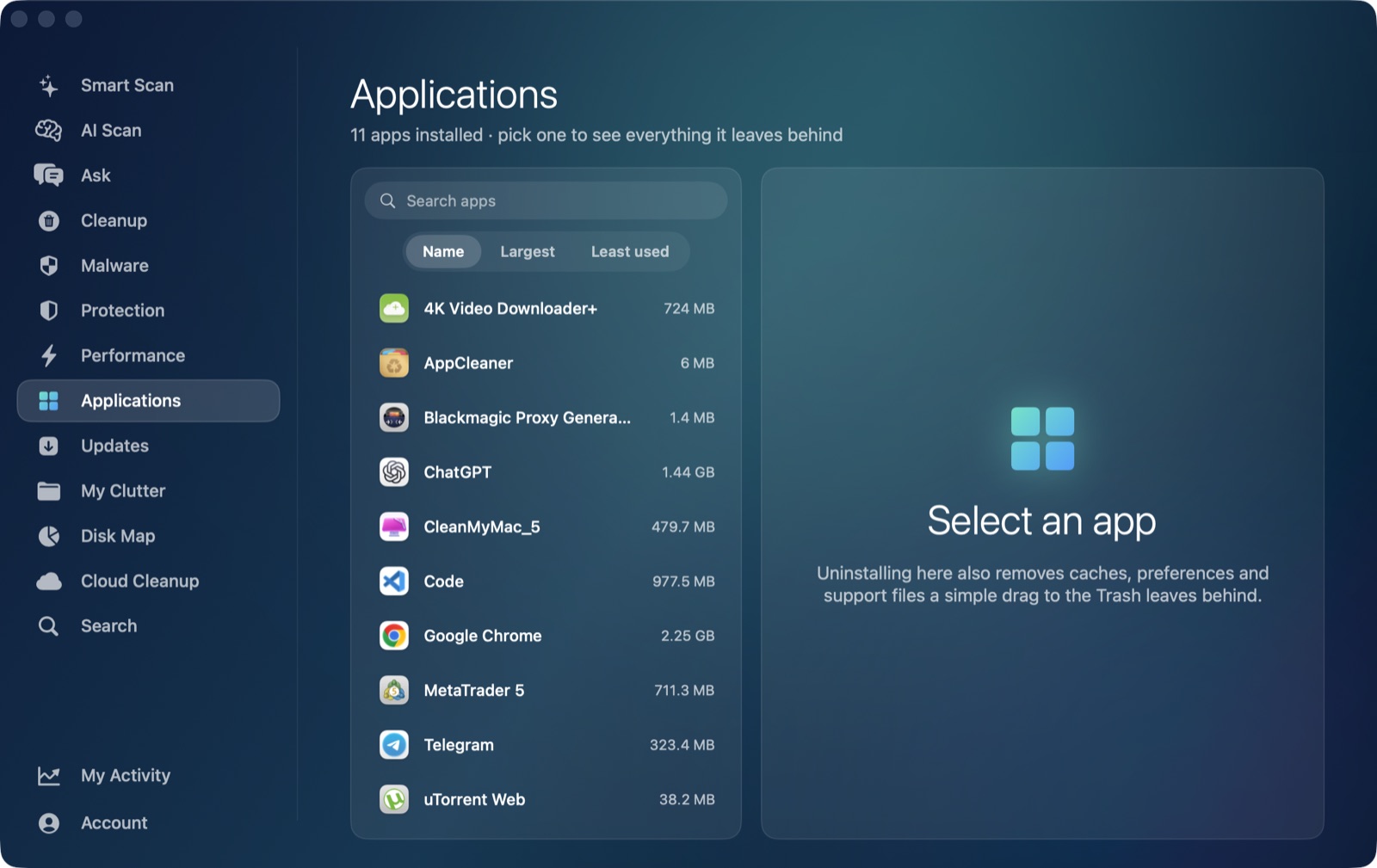
AI Mac Cleaner's Applications module works as an uninstaller that also finds leftovers in ~/Library, matching on the app's own identifier the same way it does for any installed app. For Steam specifically, that means it will surface Application Support/Steam as a leftover once the client itself is removed — worth reviewing that listing carefully rather than confirming on autopilot, since for Steam (unlike most apps) that folder is likely to be the single largest thing it finds, and it's your games, not junk, sitting inside it.
Whichever route you take, nothing is deleted outright: every removal goes through AI Mac Cleaner's Trash-only remover, which also refuses a fixed list of protected system paths, so anything moved stays recoverable until you empty the Trash yourself — useful insurance given how much is riding on that one folder with Steam. If you're clearing out several old apps at once, not just Steam, find large files first to see what else on the Mac is actually worth the effort. AI Mac Cleaner has a 7-day free trial with every feature unlocked, no card required, and plans from $6.99/mo after that.
Frequently asked questions
Does uninstalling Steam delete my games too?
Not automatically — dragging the Steam app to the Trash only removes the client. Your games live in ~/Library/Application Support/Steam/steamapps and stay there until you decide to remove that folder separately, which is also the step that actually frees the bulk of the space.
Where is Steam's cache on a Mac?
~/Library/Caches/Steam. It's separate from Application Support/Steam, which holds your actual games and support files, not cache — the two folders look similarly named but hold very different things.
Is it safe to delete Application Support/Steam?
Only once you're sure you don't want the games or saved data inside it — unlike a cache, it doesn't rebuild itself, and once the Trash is emptied there's no getting it back. If you might reinstall Steam later, leaving it in place lets Steam skip re-downloading anything still there.
Does AI Mac Cleaner remove Steam-specific leftovers automatically?
Its Applications module finds and lists Steam's leftover folders by matching the app's identifier, the same as it does for any installed app, but it shows you the list — including Application Support/Steam — before anything moves, rather than removing it without review.