AI Mac Cleaner
How to Uninstall Anaconda Completely on a Mac
Anaconda doesn't register as a normal Mac app, so dragging a folder to the Trash leaves environments, package caches and shell config behind. Here's the actual full-removal steps.

Anaconda isn't a typical Mac app, and that's exactly why uninstalling it trips people up. There's no single .app bundle to drag to the Trash and call it done — Anaconda installs as a whole directory tree under your home folder, plus every environment and package cache you've created since, plus shell configuration changes that quietly load it every time you open a terminal. Removing all of that properly takes a few more steps than a normal app uninstall.
Why there's no "just drag it to the Trash" here
A typical Mac app is a self-contained bundle in /Applications, with leftover settings and caches tucked under ~/Library. Anaconda is structured differently: its own documentation describes two official removal paths — a simple removal that leaves some files behind, and a full uninstall using a dedicated anaconda-clean package that has to be installed first. There's genuinely no built-in "uninstall everything" button; you either accept the simple path's leftovers or run the cleanup tool Anaconda itself ships for this purpose.
The official removal steps
- Run Anaconda-Clean first, inside an active conda environment, before removing anything else:
- Delete the Anaconda installation directory — usually
~/anaconda3or~/opt/anaconda3, depending on how it was installed. This is the bulk of the disk space: the base Python installation, every package it shipped with, and any environments you've created since. - Remove the hidden config files in your home directory:
~/.condarc(your conda configuration),~/.conda(environment and channel metadata), and~/.continuum(an older Anaconda-specific folder some installs still create). None of these show up in a normal Finder window — Finder hides dot-prefixed files by default, so you'll need Terminal, or Finder's Cmd+Shift+. to reveal hidden files, to find them.
`` conda install anaconda-clean anaconda-clean --yes `` This removes Anaconda-related configuration files and directories, and writes a backup of what it removed to a timestamped folder in your home directory, in case you need to check what it touched.
The part people actually forget: your shell profile
The Anaconda installer edits your shell's startup file — ~/.zshrc on current macOS (~/.bash_profile for older bash-based setups) — adding a block of conda init code that puts Anaconda's own Python ahead of the system one on your PATH every time you open a terminal. Deleting the Anaconda folder without removing this block leaves a dangling reference: your terminal will throw errors on startup, or silently fail to find python/conda commands that reference a folder that no longer exists. Open the file in a text editor, find the block clearly marked with # >>> conda initialize >>> and # <<< conda initialize <<< comments, and delete everything between (and including) those two lines.
Leftover application support folders
Depending on which tools you used inside Anaconda, check these too before calling it done:
~/Library/Application Support— look for folders tied to Anaconda Navigator or Jupyter, if you used either.~/Library/Containersand~/Library/Application Scripts— some installs register a sandboxed helper here; search for "anaconda" by name.
Where AI Mac Cleaner fits in, honestly
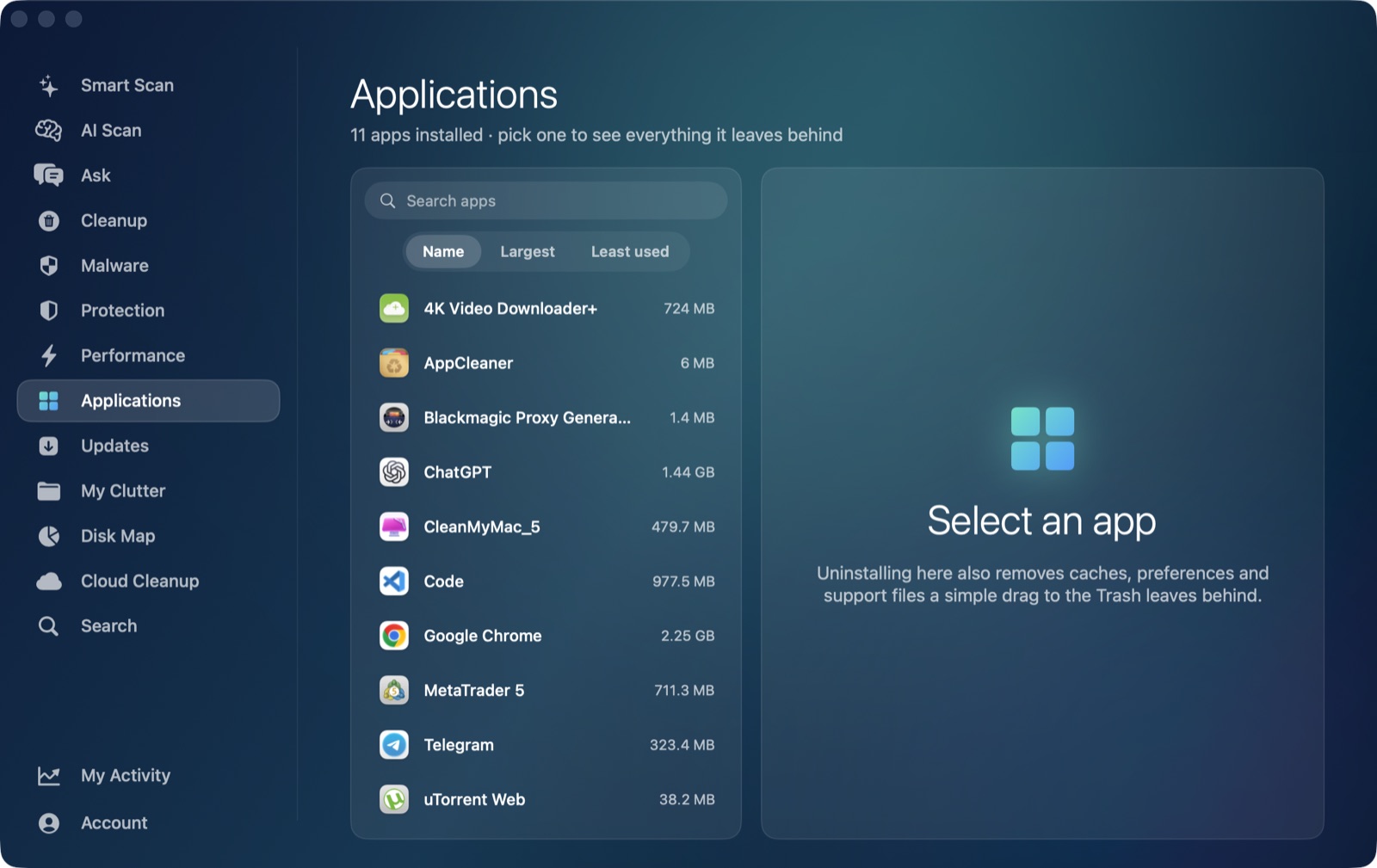
It's worth being specific about the gap here, the same way we are for Android Studio's SDK and Docker Desktop's helpers. AI Mac Cleaner's Applications module is a general uninstaller that finds an installed app's leftovers in ~/Library by matching its bundle identifier — that works well if you installed Anaconda Navigator, which does register as a proper .app with its own identifier. It does not reach ~/anaconda3, ~/.conda, ~/.condarc or your shell profile, because none of those are tied to an app bundle at all — they're a plain directory tree and hidden config files sitting directly under your home folder, outside anything the module's leftover-matching looks at.
What the app can genuinely help with is seeing the size of what you're dealing with before you commit to removing it: point Disk Map's treemap at your home folder (or directly at ~/anaconda3) to see how large the installation and its environments have actually grown, or use Search to locate .conda-named folders by name. Removal still goes through the same Trash-only remover either way — a small safety margin over running rm -rf straight from Terminal, since a mistaken removal stays recoverable until the Trash is emptied on purpose.
The order that makes sense
Run anaconda-clean first (it needs an intact, working conda to run at all), then delete the installation directory, then clean up ~/.condarc, ~/.conda and ~/.continuum, and finish by editing your shell profile. Doing the shell-profile edit before the rest just means staring at "command not found" errors in a terminal that can't find the thing you haven't deleted yet — order matters less for safety here and more for not confusing yourself mid-cleanup.
AI Mac Cleaner has a 7-day free trial with every feature unlocked and no card required, plans from $6.99/mo after.
Frequently asked questions
Can I just delete the Anaconda3 folder and be done?
That's Anaconda's own "simple removal" path, and it works for reclaiming most of the disk space — but it leaves config files (~/.condarc, ~/.conda) and your shell profile's conda init block behind, which can cause a broken-looking terminal prompt or command-not-found errors later.
What does anaconda-clean actually do?
It's an official package from Anaconda that removes associated configuration files and directories as part of a full uninstall, and it backs up what it removes to a timestamped folder first. You install and run it from inside a working conda environment, before deleting anything else.
My terminal shows errors after deleting Anaconda — why?
The installer adds a conda init block to your shell profile (~/.zshrc on current macOS) that references the folder you just deleted. Open the file, find the block between the conda initialize comment markers, and remove it.
Does AI Mac Cleaner's uninstaller remove Anaconda for me?
Only the Anaconda Navigator app, if you installed it — the Applications module matches on an app's bundle identifier, and ~/anaconda3, ~/.conda and your shell profile aren't tied to any app bundle, so they're outside what it scans. Disk Map and Search can still help you see and locate them.
Is it safe to delete ~/.conda and ~/.condarc?
Yes, once you've run anaconda-clean and deleted the main installation — these are configuration and metadata files for an installation that no longer exists, not something anything else on your Mac depends on.