 AI Mac Cleaner
How to Uninstall Android Studio Completely on a Mac
Dragging Android Studio to the Trash leaves support folders, a separate SDK, emulator data and a shared Gradle cache behind. Here's how to uninstall Android Studio completely.

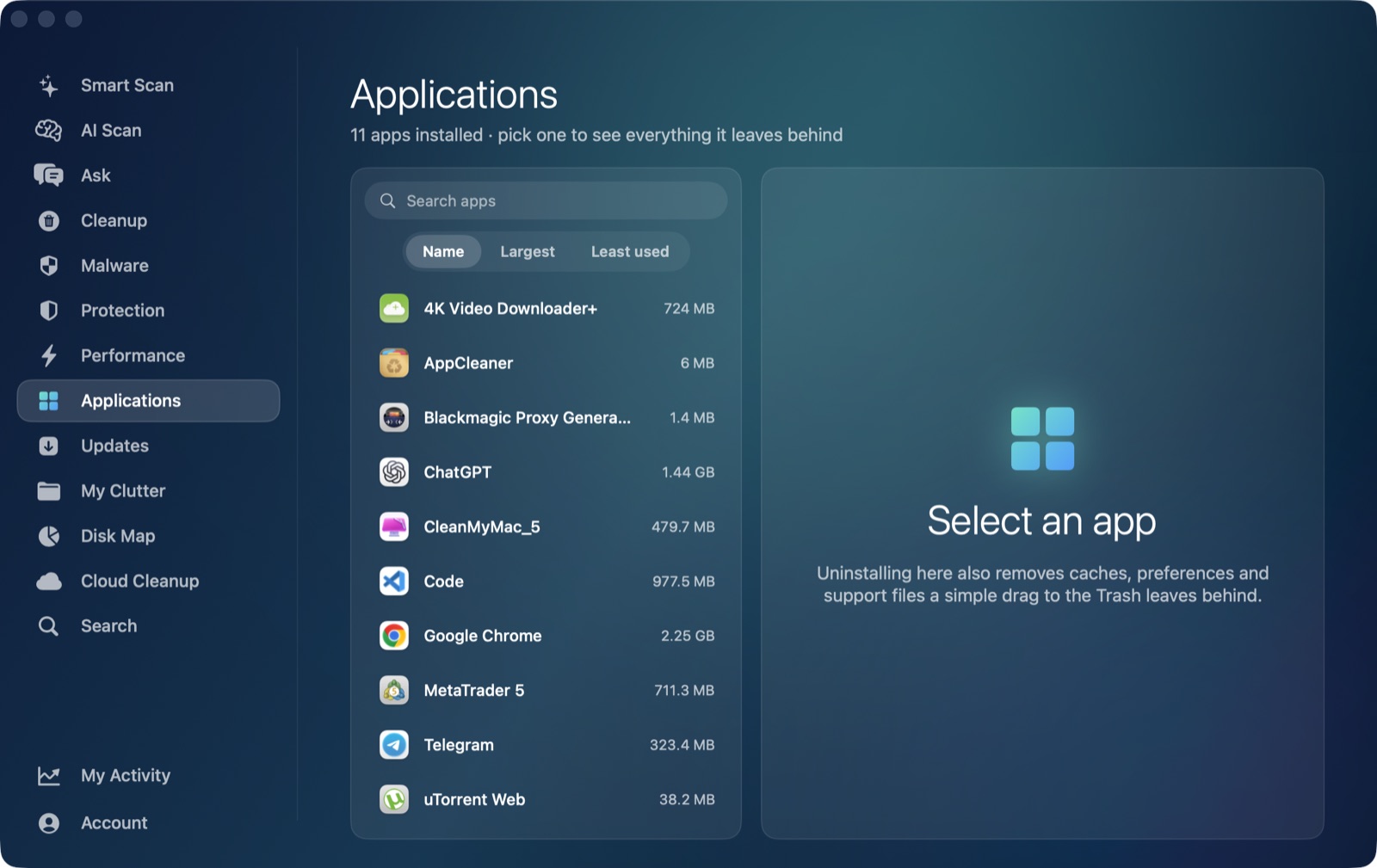
If you want to uninstall Android Studio completely on a Mac, dragging it from /Applications to the Trash is genuinely one of the smaller steps in the whole job. Android Studio is unusual among developer tools in how much it spreads across your disk once you've used it for any length of time — its own support folders in ~/Library, a separate Android SDK that can run into many gigabytes, emulator images for every virtual device you've created, and a shared Gradle cache none of it even owns exclusively. None of that goes away when the app icon disappears.
Why dragging to the Trash isn't enough
Like most Mac apps, Android Studio is really the program in /Applications plus a set of support folders it writes to under ~/Library while running — settings, logs, cached indexing data. Deleting the app bundle removes the IDE itself and nothing else. For most apps that's a modest amount of leftover data. For Android Studio, it's compounded by everything a working Android developer accumulates around it: SDK platforms and build tools, emulator (AVD) images that can each be several gigabytes, and a Gradle cache shared across every JVM project you've ever built, Android or not.
Where Android Studio's own leftovers live
These are the same general locations almost any macOS app uses outside its own bundle, identified by Android Studio's own developer identifier or its vendor folder:
~/Library/Preferences— settings files for the IDE's window layout, keymap and account info.~/Library/Caches— indexing data, downloaded component metadata and other data the IDE rebuilds automatically.~/Library/Application Support— usually nested under aGooglevendor folder, holding IDE-specific settings, plugin data and project history.~/Library/Logs— diagnostic and crash logs from past IDE sessions.
A full removal of just the app means clearing the Android-Studio-specific folder inside each of those four locations, the same four-folder pattern every app follows — Android Studio just tends to leave more behind in each one than a typical app, because of how much indexing and project metadata the IDE keeps.
The parts that live further out: SDK, AVDs and Gradle
This is the part most uninstall guides skip, and it's the bigger space win for most developers:
- The Android SDK —
~/Library/Android/sdkby default. This holds every SDK platform, build tool and system image you've installed through Android Studio's SDK Manager, and it routinely runs into many gigabytes on an active Android developer's machine. It's also used by command-line Android tooling independent of the IDE, so think twice before removing it if you still build Android projects from Terminal or another editor. - Emulator (AVD) images and user data —
~/.android, a hidden folder directly under your home directory. Each virtual device you've created lives here as its own disk image, often several gigabytes each, along with debug keys and emulator logs. - The Gradle cache —
~/.gradle/caches, also directly under your home folder. This one isn't Android Studio's alone; it's shared by every Gradle-based JVM project on the machine, Android or not. We cover it in detail, including the safe way to clear it, in our Gradle cache post.
None of these three live inside ~/Library at all, which matters for how much of this an uninstaller can realistically automate — more on that below.
Finding them by hand
Open Finder, press Shift-Command-G, and check each of the four ~/Library paths above for a folder named "Android Studio" or nested under "Google." For the SDK, AVDs and Gradle cache, the same shortcut works for ~/Library/Android/sdk, ~/.android, and ~/.gradle/caches — the latter two are hidden folders (names starting with a dot), so they won't show in a normal Finder window without revealing hidden files first (Cmd+Shift+.).
How AI Mac Cleaner handles it instead — and where its reach stops
AI Mac Cleaner's Applications module works as an uninstaller that also finds an app's leftovers in ~/Library, matching by the app's own developer identifier rather than guessing from its display name. Point it at Android Studio and it searches the standard ~/Library/Preferences, ~/Library/Caches, ~/Library/Application Support and ~/Library/Logs locations for folders tied to it, shows you what it found before anything moves, and clears it in one confirmed action.
It's worth being direct about where that reach ends, the same way we are about Gradle's own cache: the Applications module only looks inside ~/Library. The Android SDK (~/Library/Android/sdk), the AVD and emulator data (~/.android), and the shared Gradle cache (~/.gradle/caches) all sit outside the folders that scan covers — two of them aren't even under ~/Library at all. The uninstaller won't find or offer to remove any of the three automatically, and that's deliberate: the SDK and Gradle cache in particular are shared resources other tools on your Mac may still depend on, not something safe to sweep up alongside one app's preferences and logs.
What does help with those: point Disk Map's treemap at your home folder, or directly at ~/Library/Android, ~/.android or ~/.gradle, to see how large each has actually grown, or use Search to locate them by name. Either way, moving something to the Trash through the app keeps it recoverable until you empty the Trash yourself.
One thing the Applications module deliberately never does: list Apple's own apps, itself, or Claude as something you could uninstall. It's built for clearing out third-party software you installed and no longer want.
Nothing is deleted outright
Every removal in AI Mac Cleaner goes through its Trash-only remover, which also refuses a fixed list of protected system paths — so if you remove Android Studio and later need something back, it's recoverable from the Trash until you empty it yourself, on purpose. That's as true for the app's own leftovers as for anything you clear by hand with Disk Map or Search.
If you're a developer dealing with more than just Android Studio's leftovers, AI Mac Cleaner's developer page covers the other caches and build junk that pile up on a coding Mac — Xcode DerivedData, CocoaPods, npm and more. There's a 7-day free trial with every feature unlocked and no card required, and plans start at $6.99/mo after that.
Frequently asked questions
Does deleting Android Studio from Applications remove the SDK and emulators too?
No. Removing the app bundle only removes the IDE itself. The Android SDK (~/Library/Android/sdk) and emulator images (~/.android) are entirely separate folders that survive the app's removal and have to be cleared on their own if you want them gone.
Can I delete the Android SDK safely?
Only if nothing else on your Mac depends on it — command-line Android builds, other IDEs, or CI scripts that reference it directly. If Android Studio was your only use for it, it's safe to remove, but it's worth checking ~/Library/Android/sdk's size first, since re-downloading it later takes a while on anything but a fast connection.
Will removing ~/.gradle/caches break other projects?
It can slow down your next build on every Gradle-based project on the machine, Android or not, since they all share that one cache and each has to re-download dependencies afterward. Nothing is permanently lost — see our Gradle cache post for the safer, narrower options.
Does AI Mac Cleaner's uninstaller find the Android SDK and AVDs automatically?
No — its Applications module only searches the standard ~/Library locations (Preferences, Caches, Application Support, Logs) for an app's own leftovers. The SDK, AVD data and Gradle cache live outside those folders (two of them outside ~/Library entirely), so they're not part of that automatic scan; Disk Map and Search can locate and Trash them manually.
Is it safe to delete Android Studio's leftover folders myself in Finder?
Yes, once the app is already removed — match folders by name or developer identifier where possible, and move things to the Trash rather than deleting directly so a mistake stays recoverable.