AI Mac Cleaner
How to Clear Microsoft Teams Cache on Mac
Classic Teams and the new Teams client keep their cache in different places on a Mac. Here's how to clear Microsoft Teams cache on Mac for either version, safely.

If a Teams meeting feels sluggish to load, chat history takes a while to render, or you just want to see what's eating disk space, the fix most IT helpdesks reach for first is to clear Microsoft Teams cache on Mac. The one catch: depending on when you installed Teams, you're running one of two genuinely different apps under that same name, and they don't keep their cache in the same place. Here's how to tell which one you have, and where to clear it either way.
Why Teams has two different caches to deal with
Microsoft replaced the original Electron-based Teams client with a new, native app built on Edge WebView2, rolling it out through 2023 and 2024. Most university and corporate IT help desks now publish separate instructions for "classic Teams" and "new Teams" for exactly this reason — the underlying app changed enough that its file layout on disk changed with it, cache folder included.
A quick way to tell which one you have: open Teams, click your profile picture in the top right, and look for a "Try the new Teams" toggle or an "About" entry naming the version. If there's no toggle and the app has looked the same for a while, you're almost certainly on classic Teams.
Classic Teams: where its cache lives
Classic Teams keeps its data under:
~/Library/Application Support/Microsoft/Teams
Inside that folder, the piece worth clearing is the Cache subfolder, alongside a couple of related ones — Code Cache, GPUCache and blob_storage — that Electron apps like classic Teams use for the same purpose: cached message content, images and rendering data that speeds up reopening the app, rebuilt automatically as needed.
To clear it: quit Teams completely first (right-click its Dock icon and choose Quit, or check Activity Monitor — Electron apps sometimes keep a background process running even after the window closes), then open Finder, press Shift-Command-G, paste the path above, and move the contents of Cache (and Code Cache/GPUCache if present) to the Trash. Leave the rest of the Teams folder alone — it also holds your sign-in state and local settings, which you'd otherwise have to re-enter.
New Teams: where its cache lives
The new Teams client is sandboxed, which moves its data into container folders instead of the old Application Support/Microsoft/Teams path:
~/Library/Group Containers/UBF8T346G9.com.microsoft.teams
~/Library/Containers/com.microsoft.teams2
The cache specifically sits under ~/Library/Containers/com.microsoft.teams2/Data/Library/Application Support/Microsoft/MSTeams, inside its own Cache folder. As with classic Teams, quit the app fully first, then clear just that Cache folder's contents rather than the whole container — the container also holds your account session, so clearing everything means signing back in and re-syncing from scratch.
When to clear the whole folder instead
If a targeted cache clear doesn't fix a persistent glitch — Teams won't load a channel, notifications are stuck, the UI is visibly broken — removing the entire Teams folder (classic) or both container folders (new Teams) is the more aggressive next step. It signs you out and forces a full re-sync on next launch, which takes longer and uses more data than a plain cache clear, but it resolves corruption a cache clear alone won't touch.
Why AI Mac Cleaner's cache sweep doesn't reach either one
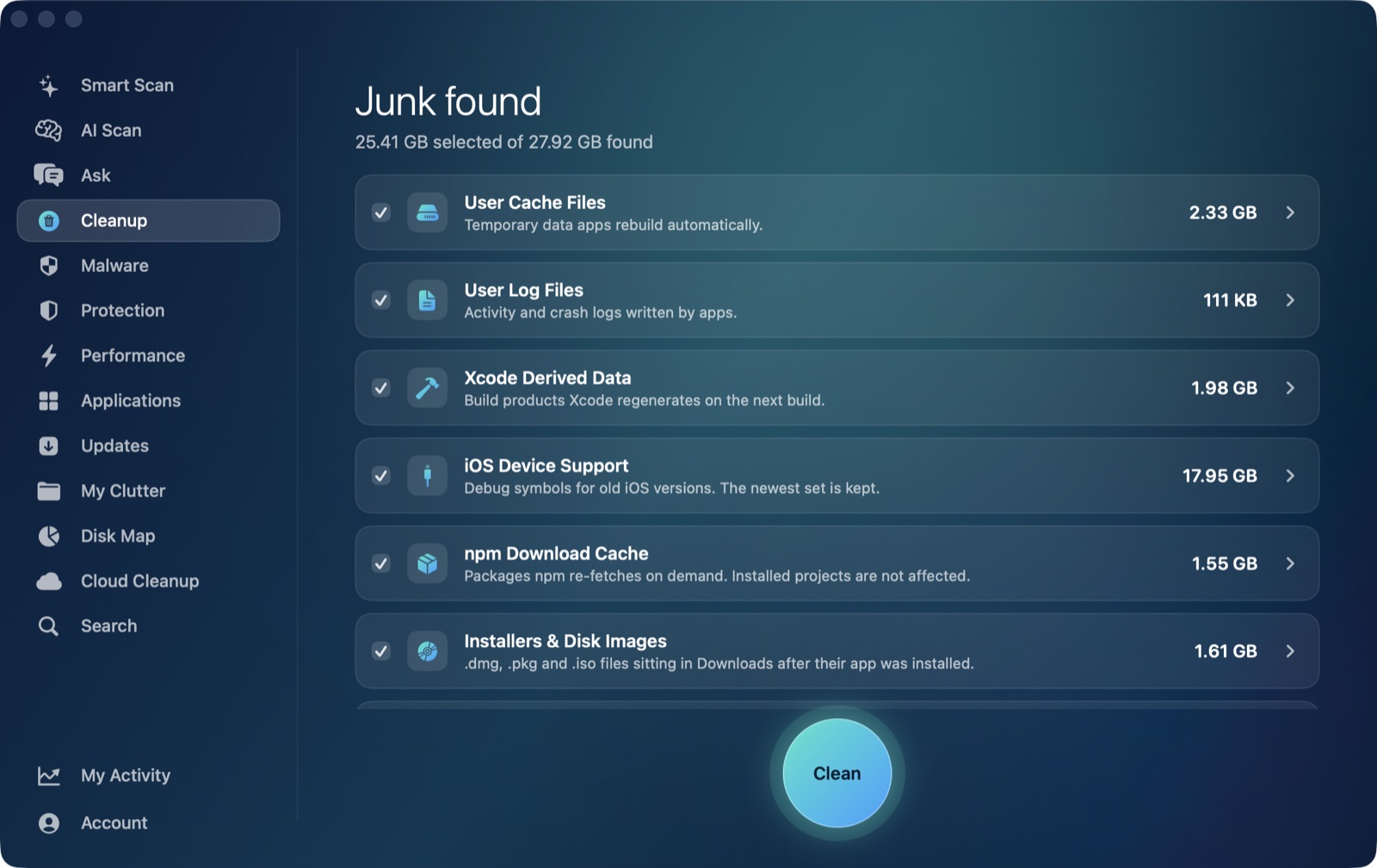
Worth being direct about this, the same way we are for Gradle's cache: AI Mac Cleaner's Cleanup module has a User Cache Files category that sweeps the direct children of ~/Library/Caches — the standard location almost every well-behaved Mac app uses. Neither Teams client stores its cache there. Classic Teams keeps it under ~/Library/Application Support, and new Teams keeps it inside its own sandboxed container under ~/Library/Containers. Both are legitimate macOS locations, just not the one the generic sweep looks at, so running a general cache cleanup on your Mac won't touch Teams either way — this isn't specific to AI Mac Cleaner; any cleaner scoped to the standard caches folder has the same gap.
What the app can help with: point Disk Map's treemap at your home folder, or directly at ~/Library/Application Support/Microsoft or ~/Library/Containers/com.microsoft.teams2, to see exactly how large Teams' folders have grown. Search can locate Teams by name across your home folder if you'd rather not navigate there by hand. Either way, moving the folder to the Trash through the app keeps it recoverable until you empty the Trash, the same safety net as everywhere else in AI Mac Cleaner — removal is never instant or silent, in this app or generally.
If you're clearing Teams because you're leaving it behind entirely rather than just trimming its cache, that's a different job — see how to uninstall an app completely on a Mac for the full four-folder leftover pattern most apps, Teams included, follow.
To see what's actually filling up your Mac beyond the caches a general cleaner reaches — sized and reviewable before anything moves — AI Mac Cleaner has a 7-day free trial with every feature unlocked, no card required, and plans from $6.99/mo after that.
Frequently asked questions
How do I know if I'm using classic Teams or the new Teams app?
Open Teams and check your profile menu for a "Try the new Teams" toggle, or an About screen naming the version. If there's no toggle, you're very likely still on classic Teams. The cache lives in a different place depending on which one you have.
Will clearing the Teams cache sign me out?
Clearing just the Cache folder (classic or new Teams) shouldn't sign you out — your session data lives elsewhere in the same parent folder or container. Removing the entire Teams folder or both container folders does sign you out and forces a full re-sync on next launch.
Does AI Mac Cleaner clear Microsoft Teams cache automatically?
No. Its User Cache Files category only scans ~/Library/Caches, and Teams keeps its cache under ~/Library/Application Support (classic) or inside a sandboxed container under ~/Library/Containers (new Teams) — neither is reached by that sweep. Disk Map and Search can locate and Trash either folder manually.
Is it safe to delete Microsoft Teams' cache folder myself?
Yes, as long as you quit Teams first and only clear the Cache (and related Code Cache/GPUCache) subfolder rather than the whole parent folder, which also holds your sign-in state. Moving it to the Trash rather than deleting it outright means a mistake is still recoverable.
Why does Teams' cache get so large in the first place?
Teams caches message content, images, stickers and rendering data locally so channels and chats load without re-fetching everything from Microsoft's servers every time. The more teams and channels you're active in, and the longer it's been since a clear, the larger it tends to grow.