AI Mac Cleaner
How to Clear Zoom Cache on Mac Without Uninstalling
You don't need to remove Zoom to fix a bloated cache. Here's how to clear Zoom cache on Mac without uninstalling, using Zoom's own Settings.

If Zoom has started feeling sluggish, or you've noticed its folder is bigger than you'd expect, the fix isn't necessarily to remove the app. You can clear Zoom cache on Mac without uninstalling anything, keep every meeting setting and sign-in exactly as it was, and get most of the same benefit as a full reinstall. Here's the official route, and what's actually happening on disk when you use it.
Why clear the cache instead of reinstalling or uninstalling
Uninstalling and reinstalling Zoom is the blunt-force fix some guides suggest for odd behavior — a frozen UI, meetings that won't join, audio that cuts out. It works, but it's overkill for most of what a cache clear alone fixes, and it means re-entering settings and signing back in. If the symptom is sluggishness, stale virtual backgrounds, or just wanting the space back, clearing the cache gets you there without any of that disruption — and it's something Zoom supports doing from inside its own Settings.
The official way: Zoom's own Settings
- Open Zoom and click your profile picture, or use the zoom.us menu in the menu bar, and choose Settings (older versions call this Preferences).
- In the sidebar, select Zoom apps.
- In the main panel, click Clear next to the cache size shown. This clears cached data Zoom's in-meeting apps and features have built up — things like virtual background assets, app integrations data, and other cached UI resources.
- Restart Zoom for the change to fully take effect.
This is the supported, in-app method — no Terminal, no navigating ~/Library by hand, and nothing that touches your account, your saved meeting settings, or your recordings.
What this does and doesn't clear
The in-app Clear button targets Zoom's app-level cache specifically. It won't touch:
- Your sign-in and account settings — those live separately and survive a cache clear.
- Local recordings — stored in your chosen recordings folder (Documents by default), entirely separate from the cache.
- Chat history and cloud content — synced from Zoom's servers, not stored locally the way a cache is.
If you also use Zoom inside a browser rather than the desktop app, that's a separate cache entirely — Safari's or Chrome's own "Clear browsing data" covers that, not Zoom's in-app Settings.
Where Zoom's cache actually lives — and why a general cleaner already reaches it
This is a useful contrast with Microsoft Teams, whose cache sits outside the standard caches location entirely. Zoom's own cache folder is:
~/Library/Caches/us.zoom.xos
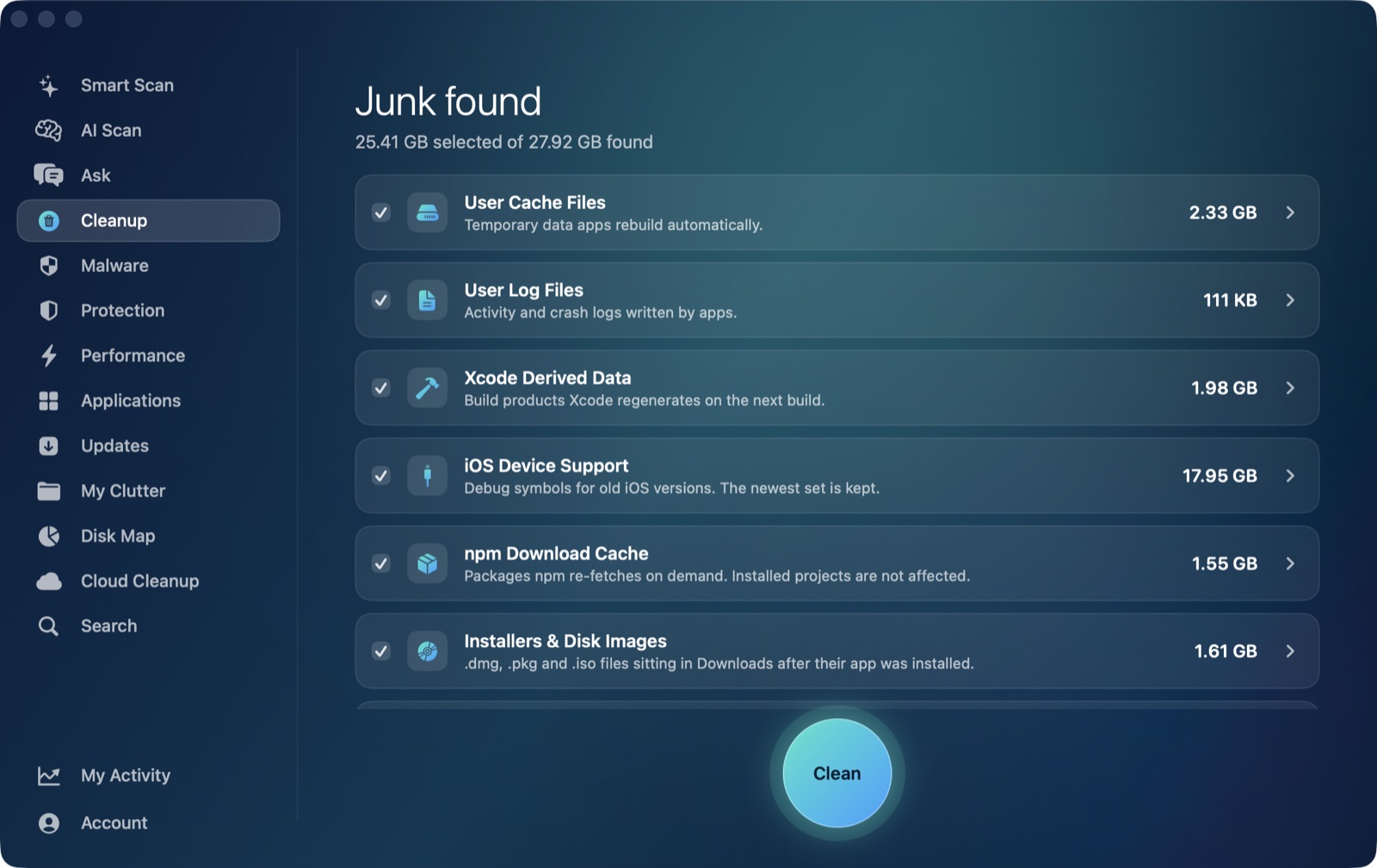
That's a direct child of ~/Library/Caches — the same standard macOS location almost every well-behaved app uses — so it's exactly the kind of folder AI Mac Cleaner's Cleanup module's User Cache Files category already sweeps as part of a routine pass, the same way it would for Chrome's or Slack's cache. It isn't Zoom-specific and doesn't know about Zoom apps or virtual backgrounds the way the in-app Clear button does, but it sees the folder's size and includes it, since nothing excludes it from the sweep.
Zoom's persistent settings and account data, by contrast, live in ~/Library/Application Support/zoom.us — a different folder the cache category never touches, by design, since that folder isn't disposable cache. Mixing these two up is the easiest way to accidentally remove the wrong thing when clearing Zoom data by hand.
When you actually want the full uninstall instead
Clearing the cache is the right move for sluggishness or disk space. If you're leaving Zoom behind entirely — not using it anymore, replacing it with another video app — that's a different job with its own leftover folders to track down: see how to uninstall Zoom completely on a Mac, which covers the full four-folder removal including preferences and logs, not just the cache.
Either way, nothing in AI Mac Cleaner deletes outright. Every removal goes through its Trash-only remover, which also refuses a fixed list of protected system paths, so clearing Zoom's cache through the app's User Cache Files category — or anything else — stays recoverable from the Trash until you empty it yourself, on purpose.
To clear Zoom's cache along with every other app's accumulated cache in one sized, reviewable pass, AI Mac Cleaner has a 7-day free trial with every feature unlocked, no card required, and plans from $6.99/mo after that.
Frequently asked questions
Will clearing Zoom's cache sign me out or lose my meeting settings?
No. The in-app Clear button under Settings → Zoom apps only clears cached app data — your sign-in, account settings and meeting preferences live elsewhere and aren't touched.
Where is Zoom's cache folder on a Mac?
~/Library/Caches/us.zoom.xos. It's a direct child of the standard ~/Library/Caches folder, which is why a general-purpose Mac cache cleaner can reach it without needing to know anything Zoom-specific.
Does AI Mac Cleaner clear Zoom's cache automatically?
Its User Cache Files category sweeps ~/Library/Caches, which includes Zoom's us.zoom.xos folder since that's where Zoom keeps it — so yes, as part of the general sweep, not as a dedicated Zoom-aware feature.
What's the difference between clearing Zoom's cache and uninstalling it?
Clearing the cache (in-app, or through a general caches sweep) only removes rebuildable cached data and keeps the app, your sign-in and your settings intact. Uninstalling removes the app entirely and, if done properly, its leftover preferences, support data and logs too — a much bigger change for a different goal.
Why would Zoom's cache get large in the first place?
Virtual backgrounds, in-meeting app integrations and other UI resources get cached locally so they load quickly without re-fetching from Zoom's servers every time. The more you use those features, the larger the cache tends to grow until it's cleared.