 AI Mac Cleaner
How to Clear Discord Cache on Mac Without Uninstalling
You don't need to remove Discord to fix a bloated cache or a loading glitch. Here's where Discord's cache actually lives on a Mac and how to clear just that, keeping the app and your servers intact.
If Discord feels sluggish, a channel won't load properly, or you just want to see what's eating space under its folder, you don't need to remove the app to fix it. Discord's own troubleshooting guide lists clearing its cache and temporary files as a fix for loading-screen freezes — the same lighter move covered for Microsoft Teams and Zoom elsewhere on this site, as opposed to removing Discord entirely.
Where Discord's cache actually lives
Discord is built on Electron, the same cross-platform app framework behind classic Microsoft Teams and Slack's desktop client, and it stores its cache the way Electron apps generally do: inside its own folder under
~/Library/Application Support/discord
Three subfolders inside it do the actual caching — Cache, Code Cache and GPUCache — holding rendered UI data, cached images and emoji, and GPU-accelerated rendering data that keeps the interface responsive. They're rebuilt automatically as you use the app, which is exactly what makes them safe to clear.
Clearing it the direct way
- Quit Discord completely first — not just closing its window. Use the menu bar (or Command+Q with Discord focused) rather than just clicking away, since Electron apps like Discord can leave a background process running even after the main window closes.
- Open Finder, press Shift-Command-G, and paste
~/Library/Application Support/discord. - Select the Cache, Code Cache and GPUCache folders and move them to the Trash. Leave the rest of the
discordfolder alone — it also holds your local settings and session data, which you'd otherwise have to re-enter. - Relaunch Discord. It rebuilds the cache folders with only what's actually needed going forward, which is usually smaller than what had accumulated before.
Why a general cache cleaner doesn't reach this one
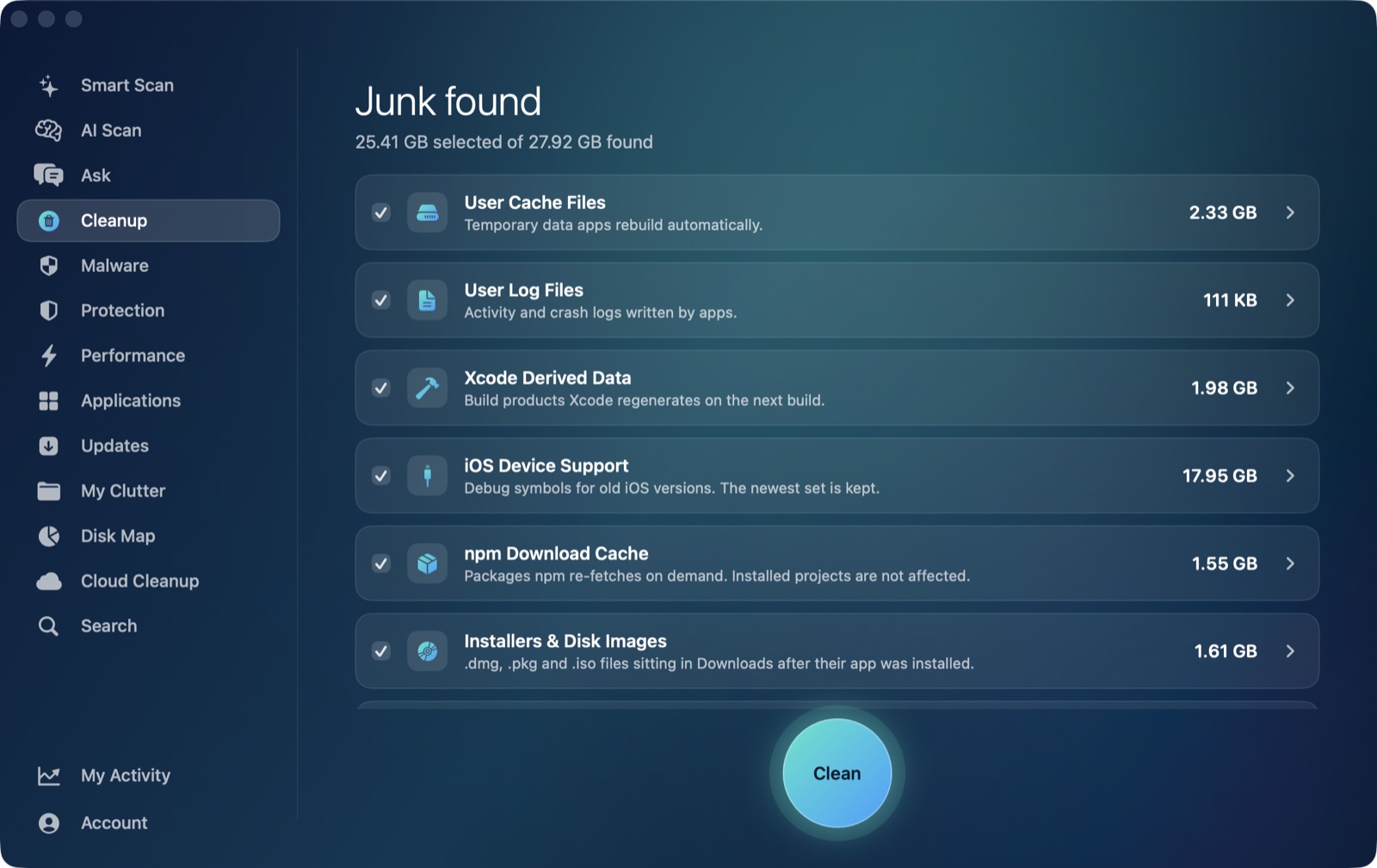
It's worth being direct about this, the same way we are for Teams' cache: AI Mac Cleaner's Cleanup module has a User Cache Files category that sweeps the direct children of ~/Library/Caches — the standard location most well-behaved Mac apps use. Discord doesn't store its cache there; like classic Teams, it's an Electron app, and Electron apps default to a cache location inside their own folder under ~/Library/Application Support instead. That means running a general cache cleanup on your Mac won't reach Discord's Cache, Code Cache or GPUCache folders — not because of anything specific to AI Mac Cleaner, but because any cleaner scoped to the standard caches folder has the identical blind spot for any Electron app that follows this pattern. Safari's cache is a different kind of exception: it does live inside ~/Library/Caches, just under a com.apple. prefix that the sweep deliberately leaves alone.
What the app can help with: point Disk Map's treemap at ~/Library/Application Support/discord to see exactly how large each subfolder has grown, or use Search to locate discord by name if you'd rather not navigate there directly. Either way, moving a folder to the Trash through the app keeps it recoverable until you empty the Trash, the same safety net as everywhere else in AI Mac Cleaner.
When to do the full removal instead
Clearing the cache is the right move if you're keeping Discord and just want the space back or a loading glitch fixed. If you're leaving Discord behind entirely — switching platforms, or just done with it — that's a different job with its own set of leftover folders (preferences, logs, and Discord's self-updater files) to track down: see how to uninstall Discord completely on a Mac for the fuller removal.
Either way, nothing in AI Mac Cleaner deletes outright. Every removal goes through its Trash-only remover, which also refuses a fixed list of protected system paths, so clearing Discord's cache — through Finder directly, or by locating it with Disk Map or Search — stays recoverable from the Trash until you empty it yourself, on purpose.
AI Mac Cleaner has a 7-day free trial with every feature unlocked, no card required, and plans from $6.99/mo after that.
Frequently asked questions
Where exactly is Discord's cache on a Mac?
~/Library/Application Support/discord, inside three subfolders: Cache, Code Cache and GPUCache. It isn't under the standard ~/Library/Caches location most Mac apps use — Discord is an Electron app, and Electron apps default to caching inside their own Application Support folder instead.
Will clearing Discord's cache sign me out or lose my server settings?
No, as long as you only remove the Cache, Code Cache and GPUCache subfolders and leave the rest of the discord folder alone — your sign-in state and local settings live elsewhere in that same parent folder.
Does AI Mac Cleaner clear Discord's cache automatically?
No. Its User Cache Files category only scans ~/Library/Caches, and Discord keeps its cache inside its own folder under ~/Library/Application Support instead — the same gap as classic Microsoft Teams. Disk Map and Search can locate and Trash it manually.
What's the difference between clearing Discord's cache and uninstalling it?
Clearing just the cache folders keeps the app, your sign-in and your server list intact, and only removes rebuildable local data. Uninstalling removes the app entirely and, done properly, its preferences, update files and logs too — a bigger change for a different goal.
Why does Discord's cache grow so large in the first place?
Images, emoji, stickers and GPU-accelerated rendering data get cached locally so servers and channels load quickly without re-fetching everything each time. The more servers you're active in and the longer since a clear, the larger these folders tend to get.
