AI Mac Cleaner
How to Clear CocoaPods Cache on a Mac
CocoaPods caches podspecs, source archives and git snapshots under ~/Library/Caches/CocoaPods. Here's the safe `pod cache clean --all` command, what it actually removes, and how a general Mac cleaner handles it too.
If you've built iOS or macOS apps with CocoaPods for a while, ~/Library/Caches/CocoaPods has been quietly collecting podspec responses, source archives and unpacked pod source trees for every dependency you've ever pulled, across every project. It's a real and fairly common disk-space complaint among iOS developers — third-party tools like DevCleaner and Kudu exist specifically to clean it, which is itself a sign of how often it builds up unnoticed. Here's what's in there, the proper way to clear it, and a detail worth knowing about where it sits relative to a general Mac cleaner.
What's actually in the CocoaPods cache
CocoaPods stores several distinct things under ~/Library/Caches/CocoaPods: cached responses from podspec repositories (the metadata describing each pod and its versions), downloaded source archives for pods distributed that way, and git snapshots for pods pulled directly from a repository. All of it exists so that running pod install on a project you've already built before — or a different project that happens to share a dependency — doesn't need to re-fetch everything from scratch over the network.
Unlike Xcode's own DerivedData, which is scoped per-project and cleared constantly as a matter of course, the CocoaPods cache is shared across every project on your Mac and tends to be something developers simply never think to clear, which is exactly why it can grow large without anyone noticing.
The proper way to clear it: pod cache clean --all
Run pod cache clean --all in Terminal. This is CocoaPods' own dedicated command for the job, and it's the recommended route over deleting the folder by hand for a specific reason: it keeps working correctly even if CocoaPods changes where it stores the cache in a future version, where a manual rm -rf ~/Library/Caches/CocoaPods would simply miss the new location.
A couple of related commands worth knowing:
pod cache clean <pod-name>(without--all) removes just one pod from the cache, useful if you know a specific dependency is the one bloating things rather than wanting to clear everything.- Some older guidance suggests wiping the broader
~/.cocoapodsfolder instead of just the Caches directory. That folder holds the local podspec repository mirror itself, not just the download cache — clearing it forces a full repo re-sync on the nextpod install, which is a bigger, slower operation than the cache clean above. Stick withpod cache clean --allunless you have a specific reason to go further.
After clearing, the next pod install on any project re-downloads whatever it needs, so expect a bit of extra network time and disk writes the first time — the same trade-off as clearing npm's or Gradle's cache, just scoped to CocoaPods' own dependency graph.
Where a general Mac cleaner fits — and it actually does, here
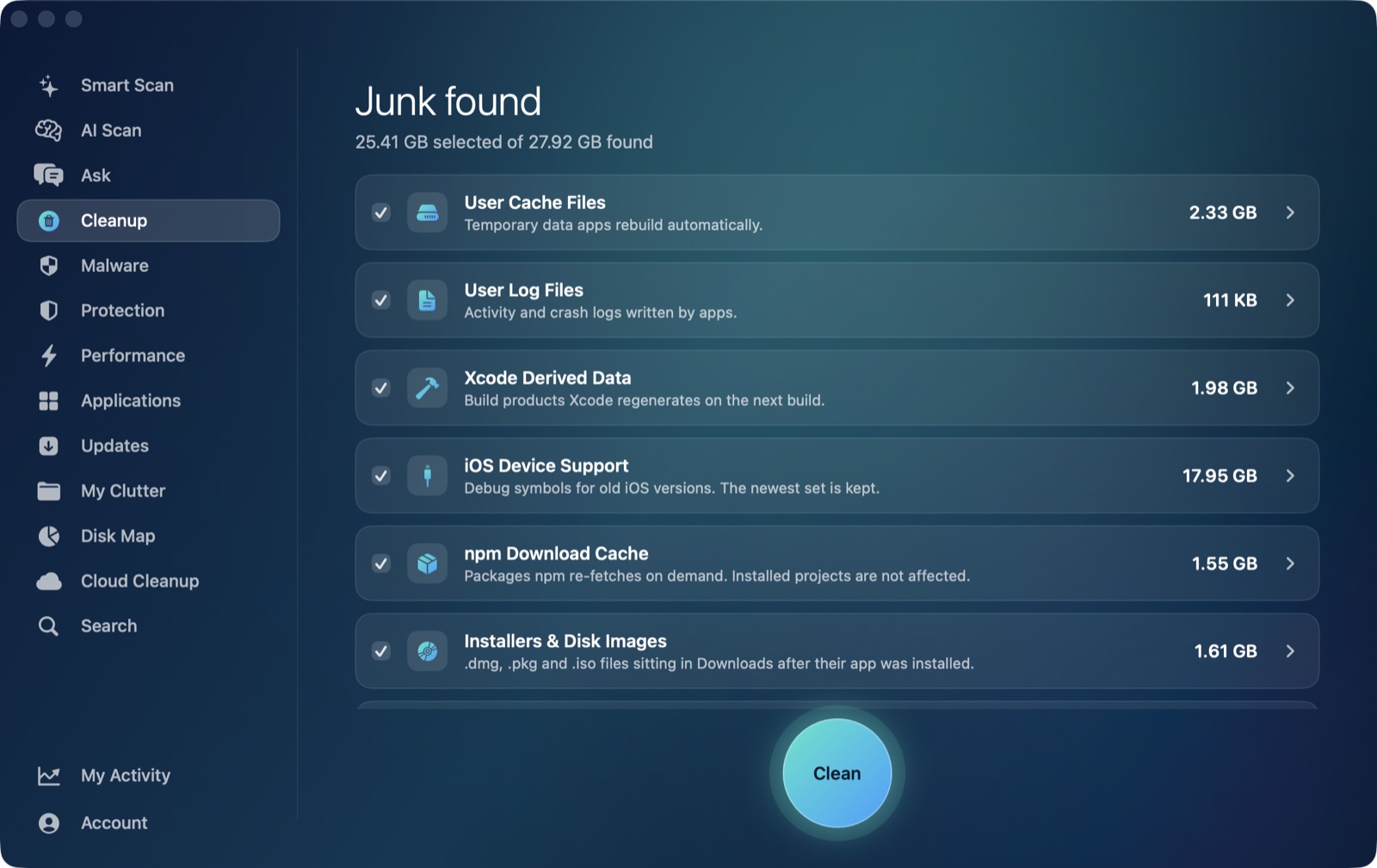
This is a useful contrast with Gradle's cache, which lives outside the standard macOS caches location entirely. CocoaPods' cache sits directly under ~/Library/Caches — the same folder almost every Mac app uses — so it's a direct child that AI Mac Cleaner's Cleanup module's User Cache Files category already sweeps up as part of a routine pass, alongside Chrome's cache, Slack's, and anything else that's accumulated there. It isn't a CocoaPods-specific scanner and doesn't understand podspecs or pod names the way the pod cache clean command does, but it does see the folder's size and includes it in what gets moved to the Trash when you run that category, since there's nothing excluding it from the sweep.
The practical difference from running pod cache clean --all yourself: the dedicated command is the more precise, CocoaPods-aware tool, while a general cache sweep is the convenient catch-all that clears it along with dozens of other apps' caches in one pass, without you needing to remember CocoaPods specifically is one of the things filling up ~/Library/Caches. Either gets the space back; which one makes sense depends on whether you're clearing just this one thing or doing a general pass.
Don't stop at the cache if Xcode space is still tight
The CocoaPods cache is one piece of a larger iOS developer-junk picture on a Mac. Clearing Xcode's DerivedData is usually the bigger win for active iOS development, since build products regenerate every single build rather than accumulating slowly like a dependency cache does. AI Mac Cleaner's Cleanup module lists both DerivedData and user caches (which, as above, includes CocoaPods) as separate, auto-offered categories, each sized before anything moves, with every removal going through a Trash-only remover rather than deleting anything outright.
To clear both in one pass, sized and listed before you confirm anything, AI Mac Cleaner has a 7-day free trial with every feature unlocked, no card required, and plans from $6.99/mo after that.
Frequently asked questions
Where does CocoaPods store its cache on a Mac?
Under ~/Library/Caches/CocoaPods — podspec responses, source archives and git snapshots for every pod you've downloaded. This is the standard macOS user caches location, the same one almost every app uses.
Is pod cache clean --all safe to run?
Yes. It only clears cached downloads and metadata, which CocoaPods re-fetches automatically on the next pod install. It doesn't touch your project files, your Podfile, or anything already installed in a project's Pods folder.
Does AI Mac Cleaner have a dedicated CocoaPods cache cleaner?
No, and it's worth being specific about that: it has a general User Cache Files category that sweeps ~/Library/Caches, which happens to include CocoaPods' cache since that's where CocoaPods stores it. It isn't aware of pod names or podspecs the way the pod cache clean command is.
Will clearing the CocoaPods cache slow down my next pod install?
A little, the first time — it has to re-download whatever that project needs instead of pulling it from the local cache. After that first install, the cache rebuilds and subsequent installs are back to normal speed.
Should I clear CocoaPods cache or Xcode DerivedData first?
DerivedData is usually the bigger space win for active iOS development, since it regenerates on every single build rather than growing slowly like a shared dependency cache. Clear both if space is genuinely tight — they're unrelated causes, and clearing one doesn't substitute for the other.