 AI Mac Cleaner
How to clear Xcode DerivedData on Mac (and why it comes back)
DerivedData is usually the single biggest cache on a developer's Mac. Here is what it holds, the safe way to clear it by hand, and why a cleaner that sends it to the Trash beats deleting it directly.
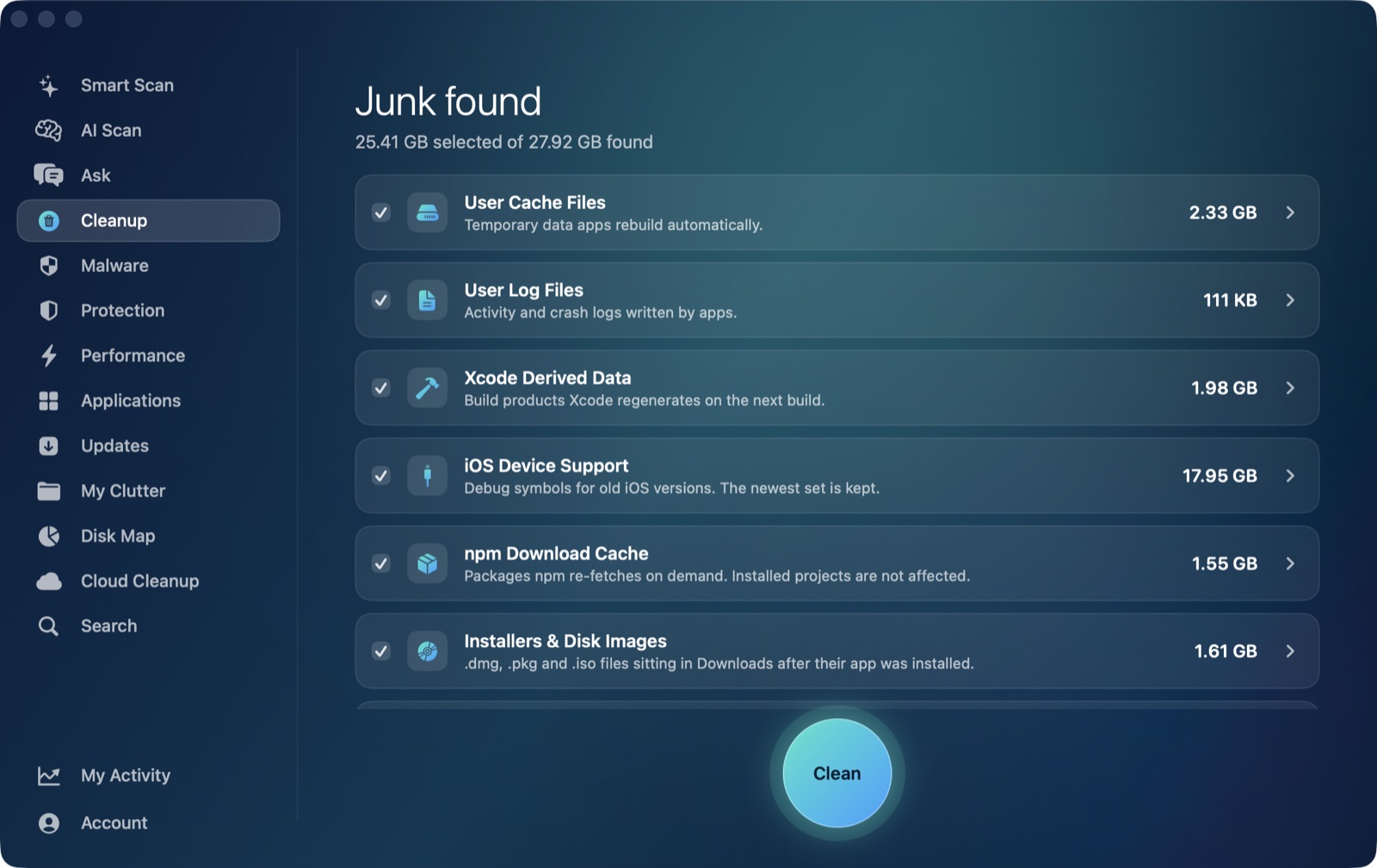
If you build iOS or Mac apps, ~/Library/Developer/Xcode/DerivedData is almost certainly the largest folder eating your disk. It is also one of the safest things on your Mac to clear, if you clear it the right way. Here's how to clear Xcode DerivedData on a Mac, and why it fills back up.
What DerivedData actually is
Every time Xcode builds a target, it writes the intermediate build products, module caches, indexes and previews into a per-project folder inside DerivedData. None of it is source code and none of it is unique — Xcode regenerates every byte of it the next time you build. That is the whole reason it is safe to delete: nothing you wrote lives there, only things Xcode already knows how to rebuild.
It grows fast because Xcode keeps a separate DerivedData folder per project (named with a random suffix, like MyApp-fpqrhznzasklv), and old, renamed or moved projects leave orphaned folders behind that Xcode never revisits. On a machine that has had a few years of projects on it, DerivedData routinely reaches double-digit gigabytes.
Clearing it by hand
- Quit Xcode first — clearing DerivedData while it's open can make the next build error until you restart Xcode anyway.
- Open Finder, press ⌘⇧G, and go to
~/Library/Developer/Xcode/DerivedData. - Select everything inside the folder and move it to the Trash (not the folder itself — Xcode recreates it).
- Empty the Trash when you're ready to actually reclaim the space.
Xcode's own Settings → Locations → Derived Data → Delete button does the same thing, one project at a time, which is slower if you have dozens of old projects listed.
What happens after you clear it
Nothing you'll notice is lost. The next time you open a project and build, Xcode writes a fresh DerivedData folder and does a full build instead of an incremental one — so expect the first build after a clear to take noticeably longer, and SwiftUI previews to take a moment to warm back up. After that first build, everything is back to normal. This is the trade-off: DerivedData exists specifically to make repeat builds faster, so clearing it trades a slower next build for disk space now.
Why a cleaner beats deleting it yourself
Deleting DerivedData by hand is safe, but it's manual, and it's easy to select the wrong sibling folder in ~/Library/Developer/Xcode/ (like Archives, which holds builds you submitted to App Store Connect and should not delete). AI Mac Cleaner's Cleanup module lists Xcode Derived Data as its own category with the size it will free, next to the other developer caches — old iOS Device Support, Simulator caches, npm's download cache — that fill up a developer's Mac the same way. Selecting it and cleaning does not delete anything directly: every removal goes through FileRemover, which moves the files to the Trash, so a build you actually needed can still be put back before you empty it.
The other developer caches worth knowing about
DerivedData isn't the only regenerable folder developers accumulate. Old iOS Device Support files (debug symbols for iOS versions your connected devices no longer run) and Simulator caches follow the same rule — nothing unique, all rebuilt on demand — which is why AI Mac Cleaner offers them the same way, sized and ready to select, never pre-ticked without your say. node_modules and Docker's disk image are a different story: the app lists them separately, review-only, because deleting them isn't always free to redo (a slow npm install or a docker system prune you have to run yourself), so nothing there is auto-offered.