AI Mac Cleaner
How to Uninstall Parallels Desktop Completely on a Mac
Dragging Parallels Desktop to the Trash is the easy part — your actual virtual machines live outside the app entirely, often holding far more disk space than Parallels itself.
Parallels' own support documentation is refreshingly blunt about uninstalling Parallels Desktop: "like most applications on a Mac, Parallels Desktop doesn't require uninstallation" — quit the app, shut down any running virtual machines, drag it to the Trash and empty it. That part really is that simple. What it doesn't mention up front is that this leaves every virtual machine you've created completely untouched, and for most Parallels users, the VMs are the actual disk space problem, not the app.
Uninstalling the app itself
- Quit Parallels Desktop and shut down any running virtual machine first (not just close its window — a VM left suspended can still hold file locks).
- Drag Parallels Desktop from
/Applicationsto the Trash. - Empty the Trash.
Parallels' own knowledge base confirms this explicitly: uninstalling the app does not delete your virtual machines (files with the .pvm extension) — your Windows files and apps inside them are untouched. That's good news if you're reinstalling later, and the exact reason a full removal needs a second step if you actually want the disk space back.
Where your virtual machines actually live
By default, Parallels Desktop stores virtual machines in ~/Parallels — a plain folder directly in your home directory, not tucked away under ~/Library the way most app leftovers are. (Older versions, and some setups, use ~/Documents/Parallels or /Users/Shared/Parallels instead; check Parallels' own Preferences → General → Virtual Machines Folder if you're not sure which one applies to you, since changing that setting only affects VMs created afterward — existing ones stay where they were created.) Each .pvm is a package — right-click and "Show Package Contents" to look inside — and a single one can easily run into tens of gigabytes once you account for the virtual disk, snapshots and any Windows software installed inside it.
Removing a VM you actually want gone, rather than simply unlisting it, means moving its .pvm folder to the Trash — the same recommendation Parallels' own support article gives: within Parallels Desktop's Control Center, right-click the VM and choose "Remove," then pick "Move to Trash" rather than "Keep Files" if you want it erased, not just unlisted. Parallels is explicit that this can't be undone once the Trash is emptied, so make sure anything inside the VM you still need is backed up or exported first.
What's left under ~/Library after the app is gone
Beyond the VMs themselves, Parallels Desktop (bundle ID com.parallels.desktop.console) follows the same general pattern as other apps for its own settings and cached data:
~/Library/Preferences— settings tied to thecom.parallels.desktop.consoleidentifier, including your chosen VM storage location.~/Library/Caches— cached data the app rebuilds automatically.~/Library/Application Support— usually nested under a "Parallels" vendor folder, holding app-level configuration separate from any individual VM.~/Library/Logs— diagnostic logs from past sessions.
Some community-reported cleanup guides also mention /private/var/db/Parallels and a dedicated "Parallels Shared Keychain" entry in macOS's Keychain Access, used for sharing credentials between your Mac and a VM — we haven't independently verified every detail of those two, since they sit outside what Parallels' own documentation covers, so treat them as worth checking rather than confirmed facts if you're doing a from-scratch manual cleanup.
How AI Mac Cleaner handles it — and where the real space win is
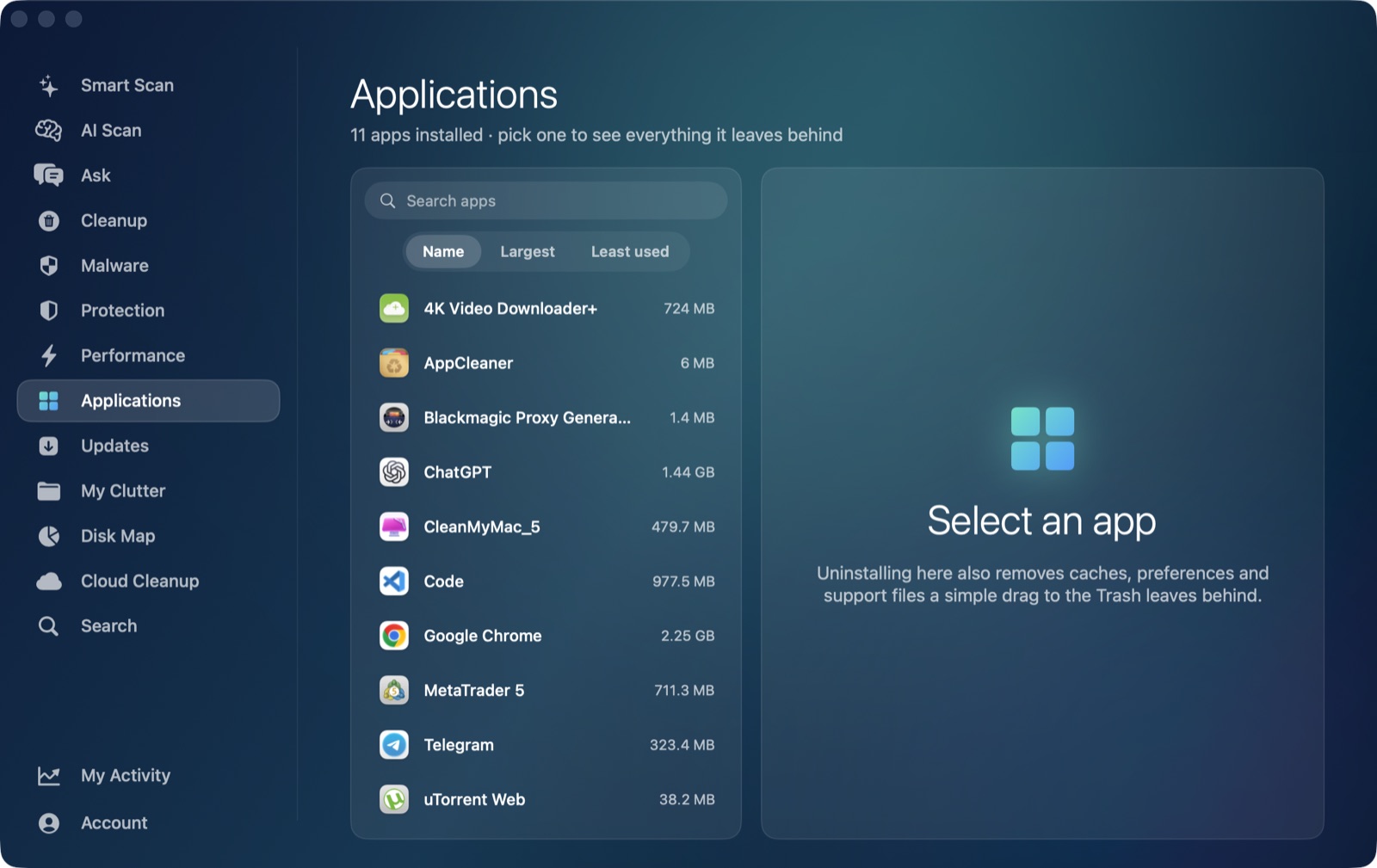
AI Mac Cleaner's Applications module works as an uninstaller that also finds an app's leftovers in ~/Library, matching by Parallels' own bundle ID. Point it at Parallels Desktop and it searches Preferences, Caches, Application Support and the rest of the standard locations, shows you what it found, and clears it in one confirmed action — the same as it does for any app.
The more useful piece for Parallels specifically: the Cleanup module has a dedicated, review-only Virtual Machines category that scans ~/Parallels, ~/Virtual Machines.localized, ~/Documents/Virtual Machines.localized and UTM's own container folder for .pvm, .vmwarevm and .utm bundles, sizes each one, and lets you move any you no longer need to the Trash — without needing Parallels itself open or installed. It's review-only and nothing is selected by default, since each one holds a whole operating system's worth of data you may still want. This is the step that actually frees the space a Parallels uninstall alone won't touch, and it's a genuine gap most general-purpose cleaners don't cover at all.
One thing the Applications module deliberately never does: list Apple's own apps, itself, or Claude as something you could uninstall. It's built for clearing out third-party software you installed and no longer want.
Nothing is deleted outright
Every removal in AI Mac Cleaner — whether an app's own leftovers through Applications, or a .pvm bundle through Cleanup's Virtual Machines category — goes through its Trash-only remover, which also refuses a fixed list of protected system paths. A VM moved to the Trash by mistake is recoverable until you empty it yourself, though given how large and final removing a VM actually is, double-checking before you confirm is worth the ten seconds either way.
If you're clearing out other developer-side disk hogs alongside Parallels, our Gradle cache post and the Docker disk image post cover two more large, easy-to-forget folders with the same shape — big, regenerable or re-exportable, and outside where a general cache sweep looks. AI Mac Cleaner has a 7-day free trial with every feature unlocked and no card required, and plans start at $6.99/mo after that.
Frequently asked questions
Does uninstalling Parallels Desktop delete my virtual machines?
No — Parallels' own documentation confirms uninstalling the app leaves .pvm virtual machine files in place. You have to remove each VM separately, either through Parallels' Control Center before uninstalling, or by moving its .pvm folder to the Trash directly afterward.
Where are my Parallels virtual machines on my Mac?
~/Parallels by default — a plain folder directly in your home directory. Some setups use ~/Documents/Parallels or /Users/Shared/Parallels instead; check Parallels' Preferences → General → Virtual Machines Folder to confirm which location your Mac is actually using.
Can AI Mac Cleaner find and remove my Parallels virtual machines?
Yes — the Cleanup module's Virtual Machines category scans the standard VM folders for .pvm, .vmwarevm and .utm bundles and sizes them, as a review-only category with nothing selected by default. The separate Applications module handles Parallels the app's own ~/Library leftovers.
How much disk space does a typical Parallels VM use?
It varies a lot by what's installed inside it, but a single .pvm commonly runs from several gigabytes to tens of gigabytes once you account for the virtual disk, any snapshots taken, and software installed inside the guest OS.
Is it safe to delete a .pvm file myself in Finder?
Yes, as long as you've backed up or exported anything you still need from inside it — Parallels is explicit that removing a VM this way can't be undone once the Trash is emptied. Moving it to the Trash rather than deleting it outright keeps a short recovery window while you confirm you got the right one.