 AI Mac Cleaner
Recently Deleted Taking Up Space on Your Mac? Here's Why
Deleting a file on a Mac doesn't free the space right away — Finder's Trash and the Photos app's Recently Deleted album both hold items for a window before the space actually comes back.

You delete a bunch of old files, maybe a few big videos, and check your storage — and the number barely moved. That's not a bug and it's not your Mac lying to you: on macOS, "delete" almost never means "gone." It means "moved somewhere that still counts against your storage," and that somewhere is one of a couple of different "Recently Deleted" holding areas, each with its own rules about when the space actually comes back.
Deleting isn't removing — it's moving to a holding area
Two separate systems do this, and people often only know about one of them:
Finder's Trash. Drag anything to the Trash (or press Cmd+Delete) and the file physically stays on your disk, just relocated into a hidden .Trash folder in your home directory. It still takes up exactly as much space as it did before — nothing is freed until you empty the Trash.
Photos' Recently Deleted album. Delete a photo or video inside the Photos app and it doesn't go to Finder's Trash at all. It moves into Photos' own Recently Deleted album, inside the Photos library package, where it sits for a retention window before macOS removes it automatically.
Both are "deleted but still there" states. The confusion is usually about not realizing a second one exists, or not knowing either has a time component.
Finder's Trash: off by default, and item-by-item when it's on
macOS has a setting to auto-empty the Trash, and it's worth knowing it's off by default — most Macs keep trashed files indefinitely until someone manually empties the Trash. To turn it on: Finder → Settings → Advanced, then enable "Remove items from the Trash after 30 days" (on recent macOS versions it may also surface under a Recommendations section with a Turn On button). When it's on, the 30 days applies per item, not to the whole Trash at once — a file empties itself 30 days after you trashed it, not 30 days after the setting was turned on, and everything in there won't vanish in one batch.
One exception that applies regardless of that setting: items you move to the Trash from iCloud Drive are automatically emptied after 30 days no matter what, since Apple treats an iCloud Drive deletion as something that should eventually resolve on its own across every device signed into that account.
Either way, until an item is actually emptied — manually or automatically — it's still sitting on disk, fully counted in how much space is used.
Photos' Recently Deleted: a 30-day safety net you have to know to check
Delete a photo or video from inside Photos (not Finder — Photos manages its library as one package file Finder can't see into) and it lands in Photos → Recently Deleted, which Apple documents as holding deleted items for roughly 30 days before they're permanently removed automatically. Three things matter in practice:
- The space doesn't come back the moment you delete. It comes back only once the item leaves Recently Deleted — either after the 30 days pass, or because you emptied it yourself.
- You can empty it early. Inside the Recently Deleted album, select what you're sure about and choose Delete Immediately rather than waiting out the full window.
- If iCloud Photos is on, this syncs too. Deleting from Recently Deleted on your Mac also clears it from iCloud and every other device signed into that Apple ID — which is exactly why Apple gives you the 30-day window before doing it automatically, as a safety net against an accidental delete that would otherwise be permanent everywhere at once.
For a large photo library, this single album can hold several gigabytes of recently-deleted originals that look, from a storage-used perspective, exactly like files you still have.
A quick way to check what's actually holding your space
- Open the Trash from the Dock and check what's sitting in it — if it's been a while since you last emptied it, this alone can be most of what you're missing.
- Open Photos → Recently Deleted and check whether there's a backlog there too, especially after a big photo-library cleanup.
- If you deleted anything from iCloud Drive specifically, give it up to 30 days — that one clears itself without you doing anything.
Where AI Mac Cleaner fits in, honestly
AI Mac Cleaner's removal is Trash-only by design — every category it clears, across Cleanup, Applications, My Clutter and Search, moves files to the Trash, never straight to permanent deletion, and it refuses a hard-coded list of protected paths regardless of what a scan turns up. That's deliberate: a mistaken removal stays recoverable until you choose to empty the Trash yourself.
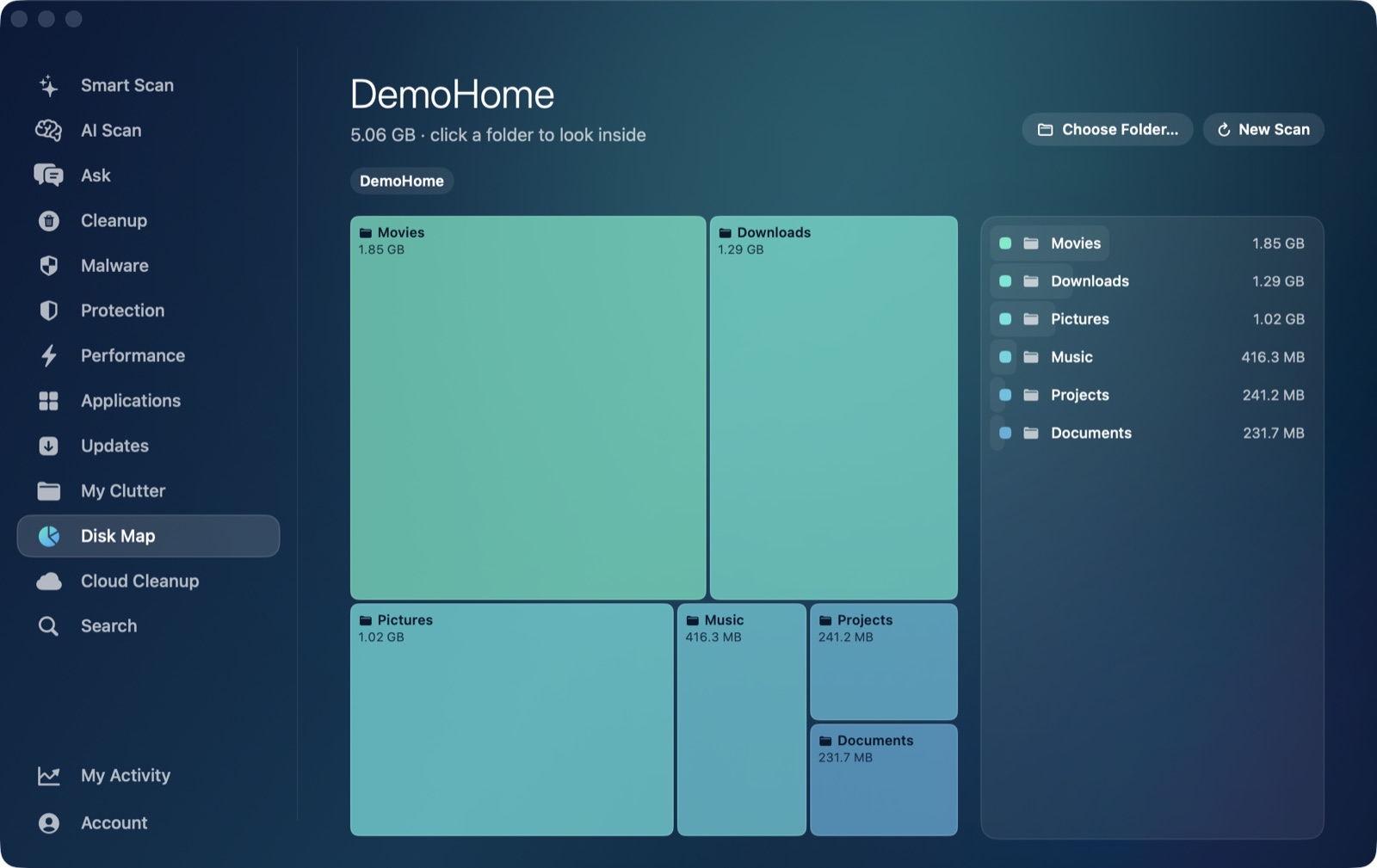
Emptying the Trash is the one exception, and it's still entirely your call: after any clean finishes, the app's completion screen (full edition; not in the App Store Lite edition, which doesn't include Trash emptying) offers a direct Empty Trash button alongside Open Trash, so you can review what's in there first rather than emptying blind. That covers the Finder-Trash side of this post directly. It doesn't reach into Photos' Recently Deleted album, though — that's inside the Photos library package, a format only the Photos app manages, the same honest limit our iCloud Photos post covers for the library itself. What the app's Disk Map and My Clutter modules do well here is the visibility side: showing you the Photos library's total size as one large item, and letting you see at a glance just how much is sitting in your home folder before you go looking for where it's hiding.
If storage still looks tight after clearing both Trash locations, check whether "Other" or System Data is the real culprit next — it's a separate category from either kind of Recently Deleted, with its own fix.
AI Mac Cleaner has a 7-day free trial with every feature unlocked and no card required, plans from $6.99/mo after.
Frequently asked questions
Does emptying the Trash happen automatically on a Mac?
Only if you turn it on — Finder → Settings → Advanced → "Remove items from the Trash after 30 days," which is off by default on most Macs. When it's on, each item empties 30 days after it was trashed, not all at once. Items trashed from iCloud Drive specifically are always auto-emptied after 30 days, regardless of this setting.
How long do deleted photos stay in Recently Deleted?
Apple's own documentation describes roughly 30 days before Photos removes them automatically. You can empty the album early from inside it — select items and choose Delete Immediately — if you're sure you don't need them back.
If I delete a photo from Photos, does it go to Finder's Trash too?
No. Photos manages its own library as a single package file and keeps its own Recently Deleted album inside it — Finder's Trash and Photos' Recently Deleted are two separate holding areas with separate rules.
Can AI Mac Cleaner empty my Recently Deleted Photos album for me?
No — that's inside the Photos library package, which only the Photos app can manage. AI Mac Cleaner's Empty Trash button covers Finder's Trash; Photos' Recently Deleted has to be cleared from inside Photos itself.
Is it safe to empty the Trash or Recently Deleted immediately instead of waiting?
Generally yes, as long as you're sure you don't need the items back — both are meant as a short recovery window, not a backup. Once emptied (manually or automatically), the files are gone for good, so it's worth a quick look through either one before clearing it on purpose.