 AI Mac Cleaner
Messages Attachments Taking Up Space on Mac
Messages attachments taking up space on Mac is a quiet, common complaint — years of photos and videos sent in chats pile up in a folder Finder never points you to. Here's where they live and the safe way to clear them.

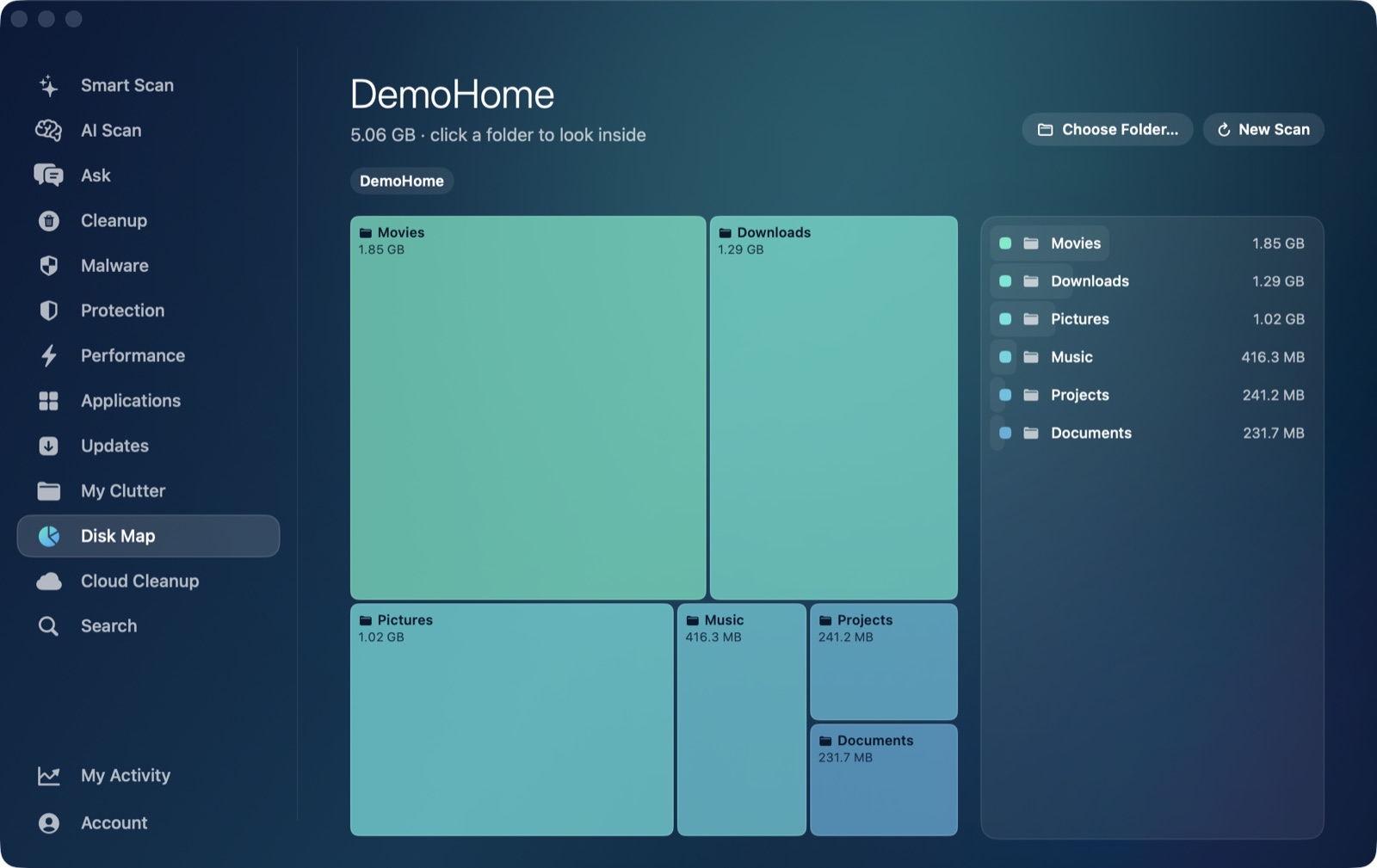
Text itself barely uses any disk space, which is exactly why messages attachments taking up space on Mac catches people off guard — there's no size warning anywhere in the Messages app, and the folder responsible for most of it isn't one Finder shows you by default. Years of photos, screenshots, voice memos and videos sent back and forth in group chats add up quietly in the background, and by the time someone notices, it's often tens of gigabytes.
Where Messages actually stores attachments
Apple Messages keeps two separate things on disk:
- Your message database,
~/Library/Messages/chat.db, which holds the text and metadata for every conversation. This part is usually small. - The attachments themselves, under
~/Library/Messages/Attachments. Every photo, video, voice memo and file anyone has ever sent or received in any conversation lives here, nested in a nondescript tree of numbered subfolders that give no hint about which conversation or file they belong to. This is almost always where the real size is.
If Messages in iCloud is turned on, attachments are also stored in iCloud, but that doesn't mean the local copies disappear — macOS still keeps a local cache of recently viewed media so conversations load instantly, which is why people report large local usage even with iCloud sync enabled.
The safe, built-in way to review and clear them
Rather than digging through an unlabeled folder of numbered subfolders by hand, macOS has a built-in review tool for exactly this: System Settings → General → Storage. Under the "Documents" breakdown, Messages appears as its own category showing the total size and letting you browse attachments by size or by conversation, then remove the ones you don't need — all without touching chat.db or anything else in the Messages folder structure directly.
This is the route worth trying first because it understands which attachment belongs to which conversation, something ~/Library/Messages/Attachments's numbered folders don't tell you at a glance. It's also reversible in the ordinary sense that nothing about your conversations' text is affected — only the media files themselves are removed.
If you want to check the size yourself first
Open Terminal and run:
du -sh ~/Library/Messages/Attachments
That gives you a real number before deciding anything needs to change. If it's genuinely large, System Settings' Messages storage review (above) is the safer next step than deleting folders inside ~/Library/Messages by hand — mixing up which numbered subfolder belongs to which attachment is easy, and Messages doesn't rebuild its own index the way a disposable cache does.
Why a general Mac cleaner doesn't reach this automatically
Worth being as direct about this as we are about Mail's own attachment cache: ~/Library/Messages isn't reached by any of AI Mac Cleaner's automatic scanners today. The Cleanup module's User Cache Files category only sweeps ~/Library/Caches, and Messages' attachments live under ~/Library/Messages instead — a different folder entirely, and one that holds real conversation data rather than a disposable cache, which is exactly why no automatic scanner touches it without you reviewing what's inside first.
What genuinely helps instead: point Disk Map's treemap at your home folder (or directly at ~/Library/Messages) to see how large it's actually grown relative to everything else on the Mac, or use Search to locate the Attachments folder by name. Either way, anything you do remove through the app goes through the same Trash-only remover used everywhere else — nothing is ever deleted outright, so a file you weren't fully sure about stays recoverable until you empty the Trash.
If Messages isn't the only thing filling up your Mac, My Clutter's large-file finder is a fast way to check what else is actually taking the space, and iPhone backups are another hidden-folder culprit worth checking in the same sitting. AI Mac Cleaner has a 7-day free trial with every feature unlocked, no card required, and plans from $6.99/mo after that.
Frequently asked questions
Will clearing Messages attachments delete my actual conversations?
No, not if you use System Settings' Messages storage review or remove individual attachments. Your message text and conversation history stay in chat.db; only the media files themselves are removed, and if Messages in iCloud is on, deleted attachments can re-download from iCloud if you open that conversation again later.
Where do Messages attachments actually live on a Mac?
~/Library/Messages/Attachments, organized in numbered subfolders that don't indicate which conversation each file belongs to. The message database itself, ~/Library/Messages/chat.db, is a separate, usually much smaller file.
Is it safe to delete files directly from the Attachments folder?
It's riskier than it looks, because the numbered subfolder structure gives no indication of which conversation or message each file is tied to, and macOS doesn't rebuild this index the way it rebuilds a disposable cache. System Settings → General → Storage's Messages review is the safer, conversation-aware way to remove the same files.
Why doesn't AI Mac Cleaner clean up Messages attachments automatically?
Its automatic scanners don't reach ~/Library/Messages today — the general cache sweep only covers ~/Library/Caches, and My Clutter's scanners are scoped to Downloads, Documents, Desktop, Movies, Music and Pictures, not ~/Library. Disk Map and Search can locate and size the folder manually, and System Settings' own Messages storage review is the most precise built-in tool for actually removing attachments.