AI Mac Cleaner
Mail Attachments Taking Up Space on Mac
Mail attachments taking up space on Mac is a real complaint — cached copies build up in a folder Finder never shows you. Here's where they live and how to clear them.

Apple's own Mail app doesn't show up in most people's mental list of space hogs, which is exactly why mail attachments taking up space on Mac catches so many people off guard. There's no size indicator in Mail itself, no warning as it grows, and the folder responsible isn't somewhere Finder shows you by default. Here's where that space actually goes and the safe way to get it back.
Where Mail actually stores attachments
Apple Mail keeps two genuinely different things on disk, and conflating them is the easiest way to clear the wrong one:
- Your mailboxes and message database, under
~/Library/Mail. This is Mail's core local store — messages, metadata, and (depending on your account type and sync settings) the message bodies and attachments themselves. Because Mail is a sandboxed app on modern macOS, more of its actual working data lives in a second location. - A cache of attachments you've opened, under
~/Library/Containers/com.apple.mail/Data/Library/Mail Downloads. Every time you double-click an attachment to open it rather than just preview it, Mail saves a local copy here — separate from the copy embedded in the message itself. Over years of opening PDFs, images and documents straight from emails, this folder can quietly reach several gigabytes without you ever deliberately saving anything there.
The Mail Downloads folder: the quick, low-risk win
This is usually where the easy space is. Open Finder, press Shift-Command-G, and paste:
~/Library/Containers/com.apple.mail/Data/Library/Mail Downloads
Everything in there is a cached copy — the original attachment still lives in the email itself, on your account's server for IMAP and most modern setups. You can move the whole folder's contents to the Trash without losing anything from your actual mail; Mail simply re-extracts a fresh copy the next time you open that attachment again.
To see how much space it's actually using before you touch anything, run this in Terminal:
du -sh ~/Library/Mail ~/Library/Containers/com.apple.mail
Comparing the two numbers tells you whether Mail Downloads is the real culprit or whether the bulk is in your actual mailbox data instead.
Why not to touch ~/Library/Mail directly
Unlike the Downloads cache, ~/Library/Mail holds your actual message store — deleting or moving files inside it directly can corrupt your mailboxes or lose messages outright, not just a rebuildable cache. If the goal is reclaiming space tied to attachments specifically, the safer and intended route is removing them from inside Mail itself, covered next, rather than operating on that folder by hand.
Clearing attachments the safe way, inside Mail
- Select the message (or a group of messages) with the attachment you want gone.
- Go to Message → Remove Attachments in the menu bar.
- If the account is IMAP (iCloud, Gmail, most modern providers), save the attachment somewhere first if you might need it — depending on your account and sync settings, this can remove the attachment from the server copy too, and it isn't always recoverable afterward.
This clears the attachment from the message and its related local storage without touching the rest of the email or risking the database the way editing ~/Library/Mail directly would.
Don't forget Trash and Junk
Deleted and junk messages, attachments included, still take up local space until those mailboxes are actually emptied — a message sitting in Mail's Trash isn't gone yet. Select the Trash or Junk mailbox for the account and use Mailbox → Erase Deleted Items (or the equivalent for Junk) to actually reclaim that space, rather than assuming deleting a message frees it immediately.
Why AI Mac Cleaner doesn't have a dedicated Mail module — and what does help
Worth being direct about this, the same way we are about Gradle's cache and Adobe Premiere Pro's media cache: neither of Mail's two storage locations is reached by any of AI Mac Cleaner's automatic scanners today. The Cleanup module's User Cache Files category only sweeps ~/Library/Caches, and Mail's data lives in ~/Library/Mail and ~/Library/Containers instead. My Clutter's large-file and duplicate scanners are scoped to Downloads, Documents, Desktop, Movies, Music and Pictures — not ~/Library at all, by design, since guessing at what's safe inside another app's data folder is exactly the kind of mistake a cleaner shouldn't make on its own.
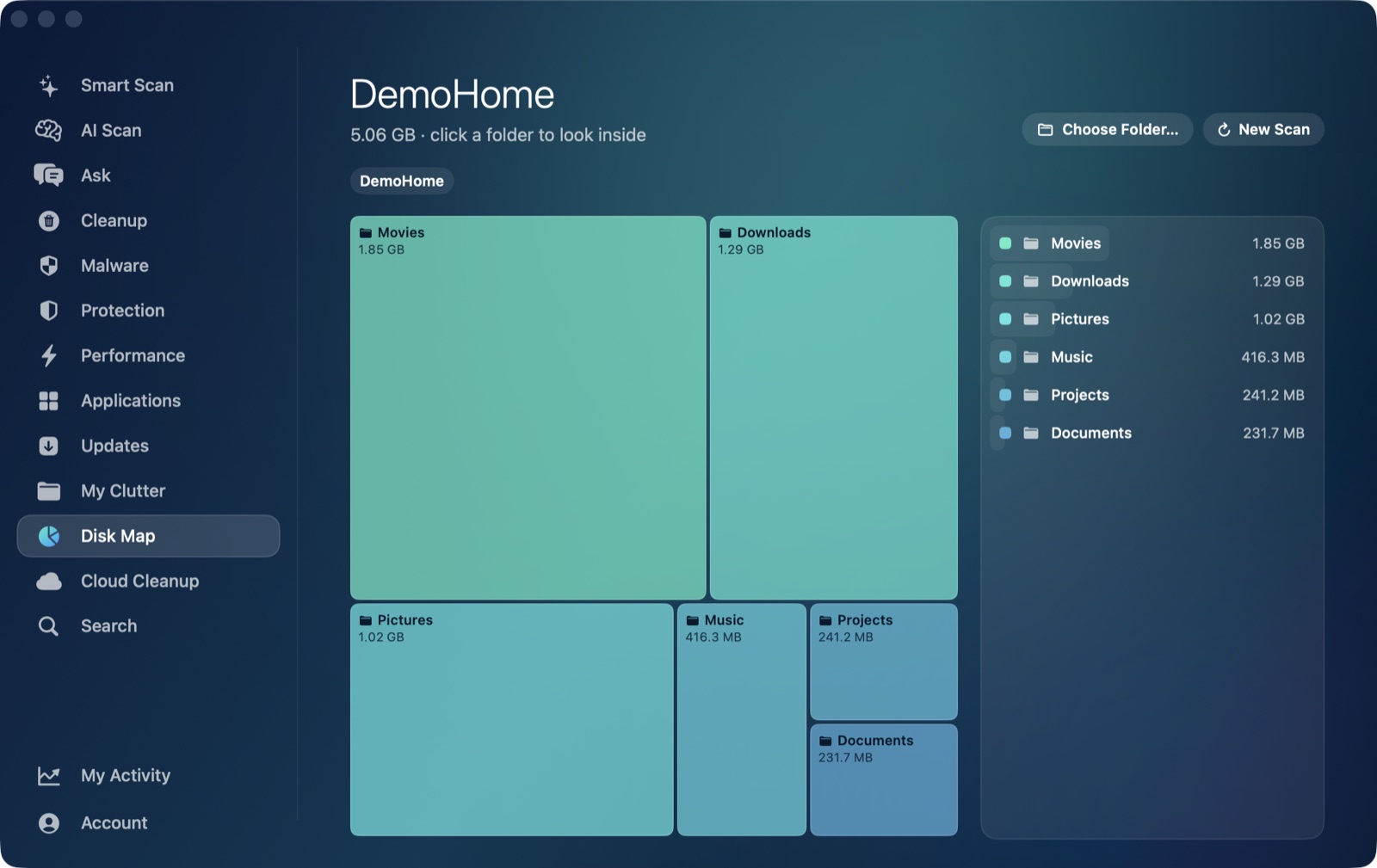
What genuinely helps instead: point Disk Map's treemap at ~/Library/Containers/com.apple.mail (or your whole home folder) to see exactly how large Mail's storage has grown relative to everything else, or use Search to find "Mail Downloads" by name and reveal it or move it to the Trash directly. Either way, removal through the app goes through the same Trash-only remover as everywhere else — nothing is ever deleted outright, so a folder you weren't fully sure about stays recoverable until you empty the Trash yourself.
If Mail isn't the only thing filling up your Mac, My Clutter's large-file finder is a fast way to spot what else is actually taking the space, and iPhone backups are another hidden-folder culprit worth checking while you're at it. AI Mac Cleaner has a 7-day free trial with every feature unlocked, no card required, and plans from $6.99/mo after that.
Frequently asked questions
Will clearing Mail attachments delete my actual emails?
No, if you use the methods in this post. Clearing ~/Library/Containers/com.apple.mail/Data/Library/Mail Downloads only removes cached copies of attachments you've opened; the originals stay in the email. Using Message → Remove Attachments inside Mail removes the attachment from that specific message, which is the intended, supported way to do it.
Is it safe to delete files directly from ~/Library/Mail?
No — that folder holds your actual mailbox database, not a rebuildable cache. Deleting or moving files inside it by hand risks corrupting your mail or losing messages. Use Mail's own Message → Remove Attachments command instead, or clear the separate Mail Downloads cache folder.
Why doesn't AI Mac Cleaner clean up Mail attachments automatically?
Its automatic scanners don't reach either of Mail's storage locations today — the general cache sweep only covers ~/Library/Caches, and My Clutter's scanners are scoped to Downloads, Documents, Desktop, Movies, Music and Pictures, not ~/Library. Disk Map and Search can locate and size Mail's folders manually instead.
I removed an attachment on an IMAP account and now it's gone from the server too — can I get it back?
Not reliably through Mail itself. For IMAP accounts (iCloud, Gmail and most modern providers), removing an attachment can also remove it from the server copy depending on your sync settings, and it often isn't recoverable afterward — which is why it's worth saving anything you might need before removing it.
How much space do old Mail attachments typically take up?
It varies enormously with how long you've used the account and how many attachments you've opened directly rather than just previewed, but multiple gigabytes in the Mail Downloads cache alone is common on an account that's been active for a few years.