AI Mac Cleaner
Final Cut Pro Render Files Taking Up Space on Your Mac
Final Cut Pro keeps render, optimized and proxy files inside your library itself, not in a cache folder a cleaner can see. Here's where they are and the safe way to delete them.
Final Cut Pro libraries have a habit of quietly doubling or tripling in size over a project's life, almost entirely from files you never see in Finder unless you go looking inside the library itself. If Final Cut Pro's render files are taking up space on your Mac, here's exactly what they are, why they're invisible to a general cache cleaner, and the right way — Apple's own way — to clear them.
What's actually filling up an FCP library
Final Cut generates several kinds of disposable file as you edit:
- Render files — pre-rendered frames for effects, titles, transitions and color so the timeline plays back in real time instead of recalculating every effect live.
- Optimized media — ProRes versions of camera-native footage (H.264, RAW, log formats) that are easier for your Mac to decode and scrub.
- Proxy media — smaller, lower-resolution stand-ins you can edit with on a laptop or over a slower connection, then swap back to full-res for delivery.
- Thumbnails and audio waveforms — the images and waveform shapes you see in the timeline and browser.
None of it is your original camera footage, and all of it is explicitly designed to be deleted and regenerated — that's the entire point of calling it "generated" rather than source media.
Where these files actually live — and why a cleaner can't just sweep them
This is the detail that makes Final Cut different from almost every other app on your Mac: render files, optimized media and proxies live inside the library's own bundle, or — if you've changed the setting — at a location you chose yourself under File › Library Properties › Storage Locations (sometimes still referred to as Library Properties → Cache in older guides). Either way, that storage sits right next to, or inside, your actual project data. It is not a disposable folder like ~/Library/Caches that a general-purpose cleaner can safely assume is junk.
That's exactly why AI Mac Cleaner's video editor page says plainly that the app does not reach into Final Cut's own render and media caches: a cleaner would have to open and understand the internal structure of every .fcpbundle library on your Mac — or a user-chosen external cache location — to tell render files apart from the project data sitting beside them. Apple built the delete command into Final Cut itself for exactly that reason: the app that created the library is the only thing that reliably knows which files inside it are safe to remove.
How to clear them the right way
- In Final Cut Pro, select the Library (not an individual project or event) in the sidebar.
- Choose File › Delete Generated Library Files…
- In the dialog, check Delete Render Files (choose All to clear everything, or Unused to keep render files tied to clips you're actively working on) and, separately, Delete Optimized Media and/or Delete Proxy Media if you want those cleared too — tick only what you're sure you want regenerated later.
- Confirm. Original camera footage and your edit itself are never touched by this command — only these four generated categories.
Render files, optimized media and proxies are all rebuilt automatically the next time Final Cut needs them (re-rendering effects live, or re-transcoding from your original camera files, which do need to still be connected or archived somewhere).
What a general Mac cleaner should do instead, and does
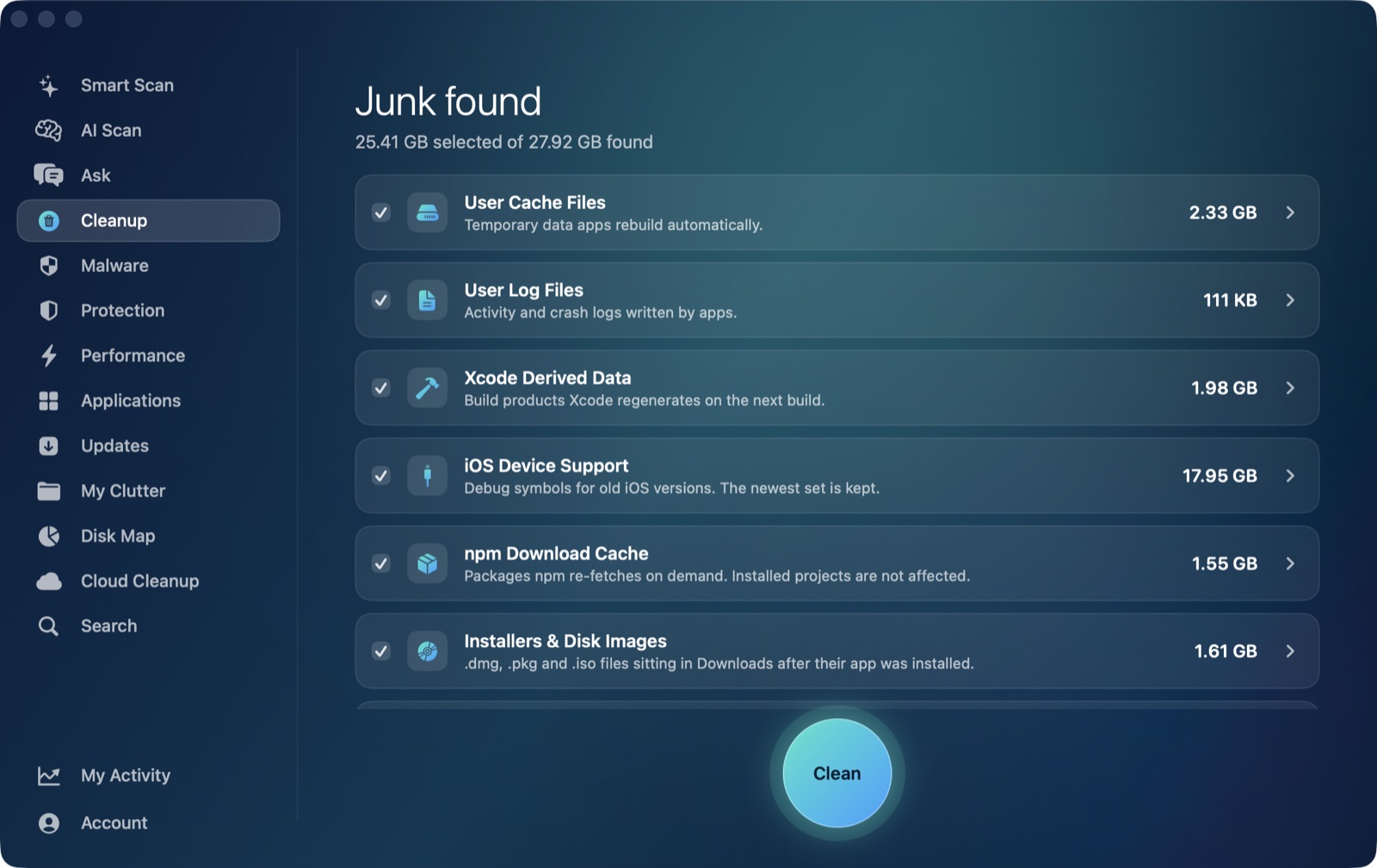
AI Mac Cleaner's Cleanup module stays out of your .fcpbundle files entirely and focuses on what's genuinely safe to clear from outside the app: Creative Cloud, Final Cut companion app and plugin installer .dmg/.pkg files still sitting in Downloads, old iPhone/iPad Finder backups from footage review on set, and leftover support files from editing trial software you've already uninstalled. Nothing in those categories, or anywhere else, is deleted outright — everything goes to the Trash first, and the app's protected-path list keeps your actual project files and libraries off-limits regardless of what any scan turns up.
If you're trying to track down a specific oversized export or old render dump sitting loose on your drive rather than inside a library, the Disk Map treemap is built for exactly that kind of visual hunt.
Frequently asked questions
Will deleting generated library files delete my edit or footage?
No. Delete Generated Library Files… only removes render files, optimized media, proxy media and related cache data — your sequences, edits and original camera files are untouched.
Why can't AI Mac Cleaner clear Final Cut's render files automatically?
Because they live inside the library bundle itself, or at a location you set per-library, right next to your actual project data. A general scanner would have to interpret Final Cut's internal library format to separate disposable files from real project content — exactly the kind of overreach a general Mac cleaner should never attempt.
What's the difference between render files, optimized media and proxy media?
Render files are pre-computed effects/transitions output. Optimized media is a ProRes transcode of hard-to-decode camera formats. Proxy media is a smaller stand-in for editing on lower-powered hardware or slower connections. All three are optional and rebuildable.
Will my playback be slower right after deleting render files?
Yes, briefly — anything with effects, titles or color will need to re-render the first time you play through it again. That's expected, not a sign anything went wrong.
Do I need to keep my original camera footage connected to regenerate optimized or proxy media?
Yes. Optimized and proxy media are transcoded from your original camera files, so Final Cut needs access to that source footage (or an archive of it) to rebuild them after you delete them.