AI Mac Cleaner
DaVinci Resolve Cache Taking Up Disk Space on Your Mac
DaVinci Resolve's render cache and gallery stills go wherever you've pointed Media Storage, not to ~/Library/Caches. Here's how to find it, clear it safely, and stop it refilling.

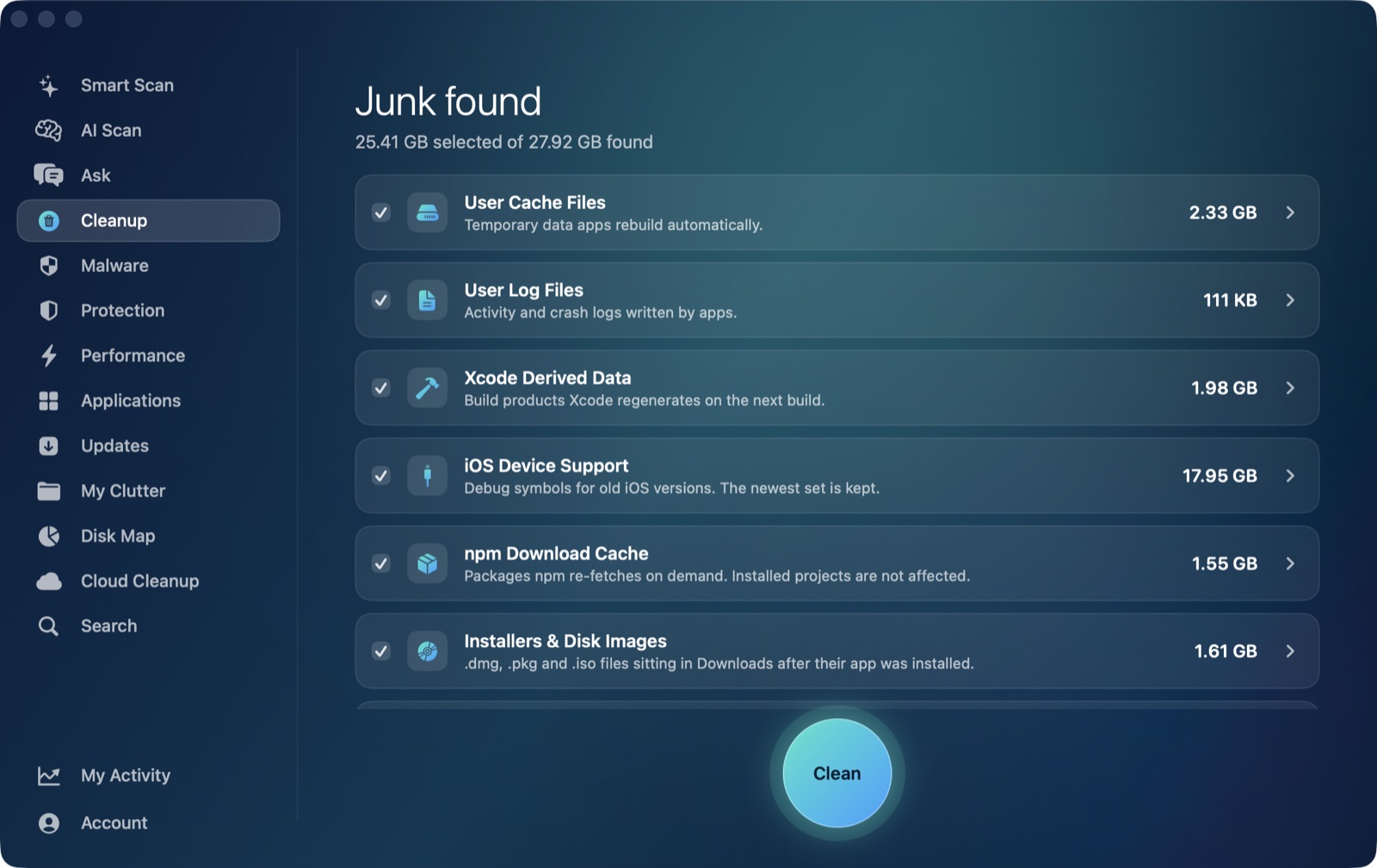
A 100GB-plus folder called CacheClip turning up on an internal drive is one of the most common "where did my space go" moments for DaVinci Resolve editors — and a quick forum search shows plenty of people unsure whether it's safe to touch by hand. If DaVinci Resolve's cache is taking up disk space on your Mac, here's where it actually lives, why a general Mac cleaner won't find it, and the two safe ways to clear it.
Why Resolve's cache is so much bigger than other apps'
Resolve renders in real time wherever it can, and caches the result so playback of effects, transitions, grades and Fusion compositions doesn't have to re-render every time you scrub the timeline. On a long-form project with heavy color work or VFX, that render cache can outgrow the source footage itself. Gallery Stills — saved frames you've pulled out as references or for match-grading — add a smaller but permanent chunk on top.
Where it actually lives (there's no single fixed path)
This is the detail that trips up most cleaning advice written for other apps: DaVinci Resolve has no fixed cache location at all. Its disk cache and Gallery Stills are created wherever you've pointed Resolve's storage:
- Preferences › Media Storage sets the database-level storage volumes Resolve knows about.
- Project Settings › Master Settings › Working Folders sets the actual Cache Files Location, Proxy Generation location and Gallery Stills Location for the current project — and these are very often pointed at a fast external or scratch drive, not your boot drive's
~/Libraryfolder at all.
Because that location is entirely user-configured and can sit on a completely different volume, a general-purpose cleaner that only scans fixed, predictable folders like ~/Library/Caches has nothing to scan — the cache might not even be on the same disk the cleaner is looking at. That's also exactly why we don't pretend otherwise on our own video editor page: a tool that doesn't know where you've told Resolve to put its cache has no business guessing and deleting there.
How to clear it safely
From inside Resolve (the safest route, especially mid-project):
- Open the Playback menu.
- Choose Delete Render Cache, then pick Unused (clears cache for clips no longer in your timeline) or Selected Clips. Use All only once you're confident you're fully done with a project.
By hand, in Finder:
Check Project Settings › Master Settings › Working Folders first to confirm exactly where your Cache Files Location currently points — it's not always the default. Once you know the path, you can delete the contents of that CacheClip folder directly, with Resolve closed; it is rebuilt automatically the next time the project needs to re-render. Forum reports of people doing this after relocating their cache path describe no problems, but Resolve itself has no official "delete the folder from Finder" button, which is why the in-app Delete Render Cache command is the better first move for anyone still actively editing.
What AI Mac Cleaner does for a Resolve-heavy Mac instead
AI Mac Cleaner's Cleanup module isn't guessing at your scratch volume's contents. What it does handle on an editing Mac: installer .dmg/.pkg files left in Downloads after you installed Resolve or a plugin, old iPhone/iPad backups piling up from shooting reference footage, and leftover support files from NLEs or trial plugins you've already removed. Review-only categories like Docker's disk image and virtual machines — relevant if you're running a render node — are listed with their size but never pre-ticked. Everything that does get removed goes to the Trash first, never straight to deletion, and the app's protected-path list keeps it out of your actual project folders regardless of what a scan finds there.
If your "Other" or "System Data" number looks unexplained even after clearing Resolve's cache, this post covers what else typically hides in that bucket.
Frequently asked questions
Is it safe to delete DaVinci Resolve's CacheClip folder?
Yes, once you've confirmed where Working Folders currently points and Resolve is closed. The safer first step is the in-app Playback › Delete Render Cache command, which only removes cache Resolve itself says it can rebuild.
Why doesn't a Mac cleaner find DaVinci Resolve's cache automatically?
Because there's no fixed path to scan — Resolve's cache location is set per-project under Working Folders and is often pointed at an external or scratch drive, not a predictable folder under your home directory the way most apps' caches are.
Will deleting the render cache affect my edit?
No. Render cache only speeds up playback of effects and grades that are already baked into your timeline; your actual edit, media and project file are untouched. Expect slightly slower scrubbing right after a full clear while it rebuilds.
What's the difference between the render cache and Gallery Stills?
Render cache is disposable preview data Resolve regenerates on demand. Gallery Stills are frames you deliberately saved as references — they're small individually but permanent, and clearing the render cache never touches them.
Where should I point Resolve's cache if my boot drive is full?
A fast external or secondary internal SSD, set under Project Settings › Master Settings › Working Folders › Cache Files Location. Keeping cache off your boot drive is the most reliable long-term fix for this exact problem.