AI Mac Cleaner
How to Clear Adobe Premiere Pro Media Cache on a Mac
Premiere Pro's Media Cache Files and Media Cache Database live outside ~/Library/Caches, so most Mac cleaners never see them. Here's where they are and how to clear them safely.

If you edit in Premiere Pro, you've probably watched a project drive shrink for no obvious reason — no new exports, no new footage, just less free space every week. The usual suspect is the Adobe Premiere Pro media cache on your Mac, and it's a different kind of cache from the ones a general Mac cleaner sweeps up. Here's exactly what it is, where it lives, and the safe way to clear it.
What Premiere Pro's media cache actually is
Every time Premiere Pro imports audio or certain video formats, it transcodes a working copy so scrubbing and playback stay smooth — a .cfa file for audio peaks, .pek or .mcdb conform files for video. Those are the Media Cache Files, and a Media Cache Database tracks which source file each one belongs to. Multiply that by every project you've opened in the last few years, across every drive, and it adds up fast — ten or twenty gigabytes is common on an active editing machine, more if you work with a lot of long-form audio or mixed frame rates.
None of it is your actual footage. Premiere rebuilds whatever it needs the next time it opens a project; the cache exists purely so that doesn't happen every single time.
Where it lives — and why a general cache cleaner doesn't reach it
This is the part most people get wrong. Premiere Pro writes its cache to:
~/Library/Application Support/Adobe/Common/Media Cache Files
~/Library/Application Support/Adobe/Common/Media Cache
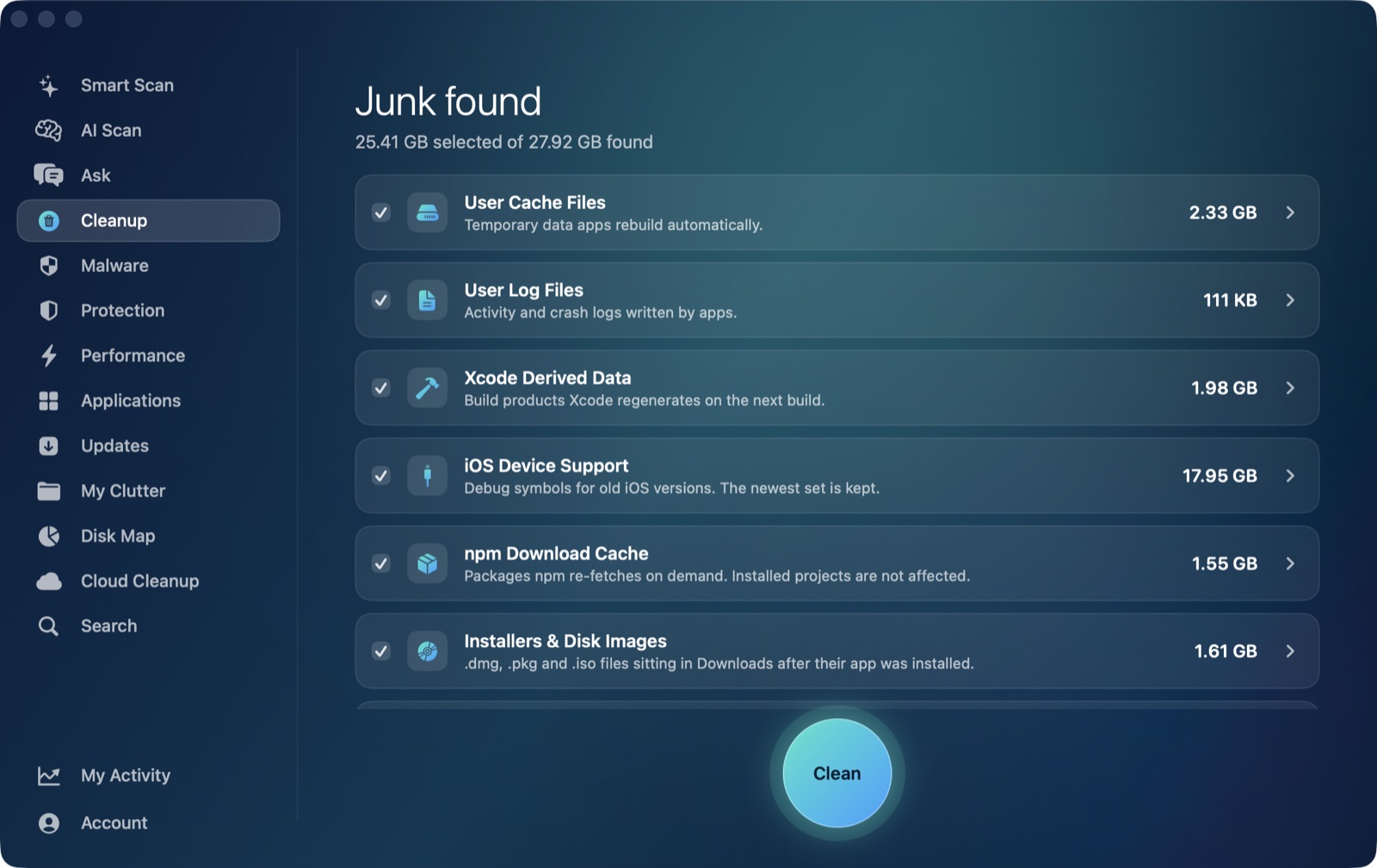
That's Application Support, not Caches. On a Mac, ~/Library/Application Support/Adobe/Common is a sibling folder of ~/Library/Caches, not something nested inside it. A cleaner that sweeps the direct contents of ~/Library/Caches — which is how most general-purpose Mac cleaners, including AI Mac Cleaner's auto-offered User Cache Files category, find app caches — never looks inside Application Support at all, because it isn't a cache folder by that name. It's app data that happens to behave like a cache.
That's a deliberate line, not an oversight: a cleaner that goes rummaging through every app's Application Support folder guessing what's disposable is one mistake away from deleting something that wasn't rebuildable. Adobe knows exactly what's safe to clear in its own cache; a general scanner guessing from outside doesn't.
How to clear it safely, from inside Premiere Pro
- Open Premiere Pro › Settings › Media Cache (older versions: Premiere Pro › Preferences › Media Cache).
- You'll see the current cache size and its folder locations for both Media Cache Files and the Media Cache Database.
- Click Delete Unused first — this removes cache files for media that isn't linked to any project currently on disk, and is the safer everyday choice.
- Delete All clears everything, including cache tied to projects you still have open elsewhere; only use it between projects, with Premiere closed in any other window, since anything deleted this way gets rebuilt from scratch (slower first scrub) rather than reused.
- If you're on Premiere Pro 2023 or later, holding Shift while launching the app opens a reset dialog with its own "Clear Media Cache Files" option — useful if the Settings panel itself won't open.
Deleted cache files are recreated automatically the next time a project needs them. You are not deleting source media, exports, or project files at any point in this process.
What a video editor's Mac cleaner should actually do instead
This is exactly the gap AI Mac Cleaner's video editor page is built to be honest about. The app's Cleanup module auto-offers the junk that genuinely sits outside any app's control — installer .dmg/.pkg files from Creative Cloud and plugin installs still sitting in Downloads, old iPhone/iPad camera-roll backups, and leftover support files from NLEs or plugin trials you already uninstalled. Those get listed with their size, nothing pre-ticked that shouldn't be, and everything removed goes to the Trash first, never deleted outright. The Media Cache Files and Media Cache Database above stay exactly where Adobe put them — that's Premiere's job, not a general cleaner's, and we'd rather say so than quietly imply coverage we don't have.
If you're trying to figure out what else is actually eating space on an editing Mac, My Clutter's large-file finder is the faster way to spot a 40GB export from three projects ago sitting next to the active one.
Frequently asked questions
Will clearing the Premiere Pro media cache delete my footage or projects?
No. The media cache only holds rebuildable preview and conform data — your original footage, exports and .prproj files are never touched by clearing it.
Why doesn't AI Mac Cleaner's cache sweep clear this automatically?
Its general cache category only scans the direct contents of ~/Library/Caches. Premiere's Media Cache Files and Media Cache Database live in ~/Library/Application Support/Adobe/Common, a sibling folder Adobe manages itself, so the app leaves it alone rather than guessing at what's safe inside another vendor's app data.
How much space does the Premiere Pro media cache usually take?
It varies with how much audio and mixed-format footage you work with, but ten to twenty gigabytes is common on an active editing Mac, and it can grow much larger over years of projects if it's never cleared.
Is "Delete Unused" or "Delete All" the safer option?
Delete Unused, for day-to-day cleanup — it only removes cache tied to media that isn't linked to a project still on your drive. Save Delete All for between projects, since it clears everything and the next scrub on any open project will be slower while the cache rebuilds.
Can I move the media cache to a different drive?
Yes — the same Settings › Media Cache panel lets you browse to a new location for both the Media Cache Files and the Media Cache Database folders, which is worth doing if your boot drive is tight and you have a faster external or second internal drive.