AI Mac Cleaner
iPhone backup taking up space on your Mac? Here's what's safe to delete
An iPhone backup taking up space on your Mac can quietly reach dozens of gigabytes in one hidden folder. Here's where it lives, what's safe to remove, and the one backup you should never touch.

An iPhone backup taking up space on your Mac is easy to miss, because Finder never shows it to you directly. If you've ever backed up an iPhone or iPad through Finder, there's a folder on your drive you've probably never opened: ~/Library/Application Support/MobileSync/Backup. Each backup in there is a near-complete copy of a device at a point in time — photos, messages, app data, settings — and none of it is obvious from a normal Finder window, which is exactly why it's easy to let years of old backups stack up unnoticed. Here's where iPhone backups are stored on a Mac, what's safe to clear, and the one backup you should never touch.
Where Finder actually stores these backups
Modern Finder backup (and the legacy iTunes backups before it) all land in the same place: ~/Library/Application Support/MobileSync/Backup. Inside, each backup is its own folder named after a long device identifier rather than anything human-readable, with no device name or label to tell you at a glance which iPhone or iPad it belongs to, or whether it's the one you still use. That opacity is the reason this folder is so easy to forget about — there's nothing in Finder's interface that surfaces its size or contents unless you go looking for it specifically.
Why they get so big
A local backup isn't a shortcut or a pointer to iCloud — it's close to a full image of the device: every photo and video not already offloaded to iCloud, every app's local data, message history, health data, settings and keychain items. A single iPhone with a well-used camera roll and a few dozen apps can easily produce a backup in the double-digit gigabytes, and Finder doesn't clean up an old backup once a newer one exists for the same device — each new backup just creates another folder alongside the old ones.
Multiply that by every device you've ever backed up on that Mac — your current iPhone, a previous one, a kid's iPad, a device you've since sold — and the Backup folder can end up holding several complete device snapshots at once, most of them for hardware that's no longer in the house.
What's safe to remove, and what isn't
The rule here is the opposite of a regenerable cache like Xcode DerivedData or a browser cache: a backup isn't something that rebuilds itself. If you delete the only backup you have for a device and that device is then lost, stolen or wiped, there's no way to get it back from your Mac. So the safe target is specifically the old, superseded backups — a prior backup of a device you've since backed up again more recently, or a backup for hardware you no longer own and have no reason to restore.
What's never safe to blanket-delete: the single most recent backup of any iPhone or iPad you still use. If that device needed to be restored tomorrow, that folder is the only way to get your data back without starting from a blank phone and whatever happened to sync to iCloud.
Finding out what you actually have
Finder itself doesn't make this easy to check by hand. You can see roughly how big the whole Backup folder is from Finder's "Manage Storage" panel, but it doesn't break the total down by device or tell you which folder belongs to a phone you still own versus one you sold two years ago — you'd need to cross-reference modification dates and sizes against devices you remember backing up, one cryptic folder at a time.
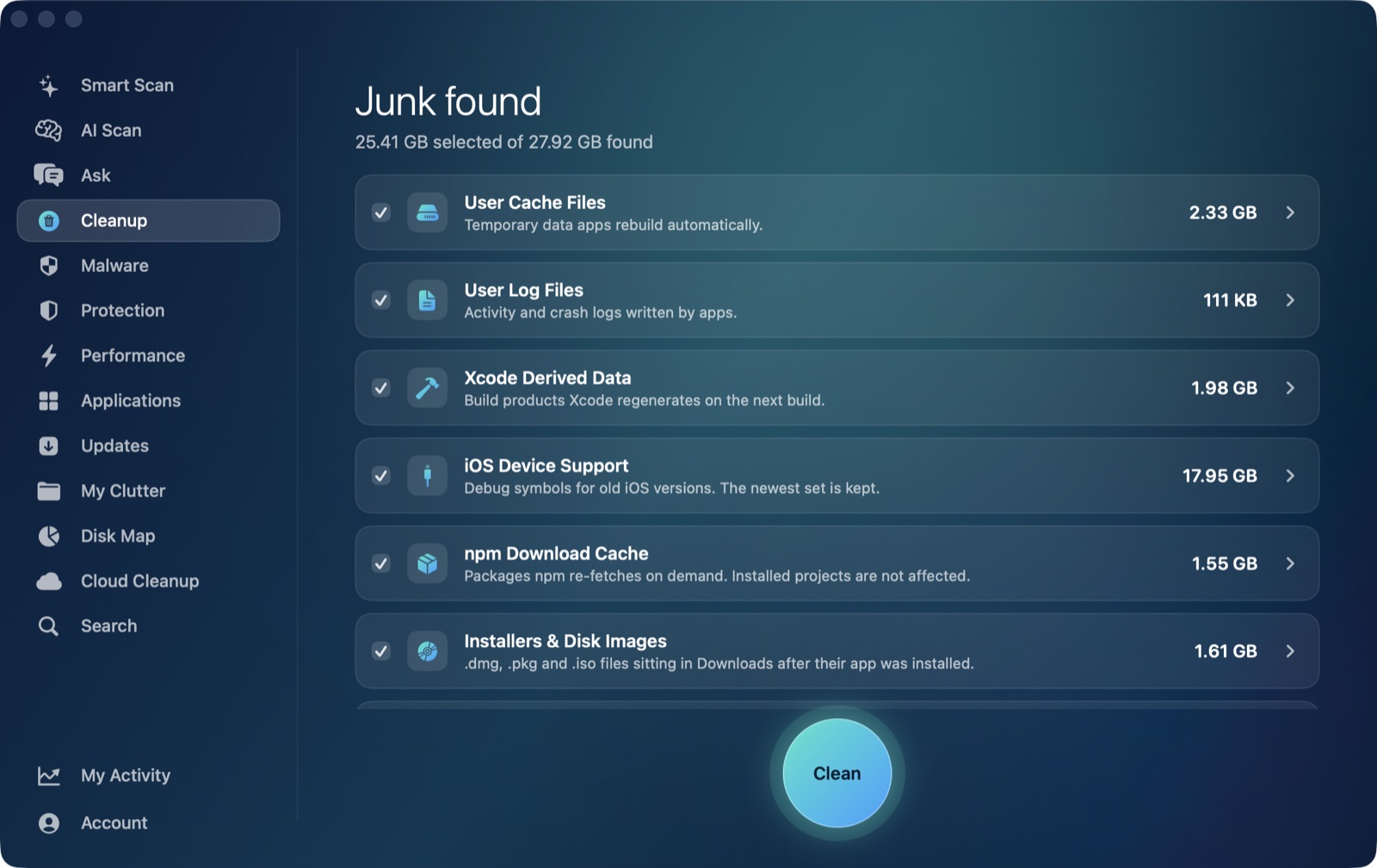
AI Mac Cleaner's Cleanup module lists iPhone & iPad Backups under its review-only section, alongside Docker disk images and virtual machines — categories it sizes and shows but never auto-selects, because unlike a cache, something in there might be worth keeping. For this category specifically, it also keeps the newest backup for each device it finds, so even a quick cleanup pass doesn't put your most recent backup of a device you still own on the chopping block by default. You still decide what, if anything, gets removed.
Deleting the safe way
As with every category in the app, nothing here is deleted outright. Removal goes through the same Trash-only remover used everywhere else in AI Mac Cleaner, which moves files to the Trash and refuses a protected-path list rather than erasing them directly. A backup you change your mind about is recoverable until the Trash is emptied — the only permanent step in the whole process, and the one you confirm yourself.
If you want to see how much of your Mac's storage is really old device backups before deciding what to clear, AI Mac Cleaner has a 7-day free trial with every feature unlocked, no card required, and plans from $6.99/mo after that. Download it for macOS and see what's actually sitting in that Backup folder. For the rest of what quietly fills a Mac, see what's actually safe to free up.
Frequently asked questions
Where are iPhone backups stored on a Mac?
In ~/Library/Application Support/MobileSync/Backup, a hidden folder with one subfolder per backup, named after a device identifier rather than the device's actual name.
Is it safe to delete old iPhone backups on a Mac?
Yes, for backups that are superseded by a newer one of the same device, or for a device you no longer own. It's never safe to delete the only (or most recent) backup of a device you still use and might need to restore.
How do I tell which backup folder belongs to which device?
Finder doesn't label them by device name, only by identifier, so you have to cross-reference modification dates against devices you remember backing up. AI Mac Cleaner's Cleanup module reads and labels them for you instead.
Will cleaning up backups ever delete my most recent one by mistake?
No — the iPhone & iPad Backups category in AI Mac Cleaner's Cleanup module keeps the newest backup for each device it finds and is review-only, so nothing in it is auto-selected or removed without you choosing it.
Does removing a backup delete it permanently right away?
No. Every removal in AI Mac Cleaner goes to the Trash first, not a direct delete, so it stays recoverable until you empty the Trash yourself.