 AI Mac Cleaner
How to delete old iOS Device Support files on your Mac
Every iOS version you've ever debugged on leaves a multi-gigabyte Device Support folder behind in Xcode, most of them for devices and iOS versions you no longer test. Here's what's safe to remove and what Xcode needs to keep.
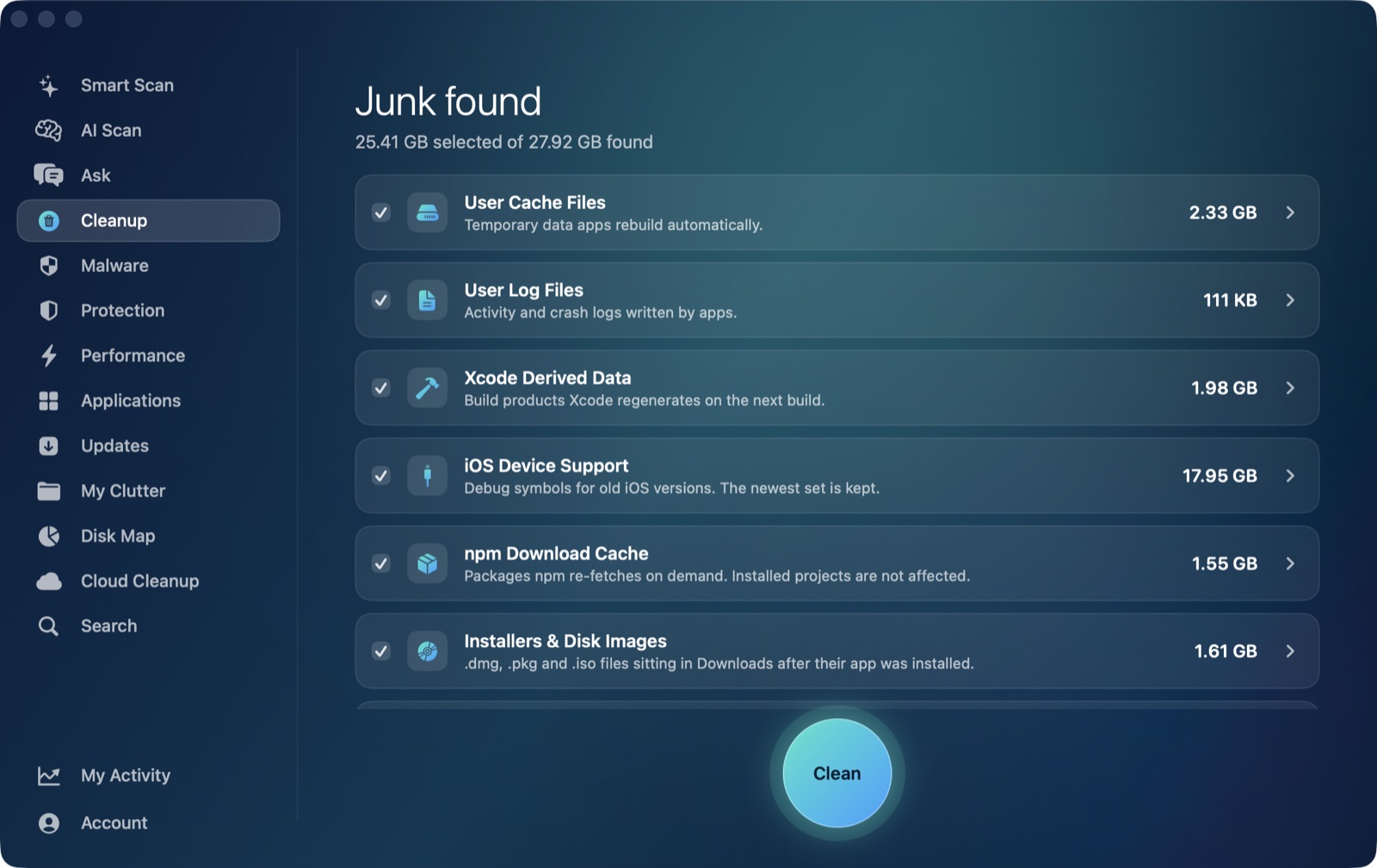
If you've been building iOS apps for more than a few months, ~/Library/Developer/Xcode/iOS DeviceSupport is probably one of the biggest folders on your Mac that you've never opened. Xcode creates a new entry here every time you connect a physical device or run a build against a new iOS version, and it almost never cleans the old ones up itself. Here's what's actually in there and how to delete old iOS Device Support files on a Mac without breaking your ability to debug.
What Device Support files are for
When you plug in an iPhone or iPad to debug, Xcode needs matching system symbol files to make sense of crash logs, stack traces and on-device debugging for that exact iOS build. It downloads and caches a full set — one subfolder per iOS version, named after the version and build number, like 17.5 (21F79) — the first time it sees a device running that version. The same thing happens for watchOS and tvOS under their own DeviceSupport folders nearby.
Each of those subfolders can run several hundred megabytes to a couple of gigabytes, because Xcode is caching enough of the OS's own symbol data to debug against it properly. Multiply that by every iOS version your test devices have run since you started the project — or since you started doing iOS work at all — and it adds up fast. A folder going back a couple of years of OS updates easily reaches double-digit gigabytes.
What's safe to delete, and why
The rule is the same one that makes Xcode DerivedData and Simulator caches safe to clear: nothing in Device Support is data you created. It's a cache Xcode builds from Apple's own symbol files, and it rebuilds automatically — the next time you connect a device or attach a debugger to that exact iOS version, Xcode re-downloads whatever it needs.
That means any Device Support entry for an iOS version you're no longer actively debugging against is safe to remove. In practice that's most of them: unless you're specifically supporting several iOS versions back for compatibility testing, you only need the entry matching whatever your current test devices are running, plus maybe one version back. Entries for iOS versions two or three major releases old, or for a device you've since sold or reset, are pure dead weight.
The one thing to actually check before deleting: if you're mid-sprint debugging a device still running an older iOS version, keep that version's folder — removing it just means Xcode re-downloads it next time you connect, which costs you a few minutes at an inconvenient moment rather than any real risk.
Clearing it by hand vs. letting a cleaner size it first
You can delete individual version folders directly from ~/Library/Developer/Xcode/iOS DeviceSupport in Finder, but it's easy to misjudge which ones you still need just from a version number and a build date, especially across watchOS and tvOS support folders too.
AI Mac Cleaner's Cleanup module lists old iOS Device Support as one of its auto-offered categories, sized and grouped alongside the rest of the developer cache pile it already knows how to read — Xcode DerivedData, Simulator caches, npm cache. Being auto-offered means it's treated the same way as those other safely-regenerable caches: selecting it doesn't delete anything directly, every removal goes through FileRemover, which moves the files to the Trash rather than erasing them outright. If a device you're still using turns out to need a folder you cleared, it's recoverable from the Trash until you empty it — and even then, Xcode just rebuilds it from scratch the next time that device connects.
AI Mac Cleaner has a 7-day free trial with every feature unlocked, no card required, and plans from $6.99/mo after that if you want to keep this kind of developer cache tidy automatically — download it for macOS to see how much Device Support alone is costing you.