 AI Mac Cleaner
How to clear iOS Simulator cache on your Mac safely
The Simulator's cache folder can quietly grow into gigabytes across every iOS runtime you've ever launched. Here's exactly what's safe to clear by hand, what to leave alone, and how a cleaner automates it.
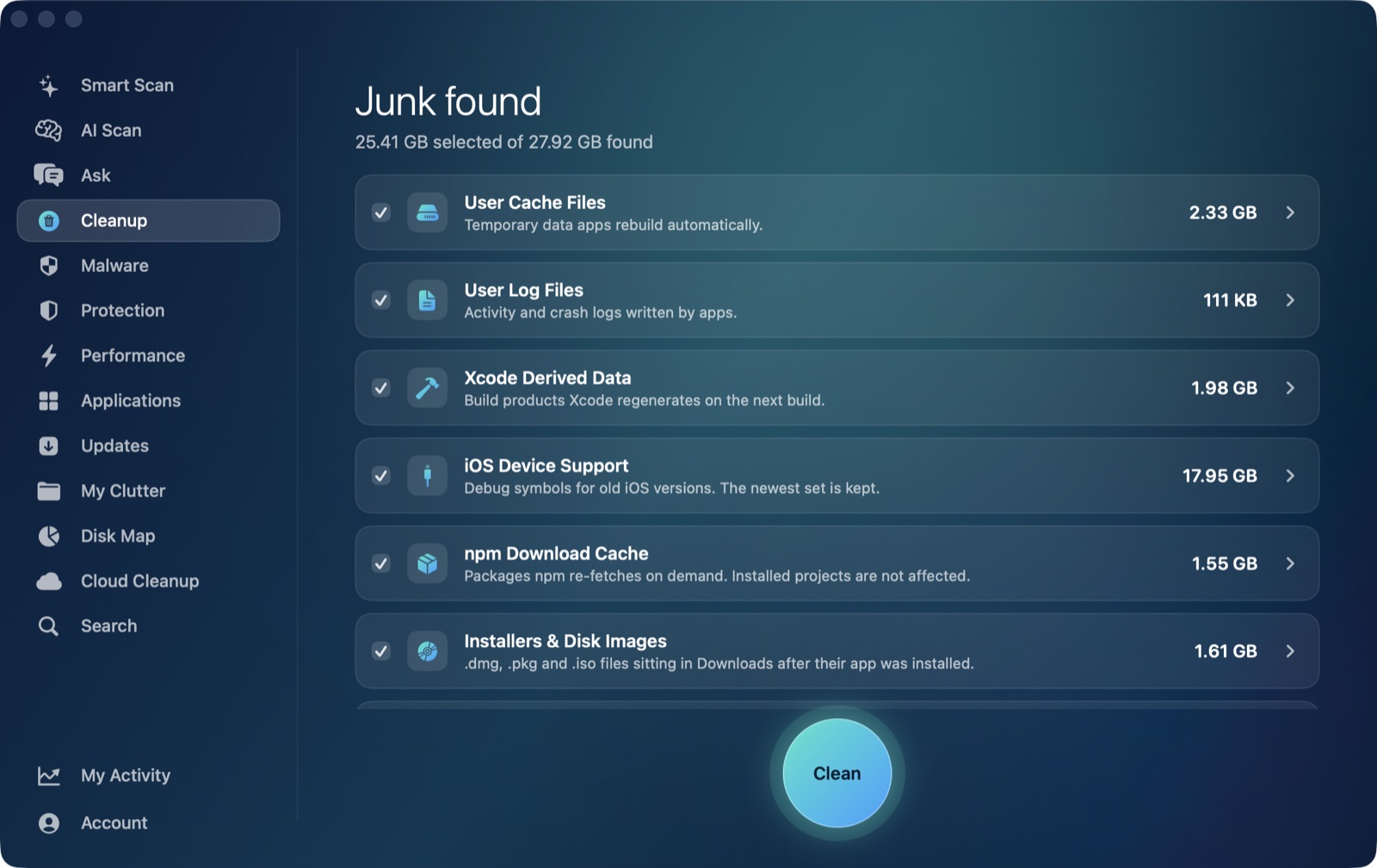
If you've run iOS apps in Xcode's Simulator for a while, ~/Library/Developer/CoreSimulator is probably a lot bigger than you'd guess. Most of it is cache: dyld shared-cache files CoreSimulator builds the first time you boot each iOS runtime, so every simulated device launches fast afterward. Here's how to clear iOS Simulator cache on a Mac without breaking anything you're actively using.
What's actually in there, and what's safe
~/Library/Developer/CoreSimulator/Caches holds the regenerable part: dyld shared-cache files and related build artifacts for every iOS/watchOS/tvOS runtime you've ever booted in Simulator. None of it is unique — CoreSimulator rebuilds whatever it needs the next time you launch that runtime. This is the same rule that makes Xcode DerivedData safe to clear: nothing you wrote lives there, only things the tooling already knows how to regenerate.
That folder is different from ~/Library/Developer/CoreSimulator/Devices, which holds your actual simulator instances — their installed apps, settings and simulated storage. Deleting something there removes a simulator the way deleting it in Xcode's Devices and Simulators window would. It isn't a cache; treat it with the same care as any other data you'd want to keep.
Clearing the cache by hand
- Quit Simulator and Xcode first, so nothing is writing to the cache while you clear it.
- Open Finder, press ⌘⇧G, and go to
~/Library/Developer/CoreSimulator/Caches. - Move the contents to the Trash (leave the folder itself — CoreSimulator recreates it).
- Empty the Trash once you're ready to reclaim the space for good.
If you also want to prune simulator devices you no longer use — not just cache — Xcode's own tooling has a safer command than deleting folders by hand: xcrun simctl delete unavailable removes simulator data tied to runtimes Xcode no longer supports, without touching devices you still use. That's a devices cleanup, not a cache clear, so it's worth knowing the difference before you run anything from Terminal.
What happens after you clear it
The next time you boot a given iOS runtime in Simulator, expect a noticeably slower first launch while CoreSimulator rebuilds that runtime's shared cache. After that first boot, everything is back to normal speed. It's the same trade-off as DerivedData: the cache exists to make repeat simulator launches fast, so clearing it trades one slow boot for disk space now.
Why a cleaner handles this better than deleting by hand
The risk with clearing Simulator storage manually isn't really the cache folder — it's being one click away from the Devices folder, where a careless delete removes a simulator's actual contents instead of a rebuildable cache. AI Mac Cleaner's Cleanup module lists Simulator caches as its own auto-offered category, sized and separate from anything that would touch your actual simulator devices, right alongside the other developer caches that fill up a Mac the same way — Xcode Derived Data, old iOS Device Support, npm's download cache. Selecting and cleaning it doesn't delete anything directly: every removal goes through FileRemover, which moves the files to the Trash first, so nothing is unrecoverable until you empty it yourself.
The other developer caches worth knowing about
Simulator caches, DerivedData and old iOS Device Support debug symbols all follow the same pattern — regenerable, safe to clear, auto-offered in AI Mac Cleaner's Cleanup module. node_modules, Docker's disk image and iPhone backups are handled differently: the app lists them separately, review-only and never pre-ticked, because clearing them isn't always free to redo (a slow reinstall, a backup you might still want), so you decide case by case instead of the app deciding for you.
AI Mac Cleaner has a 7-day free trial with every feature unlocked, no card required, and plans from $6.99/mo after that if you want to keep automating this kind of cleanup — download it for macOS to see what's taking up space on your own Mac.