AI Mac Cleaner
iCloud Photos Taking Up Space on Your Mac? Here's Why
iCloud Photos taking up space on your Mac is a different problem from iCloud Drive — it lives in your Photos library, not CloudDocs, and the fix is a Photos app setting, not a cleaner.
If you've already checked iCloud Drive and your storage is still mysteriously full, iCloud Photos is very likely where it's going — and it's a genuinely different store from iCloud Drive, not just another folder under the same umbrella. It's worth being precise about this one, because the fix lives inside the Photos app itself, not in a general-purpose cleaner, and it's easy to end up clicking around the wrong settings panel looking for it.
iCloud Photos is not iCloud Drive
iCloud Drive files live under ~/Library/Mobile Documents/com~apple~CloudDocs — Finder-visible, ordinary-looking files and folders. Your Photos library is a completely different thing: a single package file, ~/Pictures/Photos Library.photoslibrary, that the Photos app manages internally and that Finder treats as one opaque item rather than a folder you'd browse through. iCloud Photos — the setting that syncs every photo and video across your devices — writes into that package, not into CloudDocs, which is why a cleaner built around iCloud Drive or general cloud-storage folders won't see it as "iCloud" at all. It just looks like one very large file.
Why it gets so big in the first place
By default, iCloud Photos tries to keep your whole photo library — across every device signed into that Apple ID — available on each one. On a Mac with plenty of storage, that usually means Download Originals to this Mac is turned on, so every full-resolution photo and video you or anyone else added from any device ends up fully downloaded locally, not just a thumbnail. Years of photos, 4K video clips, screenshots, and anything shared into a family album add up fast, and because it's all sitting inside one library package, it's easy to not notice how large that single item has gotten until storage is nearly full.
The actual fix: Optimize Mac Storage
This lives inside the Photos app itself, not System Settings' iCloud pane (that's a common wrong turn): Photos → Settings → iCloud, then choose Optimize Mac Storage instead of Download Originals to this Mac. With it on, macOS keeps smaller, space-saving versions on disk and downloads the full-resolution original automatically the moment you open or edit that specific photo — the same on-demand pattern iCloud Drive uses for its own files. Nothing is deleted from iCloud; everything stays available, just not permanently downloaded in full resolution for photos you haven't touched in years.
This is the one setting that actually reduces the library's footprint. Nothing in a general Mac cleaner — including AI Mac Cleaner — substitutes for it, because the data lives inside a format only the Photos app understands.
Where AI Mac Cleaner honestly fits in, and where it doesn't
AI Mac Cleaner's Cloud Cleanup module scans ~/Library/Mobile Documents/com~apple~CloudDocs (iCloud Drive) and ~/Library/CloudStorage (Google Drive, Dropbox, OneDrive, Box) — it does not reach into the Photos library package, and it would be dishonest to suggest otherwise. Managing what's inside Photos Library.photoslibrary is Apple's job, done entirely through the Photos app's own iCloud setting above.
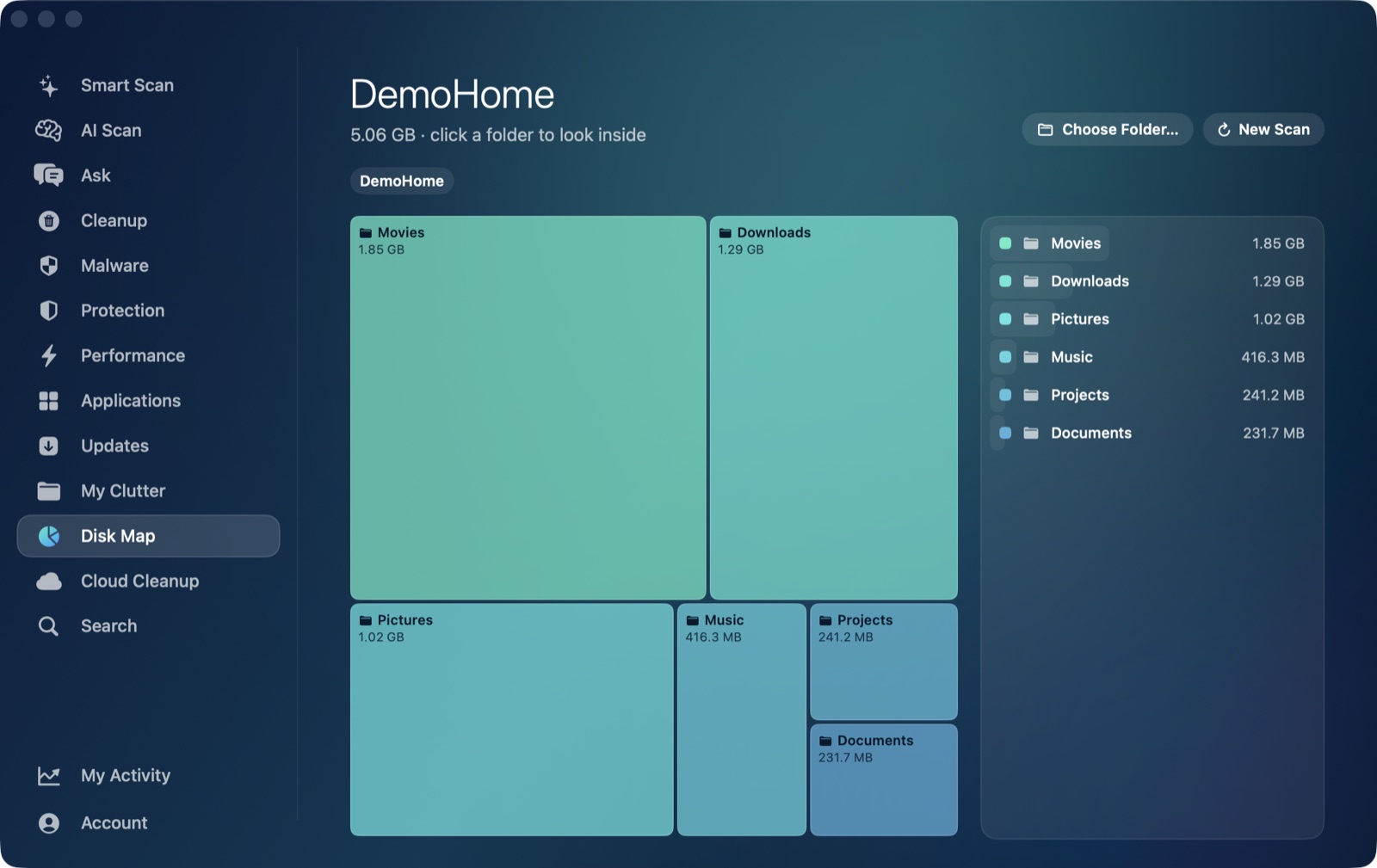
Where the app genuinely helps is visibility, not management: the My Clutter module scans your home folders — including ~/Pictures — for the largest files on disk, and a Photos library that's grown into tens or hundreds of gigabytes will typically show up there as one of the single biggest items on the whole Mac. It won't let you dig into what's inside it or remove anything from it (that's not how a .photoslibrary package works, and the app doesn't pretend otherwise), but seeing it listed at the top of a sorted-by-size view is often the moment people realize where their space actually went, rather than blaming caches or downloads instead.
What to actually do, in order
- Open Photos → Settings → iCloud and confirm whether Download Originals to this Mac or Optimize Mac Storage is selected.
- If it's Download Originals, switch to Optimize Mac Storage. Space doesn't free up instantly — macOS reclaims it gradually in the background as it swaps full-resolution files for smaller versions.
- Once that's set, use My Clutter or Disk Map to confirm the library's size is trending down over the next day or two, rather than assuming the toggle alone did the job immediately.
- If you also have iCloud Drive files fully downloaded, check why iCloud Drive is taking up space next — it's the same "Optimize" pattern, applied to a different store.
Frequently asked questions
Does AI Mac Cleaner manage or shrink my Photos library?
No. The Cloud Cleanup module only covers iCloud Drive and third-party cloud-storage folders (Google Drive, Dropbox, OneDrive, Box) — it does not reach into the Photos library package. My Clutter can show the library as a large file so you know where to look, but reducing its size is done through Photos' own Optimize Mac Storage setting.
What's the difference between iCloud Drive and iCloud Photos?
iCloud Drive syncs ordinary files and folders you can browse in Finder, under ~/Library/Mobile Documents/com~apple~CloudDocs. iCloud Photos syncs your photo library specifically, stored inside one package file managed entirely by the Photos app. They're separate iCloud features with separate storage settings.
Will turning on Optimize Mac Storage delete any of my photos?
No. It only changes whether full-resolution originals stay downloaded locally. Every photo and video stays safely in iCloud and re-downloads in full resolution automatically the moment you open or edit it.
Why does my Photos library still look huge right after switching to Optimize Mac Storage?
The switch doesn't reclaim space instantly — macOS gradually replaces full-resolution originals with smaller versions in the background as it determines what you're not actively using, which can take a day or more for a very large library.
I use a Shared Library or shared albums — does this still apply?
Yes, the same Download Originals vs. Optimize Mac Storage setting governs a Shared Library the same way it governs your personal one; check Photos → Settings → iCloud for whichever library is active. Just be aware that removing a photo from a Shared Library can remove it for everyone it's shared with, which is a separate decision from the storage setting itself.
If you're trying to get a fuller picture of where your Mac's storage actually went, Try AI Mac Cleaner free for 7 days — Disk Map and My Clutter will show you the rest of it, Photos library included as a line item.