 AI Mac Cleaner
How to Uninstall Google Chrome Completely on a Mac
Dragging Chrome to the Trash leaves your profile, cache and Google's vendor-nested support folders behind. Here's how to remove all of it, and what to save first.

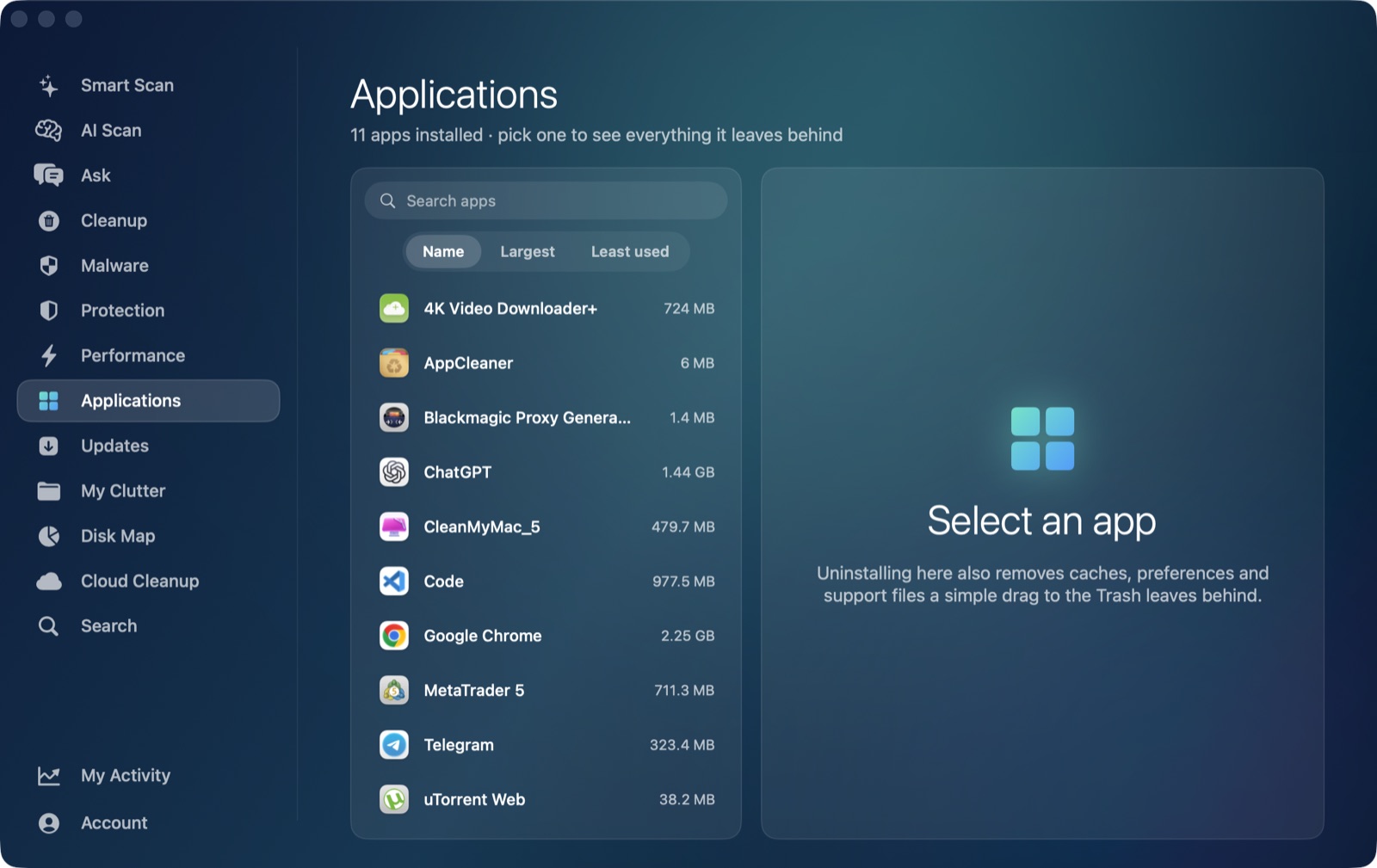
If you want to uninstall Google Chrome completely on a Mac, dragging it to the Trash is only the first step. Chrome is almost certainly the most-installed non-Apple app on any Mac, and like most apps that sync your data and run a background updater, it leaves behind a profile folder, a sizeable cache, and support files nested a level deeper than most apps use — under a vendor folder named "Google" rather than directly under "Chrome."
Why dragging the app to the Trash isn't enough
The icon in /Applications is the program, but Chrome's actual data — your bookmarks, saved passwords (if you don't use Google's own sync), browsing history, extensions and a cache that can run into gigabytes — lives entirely outside that bundle, under your user Library. Removing the app bundle doesn't touch any of it, so a plain Trash-and-empty leaves the single largest set of per-app leftovers most people will ever accumulate.
Where Chrome's leftovers actually live
These are the general locations where macOS apps keep data outside their own bundle. Chrome's own folders inside them are larger than most apps', and one of them uses a vendor-nested layout worth knowing about:
~/Library/Application Support/Google/Chrome— your profile: bookmarks, history, saved passwords, extensions, and autofill data. This is nested under a "Google" vendor folder rather than directly under "Chrome," since several Google apps share that vendor folder on a Mac that has more than one installed.~/Library/Caches/Google/Chrome— the browser cache, often the largest single folder, sometimes several gigabytes on a heavily used profile.~/Library/Preferences— a handful of.plistfiles with window state and app-level settings.~/Library/Logs— diagnostic logs from the updater and the browser process.
A full uninstall means clearing the Chrome-specific folder (or the Chrome folder nested inside Google's) in each of those locations, on top of removing the app itself. We cover the same general four-folder pattern for OneDrive and Dropbox, though those two don't have Chrome's vendor-nesting quirk.
Decide what to keep before you remove anything
Unlike a cache you can clear without a second thought, Chrome's profile folder holds things you may genuinely want to keep:
- Bookmarks and saved passwords — if you use Google's own sign-in sync, these are already backed up to your Google account and reappear the moment you sign into Chrome again on any device. If you don't sync, export bookmarks (Bookmarks → Bookmark Manager → Export) and consider moving saved passwords into a password manager before you remove the profile folder, since there's no way to recover them afterward.
- Extensions — these reinstall automatically if you're signed in and syncing; otherwise you'll need to reinstall each one by hand.
If you plan to reinstall Chrome later and want a clean slate, removing the profile folder is exactly what gives you that; if you just want the app gone but might use Chrome again without starting over, back up what matters first.
How AI Mac Cleaner handles it
AI Mac Cleaner's Applications module is the app-leftover tool for this: point it at Chrome and it works as an uninstaller that also finds leftovers in ~/Library, matching on the app's own bundle identifier rather than guessing from the display name — including Chrome's vendor-nested Google/Chrome folders, which a plain name search would miss entirely. You get a list of what it found, with sizes, before anything moves, and the module never lists Apple's own apps, itself, or Claude as something you could remove.
Nothing goes straight to permanent deletion: everything routes through the same Trash-only remover, with a hard-coded list of protected paths it refuses to touch regardless of what a scan finds — so a removed profile folder is recoverable from the Trash until you empty it yourself, on purpose, not gone the instant you click.
The order that makes sense
If you're removing Chrome for good: back up bookmarks and passwords you haven't synced to a Google account, quit Chrome completely (check it isn't still running in the background via its icon in the Dock or Activity Monitor), then uninstall the app and clear its leftovers with the Applications module. Removing the profile folder while Chrome is still running can leave it half-rewritten on next launch, so quit it first.
AI Mac Cleaner has a 7-day free trial with every feature unlocked and no card required, plans from $6.99/mo after.
Frequently asked questions
Does deleting Chrome from Applications remove everything?
No. It removes the app bundle, but your profile (bookmarks, history, passwords, extensions), cache and log files stay behind in ~/Library, nested under a "Google" vendor folder for several of them.
Will uninstalling Chrome delete my saved passwords?
Only if you don't have them synced to a Google account. If you're signed in and syncing, your passwords live in your Google account and reappear when you sign into Chrome again anywhere. If you're not syncing, export or move them to a password manager before removing the profile folder — there's no recovery after that.
Why is Chrome's data under a "Google" folder instead of directly under "Chrome"?
Because several Google apps can share the same Mac, Google nests its apps' support and cache data one level deeper, under Application Support/Google/<app name> and Caches/Google/<app name>, rather than putting each app's folder directly at the top level the way most other apps do.
Does AI Mac Cleaner have a dedicated Chrome uninstaller?
Not a Chrome-specific one — its Applications module is a general uninstaller that finds any app's leftovers in ~/Library by matching the app's own bundle identifier, including vendor-nested layouts like Chrome's, the same way it covers Dropbox, OneDrive, Slack or any other installed app.