 AI Mac Cleaner
How to Uninstall Dropbox Completely on a Mac
Dragging Dropbox to the Trash leaves preferences, caches and support files behind — and your synced Dropbox folder is a separate thing entirely. Here's how to remove both properly.

If you want to uninstall Dropbox completely on a Mac, there are actually two separate things to deal with, not one. Dragging the Dropbox app to the Trash removes the program itself, but it leaves behind preference files, cached data and support folders under ~/Library — the same leftover pattern as almost any Mac app. On top of that, Dropbox is unusual in a second way: it also has its own synced folder living under ~/Library/CloudStorage, which is a completely different concern from app leftovers and needs its own decision about what happens to it.
Why dragging the app to the Trash isn't enough
On macOS, the icon in /Applications is the program, but almost nothing an app does while running stays confined to that bundle. From the moment you sign in and start syncing, Dropbox writes settings, cached thumbnails and sync state into several folders under your user Library that have nothing to do with the app bundle you just deleted. Removing the bundle doesn't touch any of them, and they sit there indefinitely — for Dropbox specifically, this can mean a meaningful amount of sync-database and cache data left behind, not just a small settings file.
Where Dropbox's app leftovers actually live
These are the general locations where macOS apps — Dropbox included — keep data outside their own bundle. The folders themselves are standard; exactly what Dropbox puts inside each one is internal to its own code:
~/Library/Preferences— a.plistsettings file: your account connection, sync preferences, window state.~/Library/Caches— temporary data, including cached thumbnails and previews. Always safe to remove.~/Library/Application Support— the main data folder, and typically the largest for a sync client: local sync-state databases, selective sync settings, and related support files.~/Library/Logs— diagnostic logs from the sync process.
A full app uninstall means clearing the Dropbox-specific folder inside each of those four locations, on top of removing the app itself. We cover this same four-folder pattern in more depth for Zoom, since it's near-identical for any app that runs continuously in the background the way Dropbox does.
The separate question: your synced Dropbox folder
This is the part that's easy to get wrong. Uninstalling the Dropbox app should never delete the actual files inside your Dropbox folder — those are your files, synced to Dropbox's servers, and macOS (and Dropbox) deliberately keep that folder separate from the app's own Library leftovers so that removing the app doesn't wipe out your synced data. Depending on how Dropbox is set up on this Mac, that folder shows up either as a plain folder in your home directory or, for Dropbox's newer smart-sync setup, under ~/Library/CloudStorage/Dropbox-<account> — the same general location Google Drive, OneDrive and Box use for their own desktop sync clients.
That distinction matters because it changes what "removing" the folder actually does: content kept there isn't a cache you can safely clear and forget — moving it to the Trash tells Dropbox to delete it from your account too, not just free local space. That's a materially different action from clearing an app's cache, and worth treating with more care, specifically because it affects data in your Dropbox account, not just this Mac.
How AI Mac Cleaner handles each piece
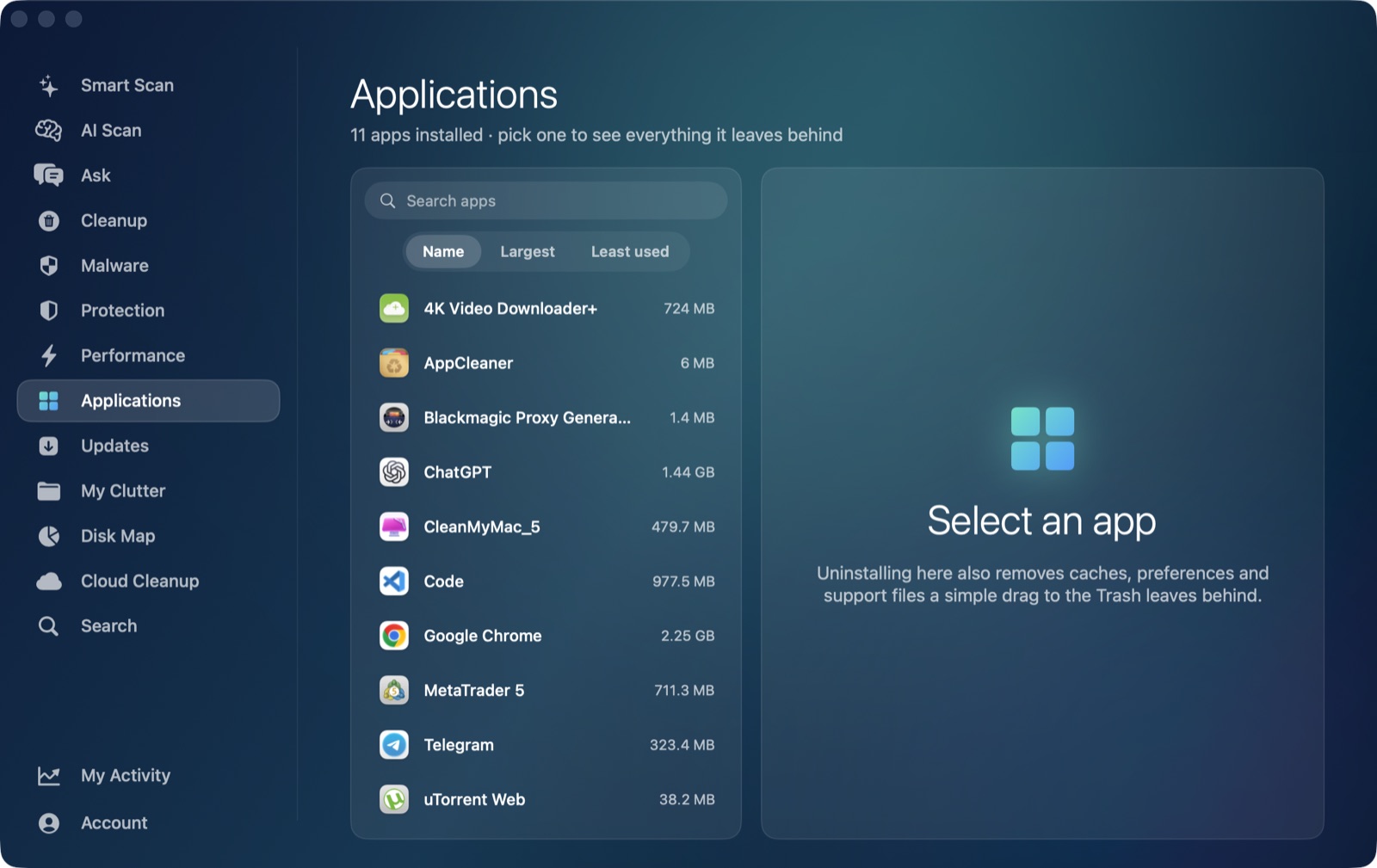
AI Mac Cleaner's Applications module is the app-leftover tool here: point it at Dropbox and it works as an uninstaller that also finds leftovers in ~/Library, matching on the app's own identifier rather than guessing from its display name, so it doesn't catch some unrelated app that happens to share part of the name. You get a list of what it found — preferences, caches, support data, logs — before anything moves, and the module never lists Apple's own apps, itself, or Claude as something you could remove.
For the separate synced-folder question, that's the Cloud Cleanup module's job, not the Applications module's: it treats ~/Library/CloudStorage/Dropbox-* the same way it treats Google Drive, OneDrive and Box, showing the local footprint of what's synced there and the largest downloaded files. Because Dropbox isn't iCloud, Cloud Cleanup doesn't have an "evict without deleting" option for it the way it does for iCloud Drive — for Dropbox and the other third-party providers, your choices are Show in Finder or Move to Trash, with the app warning upfront that moving Dropbox-synced content to the Trash deletes it from your Dropbox account as well, not just locally. Folders that look like code projects (containing .git, package.json, .xcodeproj, node_modules and similar markers) are skipped by the scanner entirely, so it won't surface or touch a project you keep synced there.
Whichever module you're using, nothing goes straight to permanent deletion: everything routes through the same Trash-only remover, with a hard-coded list of protected paths it refuses to touch regardless of what a scan finds — recoverable from the Trash until you empty it yourself, on purpose.
The order that makes sense
If you're removing Dropbox for good: decide what happens to your synced files first (keep a local copy outside the Dropbox folder if you want to keep anything, since moving the synced folder to the Trash deletes it from your account), then uninstall the app and clear its ~/Library leftovers with the Applications module. Doing it in the other order risks losing track of which files were ever actually backed up anywhere else.
AI Mac Cleaner has a 7-day free trial with every feature unlocked and no card required, plans from $6.99/mo after.
Frequently asked questions
Does deleting the Dropbox app from Applications remove everything?
No. It removes the app bundle, but preferences, caches, your Application Support sync database and log files stay behind in ~/Library, and your actual synced Dropbox folder is untouched either way.
Will uninstalling Dropbox delete my files in the Dropbox folder?
No — removing the app itself never touches your synced folder. That folder is a separate thing from the app's own Library leftovers, specifically so uninstalling the app can't accidentally wipe your synced files.
Where does Dropbox's synced folder actually live on a Mac?
Either as a regular folder in your home directory, or under ~/Library/CloudStorage/Dropbox-<account> if you're using Dropbox's smart-sync setup — the same general location other cloud providers like Google Drive and OneDrive use for their own desktop clients.
Does moving my Dropbox folder to the Trash delete it from my Dropbox account?
Yes, for the Dropbox-synced folder specifically — unlike clearing a cache, this deletes the content from your account, not just from this Mac. AI Mac Cleaner's Cloud Cleanup module warns about this before you confirm, since it's a meaningfully different action from the rest of what it clears.
Does AI Mac Cleaner have a dedicated Dropbox uninstaller?
Not a Dropbox-specific one — its Applications module is a general uninstaller that finds any app's leftovers in ~/Library by matching the app's own identifier, which covers Dropbox the same way it covers Zoom, Slack or any other installed app.
