AI Mac Cleaner
How to Uninstall Docker Desktop Completely on a Mac
Docker Desktop's own uninstaller destroys your local containers, images and volumes — different from just clearing its disk image. Here's the safe order and what's left after.
Uninstalling Docker Desktop is a different question from clearing Docker's disk image to recover space while keeping the app. This is about removing Docker Desktop itself — and because its own uninstaller destroys your containers, images and volumes as part of the process, back up anything you need before you start.
Use Docker Desktop's own uninstaller
Docker Desktop has a built-in uninstall path: open the app, go to Troubleshoot (the bug icon in the top bar), and choose Uninstall. This is the recommended route because Docker's own uninstaller knows how to properly tear down the virtual machine it runs containers inside, rather than leaving a stopped VM process behind.
If the app itself won't open, the same uninstaller can be run directly from Terminal:
/Applications/Docker.app/Contents/MacOS/uninstall
Either way, be clear on what this does: it's documented to destroy all Docker Desktop containers, images and volumes local to your Mac, along with the files Docker itself generated. If there's anything in a running container you haven't pushed to a registry or exported, that's the point to do it — once you uninstall, it's gone.
What's left after uninstalling
Even after Docker's own uninstaller runs, a few locations commonly still have files in them:
~/Library/Group Containers/group.com.docker— shared container data used by Docker Desktop's helper processes.~/.docker— the Docker CLI's own config directory (credentials, contexts, CLI settings), separate from the GUI app and not always removed by Docker Desktop's uninstaller since the CLI config can be shared with a Homebrew-installeddockerclient.- Docker-related caches and preferences under the general
~/Library/Cachesand~/Library/Preferenceslocations, the same pattern as any other app's leftover data.
If you want to remove the Terminal-only pieces too and you use Homebrew, brew list and which docker are worth checking afterward — a Homebrew-installed CLI client is a separate install from the Desktop app and isn't touched by Docker's own uninstaller at all.
If you only want the disk space back
If your actual goal is freeing up space rather than removing Docker, you don't need to uninstall anything — Docker's disk image (the file holding every image, container and volume) is usually the far bigger chunk of space, and it can be resized or cleared from Docker Desktop's own settings while keeping the app installed and your containers intact.
How AI Mac Cleaner helps
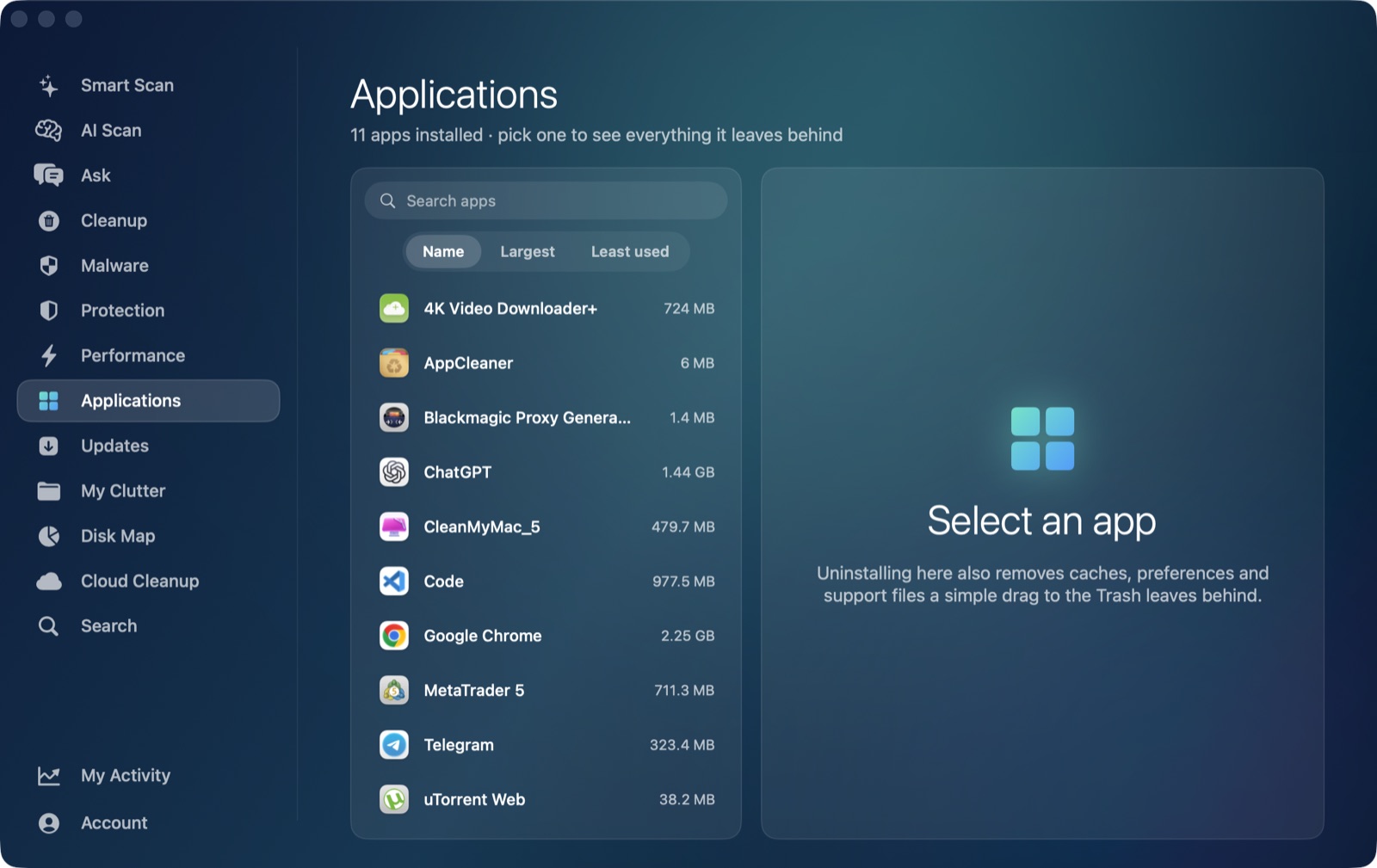
Once Docker Desktop's own uninstaller has run, AI Mac Cleaner's Applications module can confirm what's still sitting in ~/Library under Docker's identifier and clear it to the Trash — reviewed first, nothing deleted outright. It won't touch ~/.docker or a Homebrew-installed CLI client, since those are developer-tool configuration you may be keeping on purpose even without the Desktop app; those are worth checking by hand if you're removing Docker entirely.
Frequently asked questions
Does uninstalling Docker Desktop delete my containers and images?
Yes — Docker's own uninstaller is documented to destroy all local containers, images and volumes as part of the process. Back up or push anything you need to keep before running it.
Is clearing Docker's disk image the same as uninstalling Docker Desktop?
No. Clearing the disk image frees space while keeping the app, your settings and (depending on how you clear it) your containers. Uninstalling removes the app itself and destroys local containers as part of that.
Where does Docker Desktop leave files after I uninstall it?
Commonly ~/Library/Group Containers/group.com.docker and ~/.docker (the CLI's own config directory), plus the usual ~/Library/Caches and ~/Library/Preferences pattern any app leaves behind.
I also installed Docker's CLI through Homebrew — does uninstalling the Desktop app remove that too?
No, it's a separate install. Check brew list and which docker afterward if you want the command-line client gone as well.
Can AI Mac Cleaner uninstall Docker Desktop for me?
It doesn't run Docker's own uninstaller (which needs to tear down its virtual machine properly, something only Docker's own tooling can do safely) — use Docker Desktop's Troubleshoot → Uninstall first, then AI Mac Cleaner's Applications module can confirm and clear whatever leftover folders remain.