AI Mac Cleaner
How to Remove a Configuration Profile on a Mac
A configuration profile you didn't install can silently control your search engine, proxy or DNS. Here's how to find and remove one, step by step.

A configuration profile on a Mac is a small settings file that can control things like your search engine, a network proxy, or DNS servers — legitimate when an employer or school installs one for a managed device, but a common way adware hijacks your browser when you didn't install one yourself. If your search engine keeps changing back no matter how many times you fix it in your browser's settings, an unrecognised profile is very often the actual cause, and resetting the browser alone won't fix it until the profile itself is removed.
Check whether you have any profiles installed
Open System Settings → Privacy & Security → Profiles. If this section doesn't appear at all in the sidebar, you have no configuration profiles installed — that's the normal state for most personal Macs that have never been enrolled in any kind of device management. If it does appear, it lists every profile currently installed, each with a name and the authority that installed it.
If you're comfortable with Terminal, profiles status -type configuration reports the same thing from the command line — useful for scripting or if the Settings pane is behaving oddly, though for most people the Settings pane is simpler.
How to tell a legitimate profile from an unwanted one
- Installed by your employer, school, or a service you knowingly set up (a work email account that required "Mobile Device Management," a school-issued Mac) — legitimate, and removing it may break your access to that account or network until IT reinstalls it. If you're not sure, ask whoever manages it before removing anything.
- You don't remember installing it, its name looks unfamiliar or generic, or it appeared around the same time your search engine or homepage changed unexpectedly — this is the pattern adware uses. A profile is one of the sneakier ways unwanted software locks in a change, because resetting the browser itself doesn't undo a change the profile keeps re-applying.
How to remove one
- Open System Settings → Privacy & Security → Profiles.
- Select the profile you want to remove and click the remove (minus) button.
- Enter your Mac's admin password if prompted.
- Restart your browser (or your Mac, if the change doesn't take immediately) and check whether your search engine or homepage has reverted to what it should be.
If you remove a profile and your browser still shows the wrong search engine afterward, go back into your browser's settings and set the search engine manually — removing the profile stops it from being re-applied, but doesn't automatically undo whatever it last changed.
Why this often isn't the only step
A profile installed by adware rarely travels alone. The same software that installs an unwanted profile commonly also adds a browser extension, a login item, or a background launch agent that restarts something at every login. Our broader guide to adware on a Mac — how it gets in and how to get it out covers the full pattern, including named families like Genieo and Pirrit that are known to use configuration profiles as part of their search hijack.
How AI Mac Cleaner helps
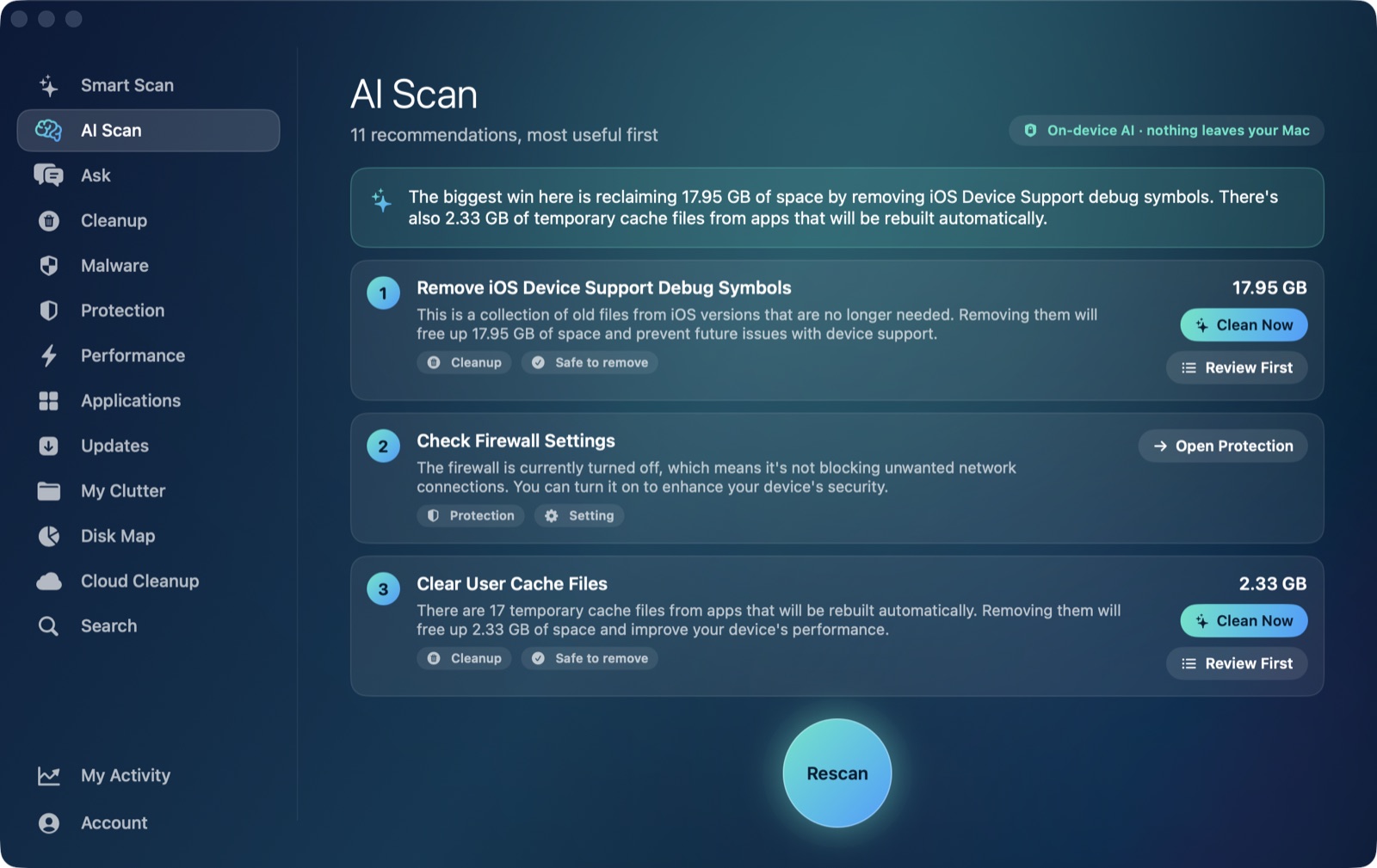
AI Mac Cleaner's Malware screen checks for installed configuration profiles as one of several signals it looks at, alongside known adware families in your launch agents and daemons. If it finds any profile installed, it flags it and points you to exactly where to go — System Settings › Privacy & Security › Profiles — to review and remove it yourself. It doesn't remove a profile automatically, on purpose: profiles are sometimes legitimate (a managed work Mac, for instance), so it's a decision the app surfaces clearly rather than makes for you.
Frequently asked questions
Is having a configuration profile on my Mac always a sign of malware?
No. Profiles are a legitimate macOS feature used by employers, schools and some apps for managed settings. They're worth reviewing specifically when you don't remember installing one, or when one appeared around the same time an unexpected browser change did.
Will removing a configuration profile fix my hijacked search engine right away?
It stops the profile from re-applying its setting, but you may still need to manually set your preferred search engine back in your browser afterward — removing the profile removes the cause, not necessarily the current symptom.
What if the Profiles section doesn't appear in System Settings?
That means no configuration profiles are currently installed on your Mac — it's the normal, expected state for most personal Macs, and nothing further to check for this specific issue.
Can AI Mac Cleaner remove a configuration profile for me?
No — its Malware screen detects and flags an installed profile and tells you exactly where to remove it (System Settings › Privacy & Security › Profiles), but the removal itself is a step you take yourself, since some profiles are legitimate and removing the wrong one on a managed Mac could affect your work or school access.