AI Mac Cleaner
How to Remove Genieo Adware From a Mac
Genieo is a long-running Mac adware family that hijacks browser search and installs background launch agents to survive restarts. Here's how it gets in, the signs to check for, and how to remove it properly.
Genieo is one of the older, longer-running Mac adware families — security researchers have documented it for years, and it keeps turning up on Macs through the same handful of install routes. If your browser's homepage or search engine keeps resetting itself no matter how many times you fix it, or you're seeing ads injected into pages that shouldn't have any, Genieo is a reasonable suspect — here's what it actually does and how to get it out.
How Genieo gets onto a Mac
Almost never through a security hole in macOS itself — it arrives through something you, or someone using your Mac, clicked through. The usual paths: a bundled installer for a free app, PDF converter, or "driver updater" that adds Genieo as a secondary, pre-checked option during setup; a cracked or pirated app download; or a fake "update" prompt for Flash, a codec, or similar software. macOS's Gatekeeper warns about unsigned or unnotarized software, but the installer itself typically asks you to right-click and open it anyway, or walks you past that warning with its own on-screen instructions — which is exactly the step that lets it through.
The signs
- Your browser's homepage or default search engine changes on its own, and changes back again after you fix it.
- A new browser extension, especially in Chrome, that you don't remember installing.
- Pop-up ads or injected ads on pages that shouldn't have them.
- A new item in Login Items, or a background process with an unfamiliar or oddly-generic name using CPU.
- A configuration profile under System Settings → Privacy & Security → Profiles that you didn't install — this is the one that explains why resetting your browser's search engine doesn't stick, since a profile can lock it back in place regardless of what you change in the browser itself.
Where Genieo actually hides
Like most Mac adware, Genieo persists by getting itself restarted automatically rather than relying on you to reopen it:
~/Library/LaunchAgentsand the system-wide/Library/LaunchAgents,/Library/LaunchDaemons— this is how it survives a restart and relaunches at login.~/Library/Application Support— a support folder, sometimes named with a generic word ("helper," "agent") rather than "Genieo" itself.- Chrome's Extensions folder inside its profile, or an extension visible in
chrome://extensions. - A configuration profile, installed specifically to override your browser's search settings in a way that survives a normal browser reset.
How to remove it
- Remove any configuration profile you don't recognize. System Settings → Privacy & Security → Profiles. Do this before resetting your browser — otherwise the profile just re-locks your search settings afterward.
- Remove unknown browser extensions, then reset your default search engine and homepage.
- Remove unfamiliar Login Items in System Settings → General → Login Items.
- Move Genieo's launch agents and support folders to the Trash, then restart so nothing still running blocks the files from being removed.
- Empty the Trash once you've confirmed everything is working normally.
macOS's built-in XProtect also detects and removes known adware families, including long-running ones like Genieo, in the background — it's worth confirming "Install Security Responses and system files" is turned on in Settings → General → Software Update, since that's what keeps XProtect's definitions current between full macOS updates.
How AI Mac Cleaner's Malware screen handles this honestly
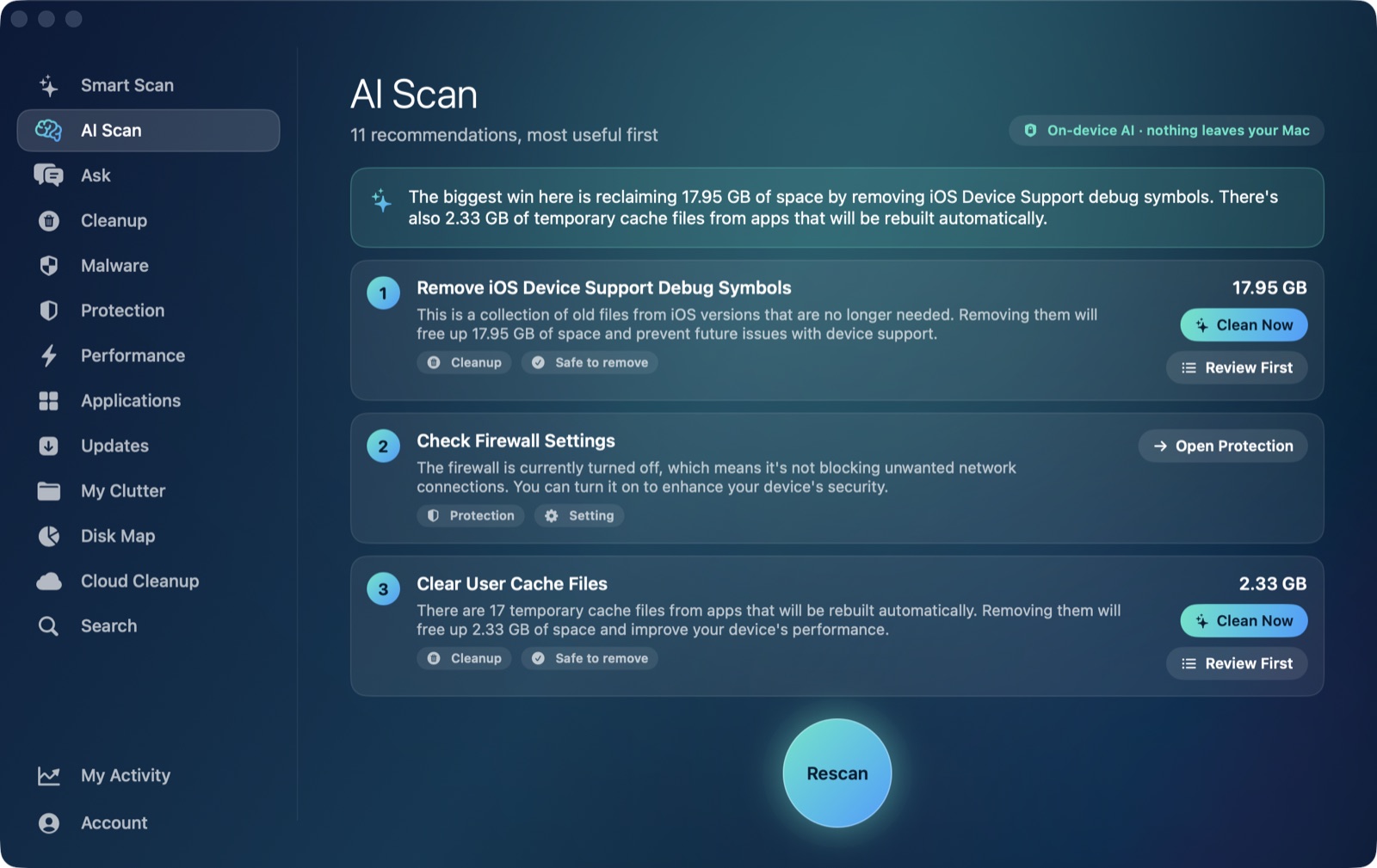
It's worth being precise about what the Malware module actually is, because the honest framing matters here: it's an indicator-based scan, not an antivirus engine. It doesn't disassemble or sandbox files looking for malicious behavior the way dedicated antivirus software does. Instead, it checks a fixed, curated list of known adware and PUP family name patterns — matched case-insensitively against launchd labels, bundle identifiers and file names — against the exact locations adware is known to use: launch agents and daemons in both your own and the system-wide Library, Application Support folders, installed apps in /Applications, and Chrome's extensions folder. Genieo is one of the families on that list, matched by name — so a Genieo launch agent or support folder gets flagged directly as a known-adware finding, not lumped in with the generic "unsigned" category.
Beyond the named-family list, the same scan separately flags background items whose program is unsigned, ad-hoc signed, or missing entirely (a leftover plist pointing at a program that's no longer there), checks for installed configuration profiles and tells you to review them, and reports apps with no valid developer signature at all — useful signals for adware that hasn't made it onto the named-family list yet, though those get a more cautious "worth reviewing" treatment rather than being pre-selected the way confirmed known-adware findings are. The screen also shows your XProtect version so you can confirm Apple's own background protection is current.
Removal works the same way for every finding: for a removable item (one that's in your own account's ~/Library/LaunchAgents, not a system-wide location requiring admin rights), the app runs launchctl bootout to stop it from running, then moves the file to the Trash — never a direct delete, so a mistaken flag is still recoverable. This is one scan among several AI Mac Cleaner runs; for the broader picture of how Mac adware behaves in general, see our wider adware guide, and for a different named adware family with the same removal shape, see how to remove Pirrit from a Mac.
AI Mac Cleaner has a 7-day free trial with every feature unlocked and no card required, plans from $6.99/mo after.
Frequently asked questions
What is Genieo on a Mac?
Genieo is a long-running Mac adware family that hijacks browser search settings and injects ads, typically installed through a bundled "free" app, a cracked download, or a fake software update prompt — not through a macOS security vulnerability.
How do I know if I have Genieo on my Mac?
Common signs: your browser's search engine or homepage keeps reverting after you fix it, an unfamiliar browser extension appears, pop-up ads show up on pages that shouldn't have them, or a configuration profile you didn't install shows up under Privacy & Security → Profiles.
Does AI Mac Cleaner detect Genieo specifically?
Yes — Genieo is one of the named families in its Malware screen's known-adware list, matched by name against launchd labels, bundle identifiers and file names. It's an indicator-based scan checking known locations and name patterns, not a full antivirus engine.
Is removing Genieo's files permanent right away?
No. AI Mac Cleaner moves flagged items to the Trash rather than deleting them outright, and stops a removable launch agent first with launchctl bootout. Nothing is permanently gone until you empty the Trash yourself.
Will resetting my browser alone get rid of Genieo?
Usually not completely — if a configuration profile is installed, it can re-lock your search engine and homepage after a reset. Removing the profile first, then resetting the browser and clearing the underlying launch agents and support folders, is the order that actually sticks.