 AI Mac Cleaner
How to Reduce System Data on a Mac, Step by Step
System Data has no "clear" button in System Settings, but most of what's in it is reachable once you know where to look. Here's the concrete, in-order way to actually shrink it.
System Settings → General → Storage shows "System Data" sitting at 20, 50, sometimes 80GB, with no button next to it to make it smaller. That's frustrating, but it doesn't mean the number is untouchable — it means macOS lumps several very different, very reachable things under one label instead of listing them separately. We've covered what's actually in that bucket before; this is the walk-through for actually shrinking it, in the order that gets the most real space back for the least risk.
Start with the parts that are purely disposable
These are the safest, usually-largest wins, and none of them need any judgment call:
- Clear app and system caches.
~/Library/Cachesholds rebuildable cache data for every app you've used, and browsers alone can account for multiple gigabytes. Caches exist to make apps faster, not to be kept — deleting them costs you nothing but a slightly slower first relaunch of whatever app it was. - Clear old logs and diagnostic reports. Crash logs and diagnostic reports accumulate in
~/Library/Logsfor years if nothing ever touches them; they're useful right after a crash and essentially useless after that. - Delete Xcode's old DerivedData, device support files and Simulator caches, if you do any iOS/Mac development. DerivedData in particular regenerates automatically the next time you build — there's no reason to keep last year's build artifacts around.
- Clear Homebrew, npm, Yarn, CocoaPods and Gradle caches, if you use them. Each one is a package manager's own download cache, rebuilt on demand (
brew cleanup,npm cache clean --force, and so on) the next time you actually need something from it.
Then handle the judgment-call categories
These free real space too, but each one is worth a second's thought before you clear it, because unlike a cache they're not purely disposable:
- Old installer disk images (
.dmg,.pkg) in Downloads. The app's already installed; the installer itself usually isn't needed again unless you plan to reinstall without re-downloading. node_modulesfolders in old projects. Reinstallable withnpm install, but only if you still have the project and a working internet connection when you need it back.- Docker's disk image, if Docker Desktop is installed — this can be tens of gigabytes on its own, holding every image and container you've ever pulled or built, most of which you're not using today.
- Old iPhone/iPad backups made through Finder — only delete these if the device itself, or a newer backup, already covers what you'd need to restore.
- Leftover files from apps you've already uninstalled. Dragging an app to the Trash never removes its
~/Library/Preferences,Caches,Application SupportorLogsfolders — those sit there indefinitely until something else clears them, and they belong to nothing currently on your Mac.
What's counted in System Data but isn't yours to clear
A meaningful chunk of the number is macOS's own, not a cleanup target:
- Local Time Machine snapshots. When your backup disk isn't connected, macOS keeps hourly snapshots on the internal drive instead, and these can run into tens of gigabytes. macOS reclaims them automatically on its own schedule — purgeable space on a Mac covers exactly how that works and why
tmutil thinlocalsnapshotsis rarely necessary. - The swap file. This reflects current memory pressure, not accumulated clutter — quitting memory-heavy apps shrinks it, deleting files doesn't.
- Anything under
/Systemand/Library/Apple. Sealed by macOS itself; no cleaning tool, including this one, should be touching it, and on current macOS it's protected regardless.
Trying to force these down manually usually doesn't help and can occasionally cause more disruption than the space saved is worth — leaving them to macOS is the correct move, not a cop-out.
Why the Storage chart number can look wrong right after you clean
The Storage chart is computed lazily by macOS, not live, so it's often a day or more out of date. Right after a real cleanup, the number can briefly go up while macOS recalculates, before settling down to reflect what actually changed. If you want to confirm space was genuinely freed, check free space in Finder's Get Info on the disk rather than trusting the category breakdown in the moment — storage still full after cleaning goes through this in more depth, including the other common cause: files sitting in the Trash, which isn't emptied automatically by any cleaner's "clean" action, including this one.
How AI Mac Cleaner handles the reachable part
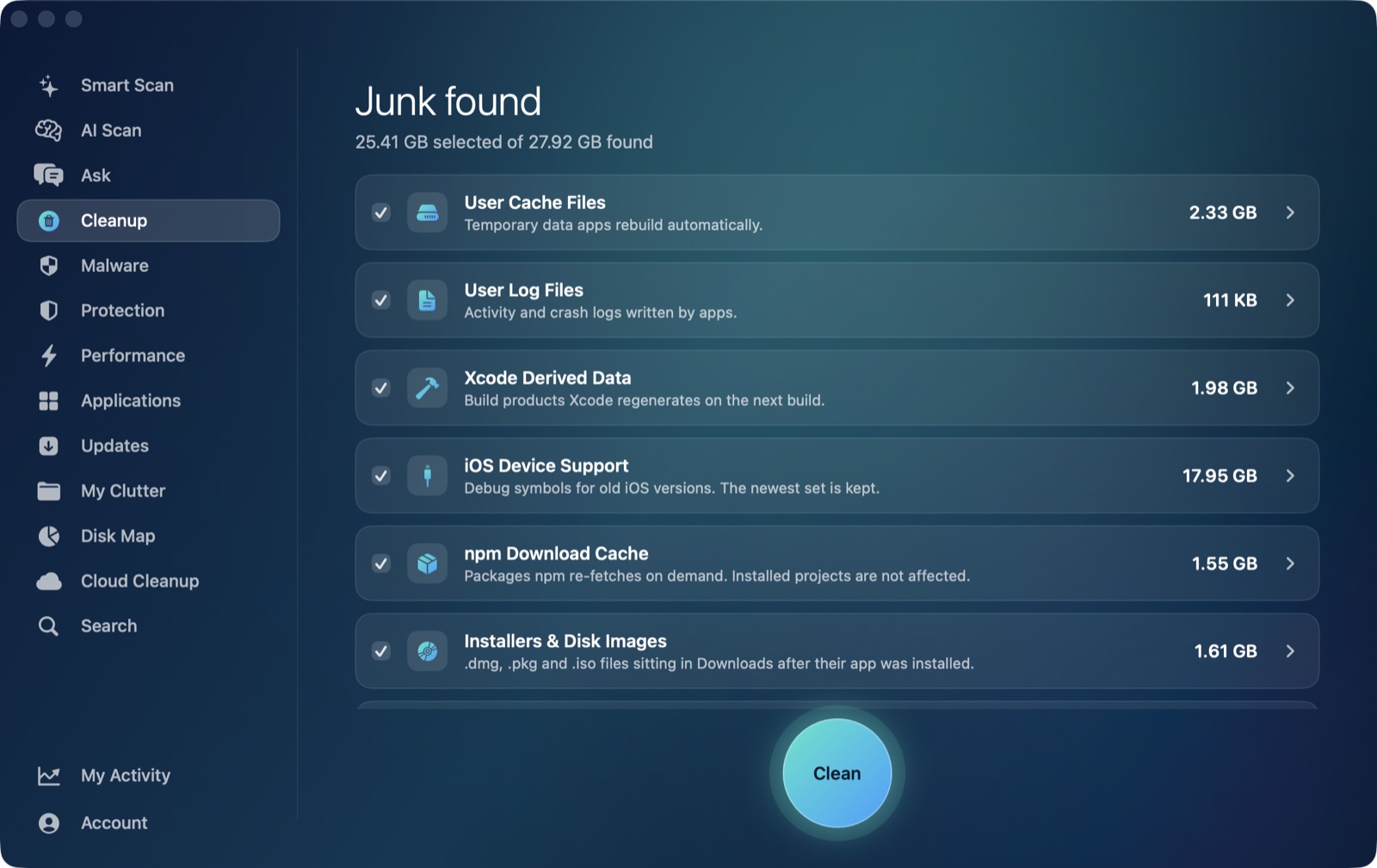
AI Mac Cleaner's Cleanup module is built around exactly the two-tier split above. Its auto-selected categories — user cache files, logs, Xcode DerivedData, old iOS Device Support, Simulator caches, npm cache, and old installer disk images — are listed by name and size before anything moves, and are the categories considered safe enough to include in Auto Clean when it's turned on. A second set of review-only categories — old archives in Downloads, node_modules in projects, iPhone backups, Docker's disk image, virtual machines, and leftovers of apps you've already removed — stays unticked by default specifically because those are judgment calls, not because the scan can't find them.
Removal always goes through the Trash, never a direct delete, and a hard-coded list of protected paths means Cleanup only ever offers direct children of allowlisted folders — it can't be pointed at your home folder, Documents, or similarly broad locations even by mistake. If System Data still looks large after a Cleanup pass, Disk Map's treemap view of the whole disk is the next step — it shows exactly what's large by drilling down folder by folder, rather than trusting a single lazily-computed category number.
AI Mac Cleaner has a 7-day free trial with every feature unlocked and no card required, plans from $6.99/mo after.
Frequently asked questions
Why can't I just click a button to clear System Data?
Because System Data isn't one thing — it's a catch-all label macOS applies to caches, logs, developer files, local Time Machine snapshots, the swap file and more. Each piece needs a different action, and some of them (snapshots, the swap file, anything under /System) genuinely shouldn't be cleared manually at all.
What's the single biggest thing I can safely clear from System Data?
For most people it's a mix of app caches and, if you do any development, Xcode's DerivedData and old device support files — these regrow or rebuild automatically and routinely account for many gigabytes with no downside to clearing them.
Will reducing System Data make my Mac faster?
Not directly — System Data is a storage category, not a performance one. Freeing space helps if you were genuinely low on disk (which does slow things down, since macOS needs free space for swap and temporary files), but clearing caches alone won't speed up a Mac that has plenty of free space already.
Why did System Data go up right after I cleaned it?
The Storage chart is computed lazily and can lag by a day or more, so it sometimes shows a number going up briefly right after a real cleanup before settling. Check free space in Finder's Get Info on the disk for a more trustworthy figure in the moment.
Does AI Mac Cleaner auto-delete anything from System Data without asking?
Only if you turn on Auto Clean, and even then only the categories considered safe enough for it — user caches and logs by default, with developer junk categories opt-in separately. Everything moves to the Trash rather than being deleted outright, and the review-only categories (Docker, node_modules, old backups, leftover app data) are never auto-cleaned regardless of that setting.
