AI Mac Cleaner
Purgeable Space on Mac Won't Clear? Here's Why That's Normal
The "purgeable" storage number is macOS's own estimate of space it can reclaim on demand, not a folder of files for you to delete. Here's what's in it, why clearing caches won't shrink it, and what you actually can do.
If you've looked at your Mac's storage breakdown and seen a chunk of purgeable space sitting there — sometimes tens of gigabytes — and nothing you do seems to shrink it, that's not a bug you're missing a fix for. Purgeable space is specifically the part of your storage that macOS itself manages and reclaims automatically, on its own schedule, which is exactly why there's no button anywhere that clears it directly.
What "purgeable" actually means
Purgeable space is macOS's own estimate of storage it could free up right now if it genuinely needed to, without you doing anything. It's reported through the same system API Apple's own Storage settings use — volumeAvailableCapacityForImportantUsage minus the plain free-space figure — and it typically covers things like:
- Local Time Machine snapshots. When your Time Machine backup disk isn't connected, macOS keeps hourly snapshots on your internal drive instead, so you still have recent-history protection. These can add up to tens of gigabytes.
- Evictable iCloud files. Content that's synced to iCloud Drive, Photos, or Desktop & Documents sync and is only kept locally as a cached copy — macOS can turn it back into a cloud-only stub without losing anything, since it's already safely stored elsewhere.
- System and app caches macOS itself is willing to purge under disk pressure, on top of whatever you clear yourself.
The key distinction: this isn't a folder of leftover junk sitting around waiting for you to delete it by hand. It's a live estimate of what macOS could reclaim if it had to, and the operating system already treats that space as available when something actually needs it — which is also why a disk showing 40GB purgeable rarely means you're actually 40GB short of what you can use.
Why clearing caches doesn't make the number go down
This is the part that trips people up: you run a cache cleanup, free up real disk space, and the purgeable number barely moves — or doesn't move at all. That's expected, for two reasons. First, the Storage chart itself is computed lazily by macOS and is often a day or more out of date, so recent changes — from any tool, including Finder — don't always show up immediately; the number can even tick up briefly right after a cleanup while macOS recalculates, before settling back down. Second, purgeable space and the caches a cleanup tool clears aren't always the same bytes in the first place — you can clear a genuinely large app cache that was never counted as purgeable to begin with, while local Time Machine snapshots (often the biggest piece of purgeable space) sit untouched by any cache cleanup, since they're not cache files at all.
If you want a number to actually trust after cleaning something up, check free space in Finder's Get Info on the disk rather than the Storage chart's category breakdown — it reflects the real state of the disk rather than a cached summary.
What you can actually do about it
For the biggest usual contributor — local Time Machine snapshots — there is one specific manual lever: tmutil thinlocalsnapshots / 999999999999 4 in Terminal, which asks macOS to thin out local snapshots down to a target amount of freed space. It's a real command with a real effect, but it's also working with the same system that creates and manages those snapshots in the first place — macOS already deletes them automatically whenever free space actually runs low, so running the command manually mostly just does sooner what would otherwise happen on its own under pressure.
Beyond that, the honest answer is that purgeable space mostly isn't something to chase directly. It shrinks as a side effect of using less iCloud-cached content, needing fewer local snapshots, and macOS deciding it no longer needs to hold that reclaimable buffer — not from a dedicated clear action, because there isn't one, in AI Mac Cleaner or anywhere else.
Where AI Mac Cleaner fits — and where it's just a display
AI Mac Cleaner's hero storage gauge shows purgeable space as a separate, dimmer segment right next to used space, pulled from the same macOS-reported figure described above — it's shown so you know it's there, not because the app computed it independently or has a way to force it down. There's no "clear purgeable space" action in Cleanup, Disk Map, or anywhere else in the app, and it would be misleading to imply otherwise; the figure is macOS's own estimate, display-only.
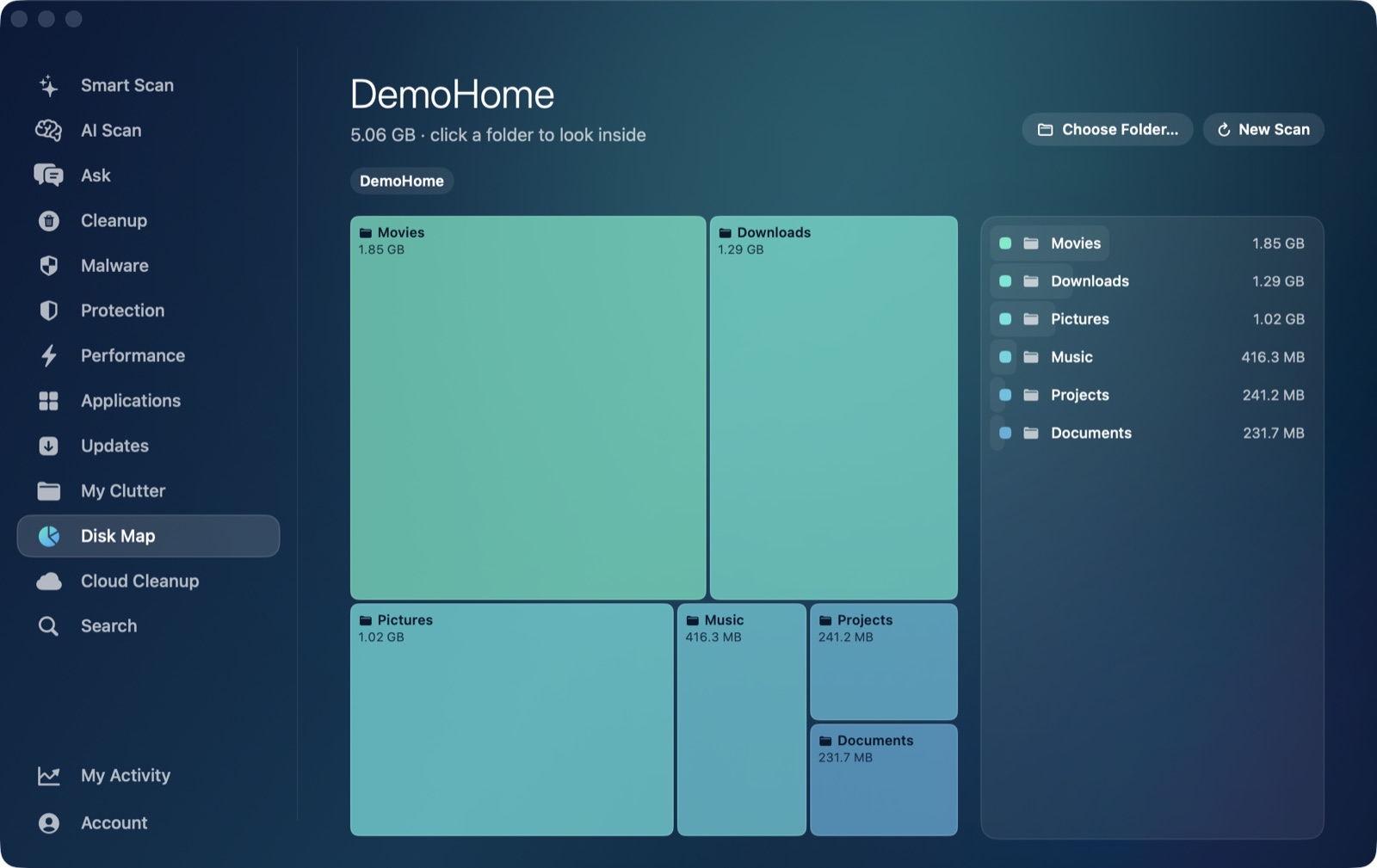
What the app can do is address the things that actually make up part of that estimate: Cleanup's User Cache Files category and other junk categories free real cache space (some of which macOS may have already been counting as purgeable), and Cloud Cleanup's Remove Downloads action for iCloud Drive turns downloaded files back into cloud-only stubs — directly shrinking the evictable-iCloud-content piece of the purgeable figure, since that's exactly what the feature does under the hood. Disk Map is useful for a different reason here: pointing its treemap at your whole disk shows you what's actually using real, non-purgeable space, which is the more productive place to look if storage genuinely feels tight. For the fuller picture of what counts as "System Data" versus purgeable space specifically, see our breakdown of System Data, and if cleaning things up hasn't freed as much as expected, see Mac storage still full after cleaning.
AI Mac Cleaner has a 7-day free trial with every feature unlocked and no card required, plans from $6.99/mo after.
Frequently asked questions
What does "purgeable" mean in Mac storage?
It's macOS's own estimate of space it could reclaim on demand without your involvement — mainly local Time Machine snapshots and iCloud content that's only cached locally. It's a live, system-computed figure, not a folder of files sitting around waiting to be deleted.
Why won't my purgeable space go down after I clean up my Mac?
The Storage chart updates lazily and can lag by a day or more, and purgeable space often isn't the same bytes a cache cleanup actually clears — local Time Machine snapshots, usually the biggest contributor, aren't touched by clearing app caches at all. Check free space in Finder's Get Info for a more current number.
Can I force macOS to clear purgeable space?
For local Time Machine snapshots specifically, tmutil thinlocalsnapshots / 999999999999 4 in Terminal asks macOS to thin them manually. There's no equivalent manual command for the rest of purgeable space — macOS reclaims it automatically when free space actually runs low.
Does AI Mac Cleaner have a button to clear purgeable space?
No, and it doesn't pretend to — the figure shown in its storage gauge is macOS's own display-only estimate. The app's Cleanup and Cloud Cleanup modules do clear real cache files and evict downloaded iCloud content, which can touch part of what counts toward that estimate, but there's no dedicated "clear purgeable" action anywhere in the app.
Is purgeable space the same as "Other" or "System Data" in Mac storage?
They overlap but aren't identical. System Data is a broader category covering caches, logs, developer files and more; purgeable space is specifically the subset macOS has flagged as reclaimable on demand, mainly local snapshots and evictable iCloud content.
Clear the real cache files, not just a gauge. Start the free 7-day trial — every feature unlocked, no card required. Plans start at $6.99/mo (yearly $49.99, lifetime $199 for one Mac); see full pricing for the 2- and 5-Mac tiers.