AI Mac Cleaner
How to Find Large Files on Your Mac (and What to Do About Them)
Old exports, backups and duplicates quietly eat a Mac's free space. Here's how to find large files on your Mac and tell what's safe to remove from what isn't.

A Mac rarely runs out of space because of one obvious thing. It's a slow build-up: a 4K screen recording from three projects ago, a disk image you downloaded and forgot to delete, a folder of camera exports you already backed up elsewhere, and the same PDF saved in four places because it got attached to four different emails. None of those individually look like a problem. Added together, they can be tens of gigabytes. Here's how to actually find large files on your Mac, and how to tell the ones worth deleting from the ones you should leave alone.
Why big files are hard to find by eye
Finder's column view shows you file sizes, but only one folder at a time, and the files actually eating your disk are rarely sitting in Downloads where you'd think to look. They're buried in ~/Movies, inside an old project folder, in a Dropbox or Google Drive local cache, or duplicated across a couple of different backup folders you made "just in case" and then forgot about. Finding them by clicking through folders one at a time means you have to already suspect where to look — which defeats the purpose.
The two things that actually surface large files quickly are a size-sorted search across your whole home folder, and a visual map that draws space as area instead of as a list of numbers.
Finder's own large-file search
You can get a flat, size-sorted list without installing anything: open a new Finder window, press Cmd+F, set the search scope to "This Mac," then add a "File Size" criterion set to "is greater than" some threshold like 500 MB. Switch the view to list and sort by size. This genuinely works and costs nothing, but it has two real gaps: it won't tell you which of the big files are exact duplicates of each other, and a flat list of file paths doesn't tell you why a folder is big when the weight comes from hundreds of small files rather than one large one.
Seeing where the space actually went
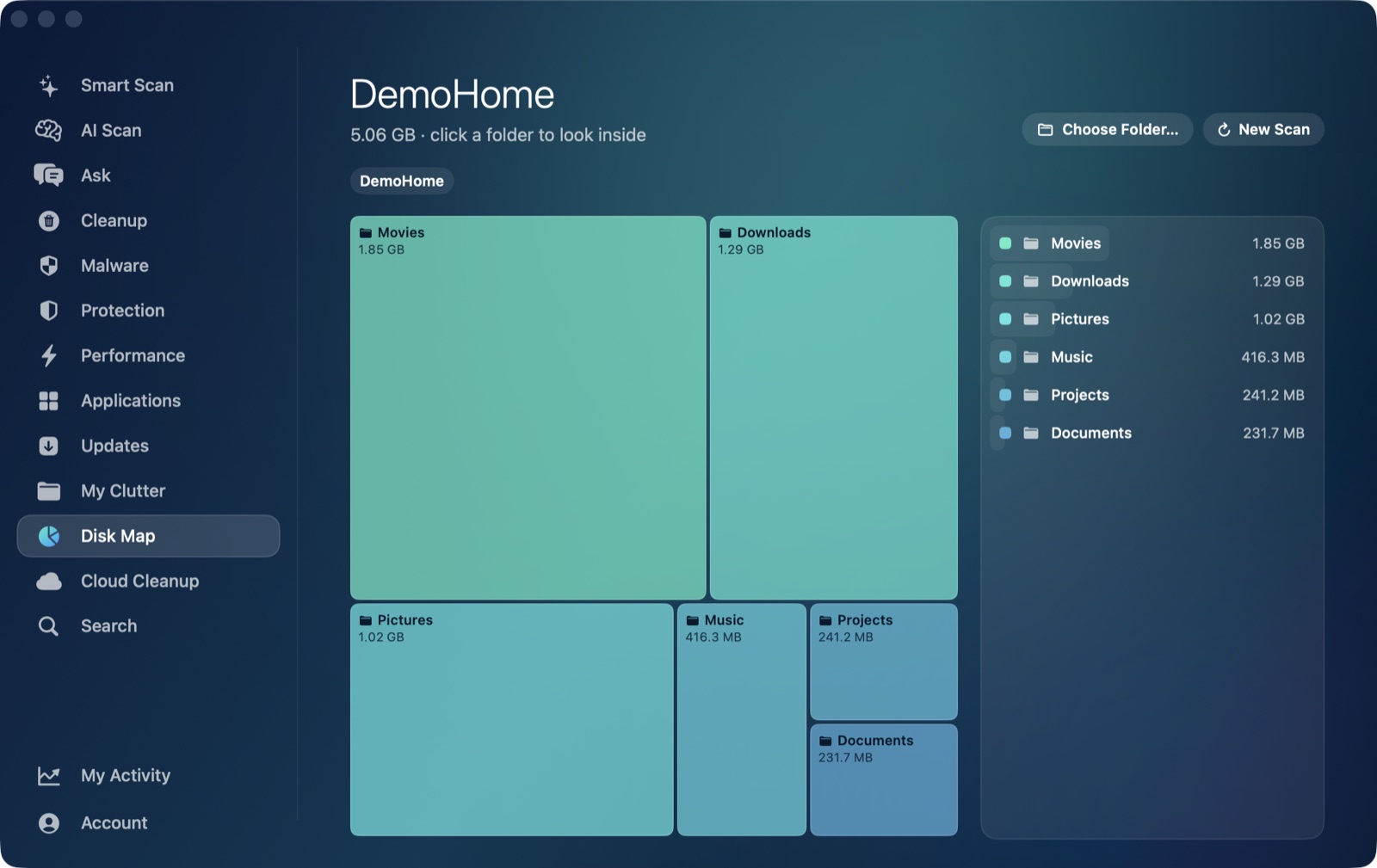
That second gap is what a treemap view is for: instead of a list, your folders are drawn as blocks sized by how much they hold, so the biggest users of space are immediately the biggest blocks on screen, however many small files make them up. AI Mac Cleaner's Disk Map does exactly this for any single folder or the whole disk — a squarified treemap you can click into to drill down a level, with a cancel option if you start scanning somewhere huge like your whole home folder by mistake. It turns "where did my space go" from a guessing game into something you can just look at.
Finding exact duplicates, not just big files
A large file search also misses a different pattern: the same large file sitting in two or three places, each copy innocently full-size. AI Mac Cleaner's My Clutter module is built for this — it lists large and old files directly, and separately finds exact duplicates by comparing file content with a SHA-256 hash, never just by filename or size, so a 400 MB video that happens to share a name with something unrelated won't get flagged as a false match. The scan deliberately skips app packages, hidden system files and iCloud files that haven't actually been downloaded to your Mac yet, since none of those are real duplicates worth touching. When it does find duplicates, it always keeps one copy for you automatically — you're only ever asked about the extras.
What's actually safe to remove
Not every large file is safe to delete, and size alone isn't the test. A few quick checks:
- Is it a regenerable cache or a real file you made? A multi-gigabyte Xcode DerivedData folder or browser cache rebuilds itself automatically. A video export, a RAW photo library or a project file does not — losing it is permanent unless you have a backup.
- Is it already backed up elsewhere? Camera imports, old project exports and anything already synced to iCloud, a NAS or an external drive are usually safe to clear locally once you've confirmed the other copy is current.
- Is it a duplicate you don't need two of? If the hash matches, the content is identical byte-for-byte — there's no version difference to lose by removing the extra copy.
When in doubt, the safest move is to move the file rather than delete it: drag it to an external drive or confirm the cloud copy first, and only then free the local space.
Deleting the safe way
Whichever large file you decide to clear, how you remove it matters as much as which one you pick. AI Mac Cleaner never deletes anything directly: every removal, from Disk Map or My Clutter or anywhere else in the app, goes through its Trash-only remover, which moves files to the Trash and refuses a protected-path list rather than erasing them outright. If a "duplicate" turns out to matter after all, it's one Trash restore away until you empty it — the only permanent step in the whole process, and the one you confirm yourself.
If you want to go further than Finder's search and actually see where a Mac's space is going — size, age and duplicates in one pass — AI Mac Cleaner has a 7-day free trial with every feature unlocked, no card required, and plans from $6.99/mo after that. Download it for macOS and point Disk Map at your home folder to see what's really sitting there. For the full picture of what else quietly fills a Mac, see what's actually safe to free up.
Frequently asked questions
How do I find the largest files on my Mac without installing anything?
Open Finder, press Cmd+F, set the scope to "This Mac," add a File Size criterion greater than a size like 500 MB, then switch to list view and sort by size. It's a flat list of paths — useful, but it won't catch duplicates or show you why a folder is big because of many small files.
How does AI Mac Cleaner tell two files are duplicates?
My Clutter compares file content using a SHA-256 hash, not filenames or sizes, so two unrelated files that happen to share a name are never flagged as duplicates, and it always keeps one copy automatically.
Is it safe to delete files Disk Map shows as large?
Size alone doesn't tell you that. A regenerable cache is safe to clear; a real export, project file or photo library isn't unless it's backed up elsewhere. Every removal in the app goes to the Trash first, so it's recoverable either way until you empty it.
Does Disk Map scan my whole disk by default?
No — you point it at any single folder or the whole disk, and you can cancel a scan in progress, so you can start small (like Downloads or Movies) before trying your whole home folder.
Will scanning for duplicates touch my iCloud files?
My Clutter skips iCloud files that haven't actually been downloaded to your Mac yet, since those aren't taking up local space and comparing their content would mean downloading them just to check.