AI Mac Cleaner
Dropbox Local Files Taking Up Space on Your Mac? Here's Why
Dropbox can keep a full local copy of everything you sync, plus its own cache database, even when you think it's "in the cloud." Here's exactly where that space goes and what's safe to touch.

Dropbox is supposed to mean "my files live online," but About This Mac can still show tens of gigabytes you can't place anywhere else, and Dropbox is usually the answer. The cause isn't a leak or a bug — it's a per-file setting most people never touch on purpose, plus a separate cache folder Dropbox keeps running regardless of that setting.
The setting that decides almost everything: Local vs. Online-only
Dropbox's desktop app (its "Smart Sync" feature) lets you mark any file or folder as one of two states, and the gap in local disk use between them is large:
- Local keeps a full copy of the file's actual content on this Mac, in addition to the copy on Dropbox's servers. Nothing wrong with this — it's what makes the file open instantly and work offline — but a whole project folder set to Local uses roughly its full size on disk, same as if Dropbox weren't involved at all.
- Online-only keeps the file listed in Finder but only downloads its content when you actually open it. This is the state most people picture when they think "it's just in the cloud," and it's easy to assume everything defaults to it when in fact individual folders can get switched to Local without anyone deciding that on purpose — often just by opening every file in a folder once, which Dropbox can treat as a reason to keep it downloaded.
Right-clicking a file or folder in Finder shows a Dropbox submenu with "Make Available Offline" (switches to Local) and "Remove Download" (switches back to Online-only) — checking that submenu on your largest synced folders is the fastest way to find out which state is actually driving your disk use.
Where Dropbox's files actually live on disk
Dropbox's modern desktop app syncs through ~/Library/CloudStorage/Dropbox-<account>, the same general location Apple's cloud-storage framework now uses for Google Drive, OneDrive and Box rather than a plain folder sitting directly in your home directory. Files marked Online-only show up there as small stand-in entries; Local files, or anything you've opened, carry their full content in that same folder.
Separately from any of that, Dropbox keeps its own sync-state cache at ~/Library/Application Support/Dropbox, tracking what's synced, thumbnail previews and internal sync-status data. It's genuinely a cache rather than your files, so it's safe to clear — ideally through Dropbox's own account/cache settings rather than by hand, since Dropbox manages that folder directly and will rebuild whatever it actually needs.
Why it's easy to misread from Finder alone
Two things make this confusing to diagnose just by eyeballing folders. First, a Dropbox stand-in entry and a fully downloaded file can look identical in a plain Finder listing — the Dropbox status column (or the Finder sidebar badge) is what actually tells you which is which, not file size at a glance. Second, "Selective Sync" (choosing whole folders not to sync to this Mac at all) is a different lever from Online-only/Local for folders that are syncing — selective sync stops a folder from appearing here at all, while Online-only still shows it in Finder but keeps the content remote until opened. Mixing the two up leads people to think they've freed space they actually haven't touched.
What to actually do about it
- Check which folders are set to Local via the right-click Dropbox submenu, starting with your biggest ones — "Remove Download" switches a folder back to Online-only without deleting it from your Dropbox account.
- Use Selective Sync for folders you don't need on this Mac at all, in Dropbox's Preferences → Sync tab — this is a stronger option than Online-only when you genuinely don't need a folder present here.
- Clear the Dropbox cache through Dropbox's own account settings if the sync-state database has grown large; it's rebuilt automatically and isn't your actual files.
- Confirm anything is safely stored online in Dropbox's web interface before moving a local copy to the Trash through any route other than Dropbox's own "Remove Download."
Where AI Mac Cleaner fits in — and where it stays hands-off
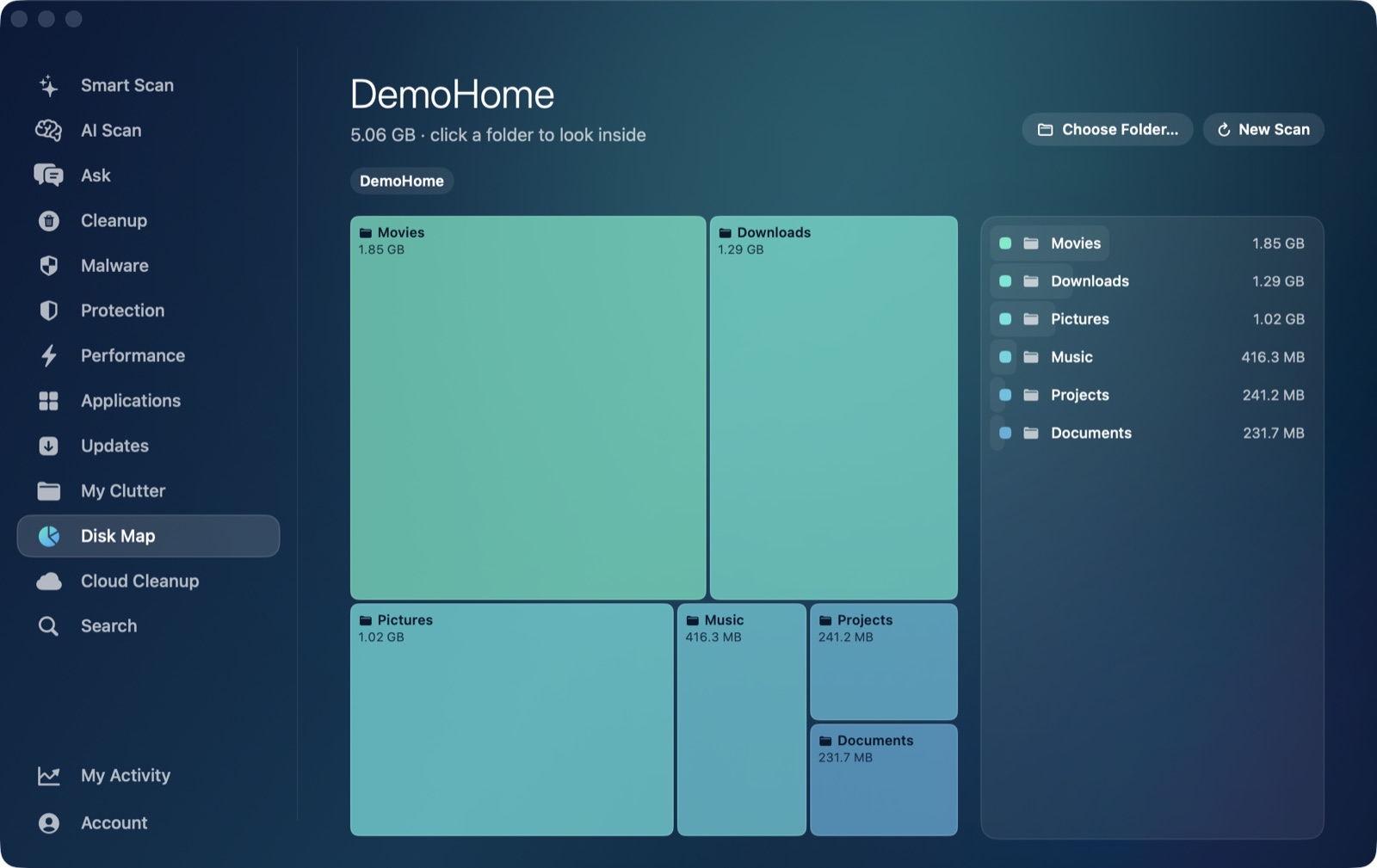
AI Mac Cleaner's Cloud Cleanup module detects Dropbox the same way it detects iCloud Drive, Google Drive, OneDrive and Box: by scanning ~/Library/CloudStorage for a folder whose name starts with Dropbox-. It lists every provider it finds with the local footprint on this disk and the largest downloaded files inside it, biggest first, so you're looking at real numbers instead of guessing from Finder's icons.
Because Dropbox isn't iCloud, the app is upfront about the difference in what it can do: iCloud Drive gets a genuine "Remove Downloads" action that hands a local copy back to the cloud without deleting anything (evictUbiquitousItem), but Dropbox and the other third-party providers don't expose that kind of API to any Mac app. For Dropbox, Cloud Cleanup's choices are Show in Finder or Move to Trash, and it warns before you confirm that trashing a Dropbox-synced file deletes it from your Dropbox account too, not only from this disk — a materially different action from clearing a cache, which is why it gets its own warning rather than being folded into the rest of what Cloud Cleanup clears.
One deliberate gap: the scanner skips any folder that looks like a code project — containing a .git directory, package.json, .xcodeproj, node_modules, or similar markers — entirely, so a repository you happen to sync through Dropbox is never surfaced as "large downloaded files" to clean. Dropbox's own Application Support cache sits outside ~/Library/CloudStorage, so Cloud Cleanup doesn't touch it either way — Dropbox's own preferences remain the right place to clear it. For the full removal story if you're getting rid of Dropbox entirely rather than just freeing space, see how to uninstall Dropbox completely on a Mac; for the same local-storage confusion with a different provider, see why Google Drive takes up space on a Mac.
AI Mac Cleaner has a 7-day free trial with every feature unlocked and no card required, plans from $6.99/mo after.
Frequently asked questions
Why is Dropbox using so much local disk space if my files are supposed to be in the cloud?
It depends on whether a file or folder is marked Local or Online-only in Dropbox's Smart Sync. Local keeps a full copy on disk in addition to the cloud copy; Online-only only downloads content when you open it, which is the state most people assume applies everywhere until they check.
Where does Dropbox actually store files on a Mac?
Modern Dropbox syncs through ~/Library/CloudStorage/Dropbox-<account>, the same general location Apple's cloud-storage framework uses for Google Drive, OneDrive and Box. A separate sync cache lives at ~/Library/Application Support/Dropbox.
Is it safe to clear Dropbox's cache folder?
Yes — it's Dropbox's own sync-state and thumbnail cache, not your files, and Dropbox rebuilds whatever it needs. Clear it through Dropbox's own settings rather than deleting it by hand from Finder.
Will moving a Dropbox file to the Trash on my Mac delete it from my Dropbox account?
Yes, if the file is inside your synced Dropbox folder — unlike clearing a cache, trashing a synced file tells Dropbox to remove it from your account too. AI Mac Cleaner's Cloud Cleanup module warns about this before you confirm.
Can AI Mac Cleaner turn Dropbox files back into online-only placeholders without deleting them?
Not the way it can for iCloud Drive. iCloud supports evicting a local copy back to the cloud with nothing deleted; Dropbox and the other third-party providers don't expose that option to any Mac app. For Dropbox, use its own "Remove Download" command in Finder's right-click menu, or Cloud Cleanup's Show in Finder / Move to Trash for the rest.