AI Mac Cleaner
Google Drive Taking Up Space on Your Mac? Here's Why
Google Drive for desktop can quietly use real local disk space even though your files live in the cloud — it depends on mirror vs. stream mode and a separate cache folder. Here's where it actually goes.
It feels backwards: Google Drive is supposed to keep your files in the cloud, not on your Mac, and yet About This Mac shows tens of gigabytes you can't account for anywhere else. The explanation isn't a bug — it's a setting most people never chose on purpose, plus a cache folder Google Drive keeps regardless of that setting.
The setting that decides almost everything: mirror vs. stream
Google Drive for desktop (the modern replacement for the old "Backup and Sync" and "Drive File Stream" apps) gives every folder you sync one of two modes, and the difference in local disk use is enormous:
- Mirror files keeps a full local copy of everything, in addition to the cloud copy. If your My Drive has 80GB in it, mirroring it uses roughly 80GB of local disk — by design, not by accident, since the whole point of mirroring is offline access to everything.
- Stream files keeps content in the cloud and only pulls a file to disk when you actually open it or explicitly mark it "Available offline." This is the mode most people assume they're in, because it's the one that matches "my files are in the cloud."
If a Mac that's supposedly just streaming is still eating disk space, the first thing worth checking is Google Drive's own preferences (the gear icon in the menu bar → Preferences → Google Drive → the folder's sync option) to confirm which mode is actually set — it's easy to pick mirroring once during setup and forget it's still mirroring everything added since.
Where the files actually live on disk
Modern Google Drive for desktop syncs through ~/Library/CloudStorage/GoogleDrive-<your-account>, the same general location Apple introduced for all third-party cloud providers (Dropbox, OneDrive and Box included) rather than a plain folder in your home directory. Under stream mode, most of what's in there is tiny stand-in metadata pointing at the cloud copy; under mirror mode, or for anything you've marked offline, the real file content sits there too, byte for byte.
There's a second, separate space-user that has nothing to do with mirror vs. stream: Google Drive's own sync-state cache, stored at ~/Library/Application Support/Google/DriveFS. This holds the local database Drive uses to track what's synced and where, plus thumbnail and metadata caches — and because it's cache rather than your actual files, it's safe to clear through Drive's own preferences (there's a "Clear cache" option) without touching anything you'd lose. It just isn't visible from Finder the way a normal folder is, which is part of why it's easy to forget it exists.
Why this is easy to misdiagnose
Two things make Google Drive's footprint confusing to pin down from Finder alone. First, files under ~/Library/CloudStorage don't always report their real size through a simple Get Info — a cloud-only stand-in and a fully-downloaded file can look similar at a glance, and you need to know which sync mode you're in to interpret what you're seeing. Second, Google Docs, Sheets and Slides behave differently from everything else: those formats only use local space at all once offline access is explicitly turned on for them, so a Drive folder full of native Google Docs genuinely shouldn't be using meaningful disk space even under certain configurations — if it is, that's itself a sign something's set to mirror or offline that you didn't intend.
What to actually do about it
- Check the sync mode first. Switching from mirror to stream for folders you don't need offline is the single biggest lever — it's the difference between "the whole folder's content" and "only what you've opened recently."
- Review what's marked "Available offline." It's easy to mark a folder offline once for a trip and never undo it; each one adds its full content back to local disk even while the rest streams normally.
- Clear the DriveFS cache from Drive's own preferences if the sync-state database has grown large — this is purely a cache, not your files, and Google Drive rebuilds it automatically.
- Confirm your cloud copy is intact before deleting anything locally. If you're unsure whether a file is fully safe in your Google account, check it in Drive's own web interface before removing the local copy any other way than through Drive's own settings.
Where AI Mac Cleaner fits in — and where it's deliberately hands-off
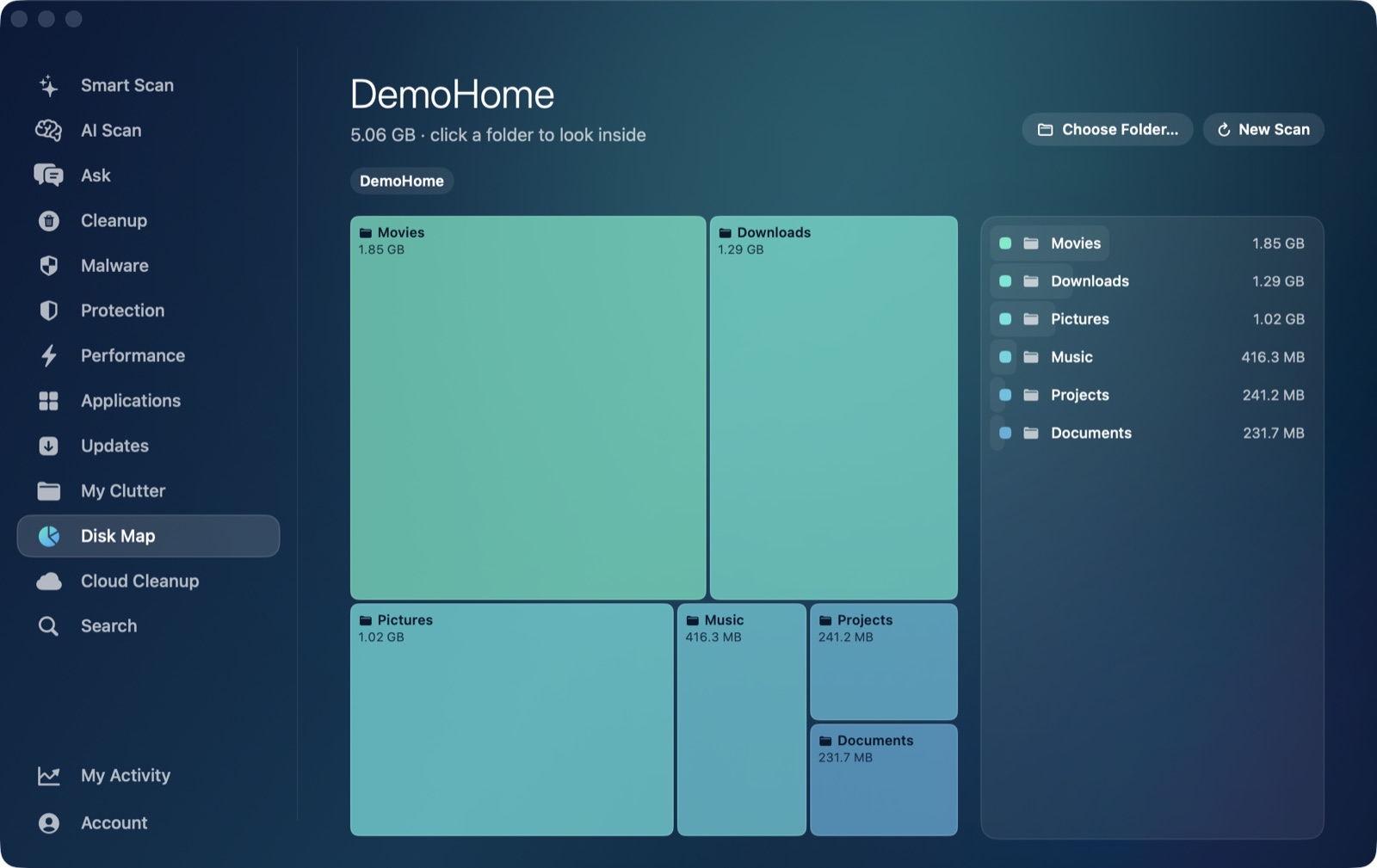
AI Mac Cleaner's Cloud Cleanup module detects Google Drive the same way it detects iCloud Drive, Dropbox, OneDrive and Box: by scanning ~/Library/CloudStorage for a folder whose name starts with GoogleDrive-. It lists every service it finds with the local footprint on this disk and the largest downloaded files inside it, sorted biggest first, so you can see exactly what's actually consuming space without guessing from Finder.
Because Google Drive isn't iCloud, the app is honest about what it can and can't do with it: iCloud Drive gets a true "Remove Downloads" action that hands a local copy back to the cloud without deleting anything (evictUbiquitousItem), but Google Drive and the other third-party providers don't expose that API to any Mac app — for those, Cloud Cleanup's only options are Show in Finder or Move to Trash, and it warns upfront that moving a Google Drive file to the Trash deletes it from your Google account too, not just locally. That's a meaningfully different action from clearing a cache, which is exactly why the app surfaces the warning before you confirm rather than treating every cloud provider the same way.
One more deliberate gap: the scanner skips any folder that looks like a code project — one containing a .git directory, package.json, .xcodeproj, node_modules, or similar markers — entirely, so a repository you happen to keep synced through Google Drive never shows up as "large downloaded files" to clean. The DriveFS cache itself sits outside ~/Library/CloudStorage in its own Application Support folder, so it's a separate thing from what Cloud Cleanup scans — Drive's own preferences remain the right place to clear it. For the iCloud equivalent of this same confusion, see why iCloud Drive takes up space on a Mac, and if storage still feels tight after clearing caches generally, see Mac storage still full after cleaning.
AI Mac Cleaner has a 7-day free trial with every feature unlocked and no card required, plans from $6.99/mo after.
Frequently asked questions
Why is Google Drive using so much space on my Mac if my files are in the cloud?
It depends on which sync mode is set for each folder. "Mirror files" keeps a full local copy of everything in addition to the cloud copy, so it uses roughly the full size of what's synced. "Stream files" only downloads content you open or explicitly mark offline, which is the mode most people assume they're already using.
Where does Google Drive store files locally on a Mac?
Under ~/Library/CloudStorage/GoogleDrive-<your-account>, the same general location Apple's newer cloud-storage framework uses for Dropbox, OneDrive and Box. A separate sync-state cache lives at ~/Library/Application Support/Google/DriveFS.
Is it safe to delete the DriveFS cache folder?
Yes — it's Google Drive's own sync-state and thumbnail cache, not your files, and it's rebuilt automatically. Clear it through Drive's own Preferences rather than deleting it manually from Finder, since the app manages that folder directly.
Will moving a Google Drive file to the Trash on my Mac delete it from my Google account?
Yes, if it's inside your synced Drive folder — unlike clearing a cache, trashing a synced file tells Google Drive to remove it from your account too. AI Mac Cleaner's Cloud Cleanup module warns about this before you confirm, the same way it does for Dropbox and OneDrive.
Does AI Mac Cleaner let me free space from Google Drive without deleting it from my account?
Not the way it can for iCloud Drive. iCloud supports evicting a local copy back to the cloud without deleting anything; Google Drive and the other third-party providers don't expose that option to any Mac app, so Cloud Cleanup's choices for Google Drive are Show in Finder or Move to Trash, each clearly labelled for what it actually does.