AI Mac Cleaner
Your originals are safe on an external drive. Your internal disk is still filling up anyway.
Lightroom Classic and Photoshop build a Camera Raw cache on your internal disk no matter where your catalog and originals live, and iCloud Photos can keep every photo downloaded at full resolution if Optimize Mac Storage isn't on. AI Mac Cleaner's Cleanup module finds the cache and your duplicate exports and clears them to the Trash — never straight to deletion. It does not reach into your Lightroom catalog, your RAW originals or your Photos library package, and we'd rather say that up front than let you assume otherwise. Details below.
Requires macOS 14 or later · Apple silicon and Intel · Notarized by Apple · Version 0.1
What AI Mac Cleaner genuinely clears for a photographer's Mac
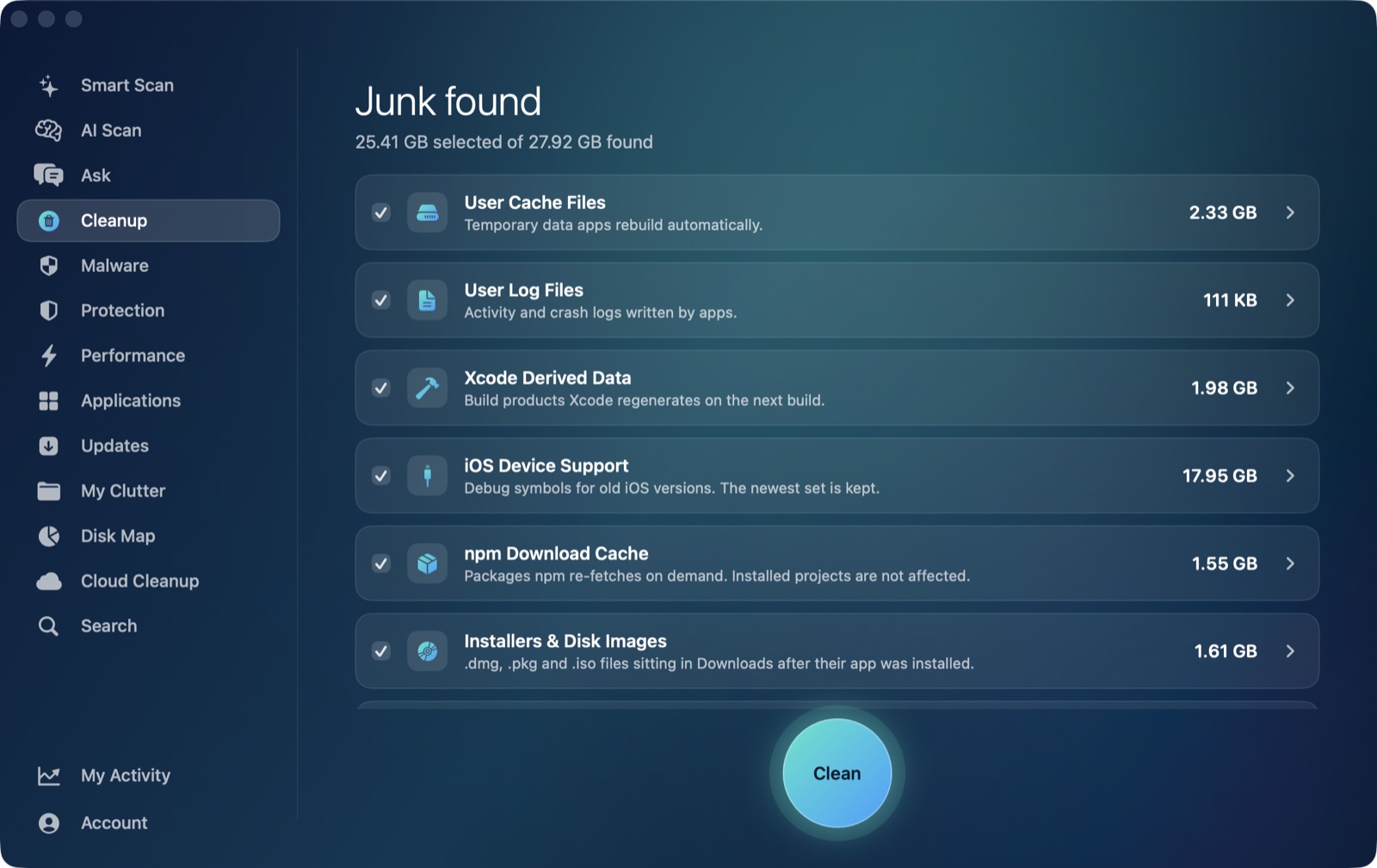
These are the categories a photographer actually runs into, all scanned and listed with their size before anything moves.
🗂️ Lightroom & Photoshop's Camera Raw cache
Builds on your internal disk even when your catalog and originals are on an external drive. Clearing it costs a few seconds of re-rendering on old thumbnails, nothing else.
🧬 Duplicate exports and photo imports
Matches by content hash, so a renamed duplicate export or a double import from a card doesn't slip past.
💿 Old installer disk images in Downloads
Lightroom and Photoshop installer .dmg/.pkg files that already did their job and are just sitting in Downloads.
🔍 A library grown into tens of gigabytes, found and sized
AI Mac Cleaner can't manage what's inside Photos Library.photoslibrary — nothing honestly can, outside the Photos app — but My Clutter will show the library package itself sorted by size, often the single biggest item on the whole Mac, which is usually the moment it clicks where the space went.
Auto-offered categories are listed and sized for you to select in Cleanup. Review-only categories are never pre-ticked — you see the size and decide.
What AI Mac Cleaner does not reach — and why
We looked this up rather than assume it, because a cleaner that claims coverage it doesn't have is worse than useless for anyone managing real photo libraries. Here's where your photo tools actually keep their heavy files on macOS.
- Lightroom Classic and Photoshop's Camera Raw cache is actually reached — unlike Final Cut, Premiere or Resolve, this is the one case where AI Mac Cleaner's existing User Cache Files sweep already covers the app in question, because the cache sits directly under
~/Library/Cachesrather than a sibling folder. How the cache builds up, and what clearing it costs you → - Your Photos library (
~/Pictures/Photos Library.photoslibrary) is one opaque package Finder can't browse into; Photos manages it internally. The real fix for a bloated library is Photos → Settings → iCloud → Optimize Mac Storage, not a cleaner. What's actually inside it, and how to shrink it → - Your Lightroom catalog and RAW originals, wherever you put them, including an external drive, are never touched — not cache files, not under
~/Library/Caches. Why the catalog and cache are kept completely separate →
That first one is the strongest honest claim on this page: your Lightroom and Photoshop cache genuinely is cleared, safely, because it happens to live in the one place every app's cache already gets swept. Your catalog, your RAW originals and your Photos library package are a different matter — they're your data, living in a place a general cleaner should never touch, and the right tool for shrinking them is the app that created them, not us.
Nothing is ever deleted directly
Every removal in AI Mac Cleaner goes through the app's FileRemover, which moves files to the macOS Trash. The only permanent deletion is Empty Trash, and that's a step you take yourself.
FileRemoveralso refuses a hard-coded list of protected paths — your home folder, Documents, iCloud Drive — regardless of what a scan finds there, so your actual project files and media stay untouched.- Review-only categories like iPhone backups, leftovers of deleted apps, Docker's disk image and virtual machines are shown with their size but never selected for you.
- A mistake is one "Put Back" away, right up until you empty the Trash.