AI Mac Cleaner
How to Find Duplicate Files on Mac
Matching file names and sizes catches some duplicates and misses others. Here's how to find duplicate files on Mac by actual content, safely.

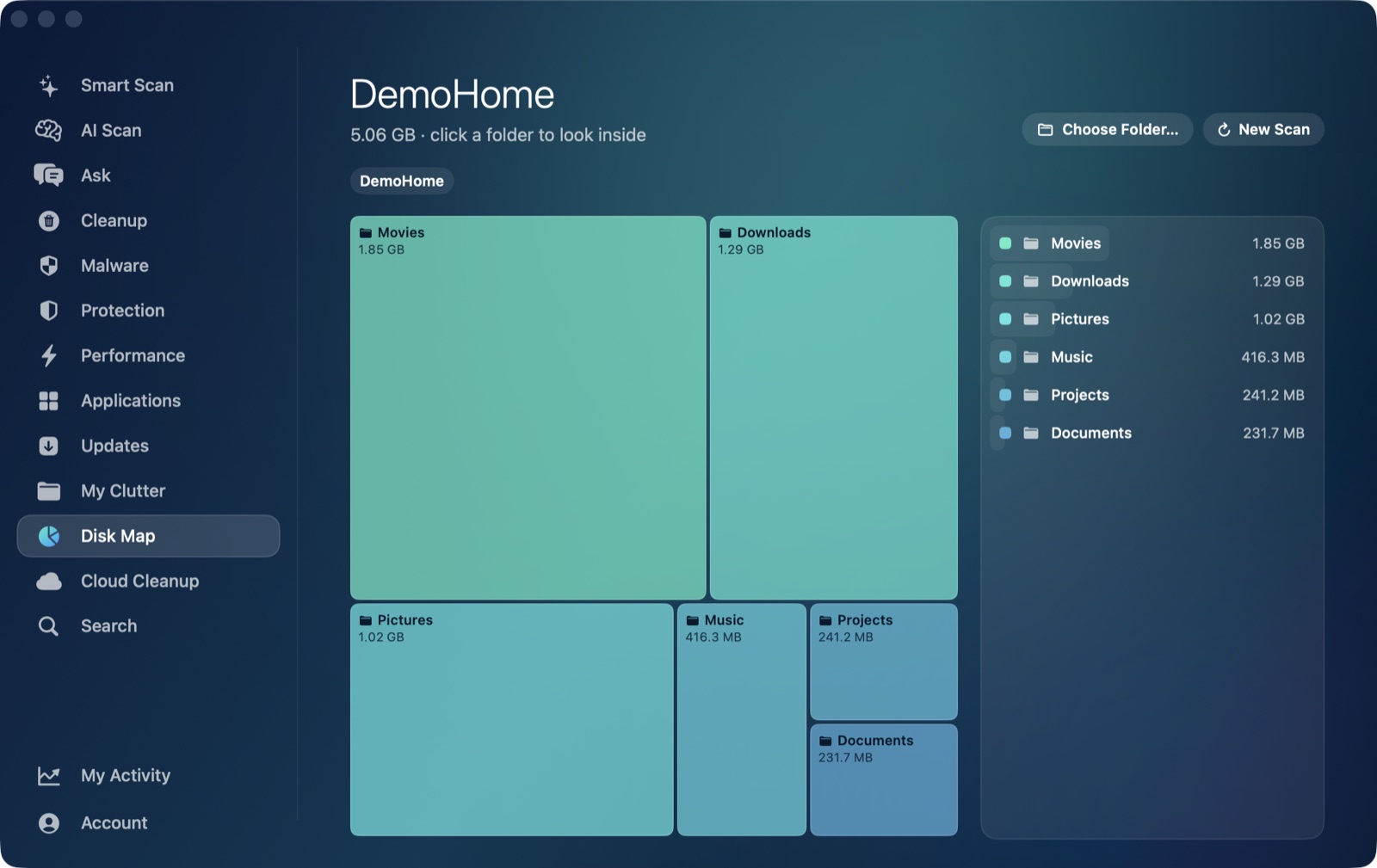
Duplicate files build up on a Mac in the most ordinary ways: a photo import that ran twice, a project folder you copied "just in case" and then forgot was a copy, the same PDF saved from three different email attachments, a download that redownloaded because you clicked twice. None of these feel like a problem one at a time. Added up across years of normal use, they can be a genuinely large and completely pointless chunk of your disk. The question is how to find duplicate files on a Mac reliably enough to actually trust deleting them.
Why matching by name or size isn't enough
The obvious shortcut — find files with the same name, or the same size — catches real duplicates, but it also produces a lot of false positives and misses a lot of real ones. Two completely unrelated photos from two different cameras can land on the exact same file size by coincidence. A renamed copy of a file won't match by name at all, even though it's byte-for-byte identical to the original. Trusting either signal alone means either deleting something that only looked like a duplicate, or missing duplicates that don't happen to share a label.
Matching by what's actually inside the file
The reliable way to confirm two files are truly identical is to hash their contents and compare the hashes, not the filenames or the file sizes attached to them. AI Mac Cleaner's My Clutter module does exactly this: it finds exact duplicates by comparing file content using a SHA-256 hash. If two files produce the same hash, their contents are identical byte-for-byte — there's no name, size or metadata involved in that decision, and no coincidence can produce a false match the way comparing names or sizes can. Two differently-named files with wildly different metadata but identical content get caught; two same-named, same-sized files with one different pixel don't get mistaken for a match.
This content-based check also means the module isn't fooled by the common case of a renamed or relocated copy: if you copied a video into a different folder and renamed it along the way, it's still flagged as a duplicate of the original, because what matters to a hash comparison is the content, not where the file lives or what it's called.
What it skips, on purpose
Not everything that technically has content worth hashing should be treated as a duplicate candidate, and My Clutter is deliberately conservative about what it scans:
- App packages are skipped — a
.appbundle isn't a duplicate file, it's a structured folder, and hashing its way through one doesn't make sense in this context. - Hidden files are skipped — much of what's hidden on a Mac is system or app configuration, not something you'd want flagged for deletion in a duplicates list.
- iCloud files that haven't actually been downloaded yet are skipped — a file that's still only a cloud stub isn't using local disk space, and comparing its content would mean force-downloading it just to check, which defeats the point of leaving it in the cloud in the first place.
One copy is always kept, automatically
When My Clutter does find a set of identical files, it always keeps one copy for you automatically — you're only ever asked about the extras, never about the last remaining copy of something. That's a meaningful safety default: a duplicate finder that could be instructed (even accidentally) to remove every copy of a file is a much more dangerous tool than one that structurally can't, and this one can't.
Removal still goes through the Trash
Confirming which files to clear doesn't mean they're gone immediately. Like every removal in AI Mac Cleaner, duplicate files found by My Clutter go through its Trash-only remover — nothing is deleted directly, and a protected-path list blocks removal from locations that should never be touched regardless of what a scan finds. If a file turns out to matter after all, it's one Trash restore away, right up until you empty it yourself.
Duplicates are only part of the picture
Exact duplicates are a specific, high-confidence category — but they're not the only thing quietly filling up a Mac. My Clutter also surfaces large and old files more broadly, for the cases where nothing is literally duplicated but something old and huge has just been sitting forgotten for years. If duplicates alone don't explain where your space went, how to find large files on your Mac covers that side of the same problem, including the visual treemap view for seeing what's using space at a glance.
To see your own exact duplicates — matched by content, with one copy always kept — AI Mac Cleaner has a 7-day free trial with every feature unlocked and no card required, with plans from $6.99/mo after that. See how it works.
Frequently asked questions
How does AI Mac Cleaner know two files are actually duplicates?
By comparing their content with a SHA-256 hash rather than their filename or size. Identical hashes mean identical content, byte-for-byte — there's no coincidence that can produce a false match the way comparing names or sizes can.
Will it ever delete every copy of a file?
No. My Clutter always keeps one copy of any duplicate set automatically; you're only ever asked about the extra copies, not the last one.
Does duplicate scanning touch my iCloud files?
It skips iCloud files that haven't actually been downloaded to your Mac yet, since they aren't using local space and checking their content would mean force-downloading them first.
Can renamed copies of the same file still be detected as duplicates?
Yes — because the comparison is based on file content, not the filename, a renamed or relocated copy with identical content is still correctly flagged as a duplicate of the original.
Is it safe to let the app remove duplicates automatically?
Every removal, including duplicates, goes to the Trash rather than being deleted directly, and a protected-path list blocks locations that shouldn't be touched regardless. You can also review the list before confirming anything, so nothing is removed as a surprise.