AI Mac Cleaner
WindowServer High CPU on Mac: Why It Happens and What to Check
WindowServer runs your whole display, so it's never "wrong" to see it using CPU — but a sustained spike usually traces back to one specific habit or app. Here's what to check.

If Activity Monitor shows WindowServer sitting near the top of the CPU column, don't panic and don't try to quit it — there's no quit button for a reason. WindowServer is the macOS process that draws every window, menu, cursor and visual effect on your screen. It's supposed to use CPU; the question worth asking isn't "why is WindowServer running" but "why is it using more than usual right now."
What WindowServer actually is
WindowServer is part of macOS itself, running as the system (root) process that composites everything you see — every app window, every animation, every pixel of every display connected to your Mac. It's always running and it's not a bug, a leak, or something a cleaner app should remove. Think of it as the renderer behind the whole screen, similar to how a game engine draws a scene: more to draw, more CPU used.
Why it spikes
A few specific, common triggers account for most WindowServer spikes:
- An external display, especially a high-resolution or high-refresh-rate one. Driving a 4K or 5K monitor — or two of them — asks WindowServer to composite far more pixels than a single built-in display, and the effect is bigger if the external display runs at a non-native scaled resolution.
- Visual effects and transparency. Mission Control, Spaces switching animations, and the translucent blur behind menus and the Dock all go through WindowServer. On an older Mac or with several displays, this adds up.
- An app doing excessive or unusual rendering. Screen recording and streaming tools, browsers with hardware-acceleration issues, or an app animating constantly in the background (a live wallpaper, a stock ticker, a game) can push WindowServer much harder than normal use.
- A stuck or misbehaving app window. Occasionally a single app gets into a state where it's redrawing far more than it needs to; WindowServer's CPU usage is a symptom of that app's behavior, not an independent problem.
What to check, in order
- Note what's different right now. Did you just connect an external monitor, start screen sharing, or open an app that renders constantly (a video call, a game, a design tool)? That's usually the direct cause.
- Try closing one app at a time rather than restarting anything, and watch whether WindowServer's number drops. This finds the actual trigger instead of guessing.
- Check System Settings → Accessibility → Display → Reduce Transparency and Reduce Motion. Turning these on lightens WindowServer's compositing load, especially noticeable on Macs driving an external display.
- If it's tied to an external monitor, try a lower resolution or refresh rate and see if the number comes back down — a non-native scaled resolution is the single biggest lever here.
- Log out and back in (or restart) as a last resort. WindowServer restarts fresh on login, which clears any one-off stuck state without needing to touch anything else.
What you shouldn't do is treat a WindowServer spike as "junk" to clean out — there's no cache or leftover file behind it, because it isn't a leftover; it's a live process doing exactly what your display setup is asking of it.
Where AI Mac Cleaner fits in
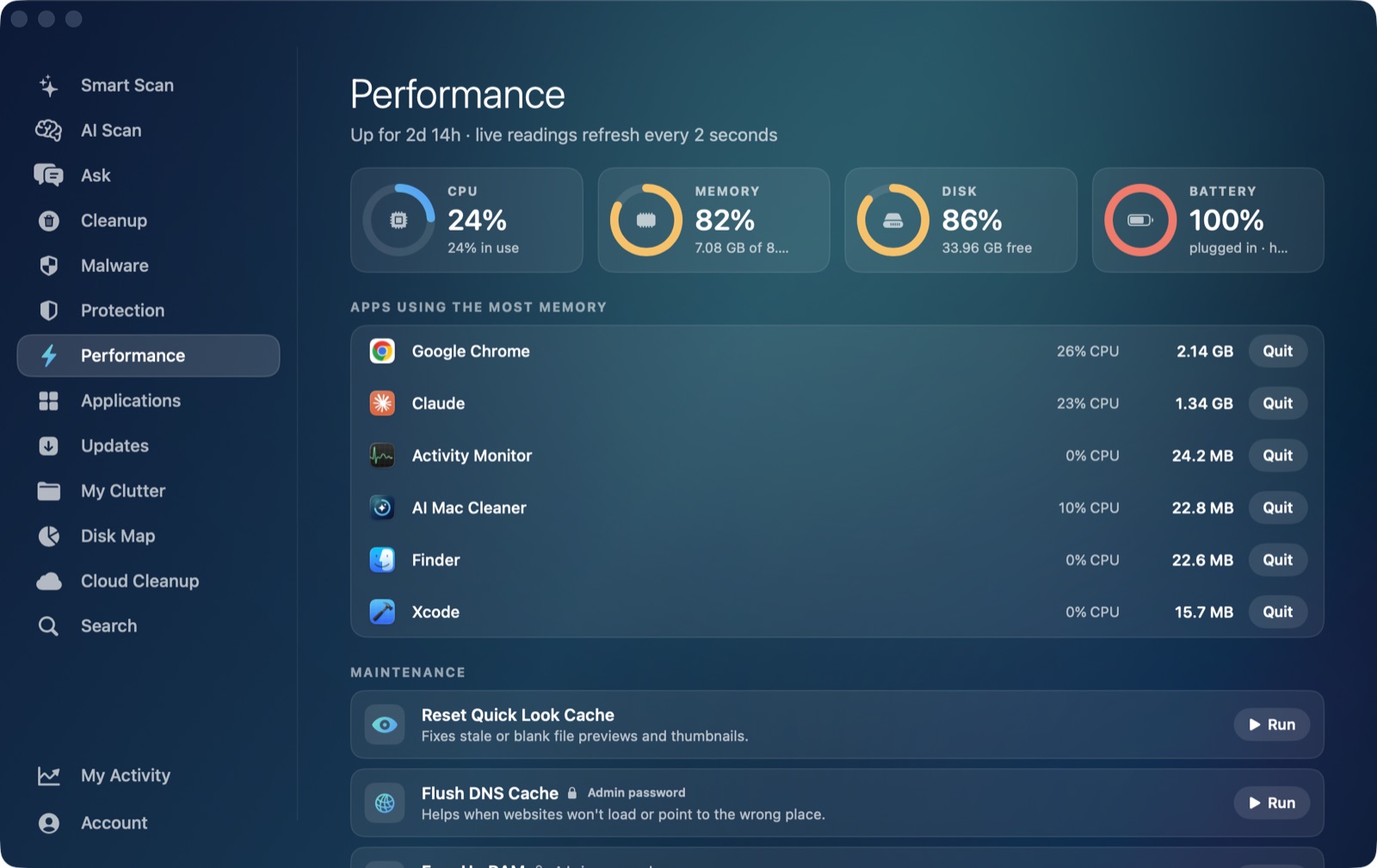
AI Mac Cleaner's Performance module won't try to "fix" WindowServer, because there's nothing to remove — but its live, ranked heaviest-apps view is the fast way to spot step 1 above: the other app that's actually driving the extra rendering load, sitting right next to WindowServer in the same list instead of needing a separate Activity Monitor window. If quitting that app settles things down, you've found your real cause.
AI Mac Cleaner has a 7-day free trial with every feature unlocked and no card required, plans from $6.99/mo after. See what else it checks, or read more on finding a high-CPU app generally.
Frequently asked questions
Can I quit or kill WindowServer to free up CPU?
No — macOS doesn't let you quit it from Activity Monitor, and if you force it via Terminal you'll be logged out immediately as it restarts, since it's required to draw the screen. It isn't something to remove; it's the display engine itself.
Is WindowServer using a lot of CPU a sign of malware?
Almost never on its own. WindowServer legitimately uses more CPU with external displays, visual effects, or apps that render heavily. If you're also seeing unfamiliar apps, pop-ups, or browser changes alongside it, that points to something else entirely, not WindowServer.
Why does WindowServer use more CPU with an external monitor?
It has to composite every pixel on every connected display. A higher-resolution or scaled (non-native) external display multiplies the compositing work compared to using just the built-in screen, which is why the number often drops noticeably when you disconnect it or lower its resolution.
Will Reduce Transparency actually make a difference?
Yes, especially on a Mac also driving an external display — it removes a layer of blur compositing that WindowServer otherwise redraws continuously behind menus, the Dock and Control Center.
How do I tell if an app, not my display setup, is causing it?
Close apps one at a time and watch Activity Monitor's (or AI Mac Cleaner's Performance module's) CPU number for WindowServer after each one. If it drops clearly after closing a specific app, that app was driving the extra rendering work.