AI Mac Cleaner
Mac Running Slow? How to Find the High CPU App
If your Mac is running slow, the usual cause is one high CPU app quietly maxing out a core. Here's how to spot it, using Activity Monitor or a live heaviest-apps view.

A Mac that was fine yesterday and is suddenly sluggish today is almost never a hardware problem. Far more often it's a single high CPU app — something stuck in a loop, re-indexing a library, syncing a huge folder, or just running a background task it shouldn't still be running — quietly using far more of a core than it needs to. The fix isn't a deep system overhaul; it's figuring out which app, and that's a question of looking rather than guessing.
Why "running slow" is usually one app's fault
Modern Macs are good at sharing resources across normal multitasking — a browser, a chat app, a couple of background sync tools and some music playing rarely adds up to a slowdown you'd notice. What does cause one is a single process pinned at a high percentage of CPU for minutes or hours at a stretch: a stuck update checker, an app that didn't fully quit, a video export running in the background, or a sync client chewing through a backlog of files. The giveaway is usually the fan spinning up and staying up, or the battery dropping noticeably faster than usual, both of which are symptoms of the same thing — something is working harder than you asked it to.
Checking for free with Activity Monitor
macOS already includes a tool for this, and it costs nothing: open Activity Monitor (Spotlight search, or Applications → Utilities), click the CPU column header to sort by usage, and look at the top of the list. A well-behaved idle Mac should have nothing sitting anywhere near 100% for long. If something is, that's your high CPU app, and quitting it is usually enough to confirm it was the cause — if the fan settles and things feel responsive again within a minute, you've found it. Activity Monitor also has an Energy tab worth checking separately, since the app using the most CPU right now isn't always the one that's drained the most battery over the last several hours.
Activity Monitor is genuinely capable for this, and it's the free baseline worth knowing regardless of what else you use. Its limits are about convenience rather than accuracy: it's a snapshot you have to remember to open and re-sort each time, it doesn't track disk activity or battery health alongside CPU in one view, and it won't tell you, at a glance, whether today's number is unusual for that app or normal.
A live, always-available view instead
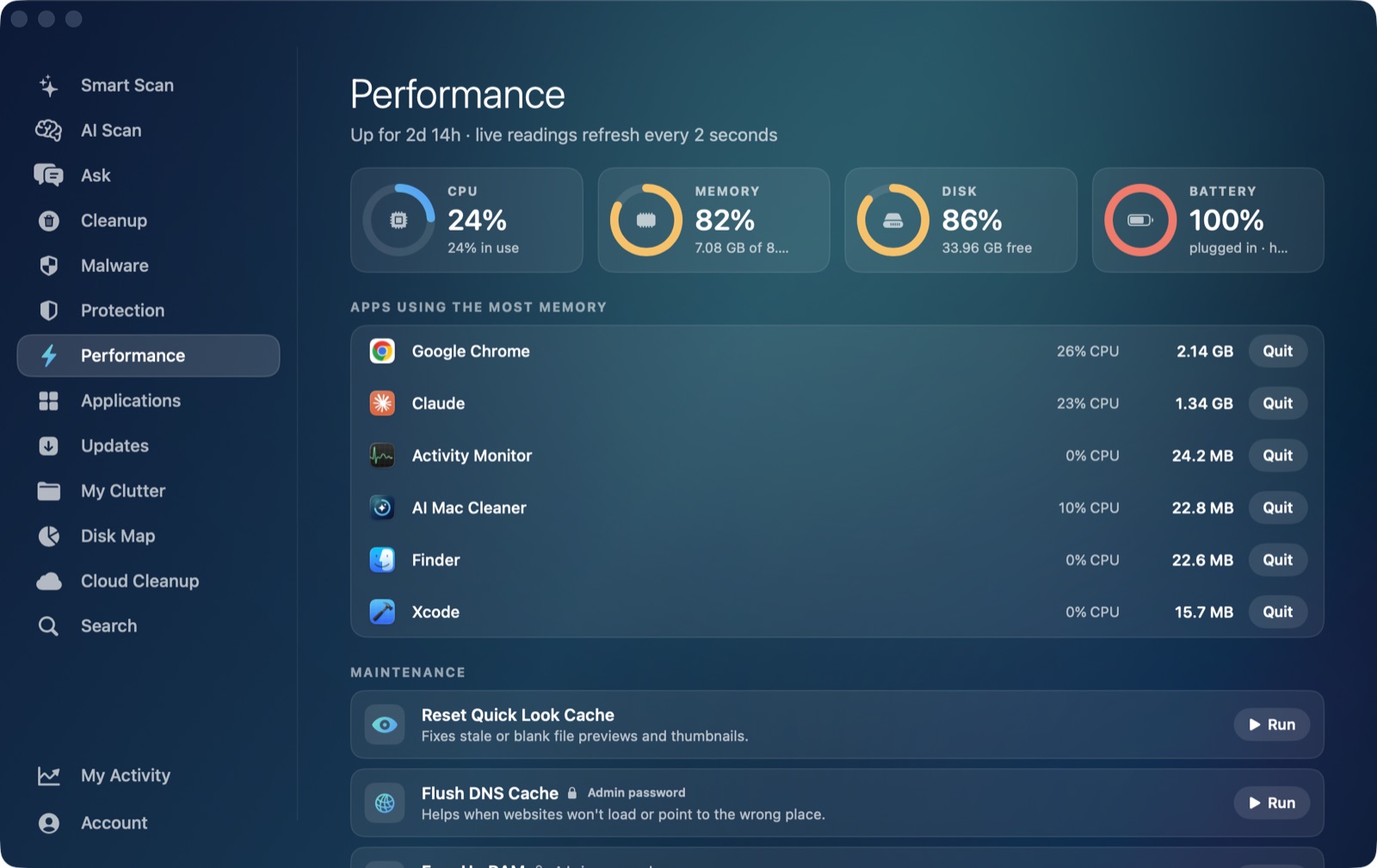
AI Mac Cleaner's Performance module covers the same ground as a standing view rather than a tool you open after the fact: live CPU, RAM, disk and battery readings (including battery health and cycle count), plus a ranked list of the heaviest apps running right now, sorted the same way Activity Monitor's CPU column is. The app's menu bar icon keeps the live readings visible too, so you don't have to switch into a separate monitoring window just to notice something's off. The practical difference from opening Activity Monitor after the fact is timing — by the time a Mac "feels slow" you've often already missed the moment that caused it, where a standing live view is there the second the fan spins up.
The module also surfaces maintenance tasks and a launch agent manager alongside the live readings, which matters because background launch agents are one of the quieter causes of a Mac that's slow more days than not — not a single spike you'd catch in the moment, but something restarting itself on every login and sitting in the background indefinitely. Reviewing what's allowed to launch at startup is a reasonable second step once you've ruled out a single runaway app.
What to do once you've found it
Finding the app is most of the problem solved. From there:
- Quit it and watch the fan and CPU number settle. If they do, you've confirmed the cause.
- Check if it has a pending update. A surprising share of "stuck at high CPU" reports trace back to a bug already fixed in a newer release.
- If it's a sync tool (cloud storage, backup), let it finish once rather than quitting repeatedly. Interrupting a big sync partway through tends to make it start over and use more CPU over a longer period than just letting it complete.
- If the same app shows up every time, consider whether it needs to run in the background at all, and check it in a launch agent manager if it's set to start automatically at login.
Frequently asked questions
How do I know which app is using the most CPU on my Mac?
Open Activity Monitor and sort by the CPU column, or use a live view like AI Mac Cleaner's Performance module, which keeps a ranked heaviest-apps list visible without you having to open anything after the fact.
Is it normal for an app to use high CPU for a few seconds?
Yes — a brief spike while something loads, exports or searches is normal and not worth worrying about. The pattern to look for is sustained high usage over minutes, with the fan staying up, not a quick spike that settles on its own.
Does a high CPU app also drain the battery faster?
Usually, yes — CPU usage and battery drain are closely linked, though they're not identical: Activity Monitor's separate Energy tab, and AI Mac Cleaner's Performance module, both track battery health and usage alongside CPU so you can check whether today's drain is actually unusual for that app.
Will quitting the app fix the slowdown permanently?
If it's a one-off (a stuck process, an interrupted sync), yes. If the same app keeps coming back to the top of the list, it's worth checking whether it's set to launch automatically at login, since restarting it manually each time won't fix a background launch agent that keeps bringing it back.
Is Activity Monitor enough, or do I need something else?
Activity Monitor is a real, free, accurate tool and a fine starting point. A live view like Performance mainly saves you the step of opening and re-sorting it after you've already noticed a slowdown, and adds disk and battery health in the same place — it's a convenience layer, not a replacement for what Activity Monitor already shows correctly. AI Mac Cleaner's 7-day free trial has every feature unlocked, no card required, with plans from $6.99/mo after. See what else it checks, or read more on why a Mac slows down generally.