AI Mac Cleaner
Why is my Mac slow? Seven checks to try first
Why is my Mac slow? It's rarely old hardware — usually free space, memory pressure, or one runaway process. Work through these checks in order.
"Why is my Mac slow?" is almost never answered by "it's old." Most slow Macs are not worn out, they are full, busy or misconfigured — and a Mac from 2019 with an SSD and enough free space will usually feel faster than a 2024 Mac that is 95% full. Before pricing a new machine, spend ten minutes on these checks. They go from most likely to least.
1. Free space
Under 10% free and macOS struggles to swap memory and write caches, so every app pauses while the disk catches up. Check Get Info on Macintosh HD, or Apple menu › About This Mac › Storage. If you are low, free up space first; everything else on this list waits until that is fixed, because a nearly-full disk makes every other symptom worse.
2. Memory pressure
Open Activity Monitor, click the Memory tab, and look at the Memory Pressure graph at the bottom left. Green is fine. Yellow or red means the Mac is swapping active memory out to disk, which is far slower than RAM and is the single most common cause of a Mac that feels sluggish even though the CPU graph looks calm. Sort the process list by Memory to find the culprit. Browsers with dozens of tabs, Electron apps (Slack, Teams, Discord, VS Code) and virtual machines are the usual suspects — each tab or window is its own process with its own overhead. Quit what you are not using rather than just minimizing it.
3. Something eating the CPU
In Activity Monitor, click the CPU tab and sort by % CPU. A process pinned near 100% that you do not recognise is worth a search before you blame the hardware. Common, usually harmless ones: Spotlight indexing after a big file change (mds_stores, finishes on its own, often within the hour), photo library analysis (photoanalysisd), and a single stuck browser tab (close just that tab, not the whole browser, to confirm). Another one worth not panicking over is coreduetd, Apple's Continuity and Handoff daemon — see coreduetd high CPU on Mac for when it's normal versus when it's worth a second look. If the same process reappears every day, see the high-CPU-app guide for how to track it down for good.
4. Login items and background helpers
System Settings › General › Login Items & Extensions. Every entry in that list starts the moment you log in and stays resident in memory for the rest of the session. Apps you no longer use, updaters for software you already removed, and helper processes you never knowingly installed all belong off this list — removing ten rarely-used login items can shave real seconds off every boot and free memory for everything else.
5. Too many browser extensions
Each extension runs on every single page you load, whether it is doing anything useful there or not. Disable all of them at once, restart the browser, and add back only the ones you actually miss. This is one of the fastest checks on this list and the one people skip most often.
6. Heat
A hot Mac slows itself down on purpose to protect its hardware — this is normal thermal throttling, not a fault. Blocked vents, use on a lap or in bed, dust buildup, or a dying fan will all do it. If the Mac is always warm rather than only warm under load, check for a runaway process (step 3) before assuming the fan or thermal paste has failed.
7. Old macOS or a pending update
Updates fix real performance bugs, and on older macOS versions Safari and Spotlight can spin waiting for background services that changed in a later release. Install pending updates and restart — a restart alone clears leaked memory and stuck daemons that build up over weeks without one, which is why "turn it off and on again" keeps working. If you're specifically on macOS 27 and have felt slower since updating, see Mac running slow after macOS 27 update for what's expected to settle in the days after a major update versus what's worth checking further.
When it really is the hardware
If the Mac has a spinning hard drive (pre-2018 iMacs and some older MacBooks), that is a genuine bottleneck and nothing on this list will help much — an SSD upgrade or a newer Mac is the real fix. 8 GB of memory is tight for heavy browser use in 2026 but workable with discipline about tab count. Everything else on this list, though, is free to fix and worth doing before spending money.
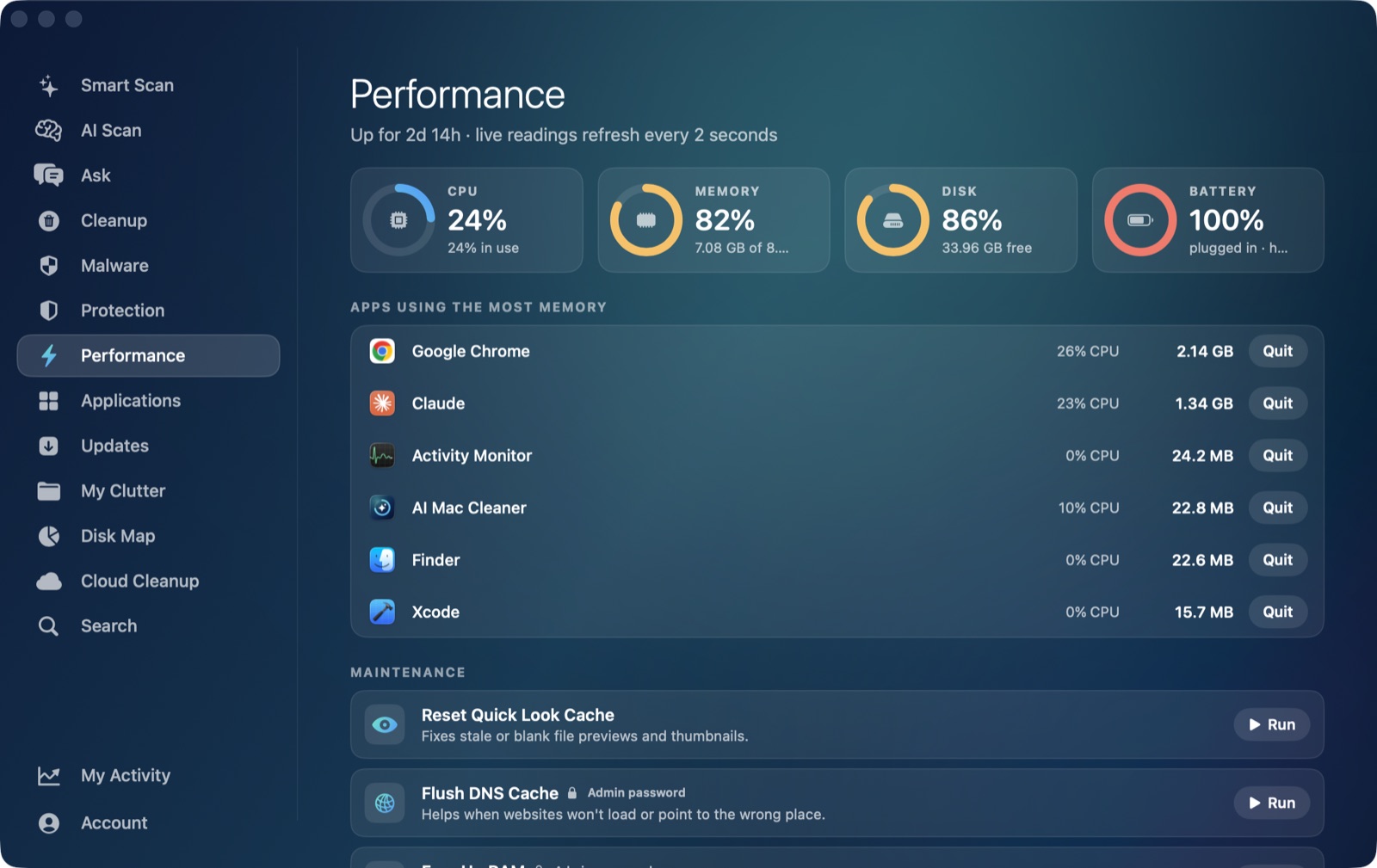
AI Mac Cleaner's Performance screen shows free space, memory pressure, the apps using the most memory and your login items on one page, so you can run through steps 1, 2 and 4 above without opening Activity Monitor and System Settings separately. Smart Scan handles the free-space part, and if storage keeps creeping back up after you clean it, see why storage fills up again.
Frequently asked questions
Why is my Mac slow all of a sudden, with no changes made?
The most common cause is a background process that started on its own — Spotlight re-indexing after a software update, Time Machine running a backup, or a browser tab that updated and started leaking memory. Check Activity Monitor's CPU and Memory tabs (steps 2 and 3 above) before assuming anything is actually broken; most of these resolve on their own within an hour.
Does restarting my Mac actually make it faster?
Yes, usually. A restart clears memory that stuck apps and background helpers never released, resets any daemon that is spinning, and lets pending updates finish installing. It is not a permanent fix if the underlying cause (low free space, a runaway app, too many login items) is still there, but it is the fastest way to rule out "something just built up over time."
Is it my Mac's age, or something I can fix?
Age only matters directly if the Mac still has a spinning hard drive, or if 8 GB of memory is genuinely too little for how you use it. For every Mac with an SSD, the seven checks above explain the vast majority of slowdowns people blame on age — free space and memory pressure alone account for most of them.
Will more storage or more RAM fix a slow Mac?
Only if you have actually confirmed that is the bottleneck. Check free space (step 1) and memory pressure (step 2) first — on many Macs the real fix is freeing existing space or quitting a handful of memory-heavy apps, which costs nothing, rather than buying a new machine.