 AI Mac Cleaner
How to Uninstall Microsoft Teams Completely on a Mac
Classic Teams and the new Teams client leave leftovers in different places — and one of them, a sandboxed group container, sits outside where most uninstallers look at all.

If you want to uninstall Microsoft Teams completely on a Mac, the first thing to settle is which Teams you actually have — classic Teams and the new, native Teams client are genuinely different apps with different bundle IDs and different leftover locations, as we covered when clearing just their caches. A full removal needs the right set of folders for whichever one you're running, not just a drag to the Trash.
Classic vs. new Teams, by bundle ID
Classic Teams (the original Electron-based client) uses the bundle ID com.microsoft.teams. The new, native Teams client — built on Edge WebView2 and rolled out through 2023-2024, now labelled "Microsoft Teams" with the older app renamed "Microsoft Teams classic" — uses com.microsoft.teams2. Check your profile menu for a "Try the new Teams" toggle, or an About screen naming the version, if you're not sure which one is installed; the leftovers below differ by which app you're removing.
Classic Teams: where it leaves files
~/Library/Caches/com.microsoft.teamsandcom.microsoft.teams.shipit— cached message content, images and rendering data, plus files from Teams' own updater component.~/Library/Application Support/Microsoft/Teams— the main data folder, holding sign-in state, local settings and theCache,Code CacheandGPUCachesubfolders covered in our cache-clearing post.~/Library/Preferences/com.microsoft.teams.plist— window layout and app-level settings.~/Library/Logs— diagnostic logs, matched by name or identifier.
New Teams: where it leaves files — including one place most uninstallers miss
The new Teams client is sandboxed, which moves its data into container folders:
~/Library/Containers/com.microsoft.teams2— the sandboxed container, including theCachefolder nested deep inside it atData/Library/Application Support/Microsoft/MSTeams/Cache.~/Library/Group Containers/UBF8T346G9.com.microsoft.teams— shared container data used by the new Teams client's helper processes, named by Microsoft's Apple Developer Team ID rather than the app's own bundle ID.
That second path is the one worth calling out specifically: it's named by a Team ID prefix, not com.microsoft.teams2, which means an uninstaller that only matches on an app's own bundle identifier — which is how most leftover-finders, including AI Mac Cleaner's, actually work — has no way to recognize it as Teams-related at all. More on what that means below.
Microsoft's own documentation notes that installing the new Teams client attempts to remove classic Teams automatically, though permissions or other settings can make that removal fail — which is part of why a Mac that's been through that transition can end up with leftovers from both versions at once.
Finding them by hand
Open Finder, press Shift-Command-G, and check each path above. ~/Library/Group Containers in particular is easy to miss, since its contents are named by a 10-character developer Team ID (UBF8T346G9 for Microsoft) rather than anything resembling "Teams" — searching for "Teams" by name in Finder won't surface it.
How AI Mac Cleaner handles it — and exactly where it stops
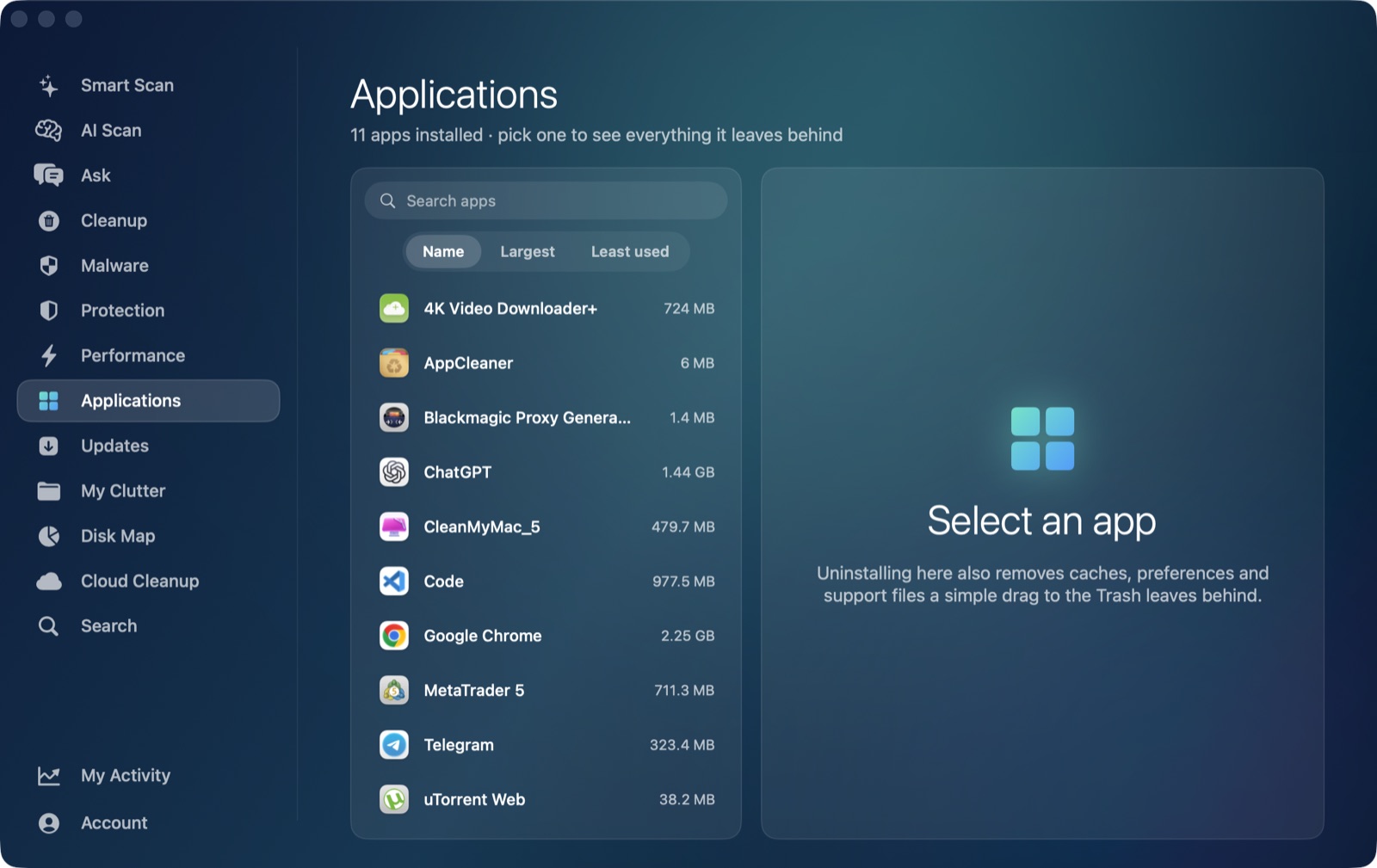
AI Mac Cleaner's Applications module works as an uninstaller that also finds an app's leftovers, matching by the installed app's own bundle ID across ~/Library's Application Support, Caches, Logs, Preferences, Preferences/ByHost, Saved Application State, HTTPStorages, WebKit, Cookies, Containers, Application Scripts and LaunchAgents folders. For new Teams, that means it does find and offer ~/Library/Containers/com.microsoft.teams2 directly, since the folder name matches the app's bundle ID exactly — a real container's worth of leftover data, reviewed and sized before anything moves.
It's worth being direct about the gap, the same way we are for new Teams' cache: the Applications module doesn't scan ~/Library/Group Containers at all, so UBF8T346G9.com.microsoft.teams — the shared container named by Microsoft's Team ID rather than its bundle ID — isn't part of that automatic scan, and no identifier match would catch it anyway, since it isn't named after Teams' bundle ID in the first place. This isn't an AI Mac Cleaner-specific gap; any uninstaller that identifies leftovers by matching an app's bundle ID against folder names runs into the same blind spot with Group Containers generally.
What helps with that one: point Disk Map's treemap at ~/Library/Group Containers, or use Search for "teams" or "UBF8T346G9" to locate it directly, then move it to the Trash through the app so it's still recoverable until you empty the Trash.
One thing the Applications module deliberately never does: list Apple's own apps, itself, or Claude as something you could uninstall. It's built for clearing out third-party software you installed and no longer want.
Nothing is deleted outright
Every removal in AI Mac Cleaner goes through its Trash-only remover, which also refuses a fixed list of protected system paths — so if you remove Teams and need something back, it's recoverable from the Trash until you empty it yourself, on purpose.
If you're clearing Teams because you're leaving it behind entirely, that's covered here; if you just want the cache gone while keeping the app and your sign-in, clearing Microsoft Teams cache on Mac is the lighter version of this same job. AI Mac Cleaner has a 7-day free trial with every feature unlocked and no card required, and plans start at $6.99/mo after that.
Frequently asked questions
How do I know if I have classic Teams or the new Teams app?
Check your profile menu for a "Try the new Teams" toggle, or an About screen naming the version. Classic Teams uses the bundle ID com.microsoft.teams; new Teams uses com.microsoft.teams2. If there's no toggle, you're almost certainly on classic Teams.
Does removing the new Teams app also remove its Group Container?
Not automatically through most uninstallers, AI Mac Cleaner included — ~/Library/Group Containers/UBF8T346G9.com.microsoft.teams is named by Microsoft's developer Team ID, not by the app's bundle ID, so tools that match leftovers by bundle identifier don't recognize it as related. Disk Map or Search can locate and clear it manually.
Will installing the new Teams client remove classic Teams for me?
Microsoft's documentation says it attempts to, but notes the removal can fail due to permissions or other settings — which is why a Mac that's upgraded can still have classic Teams' leftover folders sitting alongside the new client's.
Can AI Mac Cleaner's Applications module find new Teams' sandboxed container?
Yes, for ~/Library/Containers/com.microsoft.teams2 specifically — the folder name matches the app's bundle ID directly, so the Applications module's identifier-based search finds and offers it. It's the separate Group Containers folder, named differently, that the module's automatic scan doesn't cover.
Is it safe to delete Teams' leftover folders myself in Finder?
Yes, once the app is already removed — match by bundle ID (com.microsoft.teams or com.microsoft.teams2) rather than name alone where possible, and move things to the Trash rather than deleting directly so a mistake stays recoverable.
