AI Mac Cleaner
sharingd High CPU on Mac: What It Is and What to Check
sharingd is the system daemon behind AirDrop, Handoff and Continuity. It spikes while scanning for nearby devices — here's what's normal and what's worth checking when it doesn't settle down.

If sharingd is sitting high in Activity Monitor, it's not something you installed — it's the macOS daemon responsible for AirDrop, Handoff and the other Continuity features that let your Mac discover and talk to your other Apple devices. Seeing sharingd high CPU on Mac usually means it's doing exactly the device-discovery work those features depend on, just more of it, or more often, than it should be.
What sharingd actually does
sharingd runs continuously in the background on modern macOS, using Wi-Fi and Bluetooth to advertise your Mac to nearby Apple devices and listen for theirs — the groundwork Handoff, AirDrop and Universal Clipboard all rely on to work the instant you need them, without you opening anything first. Some baseline CPU use is normal and expected; the question is whether it settles back down or stays pinned.
When it's normal
A short spike is unremarkable in a few common situations:
- Right after waking from sleep, while it re-scans for nearby devices.
- While actively using AirDrop — sending or receiving a file keeps it busy for as long as the transfer takes.
- Near other Apple devices with Handoff or Universal Clipboard active, where it's doing continuous proximity checks.
In these cases, CPU use should drop back to near-zero within a minute or two once the activity stops.
When it's worth looking into
It's a different story if sharingd sits at high CPU indefinitely, with no AirDrop transfer or Handoff activity in sight, and especially if it's draining battery noticeably faster than usual. Reports on Apple's own Support Communities describe exactly this — sharingd pinned well above normal for extended stretches, sometimes even with every sharing feature apparently switched off. A few things worth checking, in order of how likely they are to help:
- Toggle AirDrop and Handoff off and back on in System Settings → General → AirDrop & Handoff. A stuck discovery session can sometimes clear this way without a full restart.
- Check Bluetooth. sharingd depends on it for several of these features; toggling Bluetooth off and on in System Settings can reset a hung connection attempt.
- Check for a pending macOS update. Software Update in System Settings — outdated builds are a common, if generic, cause of a background daemon misbehaving.
- Restart the Mac if the above doesn't help. This clears the daemon's in-memory state entirely.
There's no Apple-published fix specific to sharingd beyond these general steps — it's a system process, not something with its own settings panel, so there's nothing to reconfigure directly the way there is with Zoom's or Teams' own in-app cache tools.
Confirming it's actually sharingd before you act
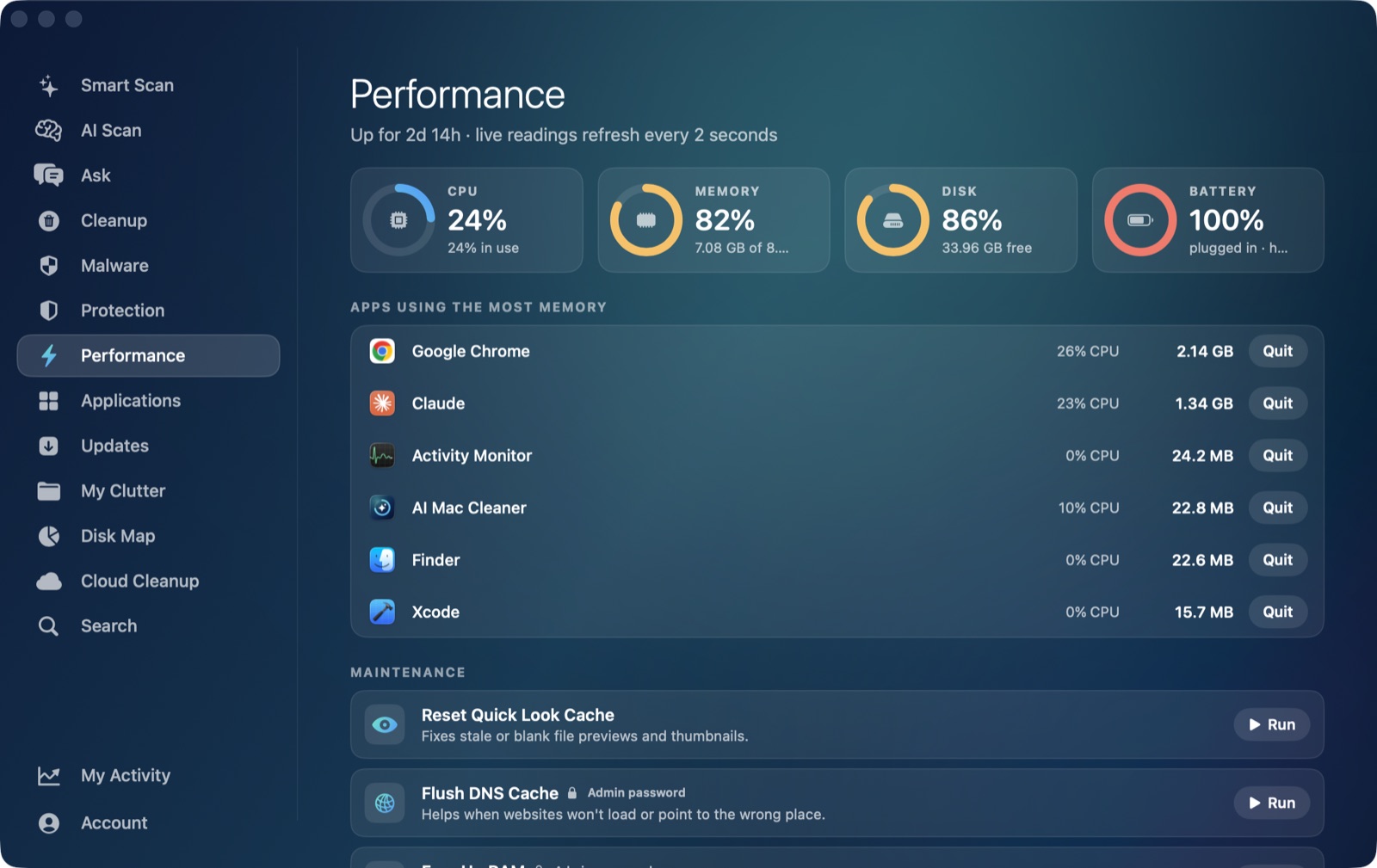
Activity Monitor's CPU tab will show sharingd by name along with its exact percentage — worth checking before assuming any process is the culprit, since a sluggish Mac has plenty of other possible causes, from kernel_task legitimately managing thermal load to a genuinely runaway app. AI Mac Cleaner's Performance module gives the same live CPU, RAM, disk and battery readings as Activity Monitor, alongside a ranked list of the heaviest running processes, so you can confirm sharingd specifically is the one spiking — and see at a glance whether it settles down after the steps above — without switching to a separate app to check.
sharingd sits in the same general family as coreduetd, another device-coordination daemon that spikes around AirDrop and iCloud-sync activity, and the bird process, which handles iCloud Drive's own sync — all three are legitimate system daemons rather than anything a cache clear or app removal would touch. If it turns out something else entirely is behind a slow Mac, our guide to diagnosing a high-CPU app covers the broader troubleshooting path.
AI Mac Cleaner won't disable or "fix" sharingd itself — it's not junk and shouldn't be removed — but its Performance module makes confirming what's actually using your CPU and battery a lot faster than hunting through Activity Monitor by hand. There's a 7-day free trial with every feature unlocked, no card required, and plans from $6.99/mo after that.
Frequently asked questions
What is sharingd on my Mac?
It's a system daemon macOS uses to power AirDrop, Handoff and other Continuity features — discovering and communicating with your other Apple devices over Wi-Fi and Bluetooth. It isn't something you installed and shouldn't be removed.
Is sharingd high CPU usage dangerous?
No, it isn't malware or a security risk — it's a legitimate Apple process. A short spike after waking from sleep or during an AirDrop transfer is normal. Sustained high usage with no sharing activity happening is a performance annoyance worth investigating, not a security concern.
How do I stop sharingd from using so much CPU?
Try toggling AirDrop and Handoff off and back on in System Settings → General → AirDrop & Handoff, then toggling Bluetooth, then checking for a pending macOS update. A restart clears its state entirely if none of those settle it down.
Can I just force-quit sharingd?
You can, but macOS relaunches it automatically since it's a system service AirDrop and Handoff depend on — force-quitting only clears it temporarily and breaks those features until it restarts. The toggle-based steps above are a more useful first move than repeatedly killing the process.