AI Mac Cleaner
Why Lightroom Cache Keeps Filling Your Mac Even With Photos on an External Drive
Moving your Lightroom catalog and originals to an external drive doesn't move the Camera Raw cache — here's where it actually lives and how to clear it safely.

If you shoot RAW, you probably moved your photos to an external drive a while ago specifically to stop your internal disk from filling up. So it's a particular kind of annoying when your Mac's storage keeps creeping toward full anyway, with Lightroom Classic open the whole time it happened. The catalog points at the external drive, the originals are on the external drive — and your internal SSD is still losing gigabytes. That's not a mystery; it's Camera Raw's cache, and it never moved with the rest of your library.
Where the cache actually lives
Lightroom Classic's catalog file (.lrcat) and your originals go wherever you told them to go, including an external drive. But the Camera Raw cache — the rendered previews Lightroom and Photoshop generate so RAW files don't have to be re-decoded from scratch every time you scroll past them — is a separate thing, and it defaults to a folder under your home folder's ~/Library/Caches, on your internal disk, regardless of where the catalog lives. Photoshop's own Camera Raw cache sits in the same general area. Neither one asks permission before growing; both exist purely to make the next preview render faster, and both can reach tens of gigabytes on a working photographer's Mac without anyone noticing until storage gets tight.
This is also why "my photos are all on an external drive, why is my Mac still full" is a genuinely common and genuinely confusing situation — the thing filling the disk isn't your photos at all. It's the cache your editing software built to make working with those photos faster.
Why it's safe to clear
Camera Raw's cache is exactly what the name says: a cache. Nothing in it is an original file, an edit, or a catalog entry. Lightroom and Photoshop rebuild it automatically the next time they need a preview for a given RAW file — you'll see a brief "Loading" message on a thumbnail you haven't touched in a while, and then it renders again. You lose a few seconds of re-rendering here and there, not a single photo or edit.
Clearing it
Two options, depending on how hands-on you want to be:
Inside Lightroom Classic. Preferences → File Handling, and you'll find the Camera Raw Cache settings there, including a button to purge it and a size limit you can set so it stops growing unchecked in the first place. This is the most direct route if Lightroom is already open.
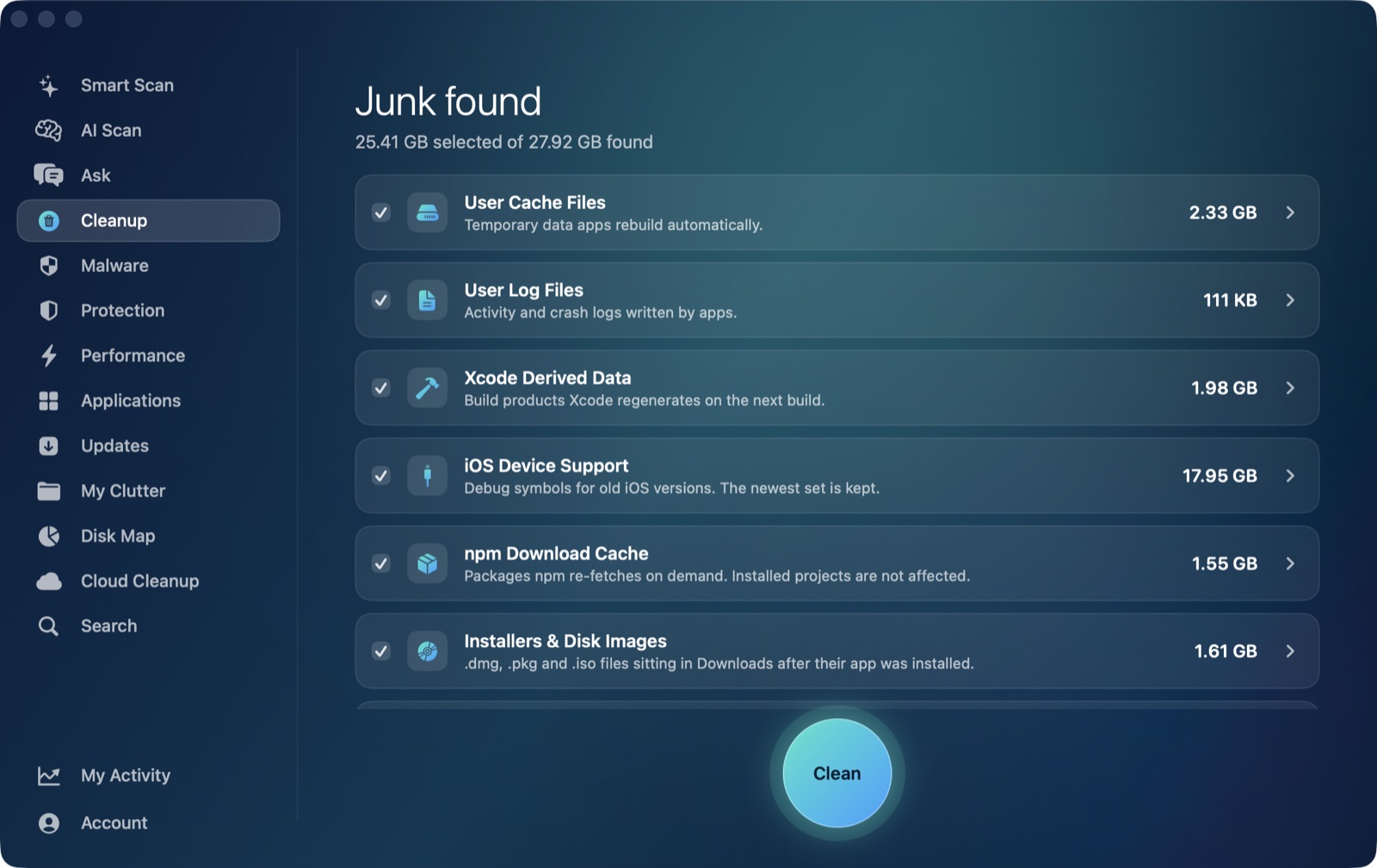
From the Mac side, along with everything else. AI Mac Cleaner's User Cache Files category sweeps ~/Library/Caches broadly — it's built to reach exactly this kind of per-app cache folder. It excludes Apple's own com.apple.-prefixed caches on purpose (those stay with Apple's tools), but Adobe's cache folders aren't in that exclusion list, so running this category clears Lightroom's and Photoshop's Camera Raw caches along with every other app's cache in one pass — Chrome, Slack, Spotify, whatever else has been quietly filling ~/Library/Caches on your Mac.
What this doesn't touch
To be clear about the boundary here: this is only the rendering cache. Your actual catalog (.lrcat), your RAW originals, your edit history, and your exported JPEGs or TIFFs are completely untouched by either method — they're not cache files, they're not under ~/Library/Caches, and nothing described here reaches them. If your originals genuinely are filling your internal disk (as opposed to the cache), that's a separate, deliberate question of where you store your library, not a cleanup task.
If storage is still tight after clearing the cache
A photographer's Mac tends to accumulate a second kind of clutter the cache doesn't explain: duplicate exports (the same JPEG batch-exported twice at different settings, still both on disk), old Lightroom or Photoshop installers left in Downloads after updating, and finished project folders nobody's deleted. Finding duplicate photos by actual content and clearing old installers out of Downloads both recover real space the cache cleanup won't touch — worth checking both if the Camera Raw cache alone doesn't get you back to comfortable.
AI Mac Cleaner has a 7-day free trial with every feature unlocked and no card required, plans from $6.99/mo after.
Frequently asked questions
Will clearing the Camera Raw cache delete my Lightroom edits?
No. Edits live in the catalog file, not the cache. Clearing the cache only removes rendered preview images that Lightroom rebuilds automatically the next time it needs them.
Why does the cache fill up even though my catalog is on an external drive?
Lightroom Classic lets you choose where the catalog and originals live, but the Camera Raw cache folder is a fixed location under ~/Library/Caches on your internal disk — it doesn't follow the catalog's location setting.
Does this affect Photoshop too?
Yes. Photoshop uses its own Camera Raw cache in the same general area, and it's covered by the same cleanup — either Photoshop's own cache preferences or AI Mac Cleaner's User Cache Files category.
How often should I clear it?
There's no fixed schedule — it's safe to clear any time storage is tight. Lightroom's own preference lets you cap the cache size so it stops growing past a limit you set, which avoids the question entirely.
Will my previews be slow after clearing the cache?
Briefly, yes — the next time you scroll to a photo you haven't viewed recently, Lightroom re-renders its preview from the RAW file. After that first render, it's cached again and just as fast as before.