AI Mac Cleaner
kernel_task High CPU on Mac: Why It's Not What It Looks Like
kernel_task showing a huge CPU number isn't a runaway process — it's macOS deliberately holding cores idle to manage heat. Here's what it actually means and what's worth checking instead.

Seeing kernel_task at the top of Activity Monitor's CPU column, sometimes showing 300% or more, looks alarming — but it's the one process on this list that almost never means "something is wrong with this app." kernel_task is part of macOS's own thermal management, and a high number there is usually a symptom of your Mac running hot, not the cause of it.
What kernel_task actually is
kernel_task is a core part of the macOS kernel itself. One of its jobs is to deliberately use CPU cycles — specifically, to hold processor cores in a busy, lower-power state — as a way of managing heat and keeping real workloads off cores that are running too hot. Apple has described this directly: it's "making sure no single core gets too hot," not a process malfunctioning or stuck in a loop. The number you see isn't necessarily real work being done; it can be the kernel intentionally occupying a core so your apps don't pile more heat onto it.
Why it happens
kernel_task's CPU number tends to climb when your Mac is already running warm, from things like:
- A genuinely heavy workload — video export, a large compile, a demanding game — generating real heat that the system is now trying to manage.
- Poor airflow: a laptop on a soft surface (bed, couch, your lap) that blocks the intake vents, or a desk Mac in a closed, poorly ventilated space.
- Dust buildup in vents and fans over time, reducing how effectively heat actually leaves the case.
- High ambient room temperature, which gives the Mac less headroom before it needs to throttle.
- Occasionally, a failing fan or a connected accessory drawing more power than expected.
What actually helps — and what doesn't
Don't try to quit or kill kernel_task. macOS won't let you from Activity Monitor, and it isn't something to remove even if you could — it's doing its job, not misbehaving.
What does help:
- Improve airflow. Move a laptop onto a hard, flat surface, or elevate it slightly. For a desktop, make sure vents aren't blocked by walls or other objects.
- Check for dust in the vents, especially on an older Mac. Buildup there reduces cooling efficiency over months and years.
- Find the actual workload causing the heat. Look at the ranked list of heaviest apps right below kernel_task — if a specific app is using a large, sustained share of CPU, that's the real source of the heat kernel_task is now managing. Closing or pausing it often brings kernel_task's number down within a minute or two.
- Let it throttle. If you're doing something genuinely demanding (exporting a long video, running a big build), some kernel_task activity is the system working correctly, not a problem to chase away.
- Check Activity Monitor's Energy tab for unusually high power use across apps, which often correlates with the same heat kernel_task is responding to.
Where AI Mac Cleaner fits in — and where it deliberately doesn't
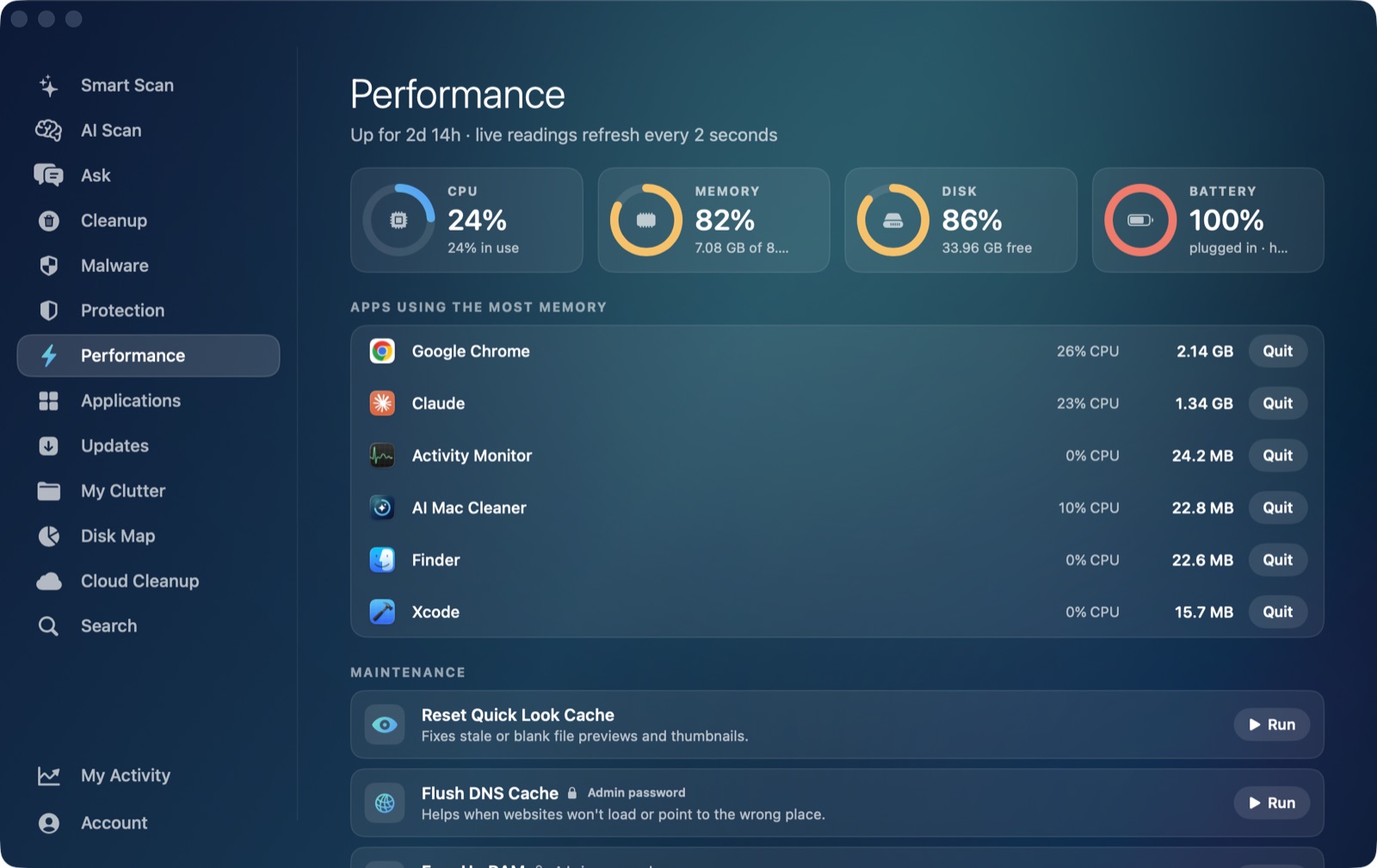
AI Mac Cleaner's Performance module shows live CPU, RAM, disk and battery readings (including battery health and cycle count) alongside a ranked list of the heaviest apps — exactly what you need to find step 3 above, the actual app driving the heat that kernel_task is reacting to. What it won't do is claim to "fix" kernel_task itself: there's no cache to clear and no file to remove behind a thermal-management process, and a cleaner app that claims otherwise is selling a fix for something that isn't broken.
AI Mac Cleaner has a 7-day free trial with every feature unlocked and no card required, plans from $6.99/mo after. See what else it checks, or read more on finding a high-CPU app generally.
Frequently asked questions
Is kernel_task a virus or malware?
No. It's a genuine, built-in part of macOS's kernel, running as part of the operating system itself — not something installed on you, and not something that shows up because of malware.
Can I force-quit kernel_task to stop it using so much CPU?
No — macOS doesn't allow you to quit it, by design, because it's a core system process. Even if you could, stopping it would remove the thermal protection it's providing, not fix anything.
Why does kernel_task use CPU without actually doing real work?
Part of its role is to intentionally occupy processor cores — holding them in a busy state — so they run cooler and leave less room for real workloads to add more heat on top. The high percentage you see can reflect that deliberate occupation rather than literal computation.
Does a high kernel_task number mean my Mac is damaged?
Not by itself. It's a normal response to heat, whatever the source. If it happens constantly even during light use, or your fans are loud nonstop, that's worth checking for blocked vents or dust buildup rather than assuming hardware damage.
Will cleaning up storage or junk files reduce kernel_task's CPU usage?
Not directly — kernel_task responds to heat, not disk space. Finding and addressing the actual CPU-heavy app, improving airflow, or clearing dust from vents will have far more effect than any storage cleanup.