AI Mac Cleaner
Why Is iCloud Drive Taking Up Space on Your Mac?
iCloud Drive taking up space on your Mac? Files often stay fully downloaded locally even when you don't need them — here's why, and how to free it up.

You open About This Mac, see storage almost full, and assume the usual suspects — caches, old downloads, a bloated Photos library. But iCloud Drive taking up space on your Mac is a common, overlooked cause, and it's not a bug: it's how Apple's sync is designed to behave by default.
Why iCloud Drive files sit on your disk at all
iCloud Drive's whole point is keeping files available everywhere, but "available" on a Mac usually means "downloaded." Unless you've turned on Optimize Mac Storage (Apple menu → System Settings → your name → iCloud → iCloud Drive), every file you open, or that syncs down, keeps a full local copy under ~/Library/Mobile Documents. A folder of a few thousand photos, a Desktop and Documents sync, or a shared project library can add up to tens of gigabytes that are also sitting safely in the cloud — doing nothing for you locally except filling the drive.
It isn't limited to Apple's own service, either. If you use Google Drive, Dropbox, OneDrive or Box, each one keeps its own local cache under ~/Library/CloudStorage/, and the same pattern applies: files you haven't touched in months can still be fully downloaded, because the client defaulted to "keep everything local" or because a one-time large sync never got cleaned up afterward.
Is it safe to just delete the local copies?
For plain iCloud Drive files, yes, with one important distinction: removing the local copy is not the same as deleting the file. iCloud supports evicting a file — removing the on-disk copy while leaving it safely in the cloud, ready to re-download the next time you open it. Nothing is deleted, nothing changes online, and nothing is sent to the Trash, because there's nothing to undo; the file simply goes back to "cloud-only" the way it started.
Other providers' local folders are a different story. Google Drive, Dropbox, OneDrive and Box sync their own copy rather than using Apple's eviction mechanism, so removing a file from ~/Library/CloudStorage/ through Finder, or through a cleaner, typically deletes it from that provider's cloud too (usually via their own Trash first, same as deleting it in the Drive or Dropbox app). That's a real deletion, not a local-only trim, so it deserves a second look before you confirm it — especially for a shared folder.
How AI Mac Cleaner handles it
The Cloud Cleanup module covers iCloud Drive plus every provider syncing through ~/Library/CloudStorage — Google Drive, Dropbox, OneDrive and Box — and shows the local footprint per service along with the largest downloaded files, so you can see exactly what's taking the space before touching anything. Folders that look like code projects (containing .git, package.json, .xcodeproj, node_modules and similar markers) are skipped entirely, so a cloud-synced repository is never flagged here.
For iCloud specifically, the only action offered is Remove Downloads — the eviction described above. Nothing is deleted; the file stays in iCloud and re-downloads automatically the next time you need it. For the other providers, the module offers Show in Finder or Move to Trash, with an explicit warning that moving a file to Trash there also removes it from that provider's cloud copy — so you make that call knowingly, not by accident. It's the same philosophy as the rest of the app: nothing is deleted outright, and anything that could surprise you comes with a plain-language warning first, not a silent default.
A few things worth checking before you clean up
- Check your sync settings first. If Optimize Mac Storage is off and you don't need every file local,
- Shared folders need a second look. If a Google Drive or Dropbox folder is shared with other people,
- Re-download isn't instant. Evicted iCloud files come back the moment you open them, but on a slow
turning it on in System Settings does most of the work automatically going forward — Cloud Cleanup is for the backlog that's already accumulated.
removing it locally can remove it for everyone if it then gets deleted from that service's Trash — check who else relies on it before clearing a shared folder's cache.
connection a very large file can take a moment — don't evict something you need again in the next five minutes.
If you're also chasing down other large files or wondering what's safe to clear elsewhere on the drive, Cloud Cleanup is one more place worth checking before you assume you need a bigger disk. Try AI Mac Cleaner free for 7 days and let Disk Map and Cloud Cleanup show you where the space actually went.
Frequently asked questions
Does removing iCloud Drive files from my Mac delete them from iCloud?
No. Evicting a file only removes the local, on-disk copy. The file stays in iCloud and re-downloads automatically the next time you open it or access that folder.
Why is Google Drive or Dropbox using so much space if I didn't download anything?
Most desktop sync clients default to keeping a full local copy of everything so files open instantly offline. That copy lives under ~/Library/CloudStorage/<provider> and grows with your cloud account, independent of anything you've manually downloaded.
Will AI Mac Cleaner ever delete my cloud files without asking?
No. iCloud files are only evicted (kept in the cloud, removed locally — nothing deleted). Other providers' files go to Trash only when you choose Move to Trash yourself, with a clear warning that it also removes the cloud copy first.
What's the difference between Cloud Cleanup and Disk Map?
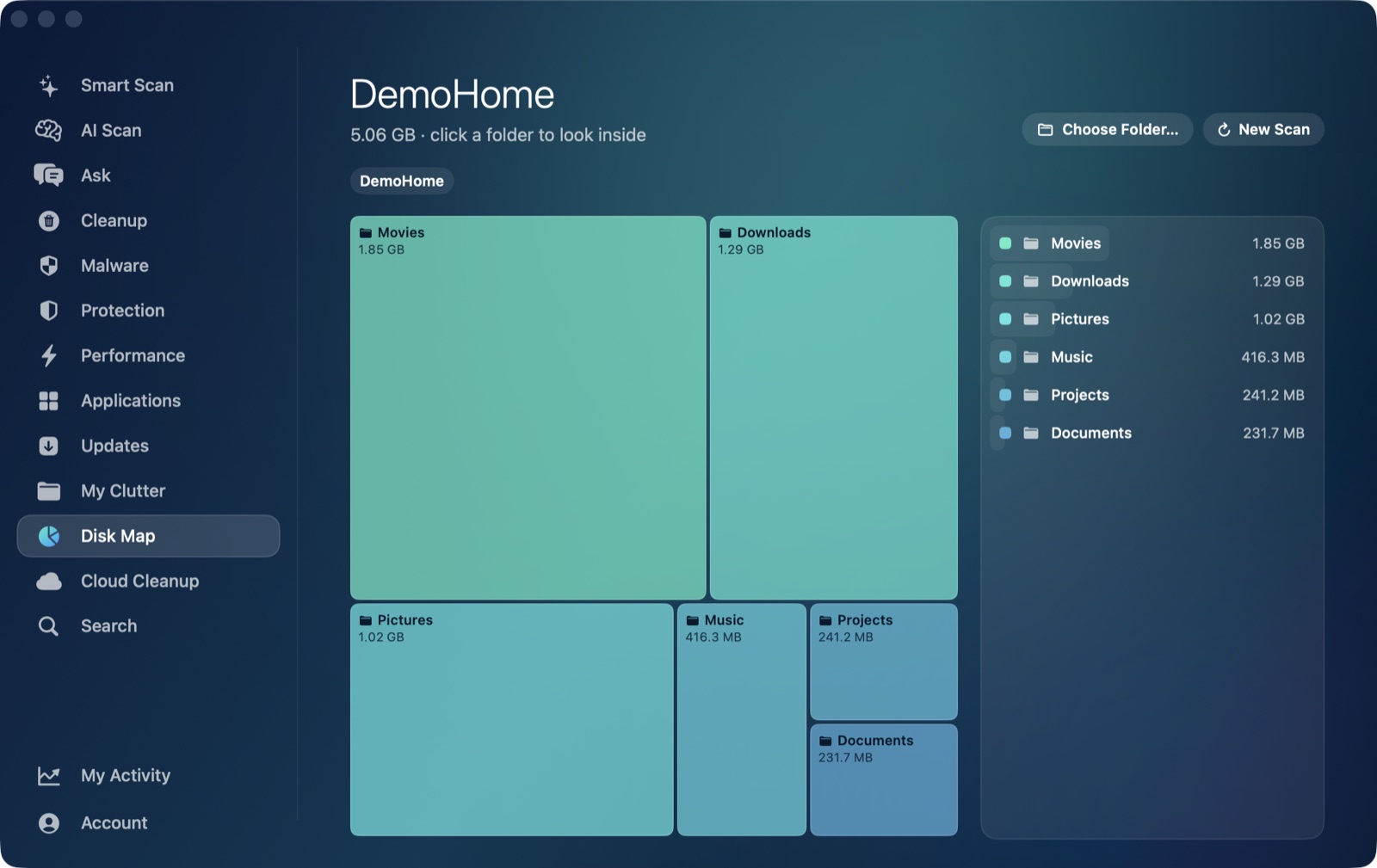
Disk Map shows a visual breakdown of any folder or your whole disk by size. Cloud Cleanup is specific to iCloud Drive and the other cloud-sync folders under ~/Library/CloudStorage, and knows which actions are safe (evict) versus which actually touch the cloud copy (Trash).
Does turning on Optimize Mac Storage fix an already-full disk?
It changes future behavior — macOS will evict older, untouched files automatically once space runs low — but it doesn't retroactively clean up a backlog that's already on disk. Cloud Cleanup is the faster way to see and clear that backlog directly.