 AI Mac Cleaner
How to Find Leftover Files From Apps You Already Deleted on a Mac
If you've ever dragged an app to the Trash instead of properly uninstalling it, its old support files, caches and containers are probably still sitting in your Library. Here's how to find them now.

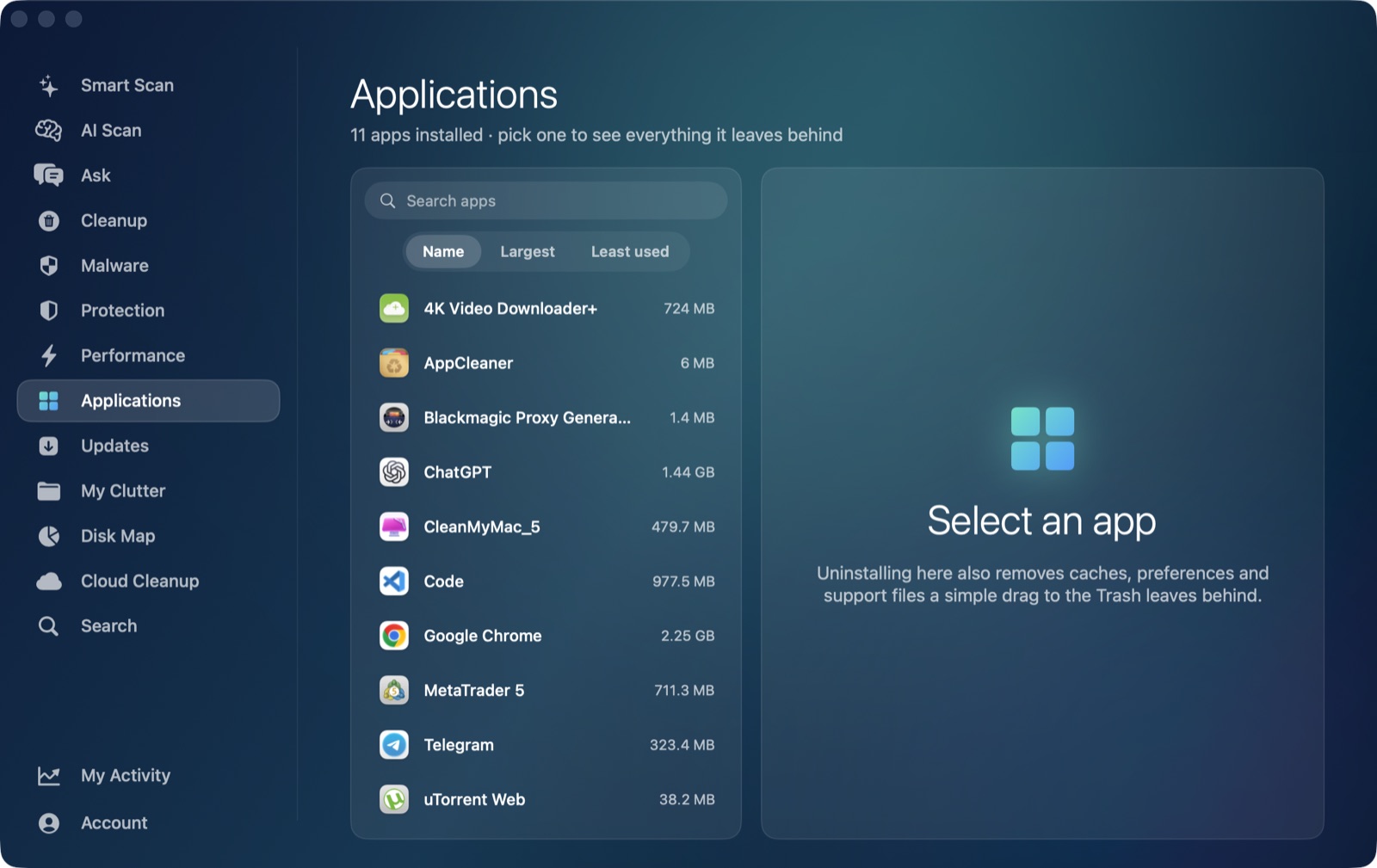
If you've ever dragged an app straight to the Trash instead of properly uninstalling it — and almost everyone has, at some point — the app itself is gone, but its support files, caches, containers and saved state almost certainly aren't. Unlike the leftovers from an app you're uninstalling right now, these are orphans: folders in your Library named after apps that no longer exist anywhere on your Mac, quietly taking up space with nothing left to point back to them.
Why these are a different problem from a normal uninstall
Most "how to uninstall properly" advice assumes you still have the app, or at least remember its name, so you can go looking for its specific leftover folders. Orphaned leftovers are different: the app could have been deleted months or years ago, you may not remember its exact name or bundle identifier, and it's no longer listed anywhere on the Mac to check against. Searching for them by hand means scanning through ~/Library/Application Support, ~/Library/Caches, ~/Library/Containers, ~/Library/Saved Application State and a few other folders, trying to recognise which entries belong to something you still have installed and which don't — tedious and easy to get wrong in either direction.
Where orphaned leftovers actually collect
The same handful of Library folders that hold a currently installed app's data also hold leftovers from apps that are long gone:
~/Library/Application Support— usually the largest: databases, downloaded content, local settings.~/Library/Caches— temporary data that was never cleared after the app was removed.~/Library/Containersand~/Library/Group Containers— sandboxed apps keep everything here, caches and settings alike.~/Library/Saved Application State— window position and state snapshots.~/Library/HTTPStoragesand~/Library/WebKit— stored web/network data for apps that embed a web view.~/Library/Logs— old diagnostic logs with no app left to write new ones.
Folders here are generally named after an app's reverse-DNS bundle identifier (something like com.vendor.appname), which is actually what makes them identifiable as orphans: a folder whose name matches that pattern but doesn't correspond to anything currently installed is very likely safe to call a leftover, as long as it isn't Apple's own.
The safe way to tell an orphan from something you still need
Before removing anything found this way, two checks matter:
- Confirm the app really is gone, not just moved or renamed — check
/Applicationsand, if you're unsure, search by name in Launch Services (Spotlight searching the app's name is usually enough) before assuming a folder is orphaned. - Leave anything that looks like it belongs to macOS itself (
com.apple.*) or a tool you're actively using under a different name alone — matching on the exact bundle-identifier pattern is what keeps this from accidentally catching something unrelated that just happens to share a word in its name.
How AI Mac Cleaner handles it
AI Mac Cleaner's Applications module has a dedicated Leftovers of Deleted Apps category built specifically for this. It checks Application Support, Caches, Containers, Saved Application State, HTTPStorages, WebKit and Logs for folders named like a reverse-DNS bundle identifier, cross-references each one against every app actually installed on your Mac right now (matching by exact ID, by prefix, and by vendor, so a still-installed app's folder is never flagged just because of a naming quirk), and only lists what matches nothing. Apple's own folders and anything belonging to AI Mac Cleaner or Claude are never listed as removable. You get a list with sizes before anything moves, and nothing goes straight to permanent deletion — every removal routes through the same Trash-only remover, with a hard-coded list of protected paths it refuses to touch regardless of what a scan finds, so a removed folder is recoverable from the Trash until you empty it yourself.
This is a different scan from the leftovers it finds for an app you're uninstalling right now, which matches directly against the app you point it at — this category instead looks across everything in those Library folders for names that match nothing currently installed.
Worth doing once, periodically
Most people never run this kind of check, so on a Mac that's had more than a handful of apps come and go over the years, it's common to find a genuinely large amount of space held by nothing. It's a good once-in-a-while pass — after a big app clear-out, or any time storage feels tighter than what's actually installed would explain — rather than something to check daily.
AI Mac Cleaner has a 7-day free trial with every feature unlocked and no card required, plans from $6.99/mo after.
Frequently asked questions
How can I tell if a folder in my Library is actually an orphan and not something I still need?
Check whether an app matching that name or bundle identifier is still installed in /Applications. If a folder's name follows the reverse-DNS pattern (com.vendor.appname) and matches nothing currently installed, it's very likely a genuine leftover from something removed in the past.
Is it safe to delete these leftover folders?
Generally yes, since nothing currently installed depends on them, but removing anything through a Trash-only tool rather than permanently deleting it directly is the safer habit — that way a mistaken match is still recoverable until you empty the Trash yourself.
Why didn't I notice these leftovers when I originally deleted the app?
Dragging an app to the Trash only removes the app bundle in /Applications; it was never designed to also clean up the separate support folders, caches and containers macOS lets apps create elsewhere in your Library, so they simply stay behind with nothing prompting you to notice.
Does AI Mac Cleaner remove these automatically?
No — it lists what it finds with sizes so you can review before anything moves, the same as every other category. Removal is always a choice you make, and everything goes to the Trash first, never straight to permanent deletion.