AI Mac Cleaner
How to Clear Safari Cache on Mac
Safari's cache on Mac has to be cleared through Safari itself — Apple deliberately protects its own apps' cache folders from general cleaners, this one included. Here's the real way.
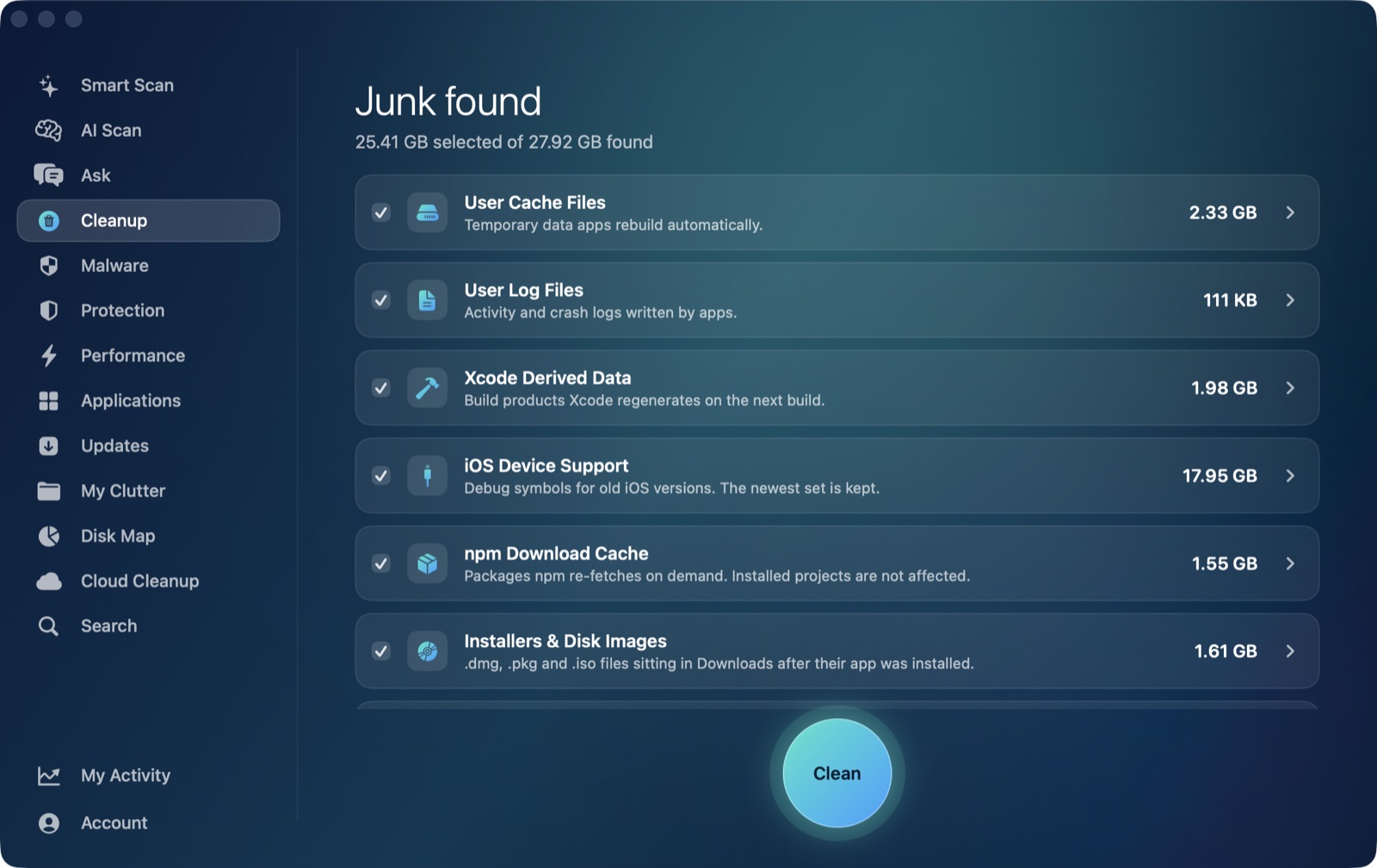
Safari is the default browser on every Mac, so "clear Safari cache on Mac" is one of the most common cache questions there is — and it has a genuinely different answer from the same question about Chrome or Spotify. Those caches sit in ordinary, unprotected folders a general cleaner can reach. Safari's doesn't, by Apple's own design, and it's worth being straightforward about that rather than implying a cleanup app handles it when it doesn't.
Why Safari's cache is a special case
Safari's cache folder lives at ~/Library/Caches/com.apple.Safari. That com.apple. prefix isn't incidental — it's how macOS and well-behaved third-party tools alike recognize an Apple system app's own data and leave it alone rather than reaching in from outside. AI Mac Cleaner's User Cache Files category, for example, sweeps ~/Library/Caches generally but explicitly excludes anything prefixed com.apple. — which means running that category clears dozens of other apps' caches (Spotify, Slack, whatever else you have installed) but deliberately does not touch Safari's. That's not a gap to fix; it's the same protection Apple's own apps get from most responsible cleaning tools, Safari's cache included.
So if you want Safari's cache specifically cleared, it has to go through Safari itself.
Clearing Safari's cache the right way
Safari gives you two real routes, depending on how surgical you want to be:
Manage Website Data (the precise option). Safari → Settings → Privacy → Manage Website Data. This lists every site that's stored something locally and lets you remove all of it, or search for and remove specific sites one at a time. It's the closest thing to a cache-only clear, though it covers a bit more than pure cache (stored site data generally) rather than cookies and history, which stay separate here.
Clear History (the broad option). Safari → History → Clear History, choosing a time range. This is the most thorough reset — it clears cache, cookies, and browsing history together — which also means it signs you out of sites you were logged into. It's the right call if Safari is genuinely misbehaving and you want a clean slate, but overkill if you just want a stuck page to stop rendering wrong.
The Develop menu's Empty Caches (the cache-only option, if you want it). If Safari's Develop menu isn't already visible, turn it on first: Safari → Settings → Advanced → Show features for web developers. With that on, Develop → Empty Caches clears just the cache, leaving cookies, history and logins untouched — the narrowest option of the three, at the cost of one extra setting to enable first.
Which one to actually use
- A specific site behaving oddly (stuck images, a page not updating) — Manage Website Data, removing just that site.
- Safari generally sluggish or acting up with no specific cause — Empty Caches via the Develop menu, once it's enabled, for a cache-only clear without logging you out of anything.
- You want a full reset and don't mind signing back into sites — Clear History, which takes cache, cookies and history together.
What AI Mac Cleaner actually does for Safari
To be direct about it: AI Mac Cleaner doesn't clear Safari's cache, and it isn't trying to quietly imply that it does. What it does do is cover everything else building up around Safari and your other apps — the User Cache Files category handles every non-Apple app's cache (Spotify, Slack, Chrome, and dozens more), My Clutter finds large files and duplicates sitting in your Downloads and elsewhere, and Cloud Cleanup handles iCloud Drive and third-party cloud-storage folders. Safari's own cache, Mail's, and other Apple-app caches are the one category left to Apple's own tools on purpose, the same way it would be dishonest to claim credit for clearing something the app deliberately steps around.
If you're also clearing other browsers' caches at the same time, see how Chrome's works — Chrome isn't Apple-prefixed, so the general caches category does reach that one, which is exactly the contrast worth knowing before you assume every browser behaves the same way. For the fuller picture of what's genuinely safe to clear on a Mac and what Apple protects on purpose, see is it safe to clear caches on a Mac.
AI Mac Cleaner has a 7-day free trial with every feature unlocked and no card required, plans from $6.99/mo after — for everything except Safari's own cache, which stays exactly where Apple designed it to be handled: inside Safari.
Frequently asked questions
Can AI Mac Cleaner clear Safari's cache?
No. Safari's cache lives at ~/Library/Caches/com.apple.Safari, and AI Mac Cleaner's generic User Cache Files sweep deliberately skips anything prefixed com.apple. — including Safari's — so running that category won't touch it. Clearing it has to go through Safari itself.
Will clearing Safari's cache sign me out of websites?
Only if you use Clear History, which clears cookies along with cache and history. Manage Website Data and the Develop menu's Empty Caches both leave your logged-in sessions alone.
How do I turn on Safari's Develop menu?
Safari → Settings → Advanced → turn on Show features for web developers. Once it's on, a Develop menu appears in the menu bar with an Empty Caches option.
Why does Safari's cache come back after I clear it?
It's meant to. Safari rebuilds cached page data as you browse because that's what makes a page you've already visited load faster the second time — a regrowing cache isn't a sign anything went wrong.
Does clearing Safari's cache fix Safari running slow?
It can help if a specific page is stuck showing stale content, but it isn't a general speed fix. If Safari itself is using a lot of CPU or memory, that's worth checking in a live performance view rather than assuming it's a cache problem.