 AI Mac Cleaner
Clean Up Mac Before Selling or Trading In: The Real Checklist
Clean up mac before selling or trading in isn't just caches and junk — what to back up, what to clear, and what only a full factory erase actually does.
Apple confirmed the new M6 MacBook Pro (from $1,999) and M6 iMac (from $1,499, $1,699 for the step-up model) at its October 27 event, shipping November 6 — which means a wave of people are about to trade in or sell the Mac they're replacing. If that's you, clean up mac before selling or trading in is worth doing properly, because it's really two different jobs: getting your data off safely, and making sure none of it is still on the machine when it leaves your hands.
First decide: full erase, or handing it over as-is?
Most trade-ins and private sales end the same way — the buyer or the trade-in program expects a Mac wiped back to a blank setup screen. If that's your plan, the actual wipe is Erase All Content and Settings, in System Settings → General → Transfer or Reset on Apple Silicon Macs. It's Apple's own feature, it removes everything including your account sign-ins, and it's the only step that reliably makes a Mac safe to hand to a stranger. No cleaner app, including this one, replaces it — AI Mac Cleaner only ever moves things to the Trash, on purpose, because a tool that could permanently erase a whole disk is a tool that could get something wrong.
The case that's different is handing a Mac to someone you know — a family member, a kid heading to college — without a full erase, maybe because you're leaving some apps or files set up for them. That's where the cleanup actually matters, because nothing is forcing a blank slate.
Before you back up: decide what's actually worth carrying over
Whether you're using Migration Assistant on a new Mac or just restoring from a Time Machine backup, every gigabyte of old junk you migrate is a gigabyte you'll be looking at again on the new machine. Before you back up:
- Check what's actually using space — AI Mac Cleaner's Disk Map draws your whole drive as a treemap, so the handful of huge, forgotten folders (an old video project, a
node_modulesyou don't need anymore, years of iPhone backups) show up immediately instead of hiding in Finder's flat list. - Find exact duplicates — My Clutter hashes files and flags byte-for-byte duplicates, always keeping one copy, so you're not backing up the same photo library three times from three different "just in case" copies.
- Clear real junk you don't want following you — Cleanup handles user caches, old iOS Device Support files, Xcode DerivedData and installer leftovers; none of it is anything you'd miss on a new Mac, and none of it is anything worth backing up in the first place.
None of this touches your actual documents or photos — it's aimed at the stuff that's just taking up room, so your backup (and the trade-in evaluation, which looks at the hardware, not your file count) is faster and cleaner either way.
If you're not doing a full erase: what actually needs clearing
Giving a Mac to family without wiping it means your browser history, saved passwords (if they're not already only in iCloud Keychain), and signed-in sessions are still sitting there. AI Mac Cleaner's Protection module includes browser history and cookie cleanup for the main browsers, which is the fastest way to clear that out without hunting through each browser's own settings menu. It's a privacy step, not a security guarantee — anything genuinely sensitive (saved passwords, financial logins) belongs in a password manager you remove from the Mac entirely, not just a cleared cache.
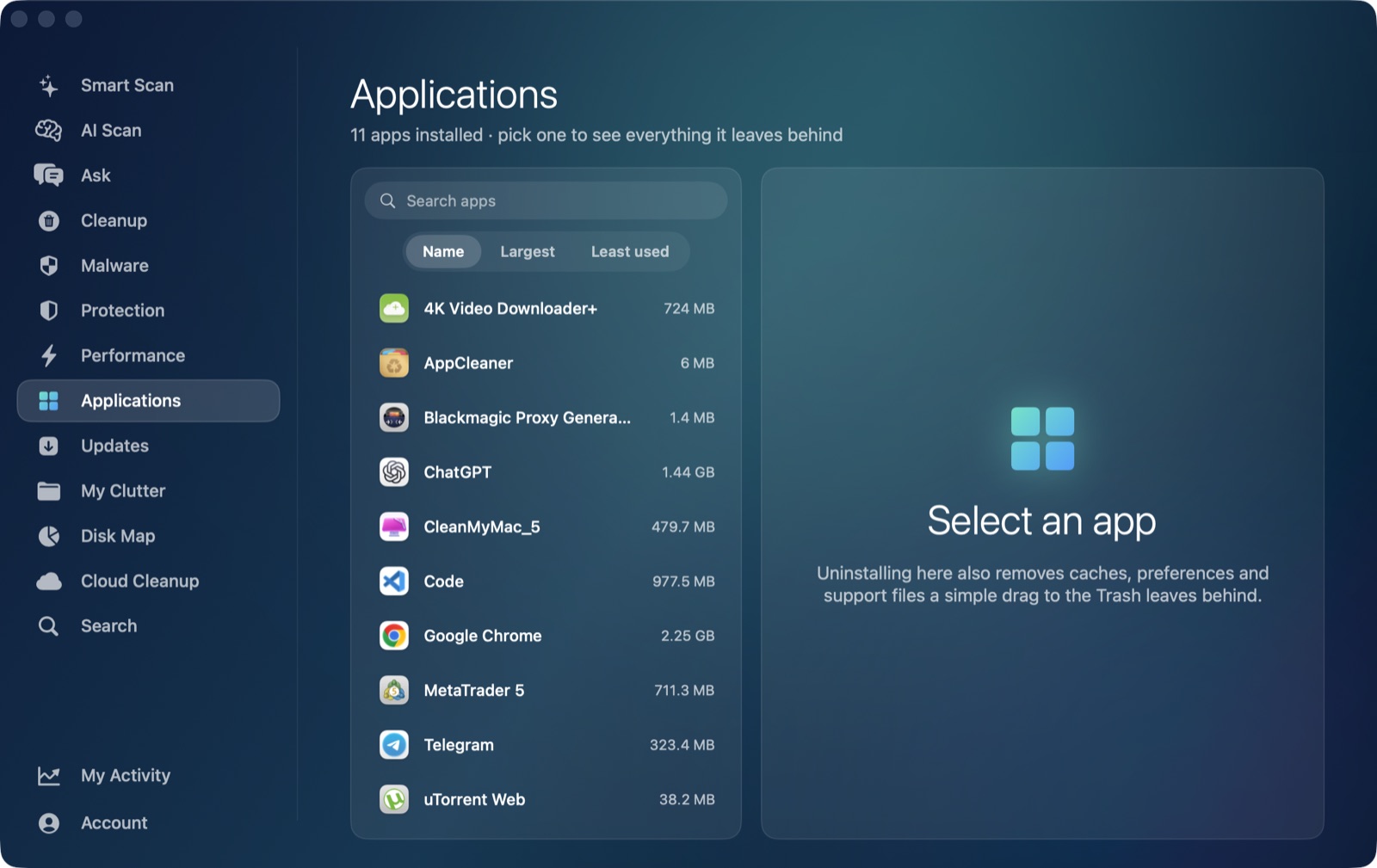
Leftover files from apps you've already uninstalled are the other thing people forget: a deleted app rarely takes its support files, caches and preferences with it. The Applications tab shows installed apps alongside the leftovers each one left behind, so if you're uninstalling anything before handing the Mac over, you can see — and clear — what it actually left behind, not just the app icon.
Sign out before you let go of the Mac
Whether or not you erase it, sign out of your Apple ID in System Settings before the Mac changes hands, which also turns off Find My — skipping this is the single most common reason a secondhand Mac won't activate for its new owner, because Activation Lock stays tied to your Apple ID. If you use iMessage or FaceTime on the Mac, sign out of those too; they're tied to the same account and can otherwise keep routing your messages to a Mac you no longer own.
Where AI Mac Cleaner fits — and where it stops
Being honest about the boundary matters here: AI Mac Cleaner is built to find junk, duplicates and leftovers and move them to the Trash — every removal goes through the same Trash-only safety path, nothing is ever deleted outright except a user-confirmed Empty Trash. That makes it a good fit for deciding what's worth backing up and clearing real privacy traces like browser history. It is not a disk-wiping tool, and it doesn't touch Apple ID sign-out, Find My, or Activation Lock — those are a few extra minutes in System Settings that no app can safely do for you.
AI Mac Cleaner has a 7-day free trial with every feature unlocked and no card required, plans from $6.99/mo after, if you want the before-backup cleanup done in a few minutes instead of folder by folder. For the storage side of this on its own, see how to find large files on your Mac; for the privacy side, see how to clear Safari's cache on a Mac.
Frequently asked questions
Does cleaning up my Mac increase its trade-in value?
No — trade-in programs and resellers quote based on the model, specs and physical/battery condition, not on how much junk is on the drive (it gets erased either way). Cleaning up matters for your own backup and privacy, not the quote.
What actually erases a Mac completely before I sell it?
Erase All Content and Settings, under System Settings → General → Transfer or Reset on Apple Silicon Macs. It's Apple's own feature and the only step that reliably wipes everything, including your signed-in accounts. A cleaner app isn't a substitute for it.
Do I need to sign out of iCloud before selling my Mac?
Yes. Signing out turns off Find My and releases Activation Lock, which is tied to your Apple ID — the most common reason a secondhand Mac won't activate for its next owner.
I'm giving my old Mac to a family member without erasing it — what should I actually clean?
Browser history and cookies (AI Mac Cleaner's Protection module covers the main browsers), leftover files from apps you've already uninstalled (the Applications tab shows these), and anything saved only in a password manager you're removing. None of this replaces a full erase if you'd rather start them with a clean account instead.
Should I clean up my Mac before or after backing it up with Migration Assistant?
Before. Clearing caches, duplicates and junk first means Migration Assistant (or a Time Machine backup) moves less data, finishes faster, and doesn't carry years of forgotten clutter onto your new Mac.
