AI Mac Cleaner
How to Uninstall Zoom Completely on a Mac
Dragging Zoom to the Trash leaves preference files, caches and logs behind. Here's how to uninstall Zoom completely on a Mac, leftovers included.

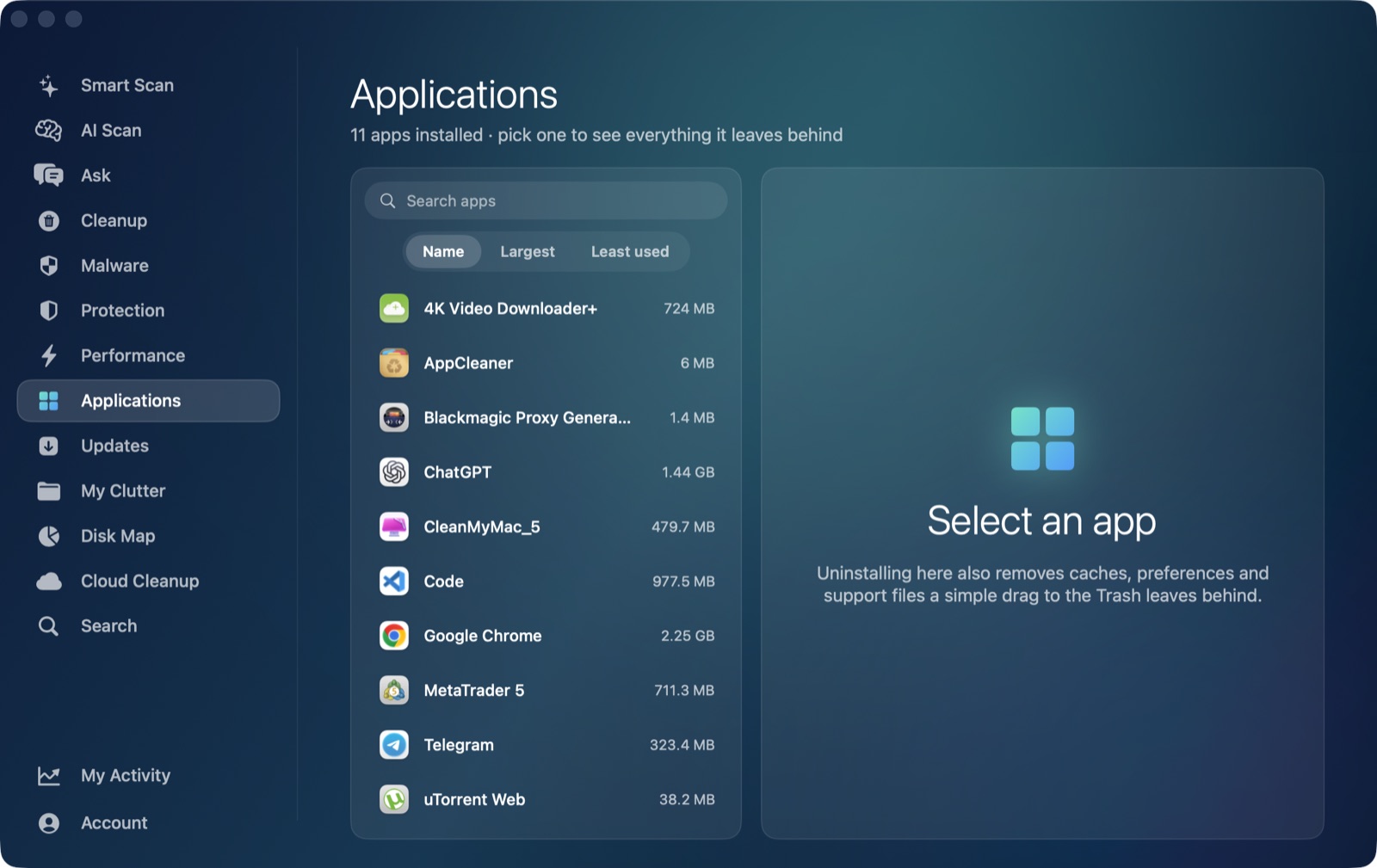
If you want to uninstall Zoom completely on a Mac, dragging the app from /Applications to the Trash is only step one. That removes the app bundle itself, which is often the smaller part of what Zoom put on your disk. The rest — preferences, cached data, support files and logs — stays behind in your user Library folder, quietly, for as long as you own the Mac, unless you go looking for it.
Why dragging to the Trash isn't enough
On macOS, almost no app lives in one place. The icon in /Applications is the program itself, but the moment you sign in, grant camera and microphone access, join a meeting or change a setting, Zoom writes data into several different folders under ~/Library that have nothing to do with the app bundle you just trashed. Deleting the bundle doesn't touch any of them. Multiply that by every app you've ever tried and removed over the years, and it's easy to end up with gigabytes of orphaned folders for software you stopped using long ago.
Where the leftovers actually live
These are the general locations where macOS apps — Zoom included — store data outside their own bundle. They're genuinely where this stuff lives; the exact files Zoom puts in each one are internal to Zoom's own code, but the folders are standard and predictable:
~/Library/Preferences— a small settings file (a.plist) that remembers your choices: video defaults, notification settings, window positions.~/Library/Caches— temporary data the app rebuilds automatically. Always safe to remove.~/Library/Application Support— the main data folder. For a video app this is often where logs of past meetings, downloaded virtual backgrounds and local settings live, and it tends to be the biggest of the four.~/Library/Logs— diagnostic logs written during use, useful for support tickets and otherwise just taking up space.
A full uninstall means clearing the app-specific folder inside each of those four locations, not just removing the one icon in /Applications.
Finding them by hand
If you want to check for yourself before using any tool: open Finder, press Shift-Command-G, and go to each of the four paths above. Inside ~/Library/Application Support and ~/Library/Caches, look for a folder named after Zoom or matching its developer identifier rather than relying on name alone — some folders are named by a reverse-domain identifier instead of the plain app name, which is exactly the kind of detail that makes manual hunting slow and easy to get slightly wrong. We cover the general pattern for any app, since it's the same four-folder story for almost everything you'd want to remove.
How AI Mac Cleaner handles it instead
AI Mac Cleaner's Applications module is built around exactly this problem. Point it at Zoom (or any installed app) and it works as an uninstaller that also finds leftovers in ~/Library — it matches on the app's own identifier rather than guessing from its display name, so it doesn't accidentally sweep up a folder belonging to some unrelated app that happens to share part of the same name. You get a list of what it found — preferences, caches, support data, logs — before anything moves, so a full Zoom removal means reviewing one list and confirming it, instead of checking four folders by hand and hoping you didn't miss one.
One thing it deliberately never does: list Apple's own apps, itself, or Claude as something you could uninstall. The module's whole purpose is helping you clear out third-party software you installed and no longer want, not touching the system or its own app.
Nothing is deleted outright
Whichever route you take — Finder by hand or the Applications module — the safest last step is the same: move things to the Trash, don't erase them directly. Every removal in AI Mac Cleaner goes through its Trash-only remover, which also refuses a fixed list of protected system paths, so a leftover folder you weren't sure about can still be pulled back out of the Trash if it turns out you needed it. Nothing is ever permanently gone until you empty the Trash yourself, on purpose.
If you'd rather not hunt through four Library folders every time you remove an app, AI Mac Cleaner's Applications module does the finding for you, on Zoom or anything else installed. There's a 7-day free trial with every feature unlocked and no card required, and plans start at $6.99/mo after that. See how it works.
Frequently asked questions
Does deleting the Zoom app from Applications remove everything?
No. It removes the app bundle itself, but preference files, cached data, your Application Support folder and log files stay behind in ~/Library until you remove them separately.
Where exactly does Zoom leave files after I delete the app?
In the same four general locations any macOS app uses outside its own bundle: ~/Library/Preferences (settings), ~/Library/Caches (temporary data), ~/Library/Application Support (the main data folder, usually the largest), and ~/Library/Logs (diagnostics).
Is it safe to delete Zoom's leftover folders myself in Finder?
Generally yes, once the app itself is already removed, but match folders by the app's identifier rather than its display name alone — some folder names aren't the plain app name, and a careless search can catch something unrelated. Moving to the Trash rather than deleting directly means a mistake is still recoverable.
How is AI Mac Cleaner's uninstaller different from just dragging the app to the Trash?
It removes the app and then specifically searches ~/Library for that app's own leftover folders by identifier, shows you the list before anything happens, and moves everything to the Trash rather than deleting it outright — so a single confirmed action clears what would otherwise take checking four folders by hand.
Will the Applications module ever remove an app I still need?
It only acts on what you select, and it never lists Apple's own apps, itself, or Claude as removable in the first place, so there's no risk of it suggesting something it shouldn't.