 AI Mac Cleaner
How to Uninstall Adobe Creative Cloud Completely on a Mac
Creative Cloud won't uninstall while any Adobe app depends on it, and its own uninstaller still leaves shared folders behind. Here's the right order and what's left after.
The Creative Cloud desktop app is the installer and licence manager for every other Adobe app on your Mac, which is exactly why it resists being removed on its own. If you've tried dragging it to the Trash and found it keeps reappearing, launching itself, or breaking other Adobe apps, the issue is the order you're removing things in, not something wrong with your Mac.
Remove every other Adobe app first
Creative Cloud checks for installed Adobe apps before it will let itself be uninstalled, since Photoshop, Premiere Pro, Lightroom and the rest all rely on it for licence checks and updates. Uninstall each Adobe app through its own entry in Creative Cloud's Apps tab first. Only once none remain will Creative Cloud's own uninstall option actually go through.
Quit its background processes before uninstalling
Creative Cloud runs several helper processes continuously in the background, visible in Activity Monitor:
- CCXProcess — the Creative Cloud app's own supporting process.
- CoreSync — handles syncing Creative Cloud Libraries and cloud documents.
- Adobe Desktop Service — the licensing and update-check service shared by every Adobe product.
Quit these manually (or restart the Mac) before running the uninstaller, since a background process still holding files open is a common reason an uninstall silently fails to finish.
What's left after Creative Cloud itself is gone
Even a successful Creative Cloud uninstall tends to leave the shared infrastructure folders Adobe apps all write into:
~/Library/Application Support/Adobe— Creative Cloud Libraries data, sync state, and the Open Office Experience (OOBE) onboarding files, alongside whatever any remaining Adobe app also stored here./Library/Application Support/Adobe— machine-wide (not just your account) licensing and update-service files.- Login items — Creative Cloud typically adds itself to Login Items so it starts automatically; if it's still launching after uninstalling, check System Settings → General → Login Items for a leftover entry.
How AI Mac Cleaner helps
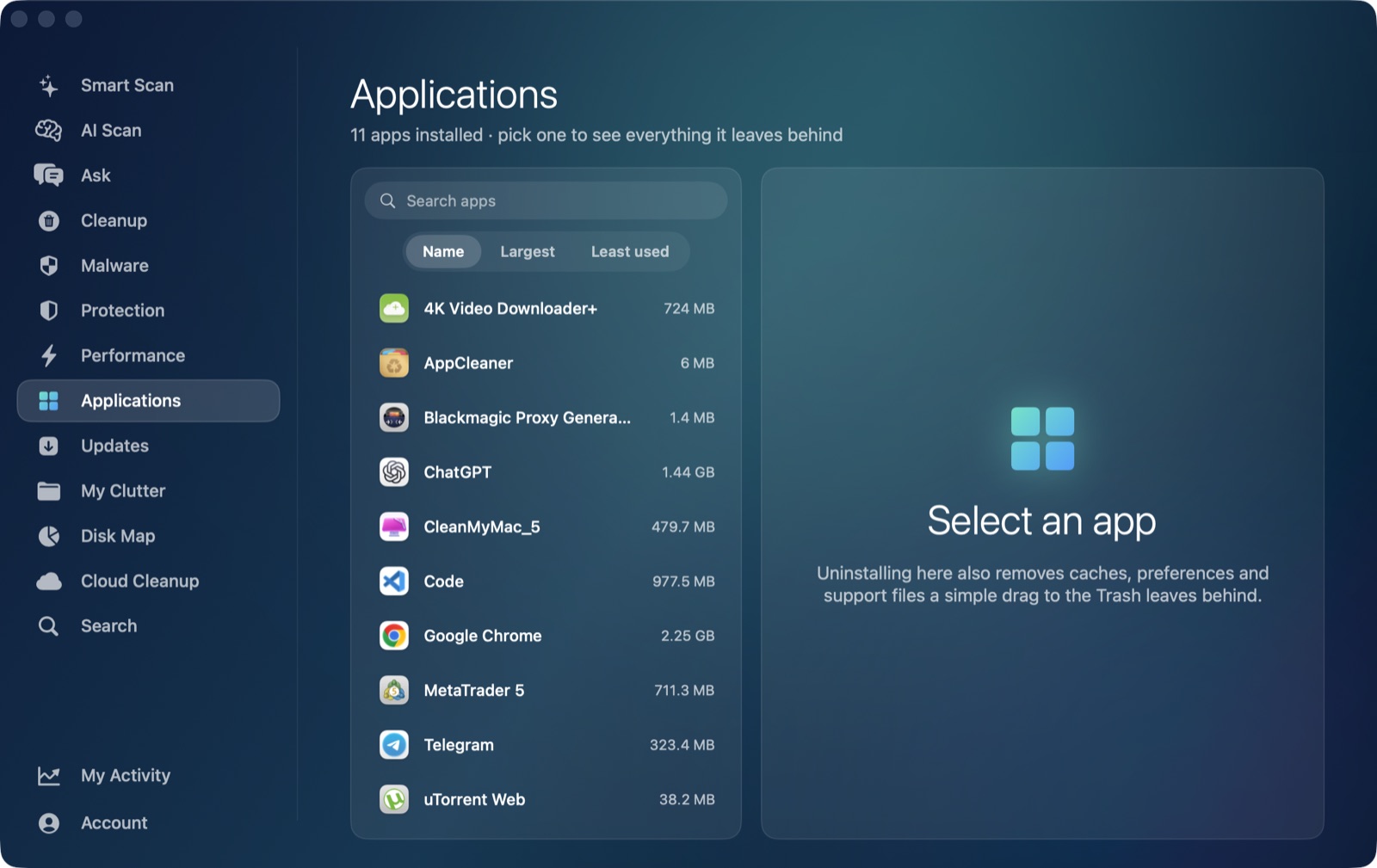
Once every Adobe app including Creative Cloud itself has gone through its own proper uninstall, AI Mac Cleaner's Applications module can confirm what's actually still sitting in ~/Library by matching folders to the app identifiers that are left — rather than you guessing whether a given "Adobe" folder still belongs to something you kept. Like any removal in the app, nothing is deleted outright: everything goes to the Trash first, so a folder you weren't sure about stays recoverable.
Frequently asked questions
Why won't Creative Cloud let me uninstall it?
It checks for other installed Adobe apps first, since they depend on it for licensing and updates. Remove every individual Adobe app through Creative Cloud's own uninstall entries before trying to remove Creative Cloud itself.
Creative Cloud keeps relaunching even after I quit it — why?
It's very likely set as a Login Item, so it restarts automatically at every login. Check System Settings → General → Login Items for a Creative Cloud entry and remove it there.
Do I need to remove CCXProcess and CoreSync manually before uninstalling?
Quitting them first (via Activity Monitor) reduces the chance of an uninstall silently failing because a background process is still holding files open — it's a precaution, not always strictly required, but worth doing.
Is the shared ~/Library/Application Support/Adobe folder safe to delete after Creative Cloud is gone?
Only once you've confirmed no Adobe app remains installed. If you kept any Adobe product, that folder still holds data it depends on.
