 AI Mac Cleaner
How to Uninstall Adobe Photoshop Completely on a Mac
Dragging Photoshop to the Trash skips Adobe's own uninstall step and leaves Camera Raw cache, preferences and shared Adobe folders behind. Here's the right order and what's left after.
Photoshop isn't a plain drag-to-Trash app, and treating it like one is the single most common reason people end up with a half-removed install. Adobe apps are managed through the Creative Cloud desktop app, and Photoshop writes into several folders shared with every other Adobe app on the Mac — so the right order matters more here than it does for most software.
Uninstall through Creative Cloud first, not Finder
Open the Creative Cloud desktop app, go to the Apps tab, find Photoshop, and use its own Uninstall option (the "..." menu next to the app). This runs Adobe's own removal script, which is the only way to properly deregister the app rather than just deleting its bundle. Dragging /Applications/Adobe Photoshop <version> straight to the Trash skips that step entirely.
Before uninstalling, quit any Adobe background processes still running — check Activity Monitor for CCXProcess, CoreSync and Adobe Desktop Service. These are Creative Cloud's own sync and licensing helpers, not part of Photoshop itself, and they can interfere with a clean uninstall if they're still active.
What Creative Cloud's uninstaller doesn't remove
Even Adobe's own uninstaller is known to leave things behind — its support threads routinely point people back to the same three general locations to check by hand afterward:
~/Library/Application Support/Adobe— a folder shared across every Adobe app you've installed, not just Photoshop. This is where Camera Raw's cache, custom presets, brushes and plugin data live, and it isn't necessarily removed just because one app is gone./Library/Application Support/Adobe(note: no~, so it's machine-wide, not just your user account) — shared licensing and update-service files used by every Adobe product on the Mac.~/Library/Preferences— look for Photoshop-prefixed.plistfiles (Adobe's preference files are named per version, e.g. with the version number in the filename, which makes them easy to spot but easy to miss if you're searching only for "Photoshop").
Why Creative Cloud itself won't always uninstall
If you still have other Adobe apps installed, Creative Cloud will often refuse to uninstall itself — by design, since those apps depend on it for licensing and updates. Remove the individual Adobe apps first, through their own Creative Cloud uninstall entries, before trying to remove Creative Cloud itself.
How AI Mac Cleaner helps
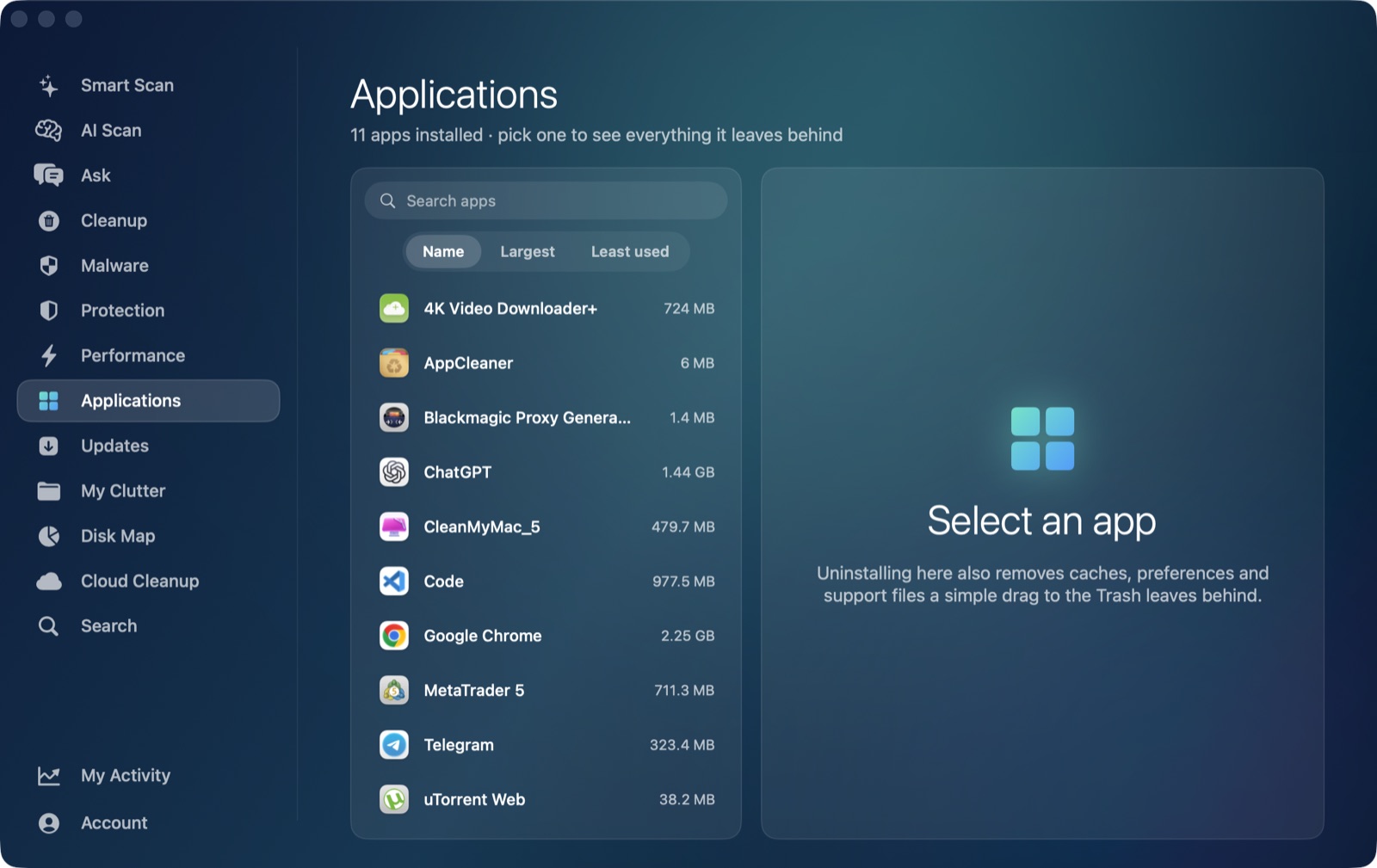
The Applications module finds Photoshop's own leftover folders the same way it does for any app — matching by identifier rather than display name, so it won't confuse Photoshop's folders with an unrelated app that happens to share part of the name. It won't run Adobe's own deregistration step (that part is Creative Cloud's job, and only Creative Cloud can do it correctly), but once you've used Creative Cloud's uninstaller, it's the faster way to confirm what Adobe's own process left behind in ~/Library and clear it to the Trash — reviewed and reversible, not deleted outright.
Frequently asked questions
Can I just drag Photoshop to the Trash instead of using Creative Cloud's uninstaller?
You can, but it skips Adobe's own deregistration step, which is the part that properly tells Creative Cloud the app is gone. The app bundle disappears either way; using Creative Cloud's own Uninstall option first is what actually cleans up correctly.
Why won't Creative Cloud let me uninstall it?
If you still have other Adobe apps installed, Creative Cloud will refuse to uninstall itself since those apps depend on it. Remove the individual apps first.
Does uninstalling Photoshop also clear Camera Raw's cache?
Not necessarily. Camera Raw's cache lives inside the shared ~/Library/Application Support/Adobe folder alongside other Adobe apps' data, and that folder isn't automatically emptied just because one app was removed.
Is it safe to delete the shared ~/Library/Application Support/Adobe folder?
Only once every Adobe app is actually uninstalled — otherwise you'll remove settings, presets and licensing data still in use by apps you're keeping. If any Adobe app remains, leave the shared folder alone.
