AI Mac Cleaner
photoanalysisd High CPU on Mac: What It Is and What to Check
photoanalysisd is the background process that scans your Photos library for faces, scenes and objects. It spikes hard after a big import or macOS upgrade — here's when that's normal and when it's worth a closer look.
If photoanalysisd is sitting near the top of Activity Monitor, it's not an app you launched — it's the background process the Photos app uses to look inside every picture in your library: who's in it, what's in it, and where it was taken. Spotting it pinned at high CPU for a while after a big import or a macOS upgrade is one of the more predictable spikes on a Mac, and most of the time it's doing real, finite work rather than something gone wrong.
What photoanalysisd actually does
photoanalysisd runs the on-device analysis behind several Photos features: face recognition for the People album, scene and object detection so you can search "beach" or "dog" and get real results, and the categorization that powers Memories. It runs as an agent tied to your user account rather than the whole system, and it lives in your Library's Containers folder rather than anywhere system-level — it's part of the Photos app's own machinery, not a separate product with settings of its own.
A closely related process, photolibraryd, handles the library's actual data management — syncing, importing, and maintaining the Photos library database itself — and on older macOS versions the analysis work ran under a process called mediaanalysisd instead. Different names, same general job: looking through your photo and video content so Photos' smart features work without you tagging anything by hand.
When photoanalysisd high CPU is normal
A sustained spike, sometimes lasting hours or even longer, is expected after:
- A large photo or video import — adding thousands of images from an old backup, a camera roll transfer, or turning on iCloud Photos for the first time on a Mac with an existing large library.
- A macOS or Photos app upgrade that changes how analysis works, which can trigger a full re-analysis of your entire library rather than just new additions.
- Enabling iCloud Photos sync on a new Mac, where the library effectively needs to be analyzed fresh as content downloads.
In all of these cases, CPU usage should gradually taper off as the backlog clears — the process is working through a known, finite queue rather than running indefinitely by design.
When it's worth a closer look
If photoanalysisd stays pinned high for days with no recent import, upgrade, or new sync behind it, a few things are worth checking in order:
- Confirm the Mac has had uninterrupted time to finish. Analysis pauses under some conditions and resumes later; leaving the Mac plugged in and awake for a stretch lets it catch up rather than restart repeatedly.
- Check iCloud Photos sync status in the Photos app or System Settings — a stuck or looping sync can keep triggering re-analysis of the same content.
- Look for a specific problem photo or video. A corrupted or unusual file can occasionally cause the analysis process to retry the same item repeatedly rather than moving on, which looks like it's "stuck" rather than progressing.
- As a last resort, quit Photos and let the Mac idle for a while, or restart — this doesn't disable analysis, it just gives the process a clean restart if something got into a bad state.
One real caveat worth being upfront about: Apple Discussions threads on this exact process include reports of turning off Memories or iCloud Photos not stopping the high CPU use, which lines up with photoanalysisd being tied to the library's analysis state generally rather than to any single feature's toggle — don't expect disabling one Photos setting to reliably fix a stuck analysis run.
Don't force-quit it as your first move
You can force-quit photoanalysisd from Activity Monitor, but macOS restarts it on its own, and the restarted process generally picks back up on the same backlog rather than skipping it — so force-quitting rarely saves time and mostly just interrupts the current pass. It's a reasonable troubleshooting step only after you've confirmed the high usage isn't simply a large, legitimate backlog still working through your library.
Where AI Mac Cleaner fits in — and where it honestly doesn't
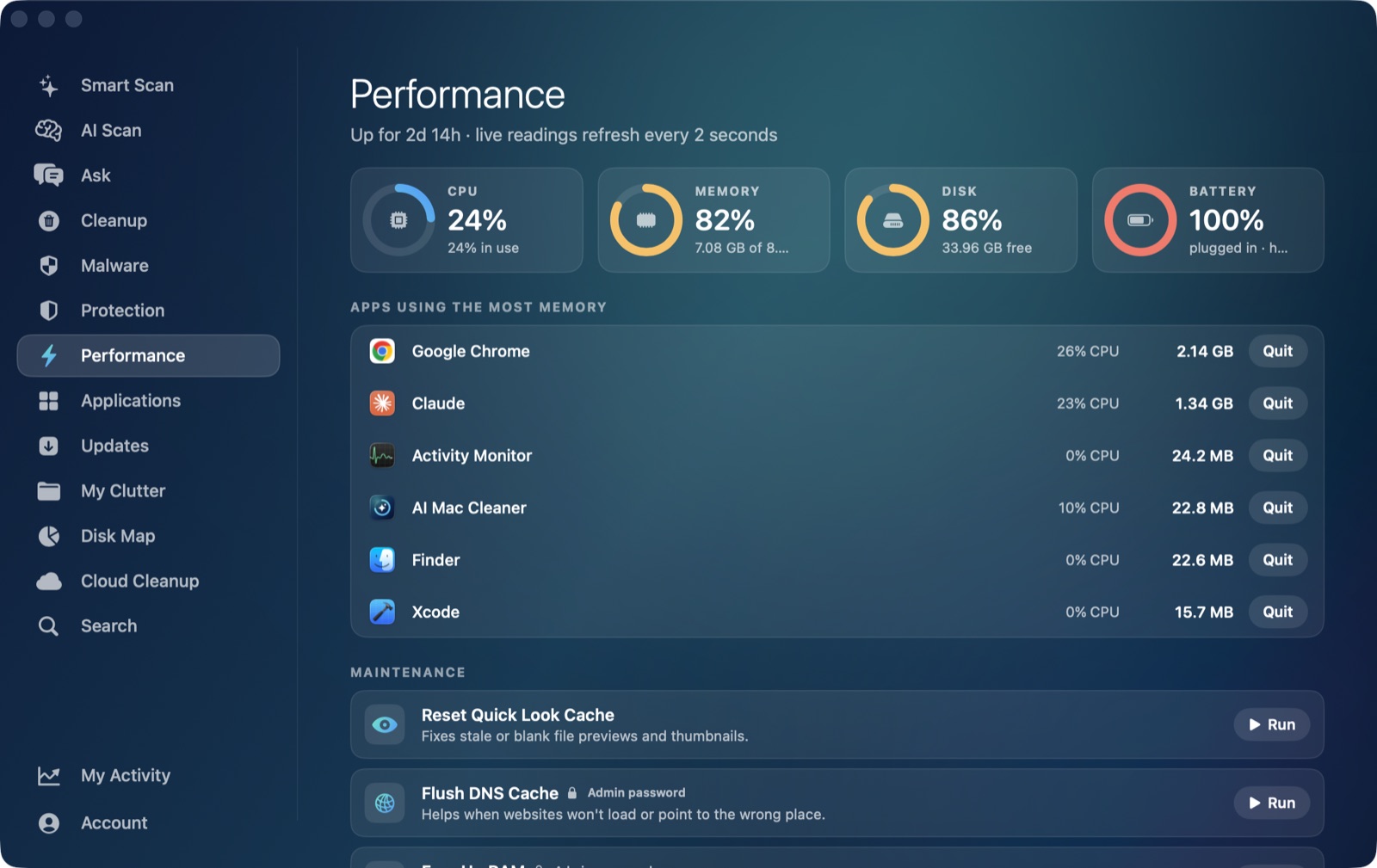
Worth being specific here rather than overstating what the app shows. AI Mac Cleaner's Performance module gives you a live, overall CPU percentage for the whole Mac, refreshed every two seconds, which does reflect whatever photoanalysisd is doing as part of the system-wide total at that moment. But its ranked heaviest apps list is built from NSWorkspace's list of regular, Dock-visible foreground applications by design — it doesn't include background agents like photoanalysisd, the same honest gap as the app's other by-process posts in this cluster, such as coreduetd, bird and mdworker. Its launch agent manager scans ~/Library/LaunchAgents, /Library/LaunchAgents and /Library/LaunchDaemons, which also doesn't surface photoanalysisd by name, since it runs as part of the Photos app's own agent machinery rather than a separate launch item you'd manage directly.
Where the app does help is confirming whether a sluggish Mac is actually photoanalysisd finishing a legitimate backlog versus something else entirely: the Performance module's live readings and ranked foreground-app list are useful for ruling out a heavy regular app as the real cause before you assume a background Photos process is to blame. And if the spike coincided with a large library import, find duplicate photos on a Mac is worth a look afterward — a bloated, duplicate-heavy library means more content for photoanalysisd to analyze every time something like this runs again.
AI Mac Cleaner has a 7-day free trial with every feature unlocked and no card required, plans from $6.99/mo after.
Frequently asked questions
What is photoanalysisd on my Mac?
It's the background process the Photos app uses to analyze your photo and video library — recognizing faces for the People album, detecting scenes and objects for search, and categorizing content for Memories. It's part of Photos' own machinery, not a separate app or a process with its own settings.
Why is photoanalysisd using so much CPU right now?
Most commonly a large photo/video import, a macOS or Photos app upgrade that triggers re-analysis, or enabling iCloud Photos sync on a Mac with an existing large library. In all of these it's working through a finite backlog that should taper off.
Will turning off Memories or iCloud Photos stop photoanalysisd's high CPU?
Not reliably. User reports on Apple's own forums describe high usage continuing even after disabling those specific features, since the process is tied to the library's analysis state generally rather than to one toggle.
Is it safe to force-quit photoanalysisd?
You can, but macOS restarts it and it generally resumes the same backlog rather than skipping ahead, so force-quitting rarely speeds anything up. It's worth trying only after confirming the usage isn't a legitimate, finite analysis pass still running.
Does AI Mac Cleaner show photoanalysisd in its process list?
Not by name. Its Performance module's heaviest-apps list only ranks regular, Dock-visible foreground apps, and its launch agent manager only scans the standard LaunchAgents/LaunchDaemons locations — photoanalysisd runs as part of Photos' own agent machinery outside both. The app's overall CPU percentage does reflect its activity as part of the system-wide total; Activity Monitor is the tool for seeing it by name.