AI Mac Cleaner
Mac Stuck on the Update Screen? What to Check Before You Panic
A macOS update that sits at the progress bar or Apple logo for a long time is usually still working. Here's what's normal, what to check, and when it really is stuck.

A Mac stuck on the update screen — a progress bar that hasn't moved in a while, or an Apple logo that's been sitting there longer than you expected — is one of the most anxiety-inducing moments in using a computer, and most of the time it's still working. macOS updates genuinely do take a long time, especially on the first restart after a major version update, and the screen gives you almost no feedback while it's happening. Here's how to tell normal-but-slow from actually stuck, and what to do about each.
What's actually normal
A major macOS update (the yearly version, not a small point release) can reasonably take 20–45 minutes on the update screen itself, longer again on older Macs or ones with less free storage. During this time:
- The progress bar can appear to pause for several minutes at a time — it isn't linear, and some stages (like preparing a firmware update) show no visible progress at all.
- The screen may go dark or the fan may spin up and down; both are normal during a system-level update.
- A Mac can restart more than once during a single update process, which is expected, not a sign something went wrong.
If it's been under 45 minutes and you haven't force-restarted anything, the most useful thing you can do is nothing — let it keep running.
When to actually worry
Past about an hour with genuinely zero visible change (no restart, no fan activity change, no progress bar movement at all, screen not responding to any input), it's reasonable to start troubleshooting:
- Check for fan or disk activity. If you can hear the fan working or see the drive activity light (on Macs that have one), it's very likely still doing something, even with no visible progress bar movement.
- Don't force a restart too early. Interrupting an update mid-install is the one thing that reliably turns "slow" into "actually broken," since it can leave the system in a half-updated state. Give it well past the hour mark before considering it.
- If it's genuinely frozen (no fan, no disk activity, completely unresponsive for well over an hour), a forced restart (hold the power button) is the last resort, not the first move — and on an Apple Silicon Mac, it will typically resume the update on reboot rather than losing your progress.
Why updates stall more often on Macs that are low on storage
A macOS installer needs a meaningful amount of free space to stage files during the update, and a Mac running close to full can genuinely slow down, or in rarer cases fail partway through, an update that would complete fine with more headroom. If an update has stalled or failed more than once on the same Mac, checking available storage before trying again is worth doing — our guide to reducing System Data on a Mac covers the storage category that update caches and staged installer files often sit in, and our breakdown of storage filling up right after a macOS update covers the related problem of space disappearing during and after the process.
Before your next update, not during this one
The best time to deal with this is before you click "Update," not while staring at a stalled progress bar:
- Confirm you have comfortably more free space than the update needs — several times more than the download size is a safe margin, since installers stage additional temporary files beyond the download itself.
- Plug in if you're on battery; some updates pause rather than risk an unplanned shutdown mid-install on low battery.
- Avoid starting a major update right before you need the Mac for something time-sensitive — give it the time it may need.
How AI Mac Cleaner helps, before the update, not during it
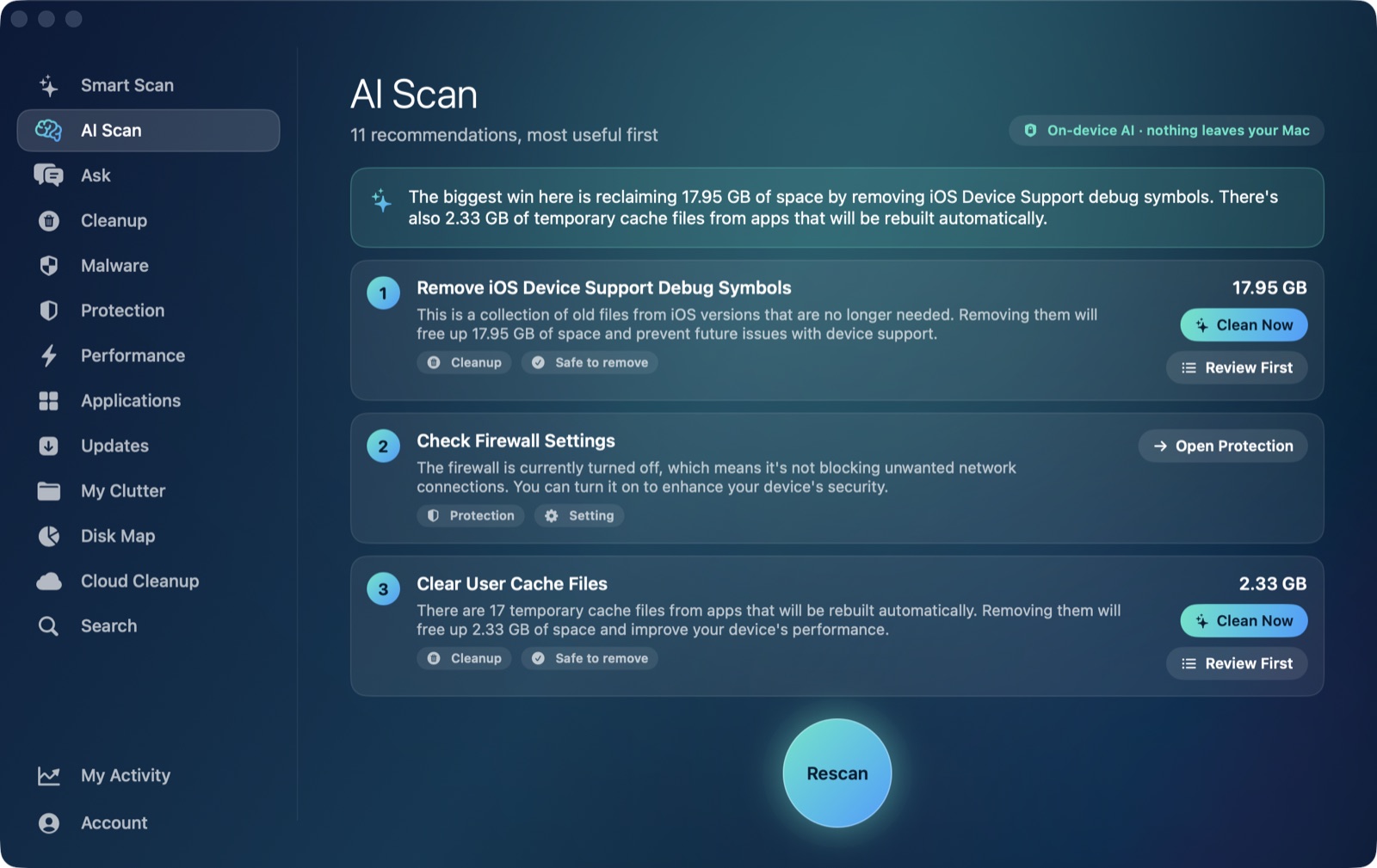
AI Mac Cleaner can't do anything for an update that's actively in progress — there's no app running once macOS takes over the screen for an install. Where it actually helps is beforehand: its Junk and System Data scanners free up the installer-staging and cache space that make updates more likely to stall on a nearly-full drive, and the AI Scan gives you a plain-language read on what's actually using your space before you start a major update, not after it's already stuck.
Frequently asked questions
How long is too long for a Mac to be stuck on the update screen?
Under 45 minutes is normal for a major macOS version update, even with no visible progress. Past about an hour with zero fan or disk activity and no response to any input is the point where it's reasonable to consider it actually stuck rather than slow.
Will I lose my files if my Mac is stuck during an update?
Letting it run is almost always safer than force-restarting. A completed or correctly-resumed update doesn't touch your files; the real risk to data comes from interrupting an install partway through, not from waiting it out.
Does low storage cause a Mac to get stuck on updates?
It's a real contributing factor. macOS needs free space to stage files during an install, and a Mac running close to full is more likely to stall or fail partway through an update than one with comfortable free space.
Is it safe to force restart a Mac that's stuck on an update?
Only as a last resort, after giving it well past the normal time window with no fan or disk activity at all. Forcing a restart mid-install is the most common way a slow update turns into a genuinely broken one.