AI Mac Cleaner
Mac Storage Still Full After Cleaning? Here's Why
Mac storage still full after cleaning? Here's what actually happens to "freed" space — Trash, local snapshots and System Data — and how to see exactly where it went.

You ran a cleaner — maybe ours, maybe a competitor's — it reported freeing up a real amount of space, and a few minutes or hours later your Mac still says storage is full, or the number has already crept back up. You're not imagining it, and it's not usually the cleaner lying to you. It's three separate, very normal macOS behaviors that most "cleaned!" buttons never explain.
It's probably still in the Trash
The single most common cause is also the most overlooked: moving a file to the Trash does not free any space. It just moves the file. Space is only returned when the Trash is actually emptied, and most cleaners — including AI Mac Cleaner — move files to the Trash by design rather than deleting them outright, specifically so a mistaken removal can be undone. If a cleanup reports freeing 40GB and your free-space number barely moves, check Trash first; it is very likely sitting right there, counted as "removed" by the app and as "used" by macOS at the same time, because both statements are true until you empty it.
This is a deliberate safety trade-off, not a bug: a tool that deletes permanently on the first pass is one mistake away from taking something you needed. The honest version of "cleaned" is "moved somewhere you can undo it," and that only turns into free space once you empty the Trash yourself.
Local Time Machine snapshots can refill the gap behind your back
Separately from the Trash, macOS keeps its own hidden backlog: if your Time Machine backup disk isn't connected, macOS quietly keeps hourly local snapshots of your disk so recent file versions aren't lost. Those snapshots can run into the tens of gigabytes, they show up as "System Data" rather than anything you did, and macOS reclaims them on its own schedule when it decides it needs the room — not necessarily right after you clean. So it's entirely possible to free real space and watch System Data grow back within hours, through no action of yours or your cleaner's.
We covered exactly how this works, and what's actually safe to touch, in what System Data really is on a Mac — including why the Storage chart itself is computed lazily and can show a number that briefly goes up right after a cleanup, before settling. If "still full after cleaning" is really "the number went up, not down," that post's mechanism explanation is the one to read next.
Caches and app support files regrow immediately, by design
The third cause is the least sinister: browser and app caches are supposed to come back. Chrome, Slack, Spotify and a dozen other apps rebuild their cache the moment you open them again, because caches exist to make the app faster, not to sit idle. Clearing 5GB of Chrome cache and seeing 1GB of it back within a day isn't a failed cleanup — it's the cache doing its job. The categories worth watching for genuine, lasting regrowth are the ones that accumulate from habit rather than from normal app use: old Xcode DerivedData, old iOS/Simulator device support files, and installer disk images left over from app updates, all of which only come back if you keep doing the thing that created them.
Why a one-click "cleaned!" button leaves you guessing
Most Mac cleaners report a single number — "32.4 GB cleaned" — and stop there. That number is real, but it tells you nothing about where it went: Trash versus actually freed, a snapshot macOS will reclaim on its own versus something permanently gone, a cache that will be back by lunchtime versus years of accumulated developer junk. Without that breakdown, "still full after cleaning" looks like a broken promise even when the app did exactly what it said.
AI Mac Cleaner's approach is to show the breakdown instead of hiding it. Its Cleanup module lists each category by name and size before anything moves — caches, logs, Xcode DerivedData, old device support, Simulator caches, npm cache, and installer disk images — and keeps a second set of categories (old archives in Downloads, node_modules, iPhone backups, Docker's disk image, virtual machines, and leftovers of deleted apps) as review-only and unticked by default, specifically because those are large, genuinely recoverable amounts of space that most people want to decide about themselves rather than have auto-removed. If your storage is still full after a scan, the first thing to check is whether those review-only categories are sitting there untouched — not because the scan missed them, but because it's deliberately not making that call for you.
How to actually see where the space went
Rather than trusting a single before/after number, look at the disk itself:
- Empty the Trash. This alone accounts for a large share of "cleaned but still full" reports.
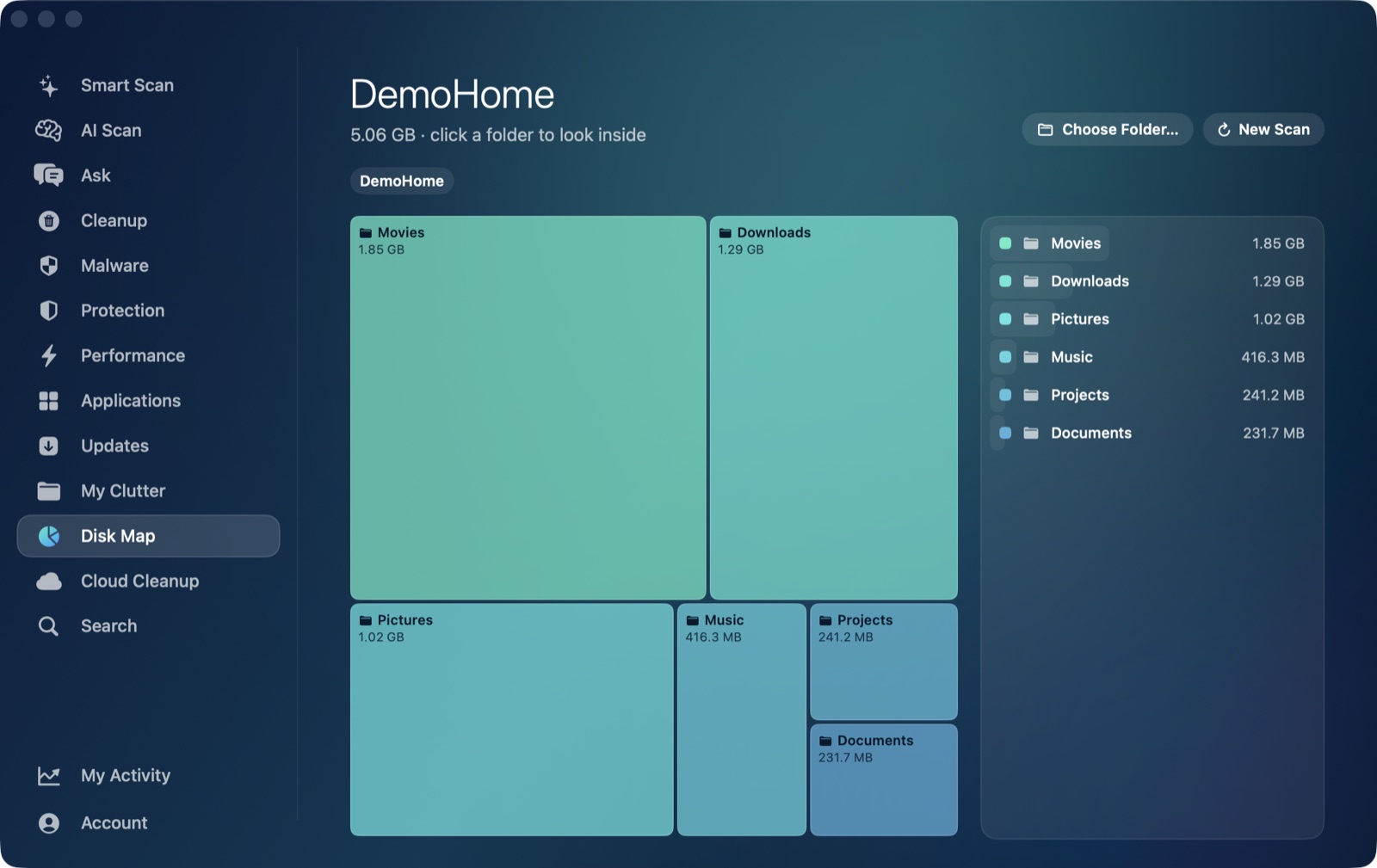
- Open AI Mac Cleaner's Disk Map — a squarified treemap of the whole disk or any folder, so you can drill into exactly what's large, instead of guessing from a category label.
- Check Cloud Cleanup if you use iCloud Drive or another provider. Files that look "already in the cloud" can still be fully downloaded and counted locally; Cloud Cleanup shows the local footprint per provider and lets you evict iCloud's local copies without touching the files online.
- Give it a day before assuming something's wrong. Caches rebuild, and macOS reclaims local snapshots on its own schedule — a number that moves back up slightly over 24 hours after a big cleanup is usually those two things, not a failure.
Frequently asked questions
Why did my Mac cleaner say it freed space, but my storage number barely changed?
In most cases the files were moved to the Trash rather than permanently deleted — a deliberate safety choice so an accidental removal can be undone — and the space is only actually returned once the Trash is emptied. Check Trash first before assuming the cleanup didn't work.
Why does "System Data" grow back after I clean my Mac?
System Data includes local Time Machine snapshots, which macOS creates automatically when your backup disk isn't connected and reclaims on its own schedule, plus app caches that are designed to rebuild as soon as you use the app again. Both can make the number creep back up without you doing anything.
Is it safe to delete local Time Machine snapshots myself?
macOS already deletes them automatically when it needs the space, so manually forcing it (for example with tmutil thinlocalsnapshots) is rarely necessary and isn't something a cleaning app should do without you asking for it directly — it's a case where leaving macOS to manage its own backup data is the safer default.
How is AI Mac Cleaner different from a cleaner that just shows one "cleaned!" number?
It shows what it found and what it's about to do before anything moves — categorized by type and size, with Trash-only removal and a protected-path list — and keeps genuinely judgment-call categories like old archives, node_modules, iPhone backups and leftover app data as review-only rather than auto-removing them, so you can see exactly why your storage total looks the way it does instead of trusting a single black-box number. You can see it for yourself with the free 7-day trial — plans start at $6.99/mo.