AI Mac Cleaner
Mac Storage Full After macOS Update? What to Check
A Mac storage full after a macOS update usually isn't a leak — it's installer assets and update staging files that linger longer than they should. Here's what to check.

You installed a macOS update, expected things to go back to normal, and instead your Mac storage is full after the update finished — or at least noticeably tighter than before you started. This is a specific, timing-related problem, different from the general "where did my space go" question: the cause here is the update process itself, not months of accumulated junk, and it tends to clear up faster once you know what to actually check.
Updates need room before they can run
Before macOS can install a major update, it needs a meaningful amount of free space to work with — large installer assets have to download and sit on disk, and the system sets aside extra room to prepare and safely stage the installation, including a safety point it can fall back to if something goes wrong partway through. That space requirement is temporary by design, but "temporary" doesn't always mean "gone the moment the update finishes." Installer assets and staging files can take a while to clear afterward, and in the meantime your Mac's storage total looks like it grew for no reason you did anything to cause.
What's actually sitting there afterward
A few specific things tend to be the real cause of a storage crunch right after an update, rather than anything mysterious:
- Leftover installer packages and disk images. The update's own installer files, and any app installers or
.dmgdownloads you'd already set aside, both count toward the same general category of "I downloaded this to install something, and it's still here afterward." - A pre-update snapshot macOS kept as a rollback safety net. This is meant to be cleaned up automatically once the update is confirmed stable, but it doesn't always happen on your schedule — the same general pattern as the local Time Machine snapshots covered in what System Data really is on a Mac, which explains the mechanism in more depth.
- Caches and logs regenerated during the update process itself, on top of whatever was already accumulating before you updated.
None of this is a leak or a bug most of the time — it's the update process being cautious about letting you undo it if something breaks, at the cost of some temporary disk space that should settle down within a day or so once macOS decides it's safe to reclaim it.
What to actually check, in order
- Give it a day before assuming something's wrong. macOS's own storage chart is computed lazily and can briefly show numbers that look worse right after a big change like an update, before settling as background cleanup catches up.
- Check for the update's own installer file and any disk images you've downloaded recently. These are the most common immediate, obviously-yours cause, and the easiest to confirm by eye in Downloads.
- Check System Settings → General → Storage for a System Data number that jumped. If it did, the mechanism is almost always the snapshot-and-staging behavior above, not a new category of junk.
- If it's still tight after a day or two, run a proper scan rather than guessing which of the above actually applies to your Mac.
Where AI Mac Cleaner fits
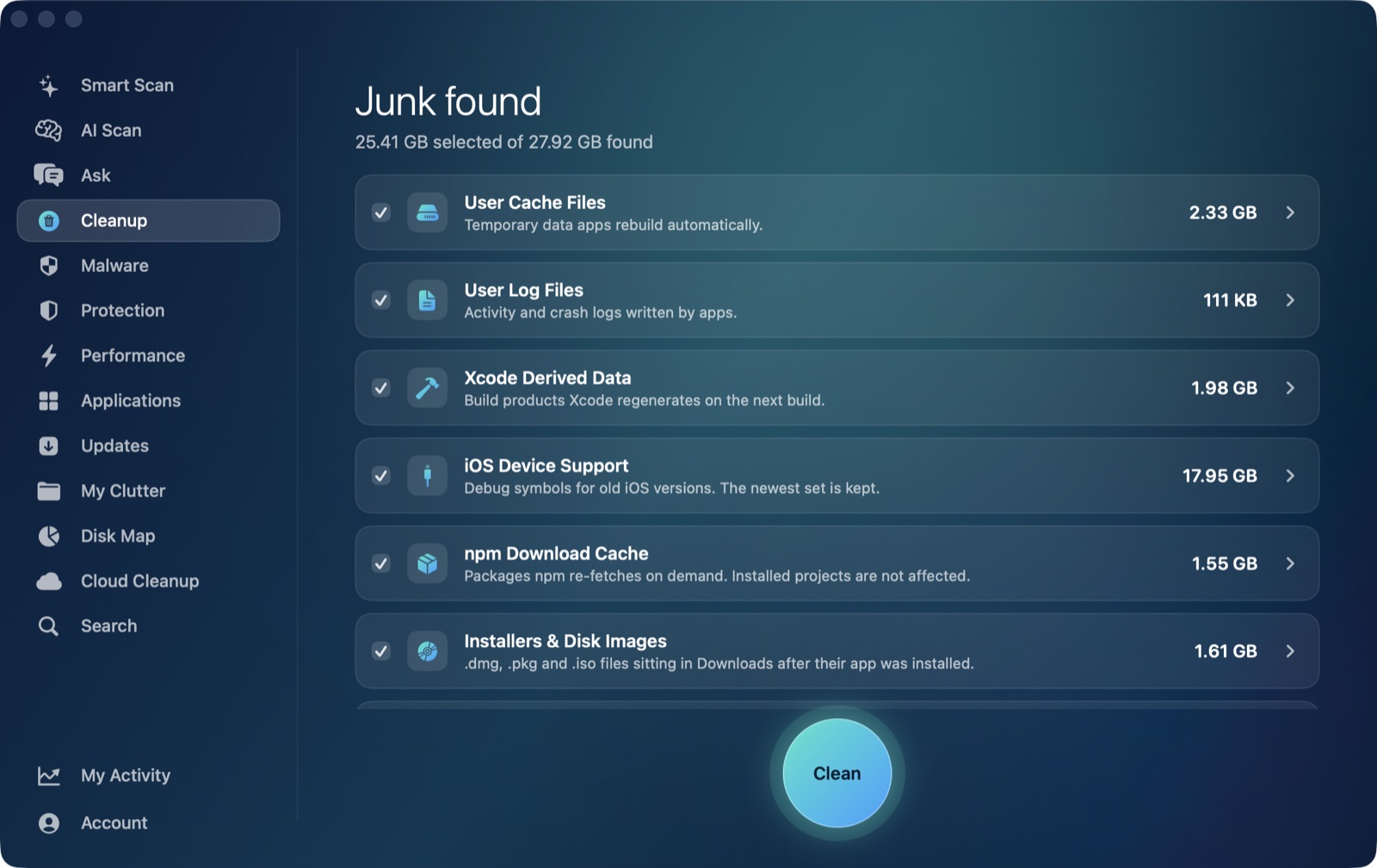
This is squarely what the Cleanup module's installers & disk images category exists for — one of its auto-clean-eligible categories, alongside user caches and logs, specifically covering installer packages and .dmg files that have already done their job and are just sitting there afterward. Running that category, together with user caches and logs, after an update clears the part of the problem that's actually yours to clear; the snapshot-and-staging space is managed by macOS on its own timeline and isn't something a third-party cleaner should (or safely can) force. Every category is listed by size before anything moves, and like all removal in the app, it goes through a Trash-only remover rather than deleting anything outright.
If the number still looks wrong after that, it's worth reading Mac storage still full after cleaning — that post covers the same "still full" symptom from a different angle: what happens when a cleanup itself doesn't seem to free the space it reports, rather than an update temporarily inflating the total in the first place.
To check what's actually sitting on your Mac after an update — installers, caches, logs, all listed by size before anything moves — AI Mac Cleaner has a 7-day free trial with every feature unlocked and no card required, with plans from $6.99/mo after that. See how it works.
Frequently asked questions
Why is my Mac's storage full right after installing a macOS update?
Updates need extra free space to download installer assets and safely stage the installation, including a rollback safety point. That space is meant to be temporary, but it can take a day or so to fully clear afterward, which is why storage can look tighter immediately after updating than it did before.
Is it safe to delete the macOS installer file after updating?
Once the update has finished successfully and you've confirmed everything is working, yes — the installer's own leftover files and any disk images you downloaded for it are exactly the kind of thing the Cleanup module's installers & disk images category is meant to clear.
How long does it take for storage to go back to normal after an update?
Often within a day, as macOS's background cleanup and its own lazily-computed storage chart catch up. If it's still clearly tight after a couple of days, it's worth running an actual scan rather than continuing to wait.
Is this the same problem as a cleaner not actually freeing space?
No — that's a related but different symptom, covered separately in Mac storage still full after cleaning. This post is specifically about an update temporarily inflating storage through its own installer and staging files, not about a cleanup failing to deliver the space it reported.
Can I speed up macOS reclaiming the rollback snapshot myself?
It's managed automatically on a schedule macOS controls, the same way local Time Machine snapshots are, and isn't something a cleaning app should force on your behalf — giving it a day and checking the categories that are genuinely yours to clear (installers, caches, logs) is the safer and more reliable approach.